




AI Animated Livestream Transition Reel
Make an animated livestream transition reel with Pexo. Show each scene before and after the cut, time the sound, and share one finished demo.
Use Pexo to make an AI call-to-action outro video that fits your edit. Share your last shot, your brand, and one action for your viewer. Review the closing text, voice, and timing together.
Start with the exact words you want viewers to see, like “Watch next,” “Subscribe,” or “See the full demo.” In Pexo’s call-to-action outro video maker, share your logo or colors and where viewers should go next. Use Add Text to Video to place that line where it will be easy to read.

Give Pexo your last shot, exact next action, and destination. Review the final transition and hold the ending long enough to read and act.
What to review
Give Pexo the last shot or the point where the outro should start. Carry a color, sound, or visual detail across the cut so the closing frame feels connected. Then join the outro to your main clip and check the last few seconds at normal speed.
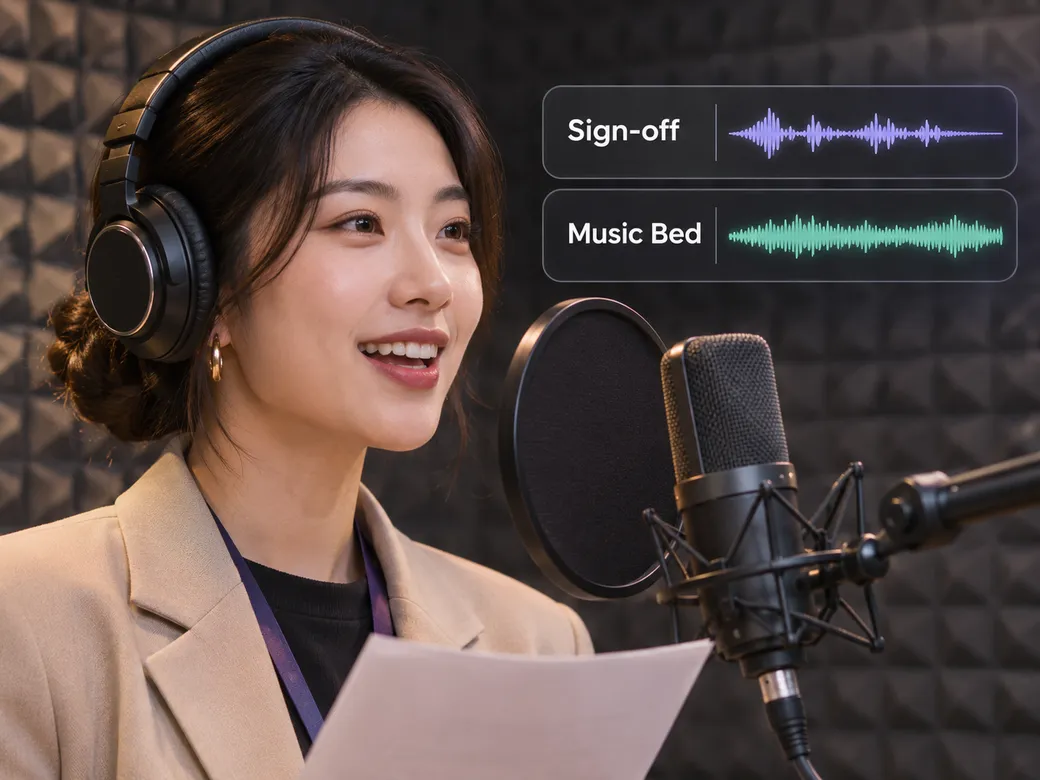
Pick a voice that fits the channel. A warm sign-off works for a creator talking to regular viewers, while a more direct read can suit a product demo. Try a voiceover with the pace you want, keep the music low under it, and bring the bed down gently as the video ends.
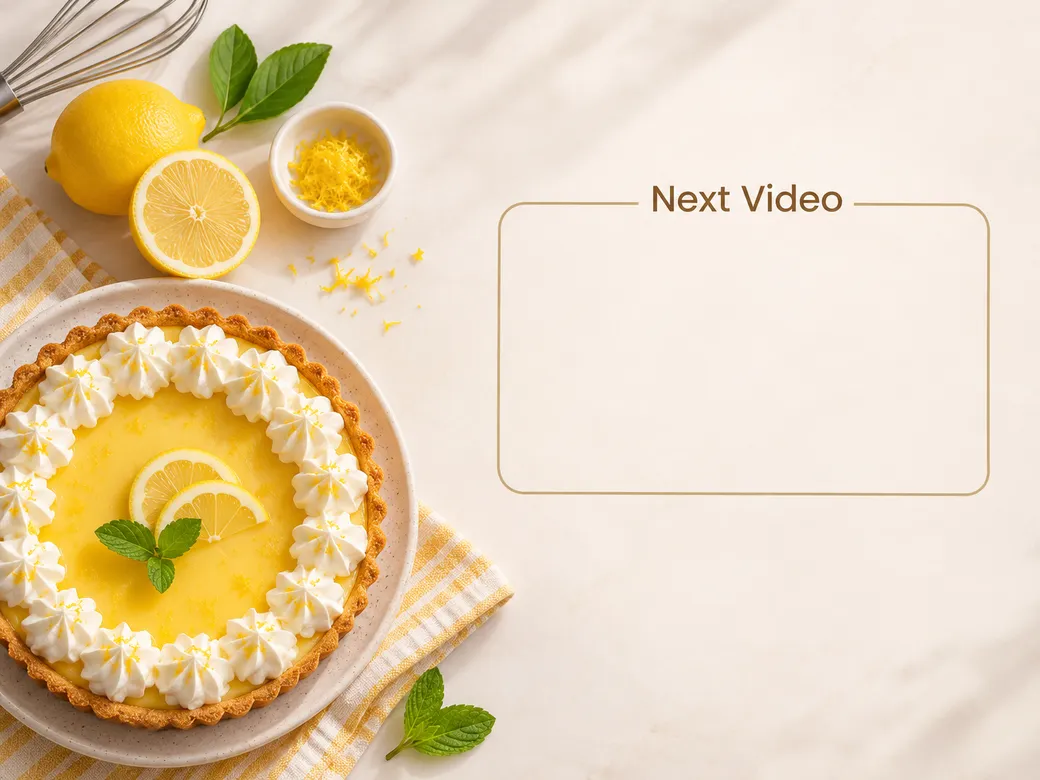
For a YouTube outro, place the headline and logo clear of the area reserved for a video, playlist, or subscribe element. Use the preview in YouTube Studio to check where the clickable end-screen element sits and when it appears. Keep motion away from that area while viewers read the call to action.
Make a 16:9 ending for a YouTube episode, a 9:16 closing clip for a Reel, or a square version for a feed. Ask Pexo to move the text and preview into the space each format gives you. Play the result at phone size to check that the action stays easy to read.
“I want the next episode to feel like a continuation of the one you just watched. I leave the spot for its thumbnail open while my last line finishes.”

“I check the last frame on my phone. The action has to read quickly at that size. I keep one line on screen and give it a little time after the final cut.”

“The closing frame should sound like the rest of the demo. I use the same colors and ask for one next step, like seeing the full walkthrough.”

A call-to-action outro video is the closing segment that directs viewers to a next step. It can be a branded end card or a short closing scene with text, voice, or both. For a series, ask people to watch the next episode. For a demo, point them to a longer walkthrough.
Share your final shot or full clip, the exact call to action, and where the audience will see it. Add your logo, brand colors, and a thumbnail if you have them. Ask Pexo for a short closing segment, then review the timing and text size at the intended playback size.
Design the closing clip in Pexo, then add clickable elements in YouTube Studio. YouTube allows an end screen during the final 5 to 20 seconds of eligible videos that are at least 25 seconds long. Use its preview to position the elements where your outro has room. See YouTube’s end-screen requirements.
Use Pexo to create the visual ending, set your exact call to action, and match the closing audio to the rest of the video. Share your existing assets or ask for a new preview shot. Use Kling AI 3.0 if you want to animate a still before the closing text appears.
An outro lands the final message and gives viewers a next step. A YouTube intro sets up the episode and helps viewers recognize the channel. Use the same type or colors across both, then put the most important action on the outro, where viewers have the context to decide what to watch next.
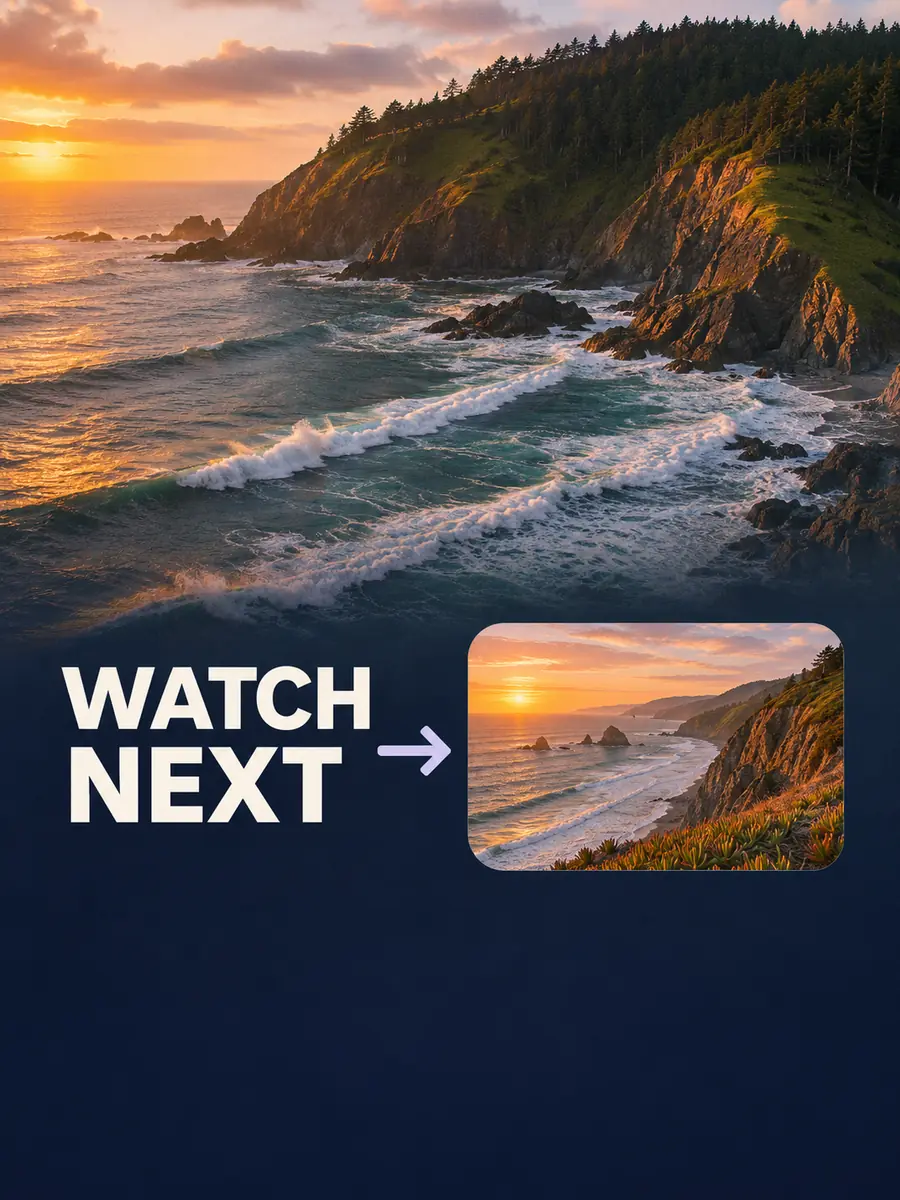
Use subject + action + camera movement + setting + style. Try ‘Show a sunlit headland from a slow aerial pullback. Fade into a navy end frame with Watch Next on the left and room for a video on the right. Keep the music gentle and hold the final frame for six seconds.’
Bring your last shot and the action you want viewers to take. Make a closing clip that feels like the end of the same video.
Make an animated livestream transition reel with Pexo. Show each scene before and after the cut, time the sound, and share one finished demo.
Make a family travel video with Pexo. Put trip photos and phone clips in order, keep the sounds you remember, and share a short recap with your family.
Make a video art short film with Pexo. Turn a visual idea or reference image into an experimental piece with deliberate movement, pacing, and sound.
Make a game intro video with Pexo. Use the first playable world to tell a clear story. Organize your material and review the finished video.
Make a claymation and puppet animation short with Pexo. Organize your own material and edit a focused review cut. Check the details before you share it.
Make an animated music video with Pexo. Use one visual motif that follows the music to tell a clear story. Organize your material and review the finished video.
Make a corporate mini-documentary with Pexo. Organize your own material and edit a focused review cut. Check the details before you share it.
Make an animated story video for kids with Pexo. Organize your own material and edit a focused review cut. Check the details before you share it.