

AI Animated Livestream Transition Reel
Make an animated livestream transition reel with Pexo. Show each scene before and after the cut, time the sound, and share one finished demo.
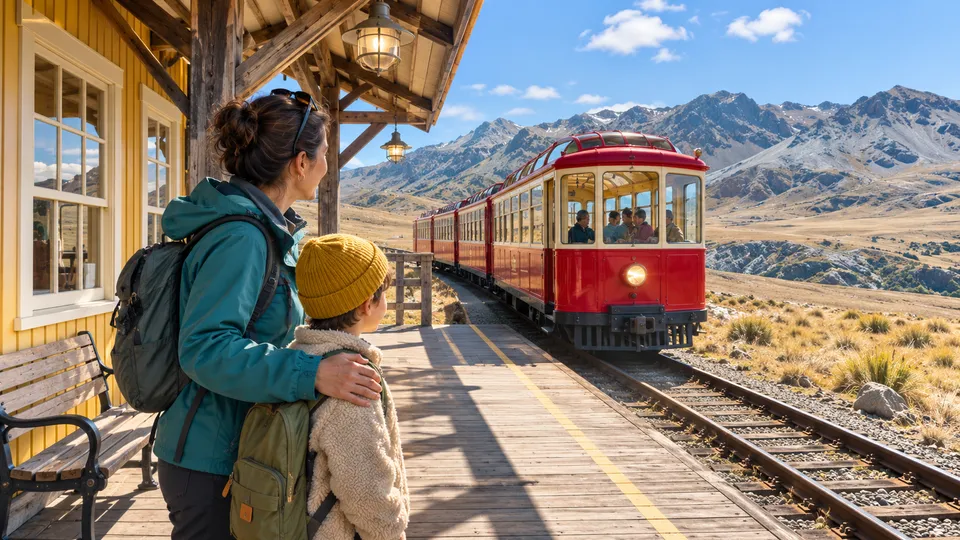
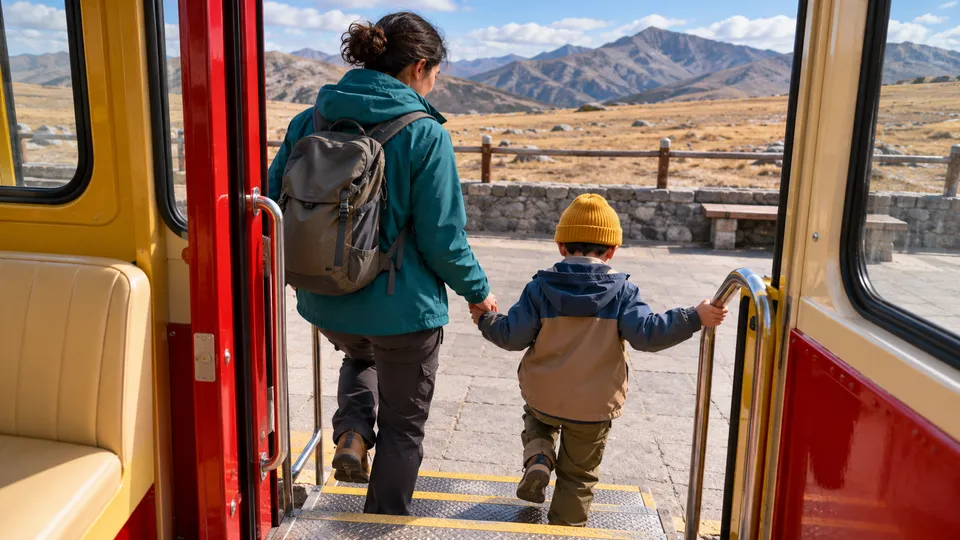
Make an AI family travel video from the photos and phone clips you already have. Put the stops in order, keep the candid moments, and share the trip as one short film.
Bring your favorite photos and a few seconds of phone footage from every stop. In Pexo’s family travel video maker, say what opens the story, which candid moment gets a full shot, and where to end. Use Merge Videos to arrange clips and check that the recap feels like one trip.
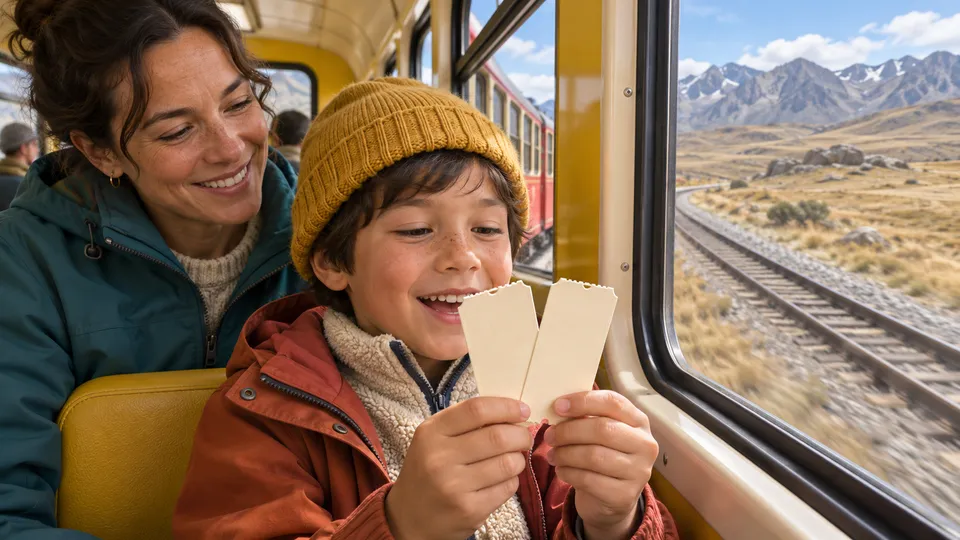
Give Pexo an ordered list of stops, selected clips and photos, and any original sounds you want to retain. Watch the first cut without checking the itinerary.
What to review
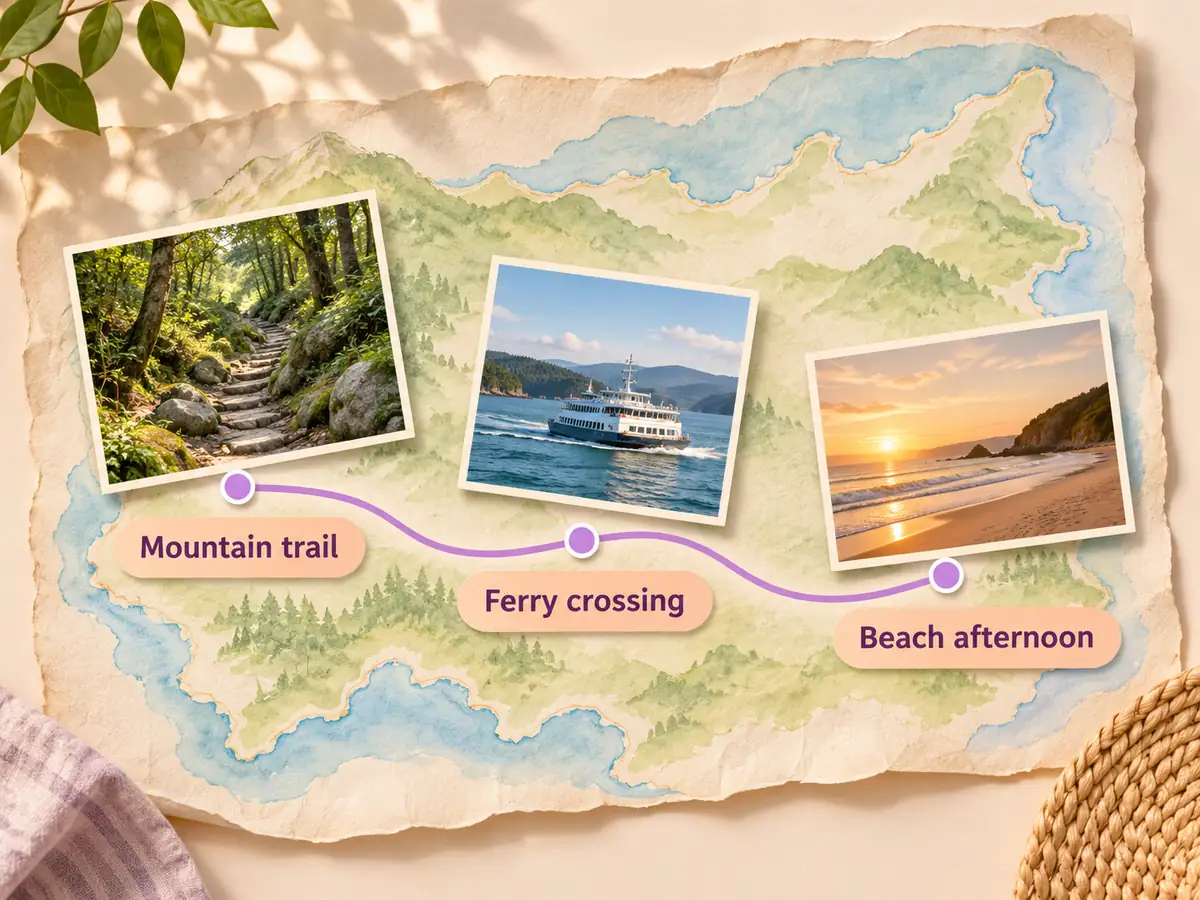
Give Pexo an ordered list of stops and the photos that belong with each one. Use a short place label when the location changes. Let an arrival shot, a small detail, and a candid reaction do the work for each chapter. Group repeated photos together and choose the moment that tells the story best.
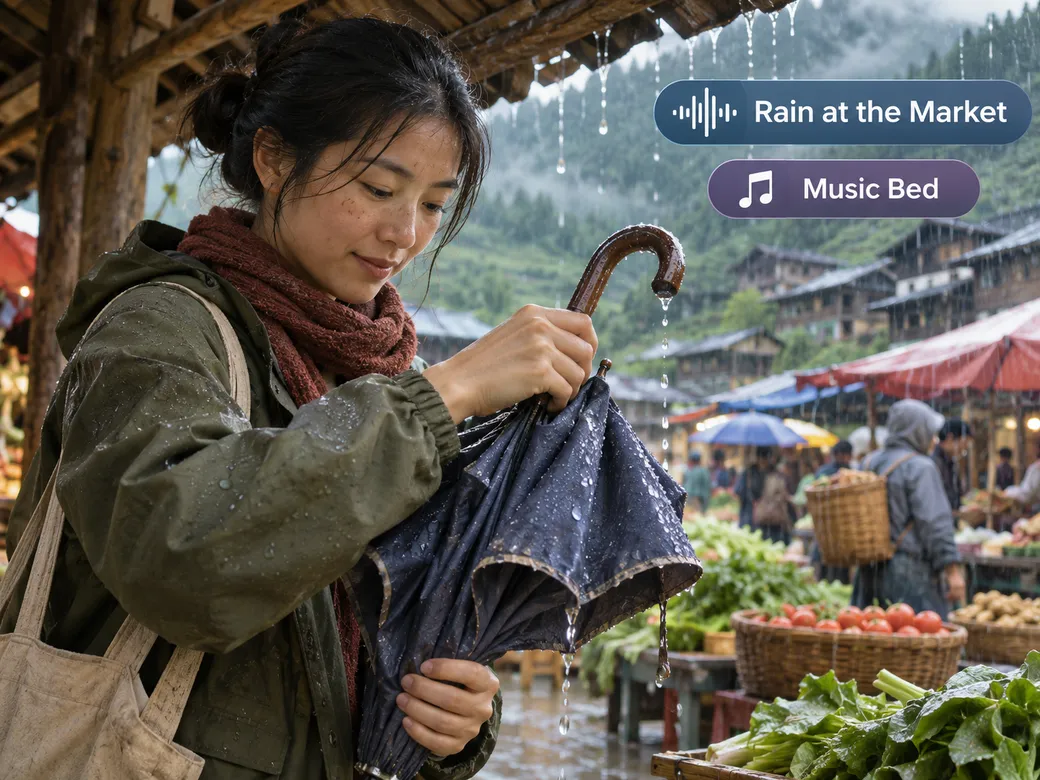
A ferry bell or the first wave hitting the beach can bring a place back faster than a title. Keep those moments audible, then use music generation to try a light acoustic bed. Review the mix once through and lower the music when someone is speaking.
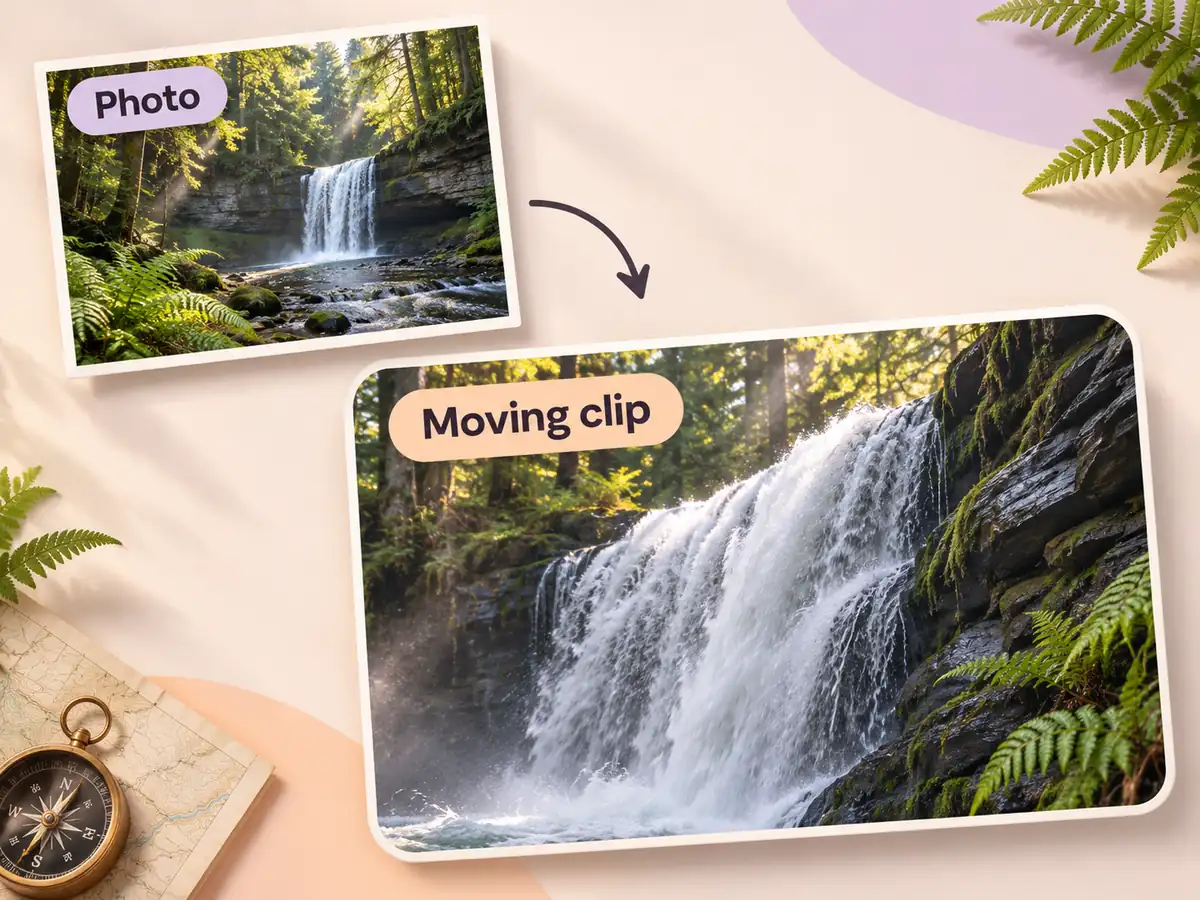
Hold a favorite still long enough to take in the view, then cut to a short moving clip from the same stop. Use a gentle push on a scenic photo if it suits the footage. Keep the faces and details you want to remember in view, and check the cut at normal speed.
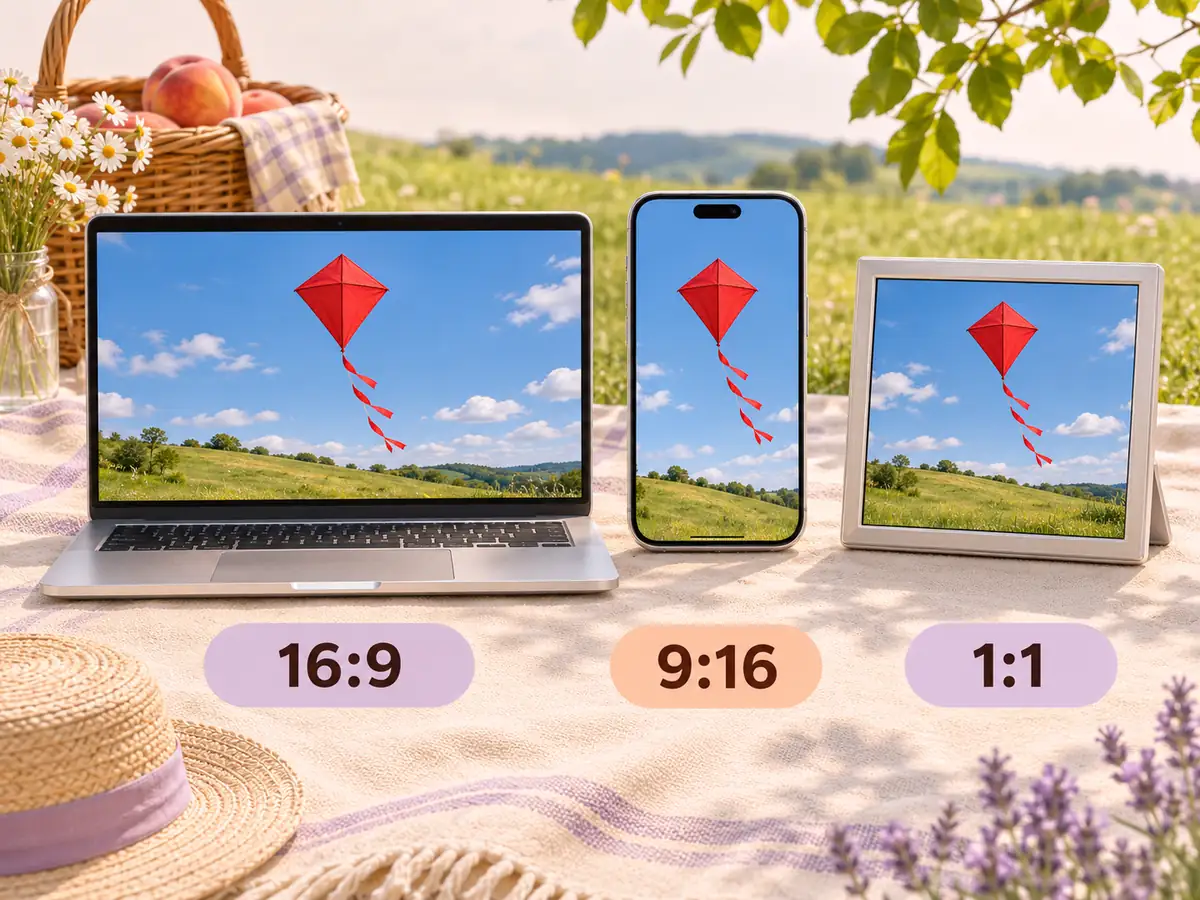
Use 16:9 for the full recap you will watch together, 9:16 for a vertical cut, or 1:1 for a square feed. Reframe around the important moment in every version. Protect faces and place names as you crop, and check them on the screen your family will use.
“I like seeing where we were and what we did when we got there. Leave the small moments in, like the laugh at the end of the ferry clip.”

“A few clear stops are enough to carry a short recap. I group the clips by place and let one strong shot open each chapter.”

“The trip feels more personal when I hear some of the original place. I save a little quiet for those sounds before bringing the score back.”

A family travel video is a short recap made from a trip’s photos, recordings, and favorite moments. It can follow the stops in order or build around a shared experience, such as a weekend by the coast. Many families use it as a keepsake or make a shorter cut to share.
Yes. Upload the shots you want to include and tell Pexo which clips carry the story. Group material by stop and give important stills enough time on screen. If you mix landscape and vertical footage, review the framing so everyone important stays in the picture when the shot changes.
Pick the unmissable moments first, such as a greeting or the reaction at a first stop. Ask Pexo to give the original audio room in those shots, then raise the music in scenic sections. Watch the draft with the sound on and check that each spoken line is still clear.
Pexo helps you arrange a trip from your camera roll, choose a score, and revise the recap in conversation. If you want an optional moving shot from a landscape photograph, use Kling AI 3.0 to try a gentle push. Review that shot beside your real clips before keeping it.
A family travel video can follow a route using stills, recorded moments, and sounds from the trip. A video slideshow centers on an organized sequence of photos. Use a slideshow when most of your material is still and add selected clips when a movement or sound belongs to the memory.
Use subject + action + camera movement + setting + style. Try ‘Use our supplied ferry, boardwalk, and beach clips in that order. Hold the family photo at the end. Add one slow push on the coastal landscape still, use natural colors, and bring in soft guitar between spoken moments.’
Start with the photos and clips you keep coming back to. Turn them into a recap that your family can watch together.
Make an animated livestream transition reel with Pexo. Show each scene before and after the cut, time the sound, and share one finished demo.
Make a video art short film with Pexo. Turn a visual idea or reference image into an experimental piece with deliberate movement, pacing, and sound.
Make a call-to-action outro video with Pexo. Turn your final shot into a branded closing clip that asks viewers to watch next, subscribe, or learn more.
Make a game intro video with Pexo. Use the first playable world to tell a clear story. Organize your material and review the finished video.
Make a claymation and puppet animation short with Pexo. Organize your own material and edit a focused review cut. Check the details before you share it.
Make an animated music video with Pexo. Use one visual motif that follows the music to tell a clear story. Organize your material and review the finished video.
Make a corporate mini-documentary with Pexo. Organize your own material and edit a focused review cut. Check the details before you share it.
Make an animated story video for kids with Pexo. Organize your own material and edit a focused review cut. Check the details before you share it.