



AI Family Travel Video
Make a family travel video with Pexo. Put trip photos and phone clips in order, keep the sounds you remember, and share a short recap with your family.
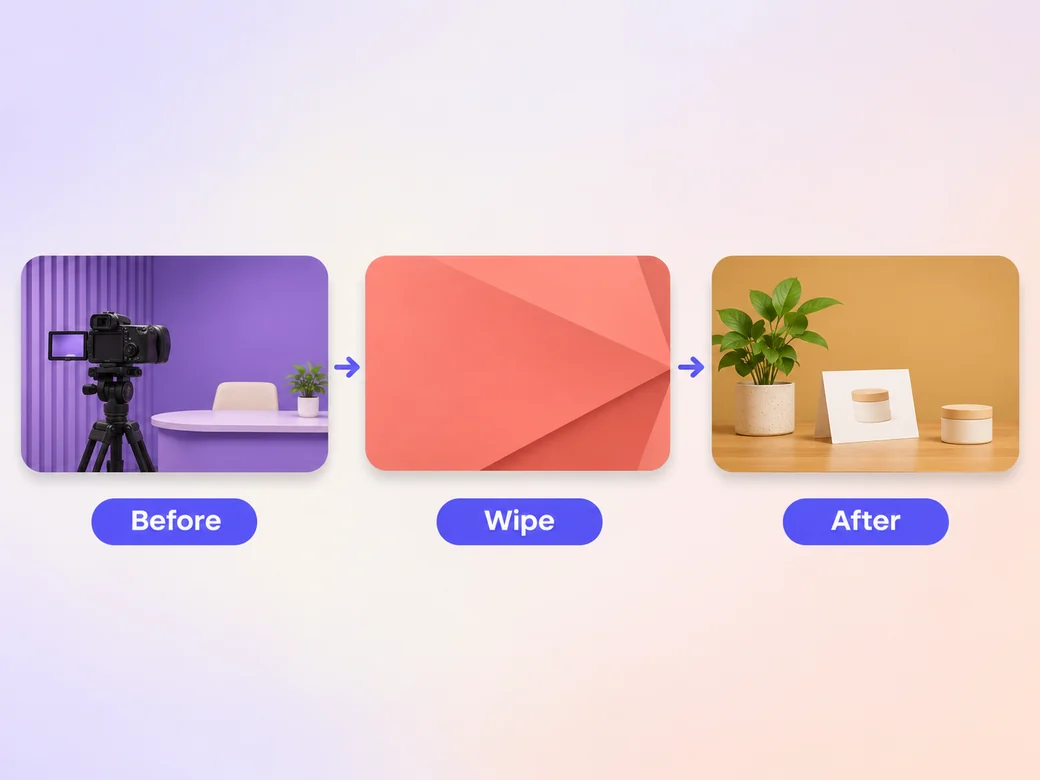
Make an AI animated livestream transition reel. Show the scene before the switch, play the animated wipe, and reveal the scene that follows. Share the finished reel as a portfolio sample or send it to your stream team for feedback.
Bring a still or short clip from both sides of each switch. In Pexo’s animated livestream transition reel maker, describe where the animation starts, which direction it moves, and what it should reveal. Use Merge Videos to put several scene switches into one review cut in the order you want.

Give Pexo the two source scenes, the direction of the transition, and a cue if you need one. Review each switch with both scenes visible in the edit.
What to review
Share your stream palette and one reference shape, such as a diagonal corner or a rounded frame. Use it across the switch from warm-up to gameplay, the midstream break, and the return to your host. Try motion graphics for a simple visual that still reads at a glance.
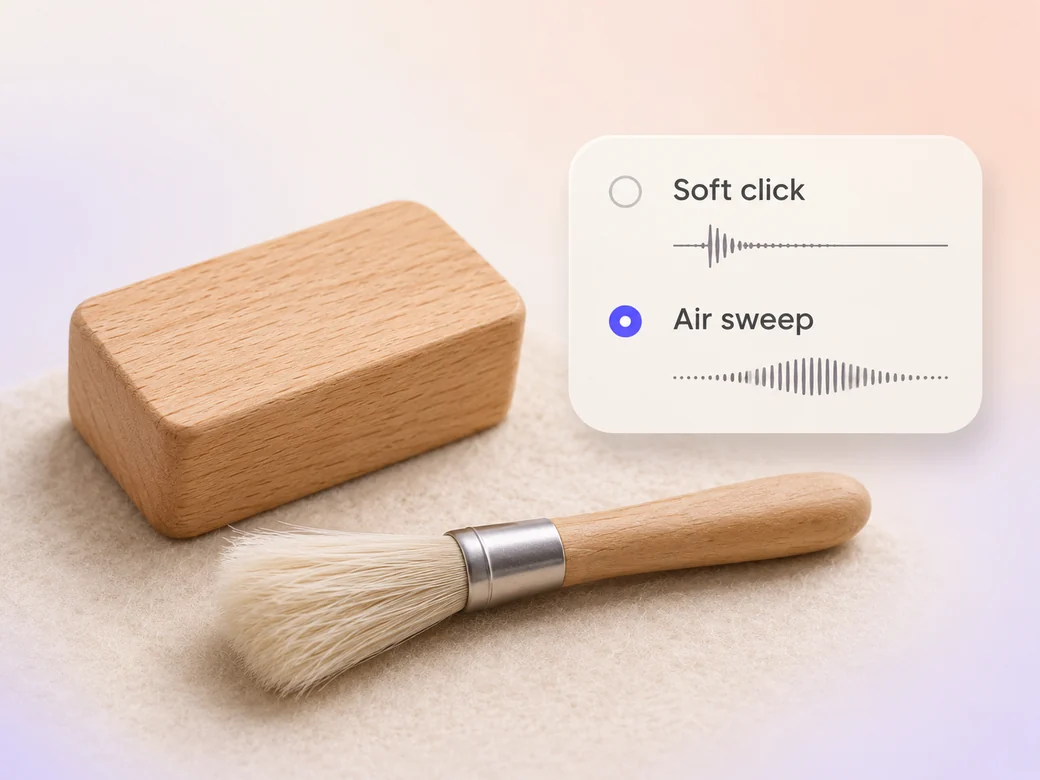
Try a soft click for a quick cut or a short air sweep for a slower wipe. Tell Pexo where the cue should land and leave room for the host’s voice when the next scene starts. Listen once with dialogue and once without it to check whether the cue fits.
Hold the first scene for a beat so viewers know where they are. Review the point where the animation masks the cut, then give the incoming scene a moment to settle. Repeat that rhythm for each transition so the reel shows the differences without rushing through them.
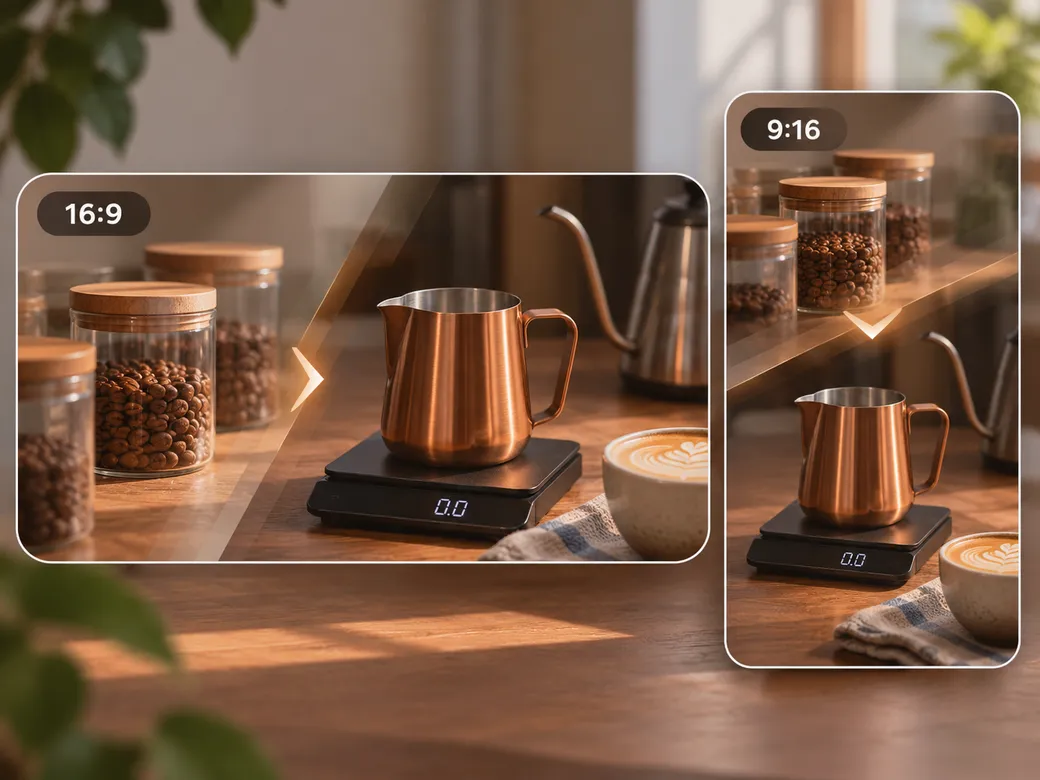
Make a 16:9 reel for a portfolio or team review. For a 9:16 promo, show your strongest transition and frame the main action close to the middle. Preview both cuts to verify that their starting and ending scenes are instantly recognizable.
“I should know which scene I’m leaving and which one comes next. A short hold after the reveal gives me time to see it.”

“I check what repeats across the reel. One shape and a few colors can connect very different scenes. I still want each transition to have a purpose.”

“I listen for the cue when the wipe hits and then for the first word from the host. The effect should leave space for that word.”

An animated livestream transition reel is a finished video that demonstrates how you move from one broadcast scene to another. Each example plays the outgoing scene, the animation, and the incoming scene in sequence. Streamers can share the reel to get feedback, show their channel style, or feature the work in a portfolio.
Start with a screenshot or short clip of each scene, the order you want, and any brand colors or graphics you own. Describe where the animation starts and what it should reveal. A brief such as ‘wipe from the host view to gameplay in one beat’ gives the first cut a clear goal.
The reel is a rendered preview for sharing and review. A live OBS stinger uses its own compatible transition video and a configured switch point. Use the reel to agree on how the scene change should look, then prepare a separate stinger and test it in OBS before the broadcast.
Pexo can assemble example scenes, generate transition visuals, and revise the order or timing after you review the cut. For a standalone animation between clips, you can try Kling AI 3.0 with a reference frame. Review the result at normal playback speed and check that the next scene is still recognizable.
An animated starting-soon screen welcomes people while they wait for a live broadcast. The transition reel shows how one scene turns into another and usually includes several examples. Pair them when you want the waiting screen and the later scene switches to share a visual identity.
Use subject + action + camera movement + setting + style. Try ‘With a locked wide camera, start on the microphone desk in a small stream studio. Sweep a matte coral triangle across the frame and reveal a purple arcade game. Keep the shapes graphic and place a soft click at the cut.’
Start with two scene references and the shape you want to animate. Review the switch, then add the next one to your reel.
Make a family travel video with Pexo. Put trip photos and phone clips in order, keep the sounds you remember, and share a short recap with your family.
Make a video art short film with Pexo. Turn a visual idea or reference image into an experimental piece with deliberate movement, pacing, and sound.
Make a call-to-action outro video with Pexo. Turn your final shot into a branded closing clip that asks viewers to watch next, subscribe, or learn more.
Make a game intro video with Pexo. Use the first playable world to tell a clear story. Organize your material and review the finished video.
Make a claymation and puppet animation short with Pexo. Organize your own material and edit a focused review cut. Check the details before you share it.
Make an animated music video with Pexo. Use one visual motif that follows the music to tell a clear story. Organize your material and review the finished video.
Make a corporate mini-documentary with Pexo. Organize your own material and edit a focused review cut. Check the details before you share it.
Make an animated story video for kids with Pexo. Organize your own material and edit a focused review cut. Check the details before you share it.