

AI Flat Animated Logo Intro
Make a flat animated logo intro with Pexo. Use a reusable logo bumper for a series to tell a clear story. Organize your material and review the finished video.
Make an AI filmed 360-degree vr tour video. Make a standard video preview from exported views of a filmed 360-degree tour. Use your own source material and review the view from one room to the next in the finished cut.
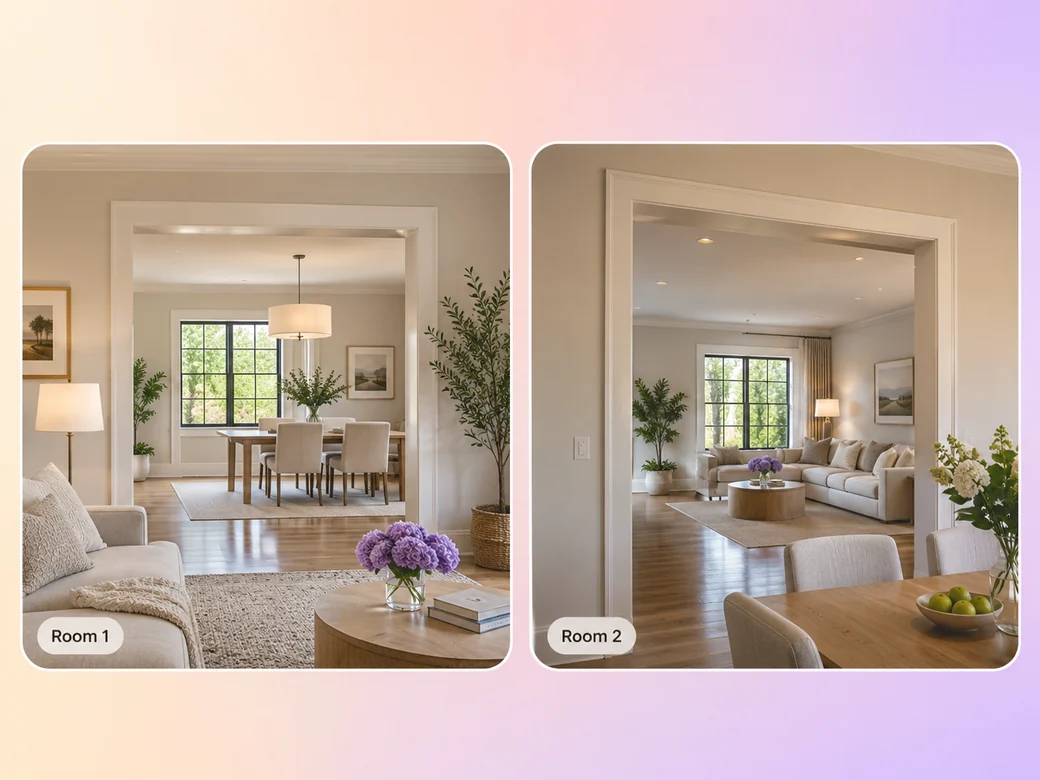
Bring flat clips exported from the filmed tour, room labels, and the approved property order. In Pexo’s filmed 360-degree vr tour video maker, give the opening just enough space to identify the view from one room to the next, then make the connection between rooms the center of the first cut. Use Merge Videos with your brief, then review the view from one room to the next.
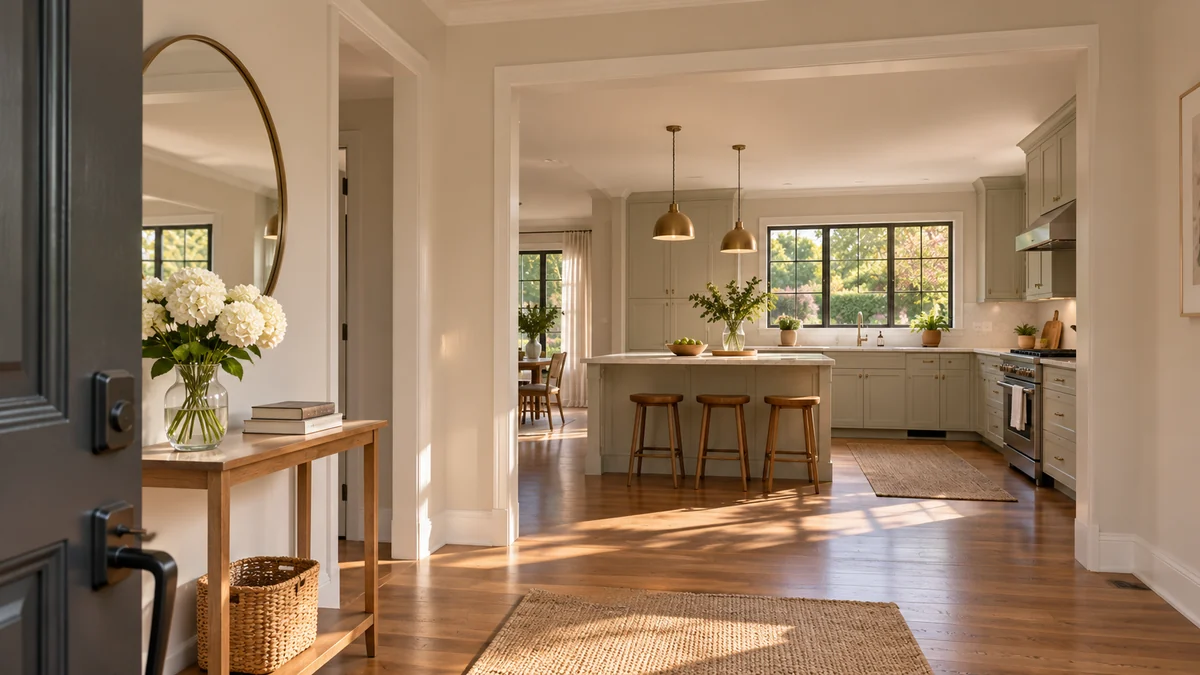
The result preview focuses on the view from one room to the next. Review each of the checks before shaping the complete cut.
What to review
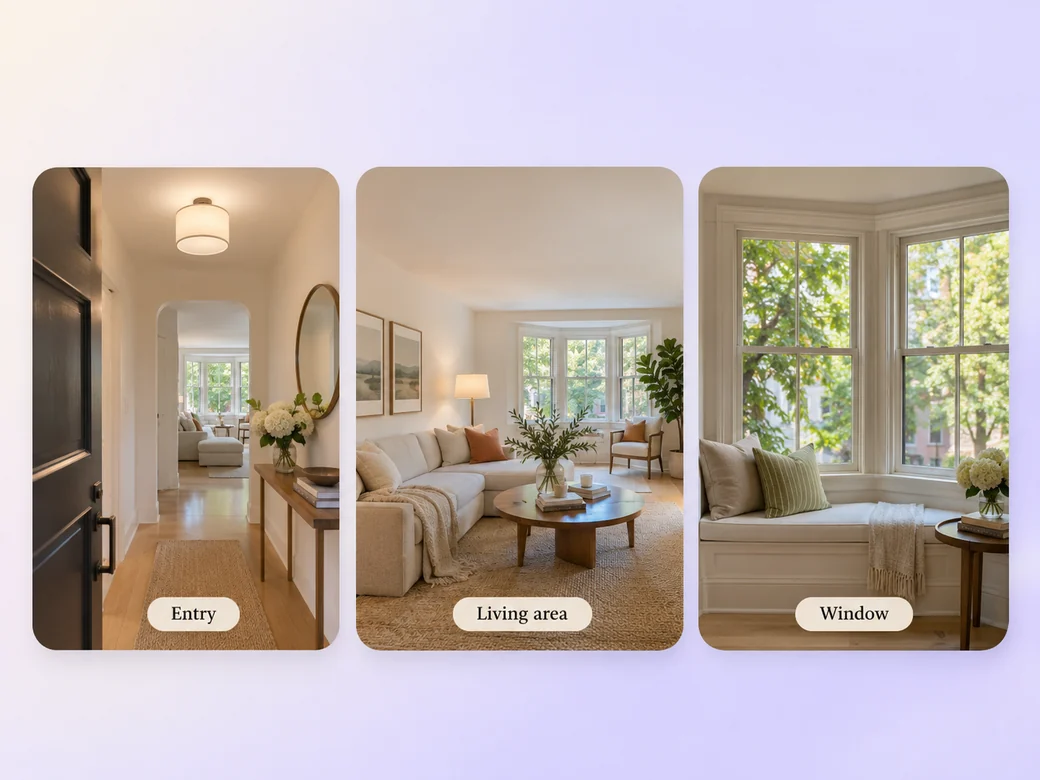
Export a few normal camera views from the original tour in the order a visitor would enter. Keep the exact room boundaries and fixtures visible. Use a reverse angle when it explains how two spaces connect.
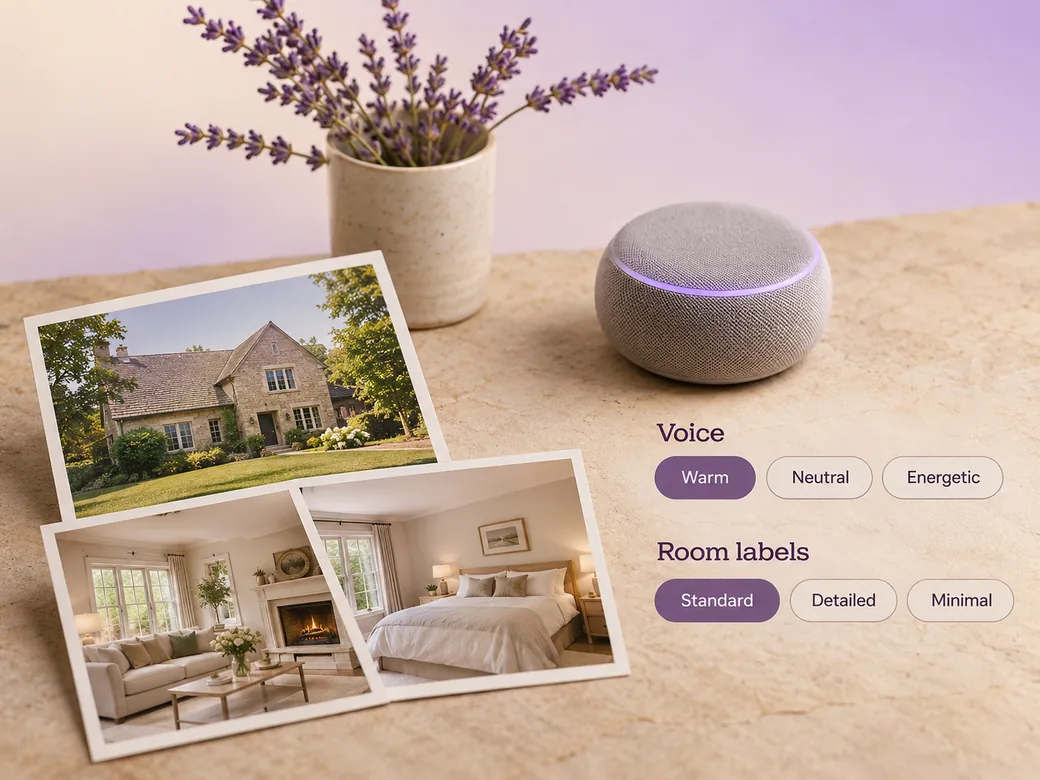
Use one short voice line to explain how the spaces connect, or show a clear room label. Keep music low below narration. Check all names, room details, and visible contents against the approved tour. Use Music Generation to try the treatment and listen against the actual pictures.
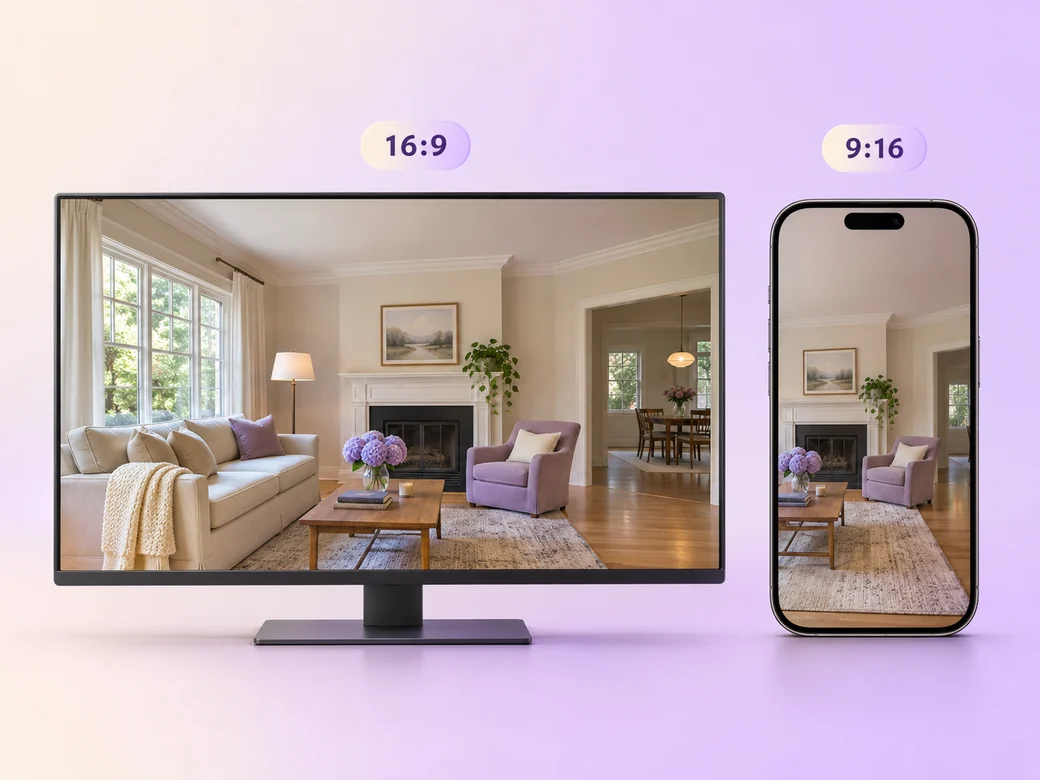
Review the standard preview on a phone or desktop. Keep the original, correctly formatted 360-degree video for interactive playback and use the compatible hosting and metadata workflow for it.
Use a 16:9 preview for a property page, or focus a portrait excerpt on a single room. Keep the original spherical master for the interactive player so the listing can offer both viewing formats.
“In Pexo, I check whether the rooms appear in their actual order. A preview should preserve the path from the doorway to the next view.”

“I only add room facts I can verify from the listing and tour. The edit should help people recognize the actual property.”

“I keep the exported preview and the full interactive video separate. A viewer can choose the format that works on their device.”

A filmed 360-degree vr tour video is a finished edit that helps you make a standard video preview from exported views of a filmed 360-degree tour. It can be prepared for a property listing, showing preview, or sharing link, with enough context for the viewer to follow the view from one room to the next. Choose a few moments that improve the final result and give each one time to read before the next cut.
Bring flat clips exported from the filmed tour, room labels, and the approved property order. Give each source a short name that describes where it belongs, and include any exact wording that should appear. Tell Pexo which part matters most and how you plan to show it. That gives you a clear first version to review.
This workflow uses flat excerpts to produce a standard video preview. Preserve the original 360-degree recording and configure the immersive viewer, spatial metadata, and encoding in the tools you use for the actual tour. Keep the preview labeled and share the full compatible tour separately where people can interact with it.
Pexo helps organize your material and revise the framing, pacing, and sound after you review the result. Use the source that documents your actual subject for the view from one room to the next. For a separate illustrative insert or visual opening, Kling AI 3.0 can animate an approved reference image.
A preview of a filmed 360-degree tour draws from views already captured for the original property walkthrough. A real estate video can be built from conventional footage, stills, or narration. Use the preview to orient people with a short sequence of recorded rooms before they open the complete interactive tour.
Use subject + action + camera movement + setting + style. Try ‘Use approved references for the view from one room to the next. Start at the doorway, then show the next room. Start wide and move closer when the main action begins. Keep the original texture and colors in the scene. Let the final room hold, then point viewers to the full tour.’
Bring flat clips exported from the filmed tour, room labels, and the approved property order. Start with the view from one room to the next and review the first cut at the intended size.
Make a flat animated logo intro with Pexo. Use a reusable logo bumper for a series to tell a clear story. Organize your material and review the finished video.
Make an e-learning slideshow video with Pexo. Organize your own material and edit a focused review cut. Check the details before you share it.
Make an animated nft pass and ticket reveal video with Pexo. Organize your own material and edit a focused review cut. Check the details before you share it.
Make a course explainer video with Pexo. Organize your own material and edit a focused review cut. Check the details before you share it.
Make a website preview video with Pexo. Use a product-filter walkthrough to tell a clear story. Organize your material and review the finished video.
Make an animated e-learning video with Pexo. Use a customer handoff scenario to tell a clear story. Organize your material and review the finished video.
Make an e-learning lesson video with Pexo. Organize your own material and edit a focused review cut. Check the details before you share it.
Make a narrated powerpoint lesson video with Pexo. Use your exported slide sequence to tell a clear story. Organize your material and review the finished video.