


AI Flat Animated Logo Intro
Make a flat animated logo intro with Pexo. Use a reusable logo bumper for a series to tell a clear story. Organize your material and review the finished video.
Make an AI course explainer video. Edit existing lesson materials into a clear explanation. Use your own source material and review the example that connects the explanation to the result in the finished cut.
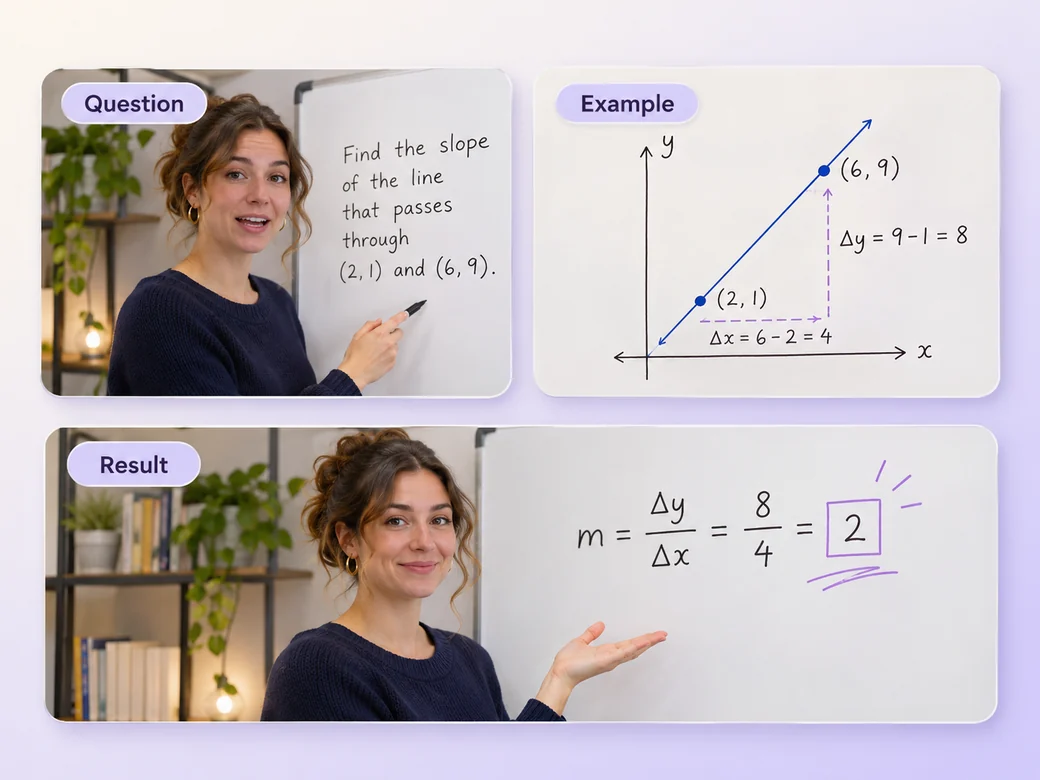
Bring an existing class recording, the approved demonstration, and slides that support one concept. In Pexo’s course explainer video maker, give the opening just enough space to identify the example that connects the explanation to the result, then make the key explanation the center of the first cut. Use Merge Videos with your brief, then review the example that connects the explanation to the result.

The result preview focuses on the example that connects the explanation to the result. Review each of the checks before shaping the complete cut.
What to review
Select the pieces that establish the question and give the answer. Cut repeated directions and pauses after the learner understands them. Keep situations where the instructor’s next action depends on something shown earlier.
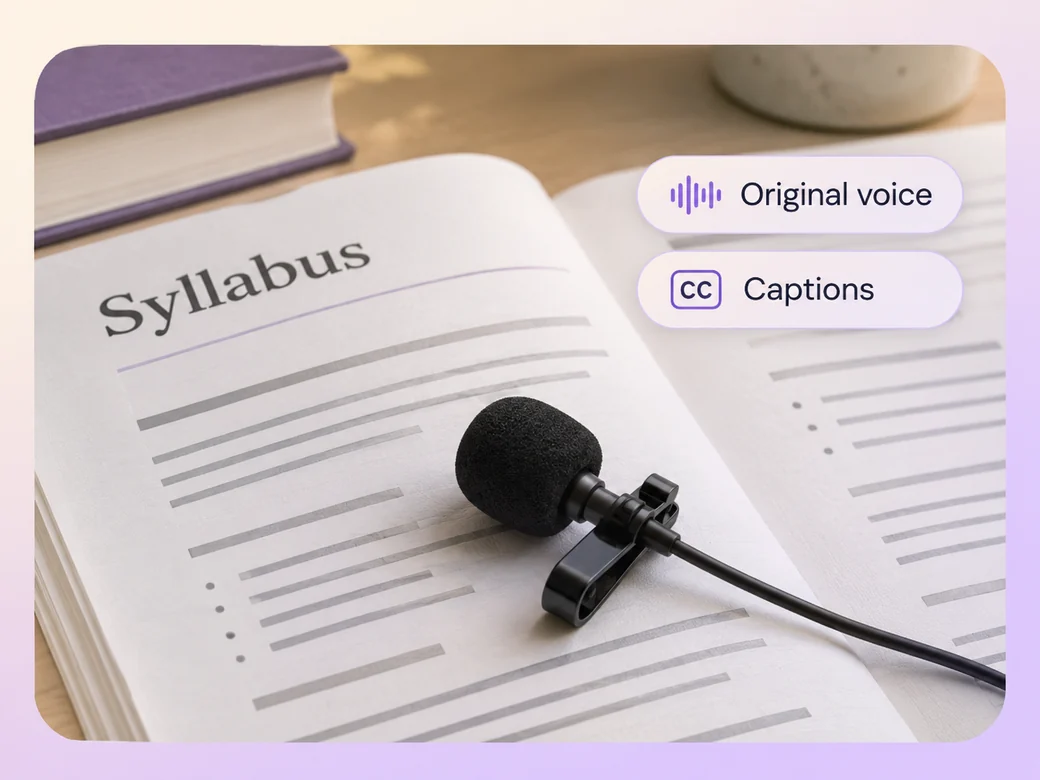
Keep the voice that goes with the demonstration and reduce distracting changes in volume. Read captions against the actual recording and retain any necessary pronunciation or wording from the lesson.
Close with the direct takeaway from the recorded example. Leave time for the last title or question, and prepare one optional shorter cut where the complete idea still fits.
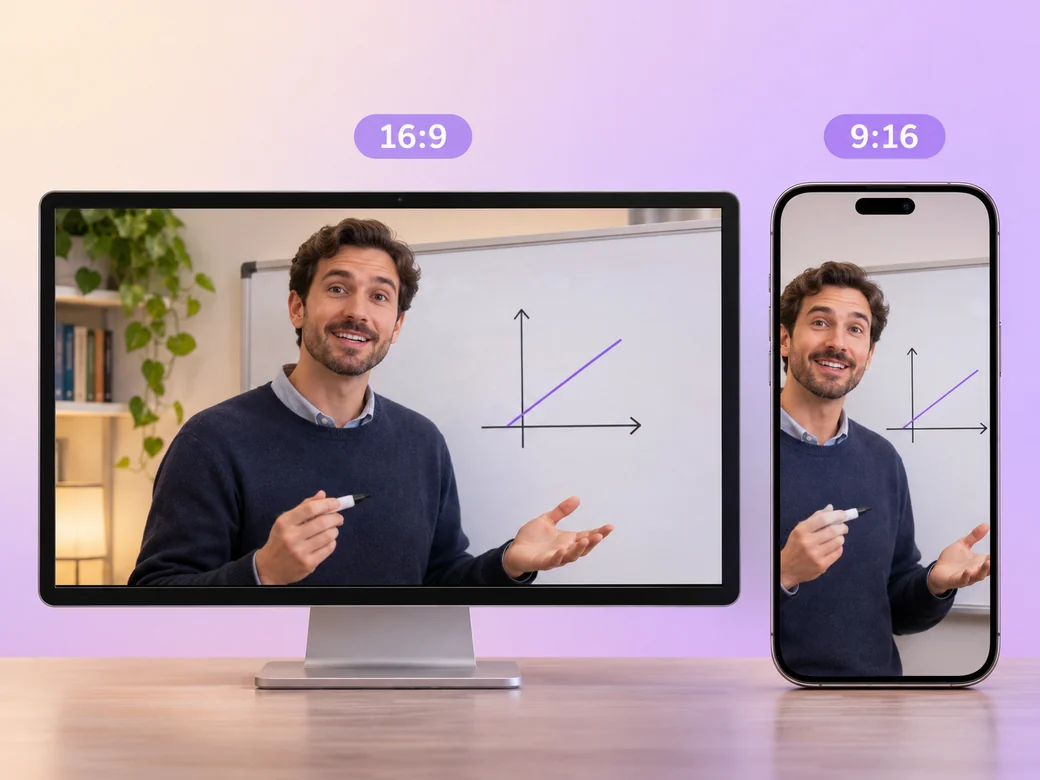
Keep a wide cut for a lesson resource, syllabus page, or learning portal. For a 9:16 excerpt, retain the example that connects the explanation to the result and review how it fits on a phone. Check the start and the last frame at the intended size and give any text enough time to read.
“In Pexo, I keep the line that makes the question clear. The shorter explanation should work even if the viewer missed the lecture.”

“I listen for the instructor’s original example. The captions should retain the terms used in the class.”

“I check the last slide connects to the question from the beginning. The clip needs an answer before it ends.”

A course explainer video is a finished edit that helps you edit existing lesson materials into a clear explanation. It can be prepared for a lesson resource, syllabus page, or learning portal, with enough context for the viewer to follow the example that connects the explanation to the result. Choose a few moments that improve the final result and give each one time to read before the next cut.
Bring an existing class recording, the approved demonstration, and slides that support one concept. Give each source a short name that describes where it belongs, and include any exact wording that should appear. Tell Pexo which part matters most and how you plan to show it. That gives you a clear first version to review.
Start with one idea the viewer should understand. Keep the first explanation that introduces it, the demonstration that makes it clear, and the immediate outcome. Remove repeated instructions when the learner can still follow the example, and check the shorter edit without relying on context from the original lecture.
Pexo helps organize your material and revise the framing, pacing, and sound after you review the result. Use the source that documents your actual subject for the example that connects the explanation to the result. For a separate illustrative insert or visual opening, Kling AI 3.0 can animate an approved reference image.
A course explainer video explains one concept from actual course materials for people who want a focused view. A tutorial video primarily walks the viewer through a procedure. Choose the course explainer when the point is to understand why an example works before applying it in a longer lesson.
Use subject + action + camera movement + setting + style. Try ‘Use the footage or approved visual references for the example that connects the explanation to the result. Start with the question before the instructor’s worked example. Start with a clear establishing frame, move closer when the main action begins, and keep the original colors and texture. Select the pieces that establish the question and give the answer. Close on one line from the approved material.’
Bring an existing class recording, the approved demonstration, and slides that support one concept. Start with the example that connects the explanation to the result and review the first cut at the intended size.
Make a flat animated logo intro with Pexo. Use a reusable logo bumper for a series to tell a clear story. Organize your material and review the finished video.
Make a filmed 360-degree vr tour video with Pexo. Organize your own material and edit a focused review cut. Check the details before you share it.
Make an e-learning slideshow video with Pexo. Organize your own material and edit a focused review cut. Check the details before you share it.
Make an animated nft pass and ticket reveal video with Pexo. Organize your own material and edit a focused review cut. Check the details before you share it.
Make a website preview video with Pexo. Use a product-filter walkthrough to tell a clear story. Organize your material and review the finished video.
Make an animated e-learning video with Pexo. Use a customer handoff scenario to tell a clear story. Organize your material and review the finished video.
Make an e-learning lesson video with Pexo. Organize your own material and edit a focused review cut. Check the details before you share it.
Make a narrated powerpoint lesson video with Pexo. Use your exported slide sequence to tell a clear story. Organize your material and review the finished video.