
AI Flat Animated Logo Intro
Make a flat animated logo intro with Pexo. Use a reusable logo bumper for a series to tell a clear story. Organize your material and review the finished video.
Make an AI website preview video. Make a website preview from one clear visitor task. Use your own source material and review a product-filter walkthrough in the finished cut.
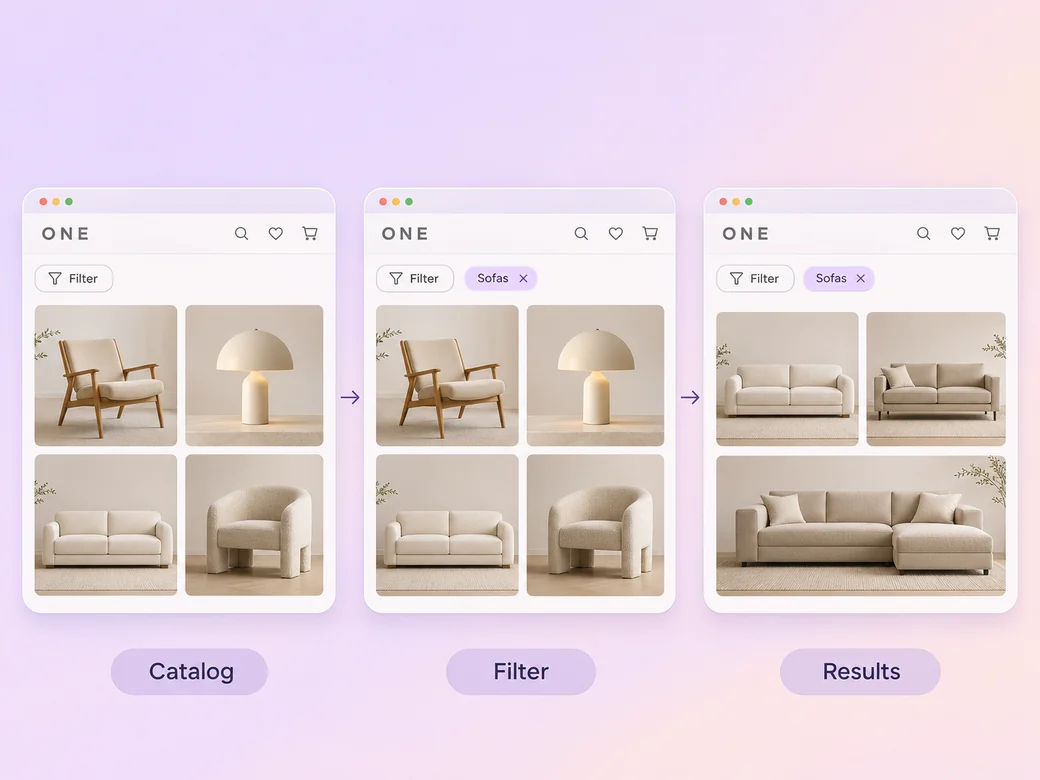
Bring a recording from the approved website, the key user goal, and the final page state. In Pexo’s website preview video maker, give the opening just enough space to identify a product-filter walkthrough, then make the changed result list the center of the first cut. Use Merge Videos with your brief, then review a product-filter walkthrough.
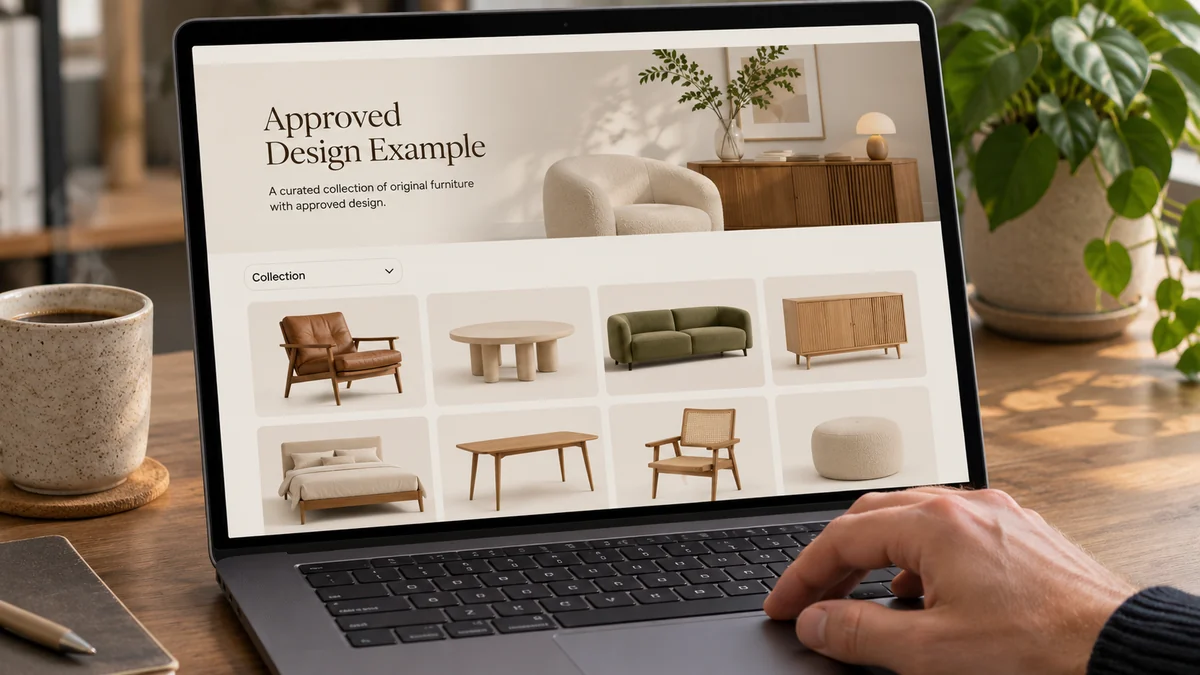
The result preview focuses on a product-filter walkthrough. Review each of the checks before shaping the complete cut.
What to review
Use the actual website view to introduce the task. Show the key click or scroll, then hold over the result. Keep the address, personal details, or internal data out of view if they are not meant for the audience.
Write short directions based on the real menu or page labels. If you record a voice, keep it plain and time it to the cursor action. Let the page state explain small jumps when the video plays without sound. Use Music Generation to try the treatment and listen against the actual pictures.
Export an overview when context needs the width, and create a separate close-up around the important interaction. Verify the current responsive view before showing the website on phones.
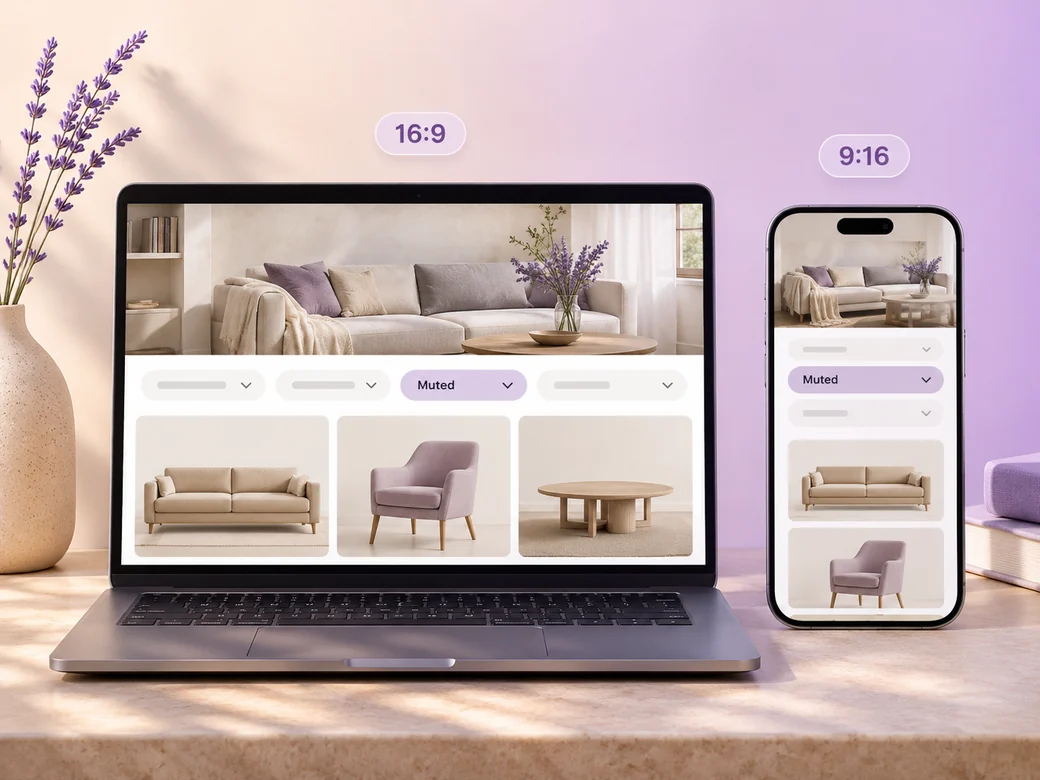
Keep a wide cut for a sales page, release update, or internal review. For a 9:16 excerpt, retain a product-filter walkthrough and review how it fits on a phone. Check the start and the last frame at the intended size and give any text enough time to read.
“In Pexo, I check whether the viewer can see the click and the new state. The whole visit should make sense in one pass.”

“I use the names the site actually shows. I listen for terms that could confuse someone seeing the page for the first time.”

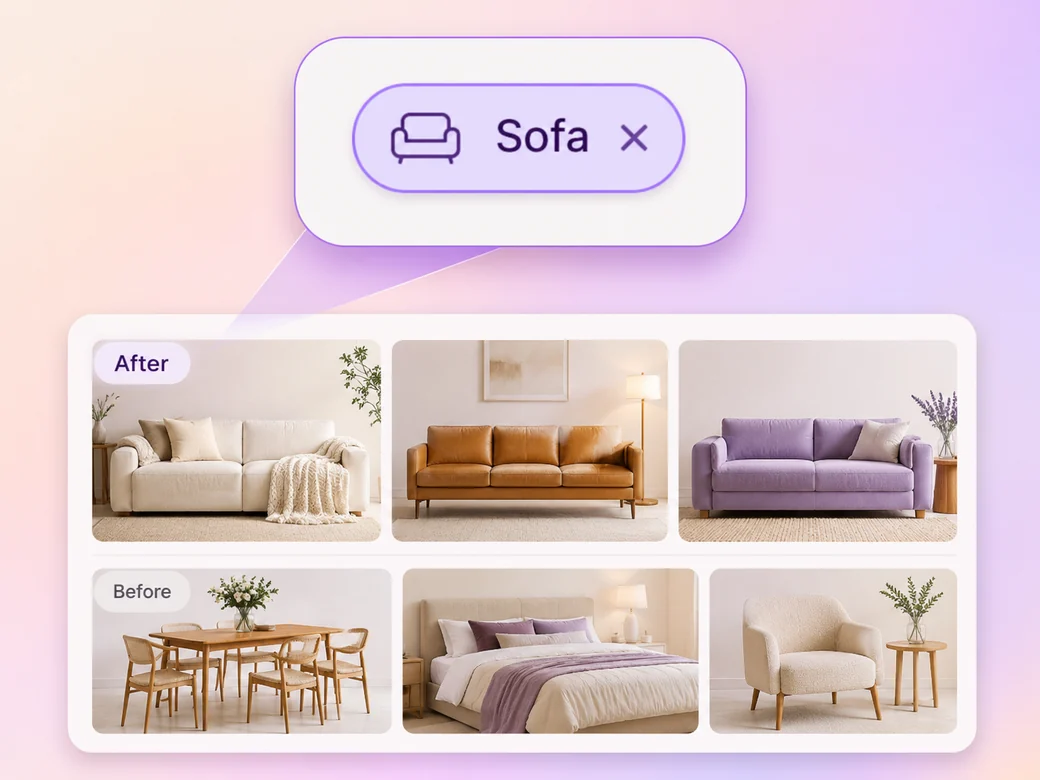
“I look for the important detail when the clip is narrow. The active filter and the result belong in the same crop.”

A website preview video is a finished edit that helps you make a website preview from one clear visitor task. It can be prepared for a sales page, release update, or internal review, with enough context for the viewer to follow a product-filter walkthrough. Choose a few moments that improve the final result and give each one time to read before the next cut.
Bring a recording from the approved website, the key user goal, and the final page state. Give each source a short name that describes where it belongs, and include any exact wording that should appear. Tell Pexo which part matters most and how you plan to show it. That gives you a clear first version to review.
Record the version that is approved for the intended audience, and keep a note of when it was captured. Re-record the specific section if the action or content changes. Review the final preview against the current page so the video presents a path that a viewer can actually follow.
Pexo helps organize your material and revise the framing, pacing, and sound after you review the result. Use the source that documents your actual subject for a product-filter walkthrough. For a separate illustrative insert or visual opening, Kling AI 3.0 can animate an approved reference image.
A website preview video shows how a visitor uses an existing page or product surface. A website launch video announces a new site and may focus on the date, brand, and value of the release. Use a preview when a short interaction communicates more than a broad launch message.
Use subject + action + camera movement + setting + style. Try ‘Use approved references for a product-filter walkthrough. Start on the catalog and show the active filter. Start wide and move closer when the main action begins. Keep the original texture and colors in the scene. Keep the active filter and the result visible.’
Bring a recording from the approved website, the key user goal, and the final page state. Start with a product-filter walkthrough and review the first cut at the intended size.
Make a flat animated logo intro with Pexo. Use a reusable logo bumper for a series to tell a clear story. Organize your material and review the finished video.
Make a filmed 360-degree vr tour video with Pexo. Organize your own material and edit a focused review cut. Check the details before you share it.
Make an e-learning slideshow video with Pexo. Organize your own material and edit a focused review cut. Check the details before you share it.
Make an animated nft pass and ticket reveal video with Pexo. Organize your own material and edit a focused review cut. Check the details before you share it.
Make a course explainer video with Pexo. Organize your own material and edit a focused review cut. Check the details before you share it.
Make an animated e-learning video with Pexo. Use a customer handoff scenario to tell a clear story. Organize your material and review the finished video.
Make an e-learning lesson video with Pexo. Organize your own material and edit a focused review cut. Check the details before you share it.
Make a narrated powerpoint lesson video with Pexo. Use your exported slide sequence to tell a clear story. Organize your material and review the finished video.