

AI Flat Animated Logo Intro
Make a flat animated logo intro with Pexo. Use a reusable logo bumper for a series to tell a clear story. Organize your material and review the finished video.
Make an AI e-learning lesson video. Build a lesson around a skill learners can try. Use your own source material and review a worked example with a clear practice question in the finished cut.
Bring a learning outcome, an approved written example, and a short practice question. In Pexo’s e-learning lesson video maker, give the opening just enough space to identify a worked example with a clear practice question, then make the worked example the center of the first cut. Use Merge Videos with your brief, then review a worked example with a clear practice question.

The result preview focuses on a worked example with a clear practice question. Review each of the checks before shaping the complete cut.
What to review
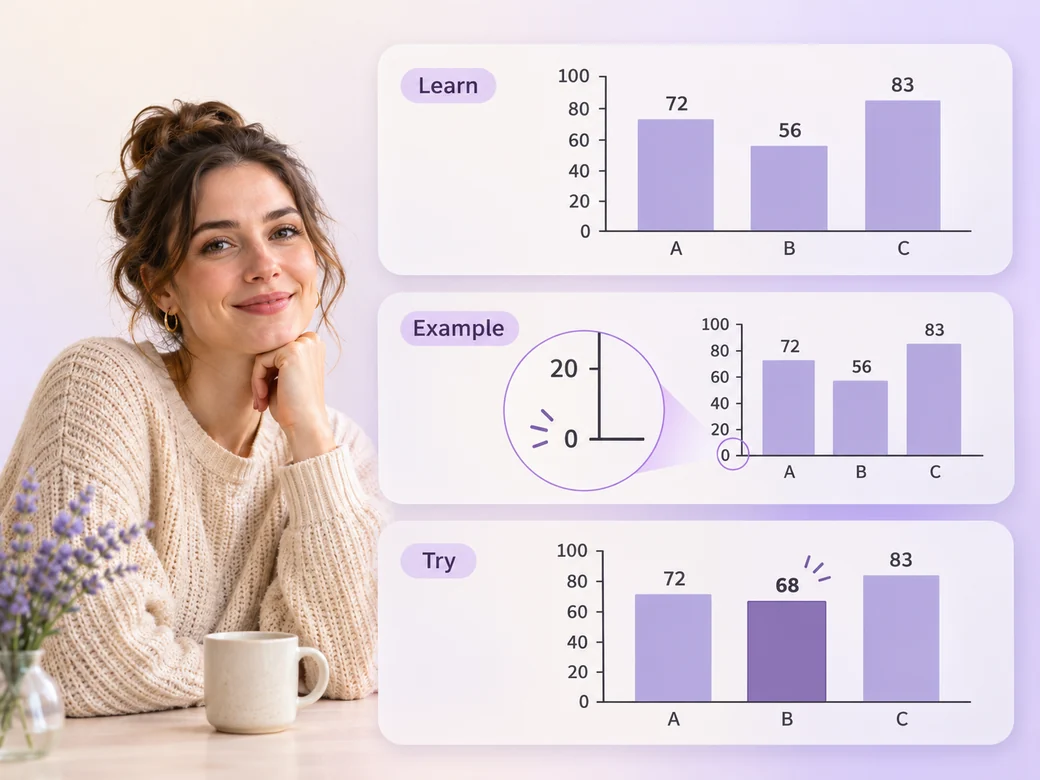
State one task the learner will be able to complete. Work through a real example with enough context for each choice. Close with a similar question and give the learner time to think before showing an answer.
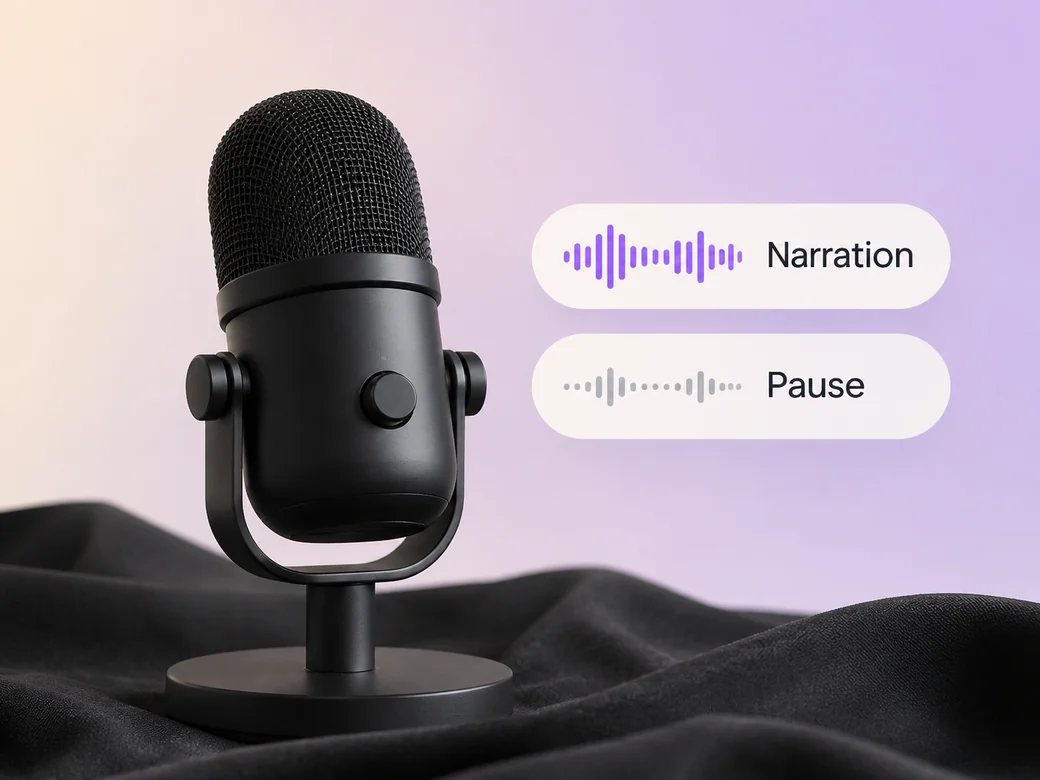
Record the teacher’s explanation or direct a steady instructional voice. Keep necessary terms and pauses intact. Check that key words are clear at ordinary volume and that captions fit the diagram.
Show a similar example with one detail changed. Let learners consider their answer before revealing it. Keep any scoring or tracking in the learning platform that hosts the finished video.
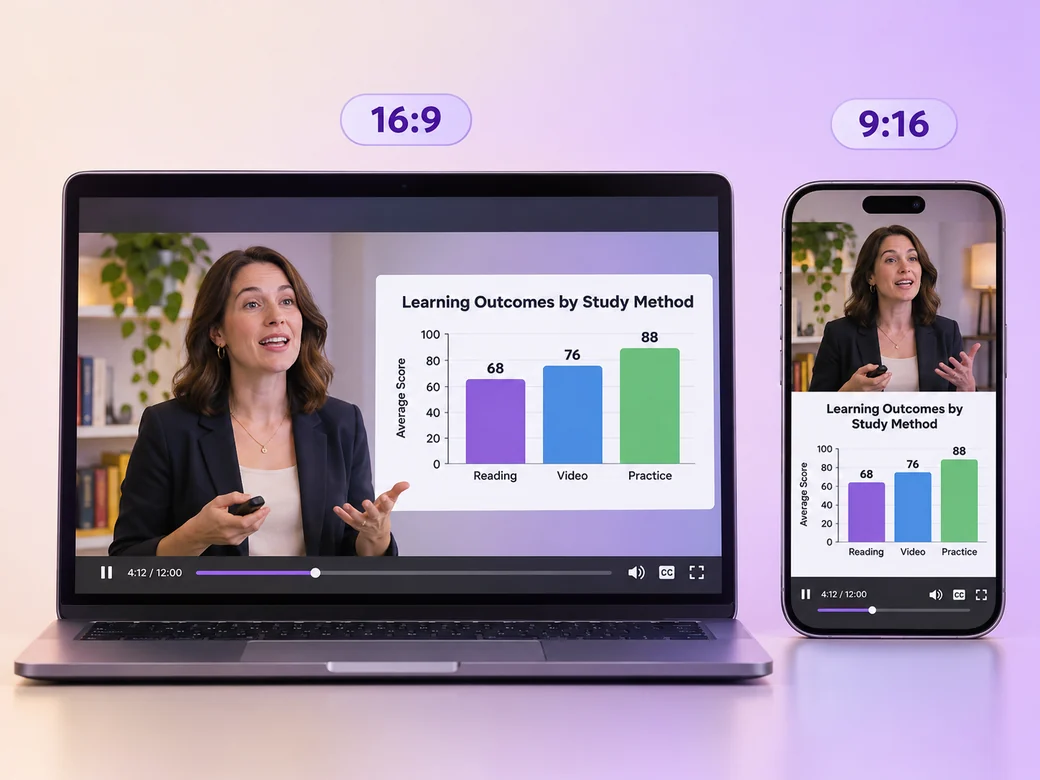
Keep a wide cut for a standalone class module or training portal. For a 9:16 excerpt, retain a worked example with a clear practice question and review how it fits on a phone. Check the start and the last frame at the intended size and give any text enough time to read.
“In Pexo, I can point to the skill learners will practice by the end. The worked example should prepare them to try it.”

“I use a short pause where the learner has to think. I listen back for the key term after the pause.”

“I test the example and question at the intended size. A sentence can be short enough to read while the diagram stays on screen.”

An e-learning lesson video is a finished edit that helps you build a lesson around a skill learners can try. It can be prepared for a standalone class module or training portal, with enough context for the viewer to follow a worked example with a clear practice question. Choose a few moments that improve the final result and give each one time to read before the next cut.
Bring a learning outcome, an approved written example, and a short practice question. Give each source a short name that describes where it belongs, and include any exact wording that should appear. Tell Pexo which part matters most and how you plan to show it. That gives you a clear first version to review.
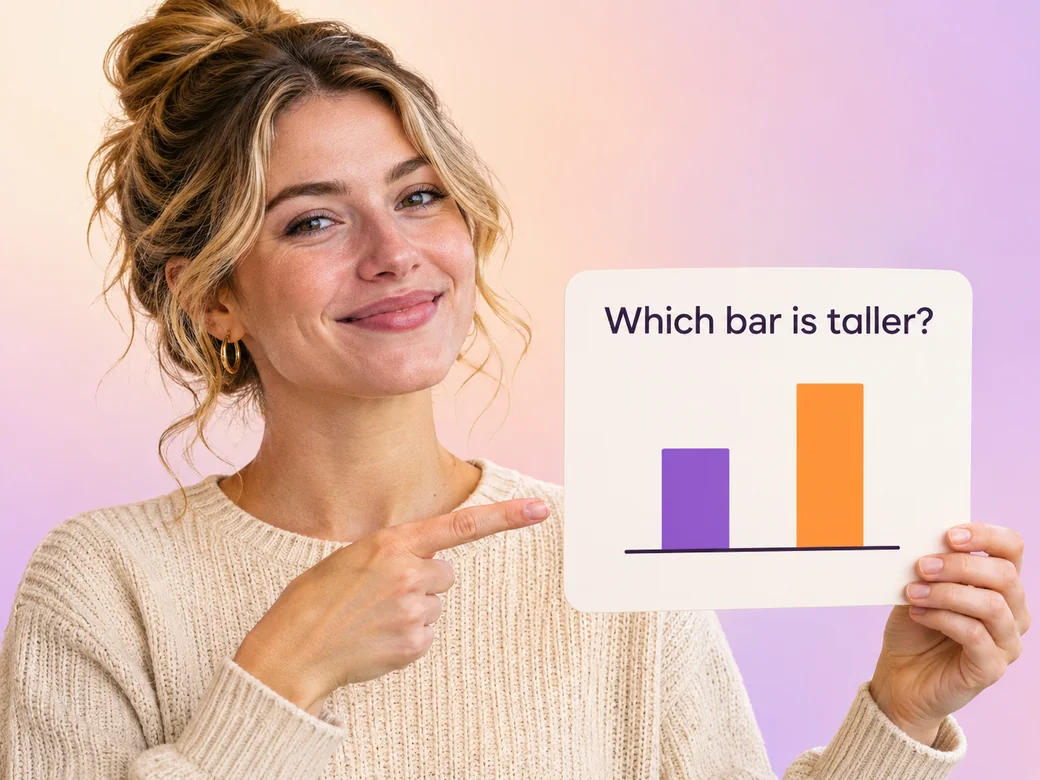
The video can pose a question, leave a pause, and show an answer. Use your learning platform or a separate assessment if you need to collect answers or track progress. Keep the spoken and written question easy to find so learners can pause on it before proceeding.
Pexo helps organize your material and revise the framing, pacing, and sound after you review the result. Use the source that documents your actual subject for a worked example with a clear practice question. For a separate illustrative insert or visual opening, Kling AI 3.0 can animate an approved reference image.
An e-learning lesson video teaches a defined piece of content that a learner can review independently. A training video usually focuses on a role or task within an organization. Use a standalone lesson when the emphasis is on one outcome, an example, and a short check for understanding.
Use subject + action + camera movement + setting + style. Try ‘Use the footage or approved visual references for a worked example with a clear practice question. Show how to read the value on the example axis. Start with a clear establishing frame, move closer when the main action begins, and keep the original colors and texture. State one task the learner will be able to complete. Pause before showing the explanation.’
Bring a learning outcome, an approved written example, and a short practice question. Start with a worked example with a clear practice question and review the first cut at the intended size.
Make a flat animated logo intro with Pexo. Use a reusable logo bumper for a series to tell a clear story. Organize your material and review the finished video.
Make a filmed 360-degree vr tour video with Pexo. Organize your own material and edit a focused review cut. Check the details before you share it.
Make an e-learning slideshow video with Pexo. Organize your own material and edit a focused review cut. Check the details before you share it.
Make an animated nft pass and ticket reveal video with Pexo. Organize your own material and edit a focused review cut. Check the details before you share it.
Make a course explainer video with Pexo. Organize your own material and edit a focused review cut. Check the details before you share it.
Make a website preview video with Pexo. Use a product-filter walkthrough to tell a clear story. Organize your material and review the finished video.
Make an animated e-learning video with Pexo. Use a customer handoff scenario to tell a clear story. Organize your material and review the finished video.
Make a narrated powerpoint lesson video with Pexo. Use your exported slide sequence to tell a clear story. Organize your material and review the finished video.