


AI Flat Animated Logo Intro
Make a flat animated logo intro with Pexo. Use a reusable logo bumper for a series to tell a clear story. Organize your material and review the finished video.
Make an AI e-learning slideshow video. Turn lesson slides into a video with readable examples. Use your own source material and review a slide sequence learners can follow in the finished cut.
Bring approved slide images, the order you teach them, and a short voice script or recording. In Pexo’s e-learning slideshow video maker, give the opening just enough space to identify a slide sequence learners can follow, then make the slide sequence the center of the first cut. Use Merge Videos with your brief, then review a slide sequence learners can follow.
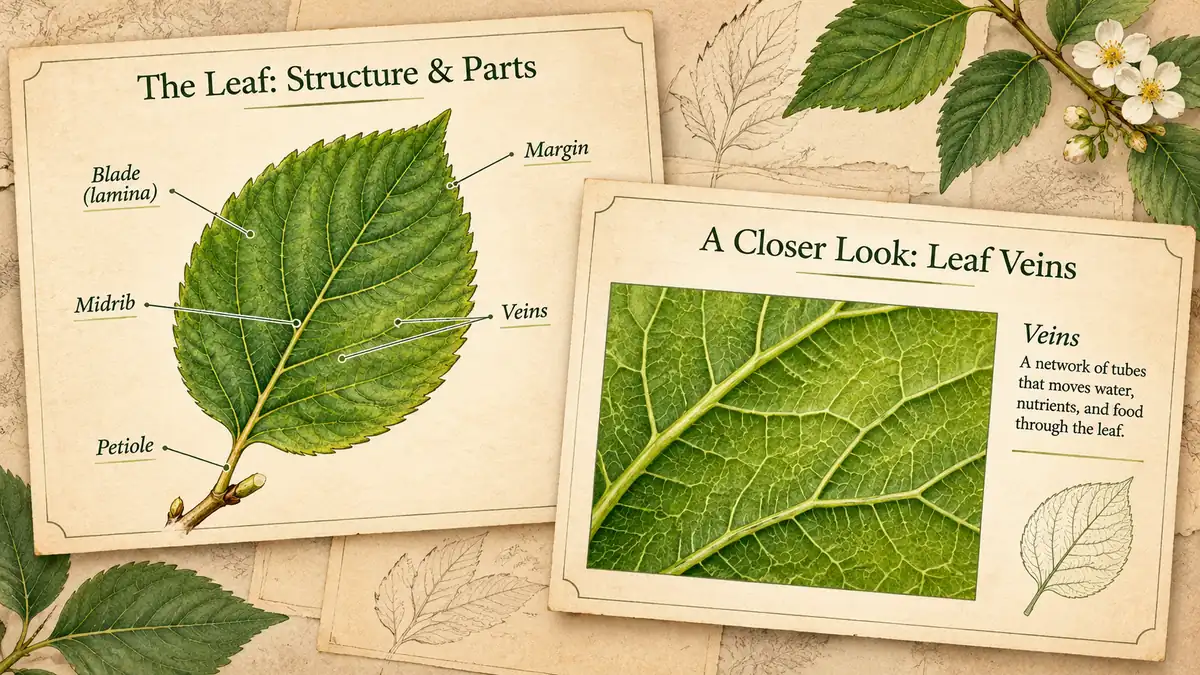
The result preview focuses on a slide sequence learners can follow. Review each of the checks before shaping the complete cut.
What to review
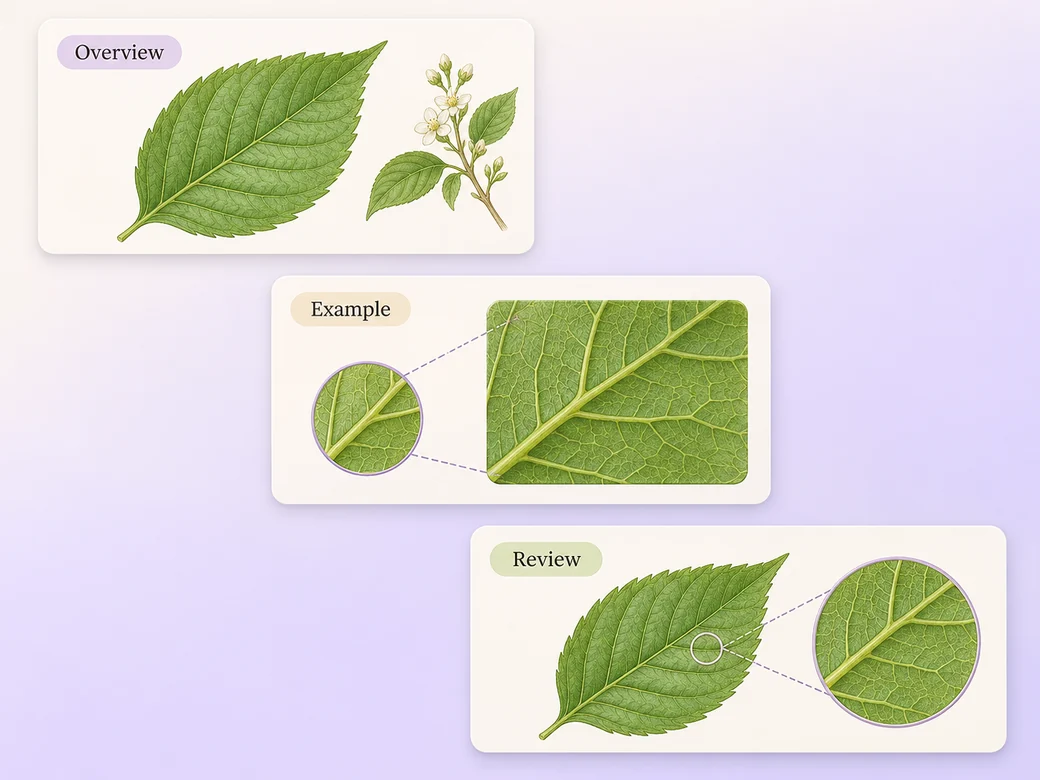
Arrange the images around the lesson objective. Keep a steady pace as the visual changes from a definition to a specific example. Use a split or enlarged crop if a slide mixes several details.
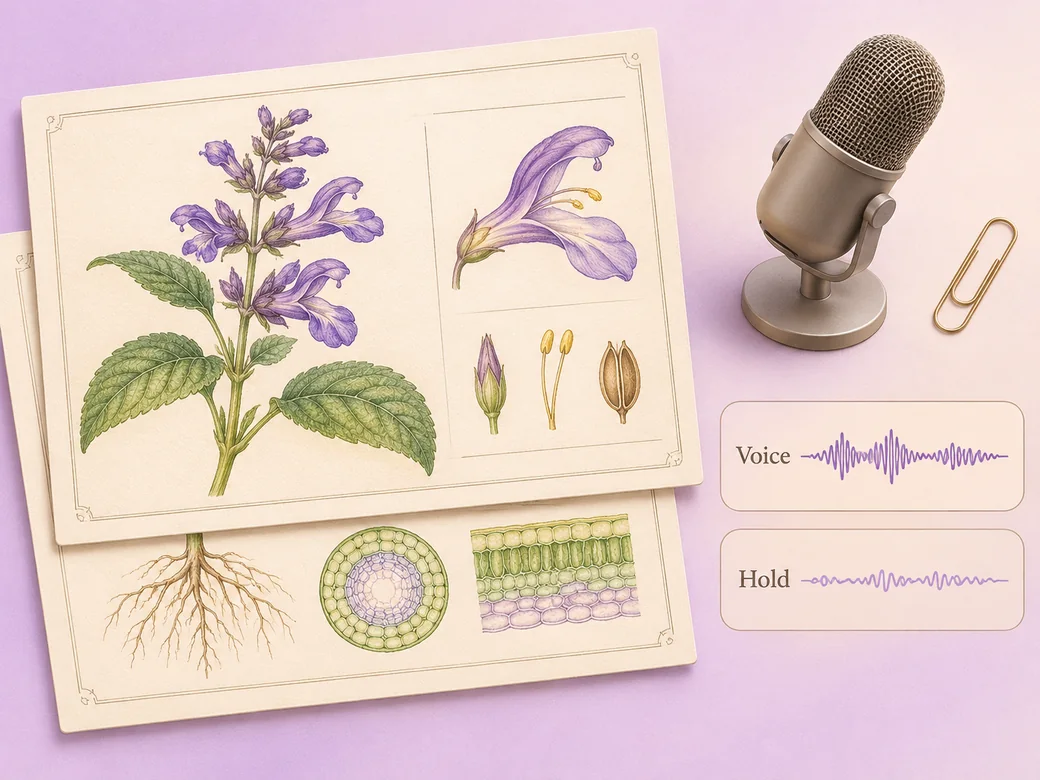
Match each slide to one stretch of narration. Keep enough time for viewers to notice what is in the image. Remove sound that competes with the voice and give learners a pause at the summary.
Check type and diagrams in the exported video and simplify crowded images before the final cut. Use separate chapter labels if learners need to see where one topic finishes and the next begins.
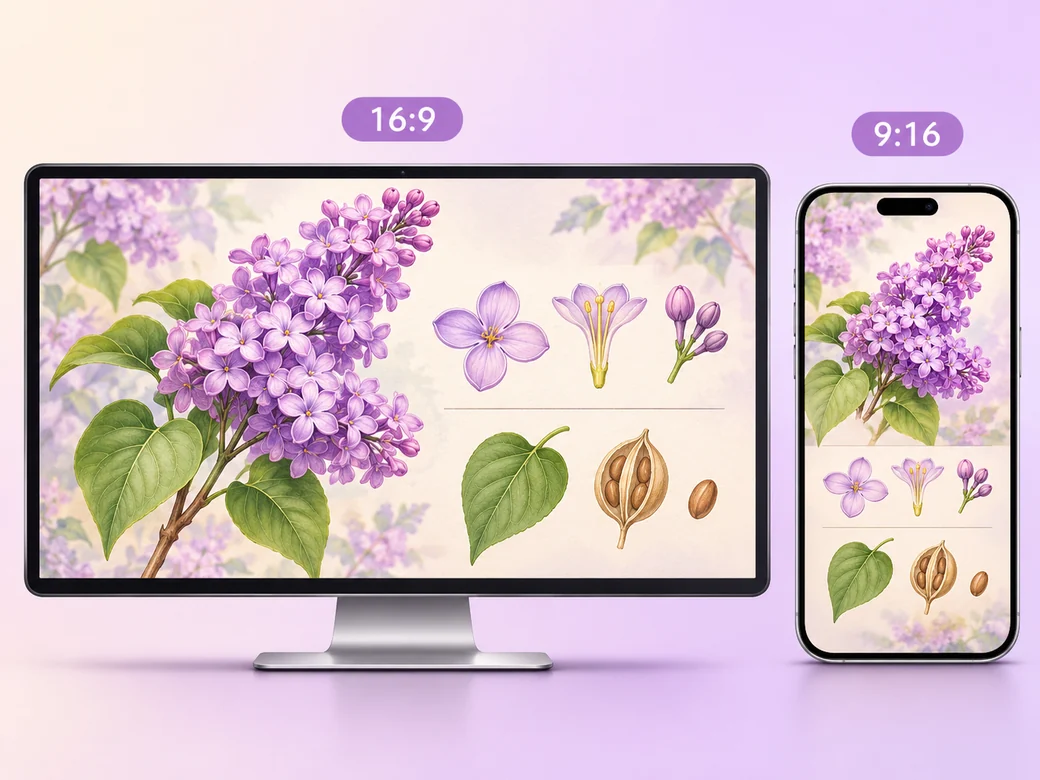
Keep a wide cut for an asynchronous course or a review playlist. For a 9:16 excerpt, retain a slide sequence learners can follow and review how it fits on a phone. Check the start and the last frame at the intended size and give any text enough time to read.
“In Pexo, I tie each slide to an explanation or example. If it needs too much setup I give it a different slide.”

“I match the read to the slide the listener can see. A short quiet hold helps with a detailed example.”

“I check that the smallest useful detail is visible. The summary should still read on a tablet.”

An e-learning slideshow video is a finished edit that helps you turn lesson slides into a video with readable examples. It can be prepared for an asynchronous course or a review playlist, with enough context for the viewer to follow a slide sequence learners can follow. Choose a few moments that improve the final result and give each one time to read before the next cut.
Bring approved slide images, the order you teach them, and a short voice script or recording. Give each source a short name that describes where it belongs, and include any exact wording that should appear. Tell Pexo which part matters most and how you plan to show it. That gives you a clear first version to review.
Split the material into separate images when an explanation needs more space. Show a diagram alone, then return to the slide outline once the important parts are clear. Review the slide video on a phone or tablet and adjust the image sequence where the original detail becomes too small.
Pexo helps organize your material and revise the framing, pacing, and sound after you review the result. Use the source that documents your actual subject for a slide sequence learners can follow. For a separate illustrative insert or visual opening, Kling AI 3.0 can animate an approved reference image.
An e-learning slideshow video arranges graphics and narration around one topic so a learner can revisit it. A video slideshow can sequence photographs or scenes for personal events and promotions. Choose the e-learning format when each slide has a teaching job and needs time for explanation or practice.
Use subject + action + camera movement + setting + style. Try ‘Use the footage or approved visual references for a slide sequence learners can follow. Give the diagram a moment before advancing. Start with a clear establishing frame, move closer when the main action begins, and keep the original colors and texture. Arrange the images around the lesson objective. Hold the summary at ordinary reading speed.’
Bring approved slide images, the order you teach them, and a short voice script or recording. Start with a slide sequence learners can follow and review the first cut at the intended size.
Make a flat animated logo intro with Pexo. Use a reusable logo bumper for a series to tell a clear story. Organize your material and review the finished video.
Make a filmed 360-degree vr tour video with Pexo. Organize your own material and edit a focused review cut. Check the details before you share it.
Make an animated nft pass and ticket reveal video with Pexo. Organize your own material and edit a focused review cut. Check the details before you share it.
Make a course explainer video with Pexo. Organize your own material and edit a focused review cut. Check the details before you share it.
Make a website preview video with Pexo. Use a product-filter walkthrough to tell a clear story. Organize your material and review the finished video.
Make an animated e-learning video with Pexo. Use a customer handoff scenario to tell a clear story. Organize your material and review the finished video.
Make an e-learning lesson video with Pexo. Organize your own material and edit a focused review cut. Check the details before you share it.
Make a narrated powerpoint lesson video with Pexo. Use your exported slide sequence to tell a clear story. Organize your material and review the finished video.