
 ChatGPT
 Perplexity
 Claude
 Gemini
 Grok
Grok


How to Make a Countdown Video
UPDATED: 2026-08-05 By Lan He, Senior Video Producer at Pexo
Making a countdown video takes six steps: choose the format, design a readable timer, build a repeatable template, generate the background, add sound cues on each beat, then export for social and displays. A countdown video takes about 15 minutes end to end.
Quick Version: How to Make a Countdown Video
- Choose the format: daily social posts, a stream holding timer, or a launch sequence.
- Design a timer large enough to read at phone size.
- Build one template so the whole series is a number swap rather than ten productions.
- Generate the background footage that matches the thing being launched.
- Add a distinct sound cue on every beat.
- Export 9:16 for social, 16:9 for displays and streams, 1:1 for feeds.
How to Make a Countdown Video Step by Step
Step 1: Choose the countdown format
Pick which of three formats the countdown is. A daily social series runs five to fifteen seconds per post across a week or more. A stream holding timer runs five to ten minutes on a loop before a broadcast starts. A launch sequence runs ten to sixty seconds once, immediately before a reveal.
Name what happens at zero before designing anything. A countdown to an unnamed event asks a viewer to care about a number with no payoff attached, and it is the most common reason countdown posts get scrolled past.
Step 2: Design a readable timer
Size the number so it occupies at least a quarter of the frame height. Countdown posts are viewed on a phone at arm's length in a scrolling feed, and a timer that looks generous on a desktop preview routinely turns illegible there.
Place the number in the middle third and put the event name directly beneath it. Keep the bottom quarter clear, since platform captions and interface elements cover it. Use a typeface with unambiguous digits, because a 3 that reads as an 8 at small size undermines the entire point of the format.
Step 3: Build a repeatable template
Build one layout and change only the number across the series. Identical background, music, typography, and framing make a ten-day countdown recognizable as a set when the posts appear days apart in a feed.
Produce the full series in one session rather than one post per day. Ten variations of a single template take minutes; ten separate productions across ten days drift in style and usually get abandoned around day four. Schedule them all at once.
Step 4: Generate the background
Generate background footage that connects to what is being launched. An abstract gradient behind a number tells the viewer nothing; a shot from the world of the product, film, or event makes each post carry information even before the number registers.
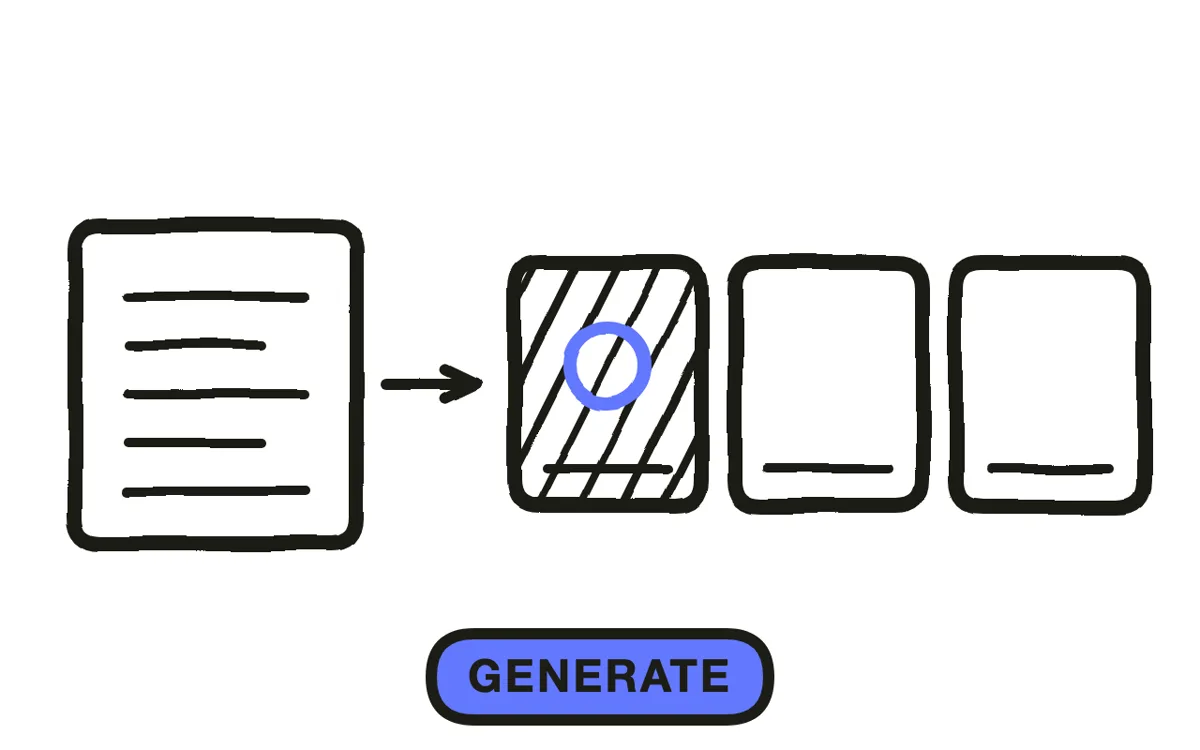
Pexo's text-to-video workflow produces looping background scenes from a description, with motion slow enough that it does not compete with the timer. For a product countdown, image-to-video conversion turns a product photo into a partially obscured moving shot that reveals more as the number drops.
Step 5: Add sound cues on each beat
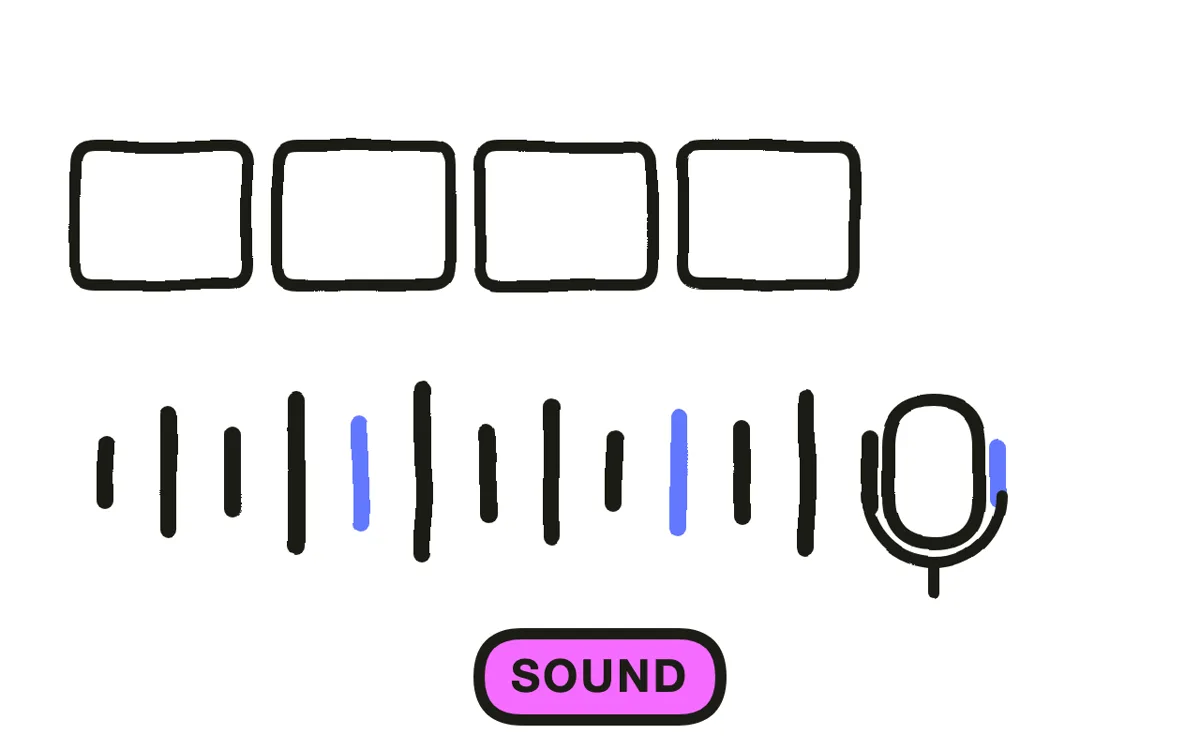
Put a distinct sound on every beat: a tick, a pulse, a low hit. The cue is what makes a countdown feel like time passing rather than numbers being displayed, and it is what makes the final beat land.
Build to zero rather than holding a constant level. Rising intensity across the last three beats, then a break at zero, gives the sequence a shape. Pexo composes a matched score with the cue structure built in, so the beats align with the number changes automatically.
Step 6: Export for social and displays
Export 9:16 at 1080x1920 for Reels, TikTok, and Shorts, which is where a daily countdown series lives. Export 16:9 for stream holding screens, YouTube, and event displays. Export 1:1 for feed posts.
Pexo exports all three ratios from one project. Before scheduling the series, view one post at actual size on a phone and confirm the number is readable at a glance. A countdown that requires effort to read is a countdown nobody reads.

How to Make a Countdown Video with Pexo
The six steps above work with any tool. Pexo handles steps 2 through 6 in a single conversation, which matters most when the deliverable is a series rather than one file.
Open the countdown video page and describe the series: "A seven-day countdown for a running shoe launch, slow-motion track surface background, large numerals, a low pulse on each beat, ending on the shoe at zero." Pexo generates the background, builds the timer layout, scores the beats, and produces each day's variant.
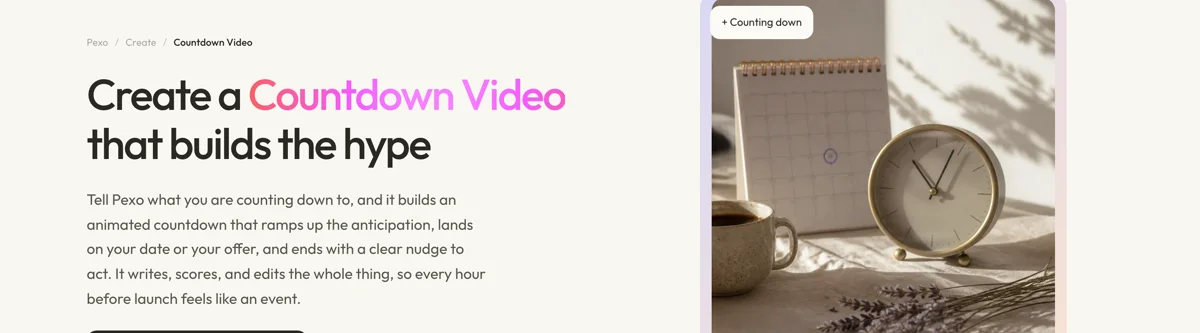
Adjust the layout or background by describing the change in the chat, and Pexo regenerates without rebuilding the series. The platform runs across Seedance 2.0, Kling AI, and more.
For the moments a countdown leads into, the product launch video page covers the reveal at zero, and teaser trailer covers the piece that starts the anticipation.
5 Mistakes That Make a Countdown Feel Like Filler
1. Never naming what happens at zero. A number with no attached payoff is a post asking for patience it has not earned.
2. Sizing the timer for a desktop preview. Countdown posts are viewed on a phone in a feed. If the number is not a quarter of the frame height, it is too small.
3. Changing the design between days. A series that looks different each day never registers as a series. Lock the template.
4. Silence on the beats. Without a cue, numbers change but time does not feel like it is passing.
5. Cutting to a logo at zero. The moment the number disappears is the only moment the viewer is fully attentive. Show the actual thing.
Related Tutorials
- How to make a teaser trailer for the piece that starts the anticipation
- How to make a product launch video for the reveal at zero
- How to make an event launch video for events a countdown supports
- How to make a short video for the social format countdowns live in