
 ChatGPT
 Perplexity
 Claude
 Gemini
 Grok
Grok



How to Make a Tutorial Video
UPDATED: 2026-08-04 By Lan He, Senior Video Producer at Pexo
Making a tutorial video takes seven steps: pick a task, break it into learnable chunks, script the narration, gather visuals, produce the video, add captions and chapter markers, then export for the target platform. The whole process takes 20 to 60 minutes depending on complexity and whether you record manually or use an AI-based workflow.
Quick Version: How to Make a Tutorial Video
- Pick one specific task your audience needs to complete.
- Break that task into three to eight ordered, learnable steps.
- Write a narration-ready script covering an intro, each step, and a recap.
- Gather screenshots, screen recordings, or reference images for every step.
- Produce the tutorial video using a screen recorder, editor, or AI video platform.
- Add captions to every spoken segment and insert chapter markers at each step boundary.
- Export in the aspect ratio your platform requires and publish.
How to Make a Tutorial Video Step by Step
Step 1: Pick one specific task to teach
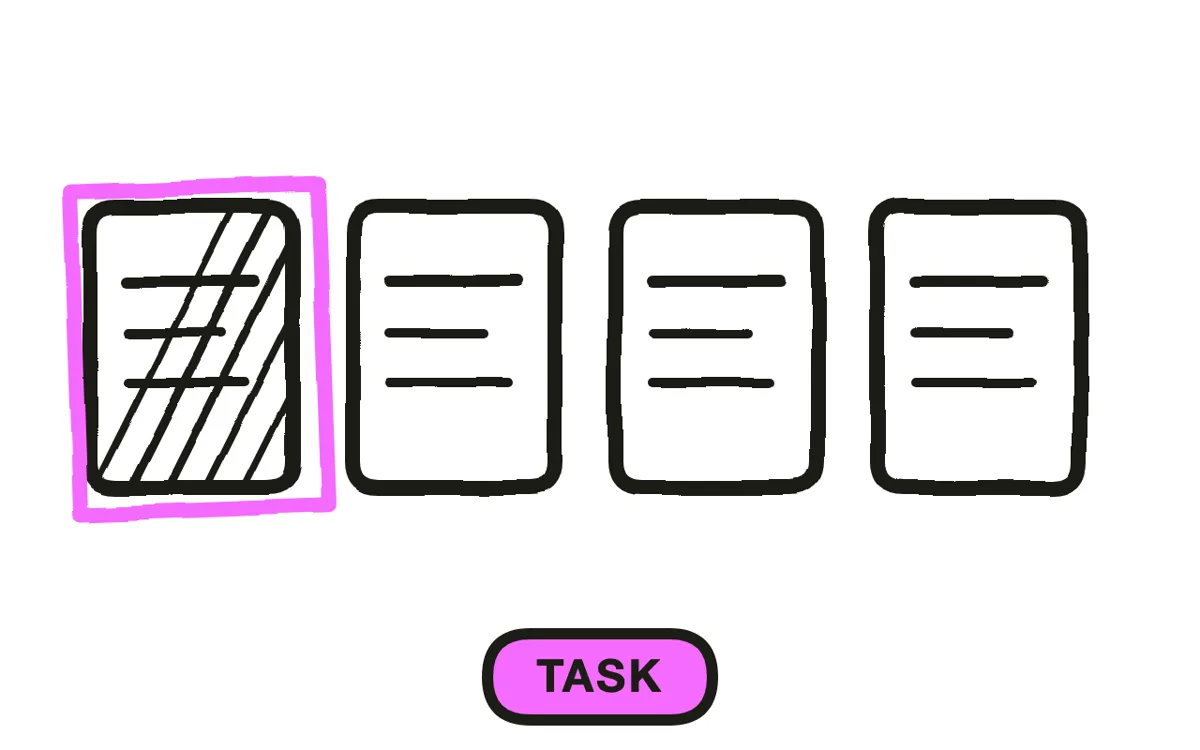
Choose one task the viewer will complete by the end of the video. A good tutorial task is concrete ("set up a mail merge in Google Sheets"), not abstract ("understand spreadsheets"). Check YouTube and Google for existing tutorials on the same task. If the top results are outdated, incomplete, or missing a perspective your audience needs, the gap is worth filling.
Narrow scope produces better tutorials than broad scope. "How to set up conditional formatting" outperforms "how to use Google Sheets" because the viewer can verify they succeeded. Corporate trainers apply the same principle when building training videos for employee onboarding.
Step 2: Break it into three to eight learnable steps
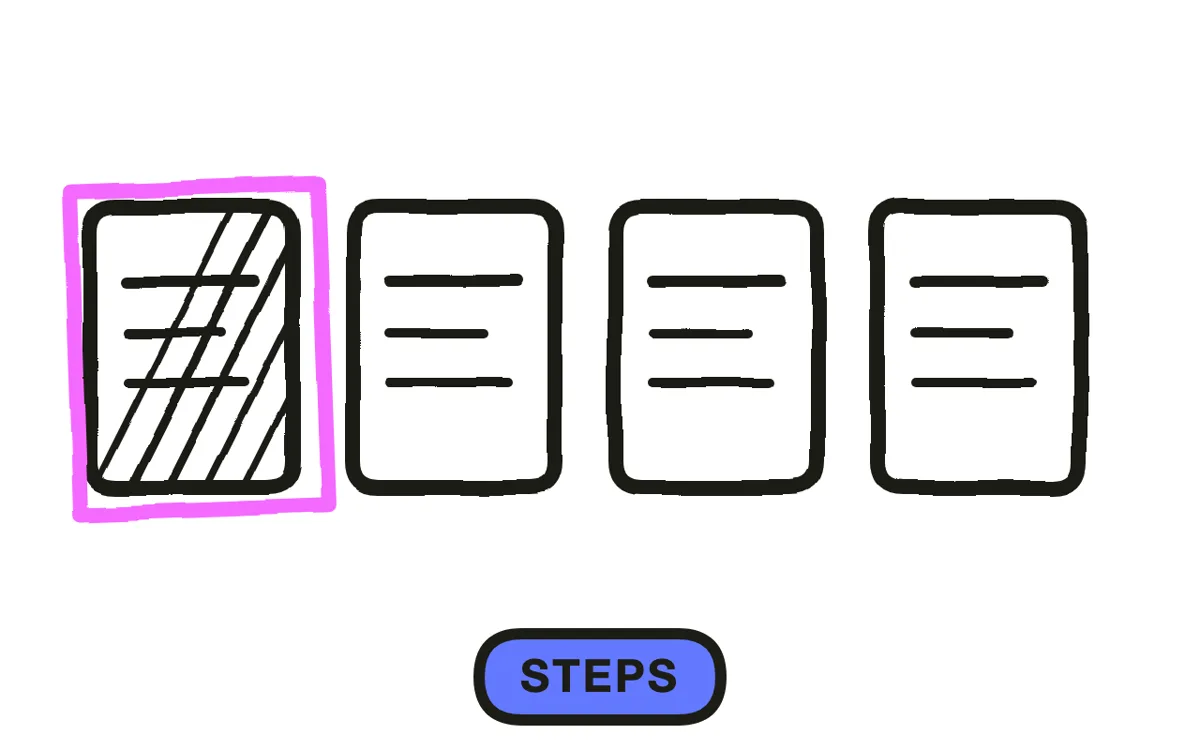
List every action the viewer must take, in order, from start to finish. Then merge trivial actions ("open the browser", "click the menu") into the step they support. Aim for three to eight final steps. Fewer than three usually means the task is too simple for video. More than eight usually means the task should be two tutorials.
Number the steps and read them aloud. If any step depends on information from a later step, reorder. If any step takes more than 90 seconds to explain, split it.
Step 3: Write a narration-ready script
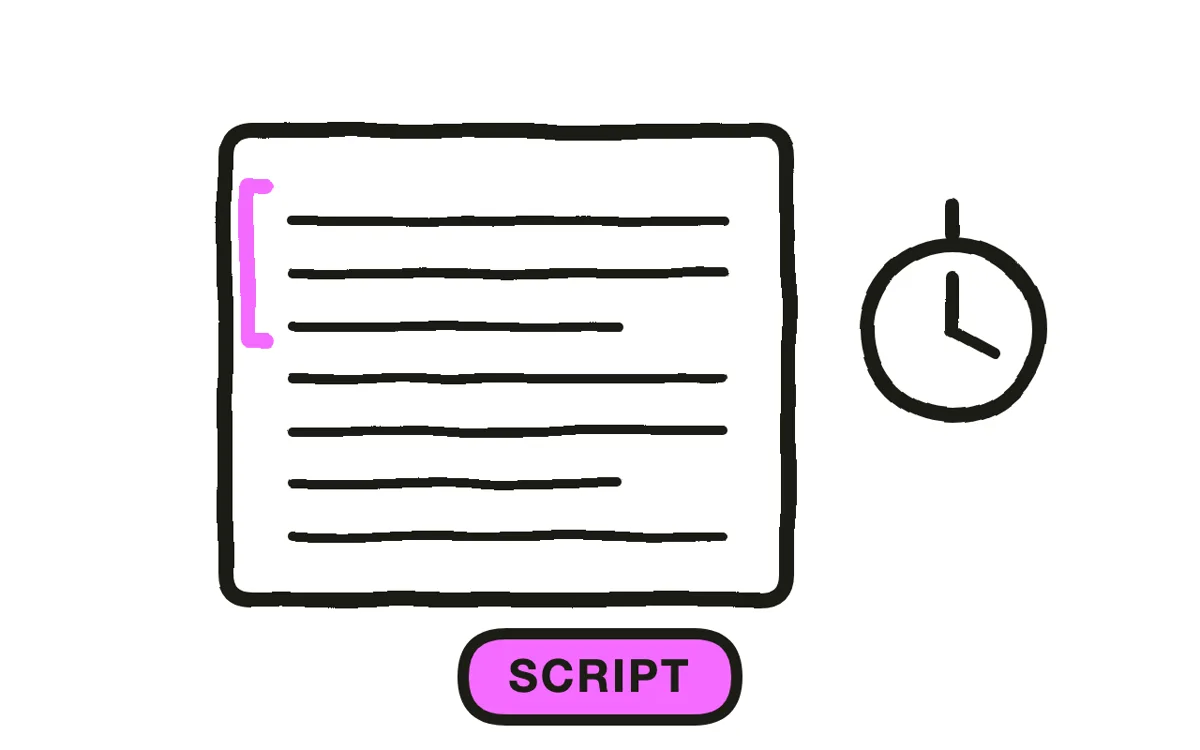
Write the full narration before recording anything. Start with a one-sentence intro that names the task and the number of steps ("In this tutorial you will set up conditional formatting in Google Sheets in five steps"). Then write one paragraph per step, using the imperative voice: "Open the Format menu", not "You should open the Format menu." Close with a two-sentence recap that restates the completed outcome.
A complete script prevents re-records, keeps the video under ten minutes, and gives captioning tools clean input. For tutorials built with Pexo, the script doubles as the generation prompt. You can describe the task in plain language and Pexo writes a narration-ready script-to-video draft automatically.
Step 4: Gather your visual assets
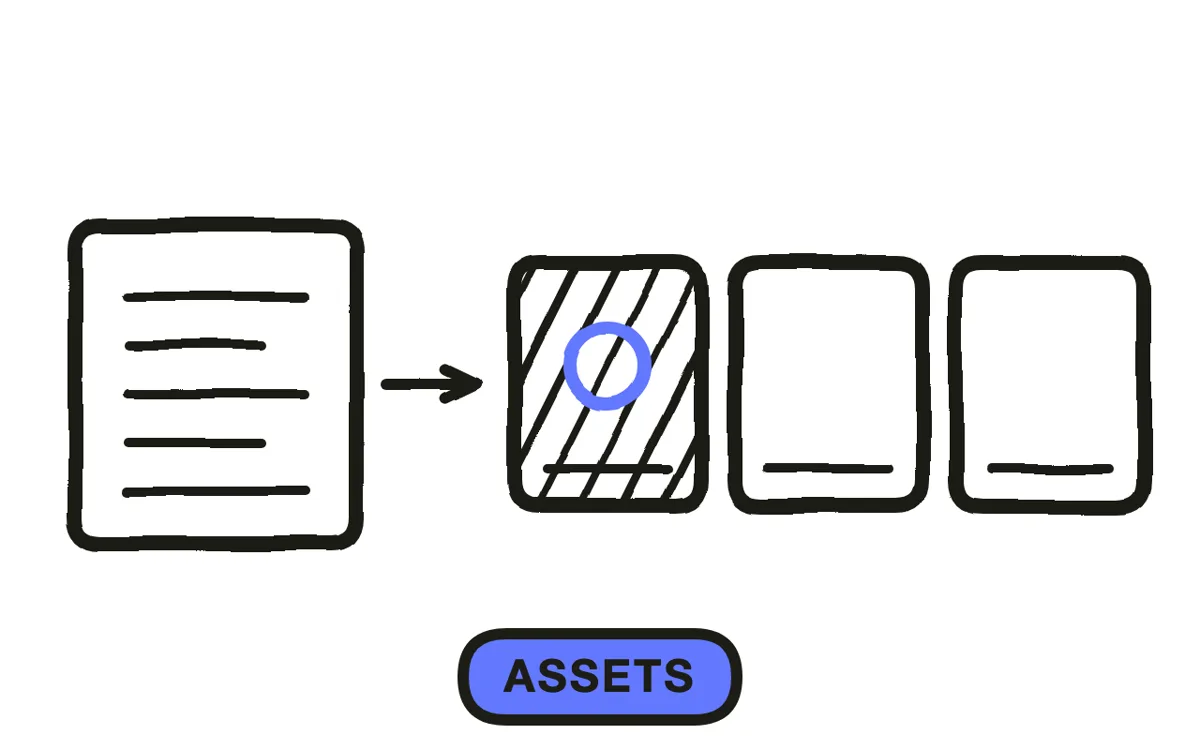
Collect every screenshot, screen recording, product photo, or reference image the video needs before production begins. For software tutorials, record each step as a separate screen-recording clip. For physical tasks, photograph each stage. For concept-based tutorials, prepare slides or diagrams.
Label each asset with the step number it belongs to (step-3-format-menu.png). Pexo accepts text descriptions, screenshots, and recordings as input, so the assets can be raw. The platform also supports image-to-video conversion, turning a still screenshot into an animated step without manual keyframing.
Step 5: Produce the tutorial video
Assemble the visuals and narration into a single video. Two main workflows exist. The manual path uses a screen recorder (OBS, ScreenPal, QuickTime) to capture the walkthrough, then an editor (CapCut, DaVinci Resolve, iMovie) to trim, reorder, and add transitions. The AI path sends the script and assets to a platform that handles sequencing, narration, and editing in one pass.
Pexo's text-to-video workflow is the AI path: describe the task in the chat, attach any screenshots or recordings, and Pexo produces a narrated tutorial with step markers. No timeline, no keyframes, no editing software to learn. The choice between manual and AI depends on whether the tutorial needs a live screen recording (manual) or can be built from descriptions and stills (AI).
Step 6: Add captions and chapter markers
Add captions to every segment with spoken narration. Captions increase completion rates, make the tutorial accessible to viewers watching on mute, and give search engines indexable text. Most editors generate captions from the audio track. Review the output word by word, because auto-generated captions frequently mis-transcribe technical terms.
Insert chapter markers at each step transition. On YouTube, chapters appear in the progress bar and let viewers jump to the step they need. On course platforms, chapters map to lesson sections. Pexo adds captions and auto-splits tutorials into labeled chapters during production, so both are ready at export.
Step 7: Export and publish for your platform
Export the finished video in the aspect ratio and resolution the target platform requires. Use 16:9 at 1080p or higher for YouTube and desktop-first course players. Use 9:16 for TikTok, Instagram Reels, and YouTube Shorts. Use 1:1 for LinkedIn feeds and embedded LMS modules. Pexo exports all three ratios from a single project.
Before publishing, watch the full video at 1x speed on the device your audience uses most (phone for social, laptop for courses). Check that every step is visible, every caption is accurate, and no transition cuts mid-sentence. Upload with a title that names the task ("How to Set Up Conditional Formatting in Google Sheets"), add a description with timestamps for each step, and publish.
How to Make a Tutorial Video with Pexo
The seven steps above apply to any tutorial video. Pexo compresses steps 3 through 7 into a single conversation. Here is what the workflow looks like end to end.
Open the tutorial video page and describe the task in the chat: "Make a 5-step tutorial showing how to set up conditional formatting in Google Sheets." Attach any screenshots or screen recordings of the process. Pexo reads the input, writes a narration-ready script, sequences the visuals into a step-by-step flow, adds voiceover narration and captions, and inserts chapter markers at each step boundary.
Review the preview. If a step needs a different visual or the narration misses a detail, say so in the chat. Pexo revises the specific section without regenerating the entire video. When the result matches the plan, export in 16:9, 9:16, or 1:1.
The model running under the hood is selected automatically based on the content. Pexo works with Seedance 2.0, Kling AI, and more. The output is a complete, narrated tutorial video ready to upload to YouTube, embed in a course, or post on social, with no manual editing required.
For tutorials that start from a written script, paste the full narration and Pexo handles the rest. For visual-heavy tutorials, the image-to-video input lets Pexo animate still screenshots into watchable step sequences.
5 Common Mistakes That Lose Tutorial Viewers
1. Teaching too many tasks in one video. Viewers click away when the scope is unclear. Pick one task per video. If the topic spans multiple tasks, split it into a series and link the parts together.
2. Skipping the script and recording off the cuff. Unscripted tutorials ramble, miss steps, and take three times as long to edit. Write the full narration first. A 300-word script produces a clean 3-minute video. Consult a script-writing guide if the structure feels unclear.
3. Recording in a noisy environment. Background noise makes narration hard to follow, even when the visuals are clear. Record in a quiet room with a USB microphone. A basic mic (around 50 USD) improves audio quality more than any camera upgrade, as TechSmith's instructional video guide also emphasizes.
4. Forgetting captions. Over half of mobile video is watched on mute. A tutorial without captions loses those viewers entirely. Add captions during editing or use a platform that generates them automatically.
5. Making the video longer than ten minutes. Completion rates drop sharply past the ten-minute mark for single-task tutorials. Cut filler, merge trivial steps, and aim for two to ten minutes. Longer topics belong in a multi-part series, not a single file.
Related Tutorials
- How to make a training video for corporate onboarding and employee skill-building
- How to make explainer videos when the goal is understanding, not step-by-step action
- Text-to-video AI tutorial for a deep dive into Pexo's text-driven workflow
- Educational explainer videos for classroom and e-learning contexts