 ChatGPT
 Perplexity
 Claude
 Gemini
 Grok
Grok

How to Make an AI Avatar Explainer Video
UPDATED: 2026-08-10 By Lan He, Senior Video Producer at Pexo
Making an AI avatar explainer takes six steps: confirm a presenter helps, choose one that fits the subject, script for spoken delivery, generate the performance, add visual support, then export. An AI avatar explainer takes about 20 minutes to produce.
Quick Version: How to Make an AI Avatar Explainer Video
- Confirm a face on screen adds something animation would not.
- Choose an avatar matched to the subject, not the most realistic one.
- Script for spoken delivery rather than narration.
- Generate the performance and check lip-sync and gaze.
- Cut away to supporting visuals every 10 to 15 seconds.
- Export 16:9 for site, 9:16 and 1:1 for social.
How to Make an AI Avatar Explainer Video Step by Step
Step 1: Confirm a presenter helps
A face earns its place when the content is advisory: policy, guidance, a recommendation, anything where the viewer is deciding whether to trust what they are hearing. People weigh advice differently when someone appears to be giving it.
It costs you when the content is mechanical. A process, a system, or a comparison is better served by a diagram, and putting a presenter in front of one just takes up the frame. Decide from what the viewer is doing with the information, not from which looks more produced.
Step 2: Choose an avatar that fits
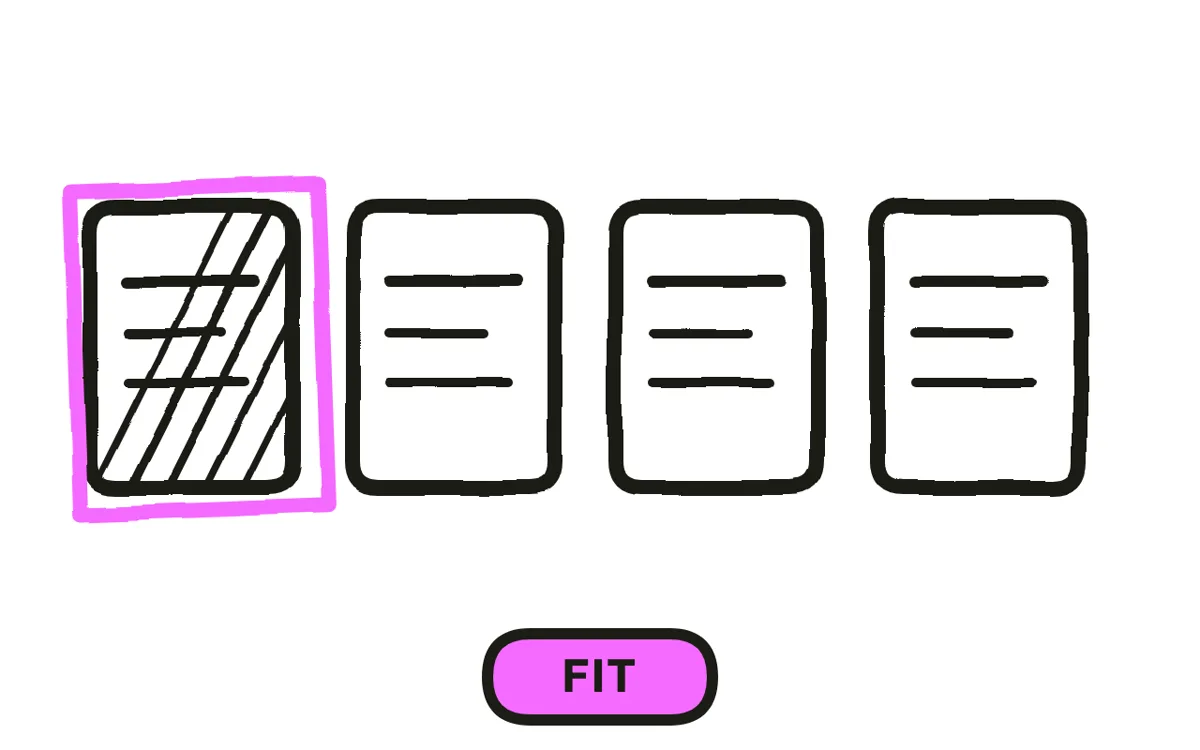
Match the presenter to the subject rather than reaching for the most photorealistic option. A stylised avatar is often easier to watch than a near-real one, because near-real faces invite the viewer to inspect exactly the details generation still gets wrong.
Then hold that choice across the library. Switching presenters between videos costs the small familiarity that makes a second and third video easier to watch, and consistency is cheap here in a way it never was with filmed talent.
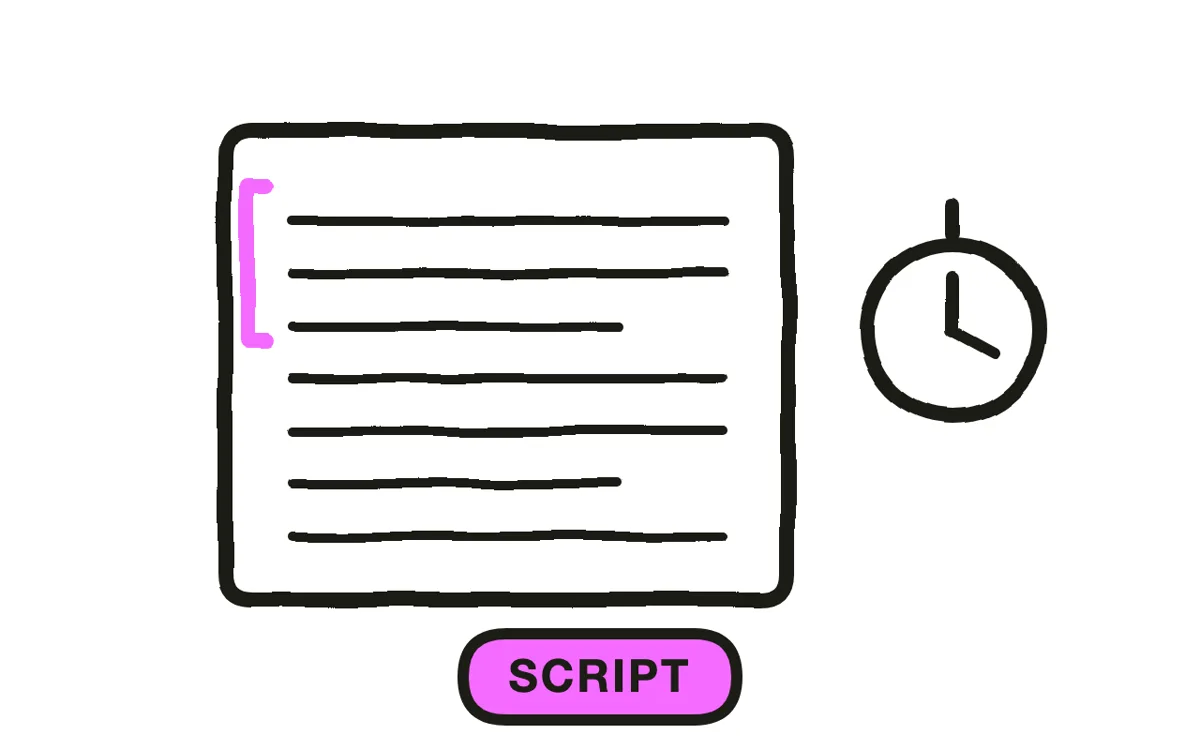
Step 3: Script for spoken delivery
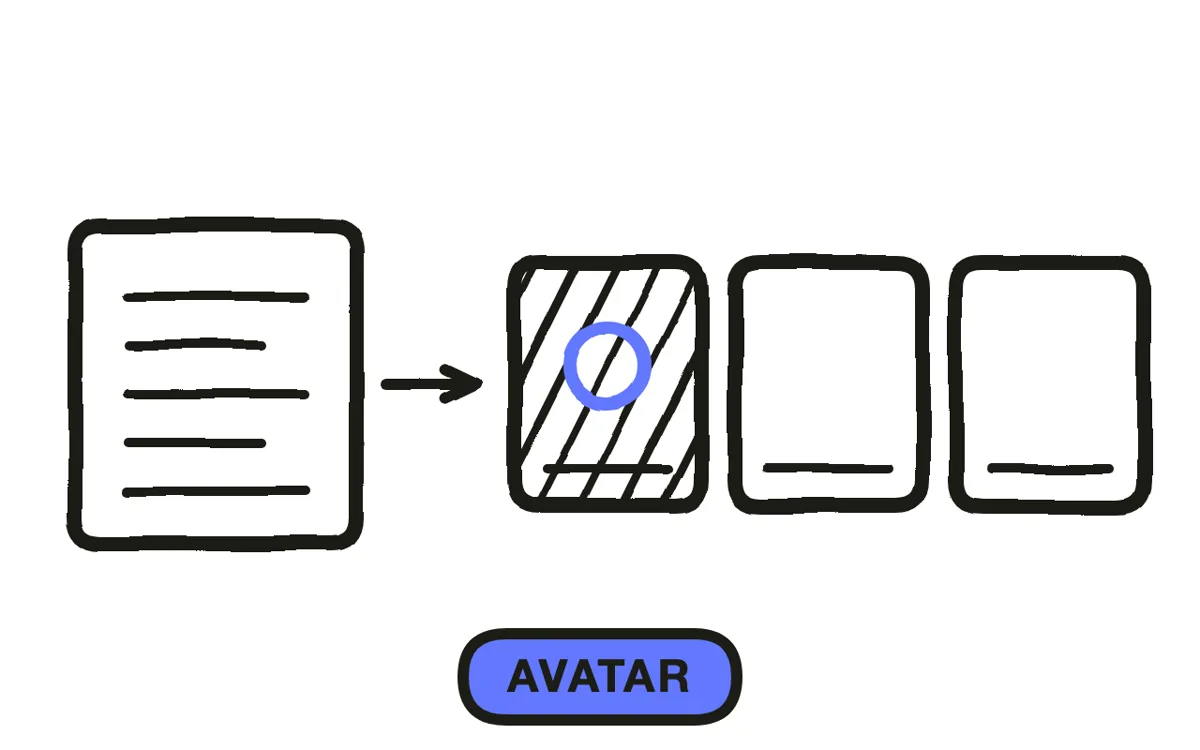
Write how someone talks, not how a narrator reads. Short sentences, one idea each, contractions where they fall naturally. Written-then-read prose is detectable in an avatar performance in a way it is not over animation, because the viewer is watching a mouth form the words.
Keep it to 60 to 90 seconds at roughly 150 words per minute. A generated presenter holds attention less well than a real one, so past two minutes viewers start noticing the delivery rather than the content.
Step 4: Generate and check the performance
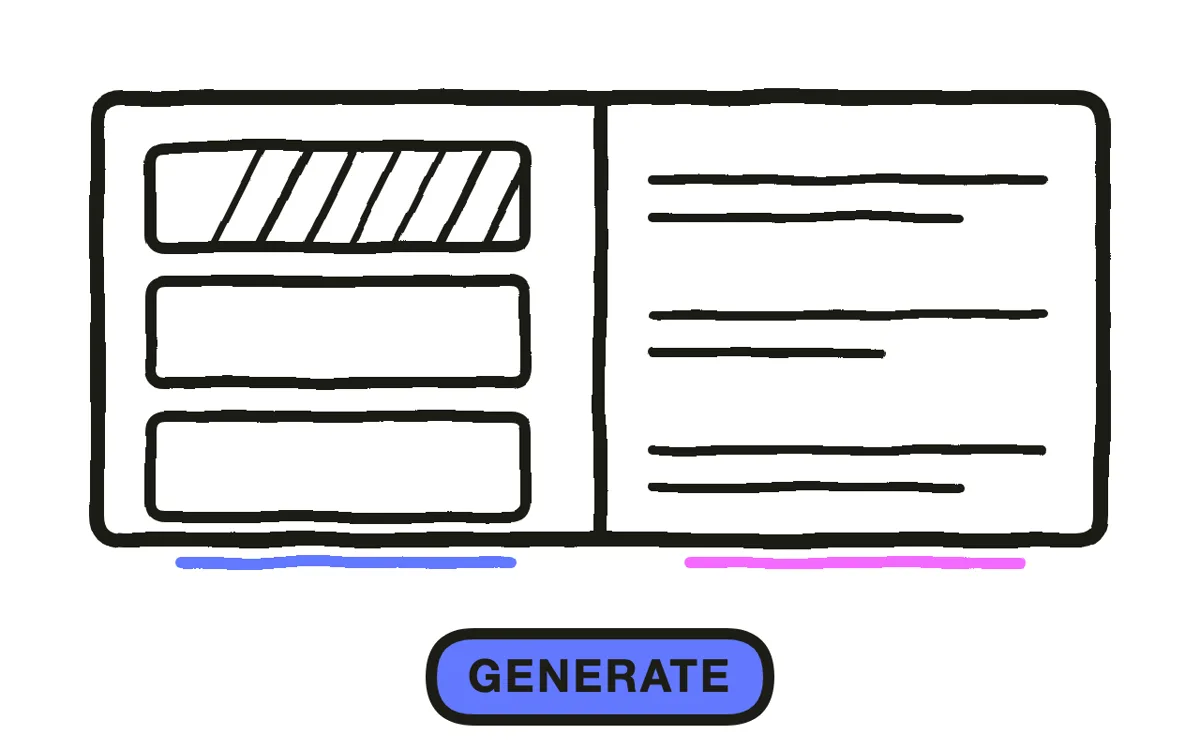
Three things give an avatar away: lip-sync drift, a fixed gaze, and gestures that visibly loop. Drift is the one viewers consciously notice; the other two register as unease they cannot name, which is worse because it attaches to the content rather than the video.
Pexo's lip sync matches mouth movement to the recorded narration, and text-to-video generates the presenter and setting from a description. Watch the full take before approving it, because drift usually appears partway through rather than at the start.
Step 5: Add visual support
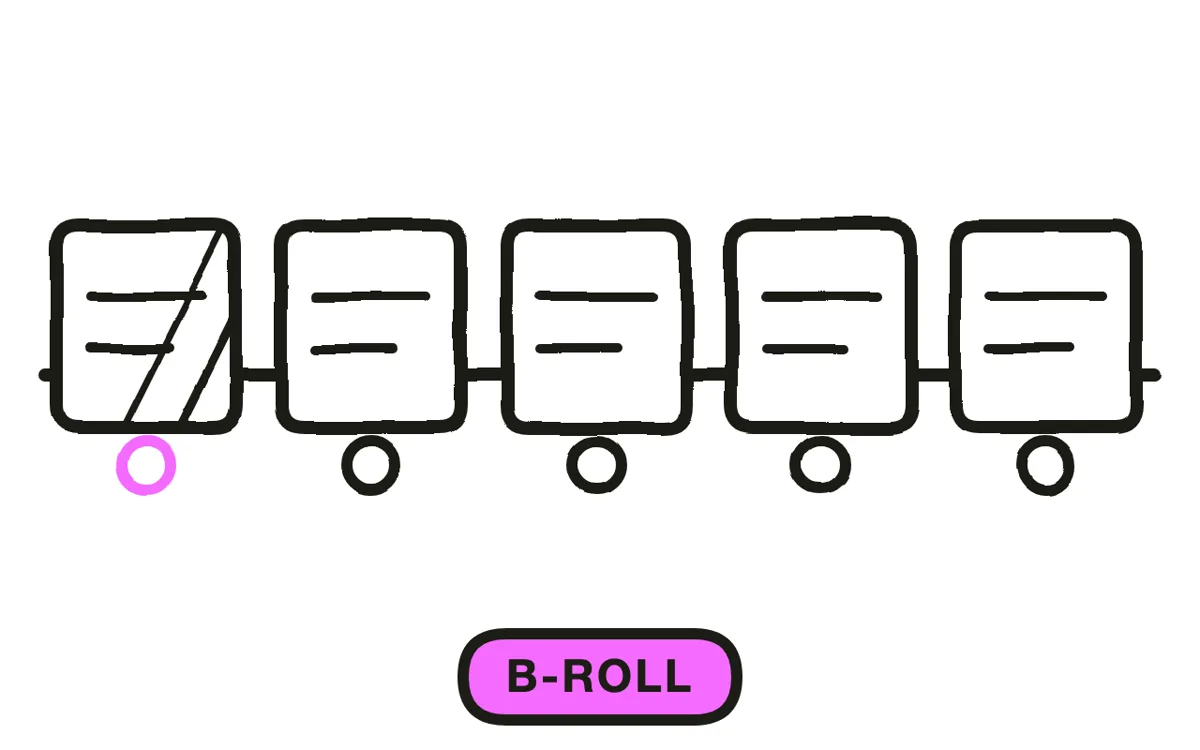
Cut away to something else every 10 to 15 seconds: a diagram, a screen, a scene illustrating the point. An avatar alone on screen for a full minute is the most common reason this format reads as cheap, and it is fixed with b-roll rather than a better avatar.
Disclose that the presenter is generated, in the video or its description. Viewers who work it out themselves trust the content less than viewers who were told, and in regulated contexts an undisclosed synthetic presenter is a compliance problem rather than a style choice.
Step 6: Export and localise
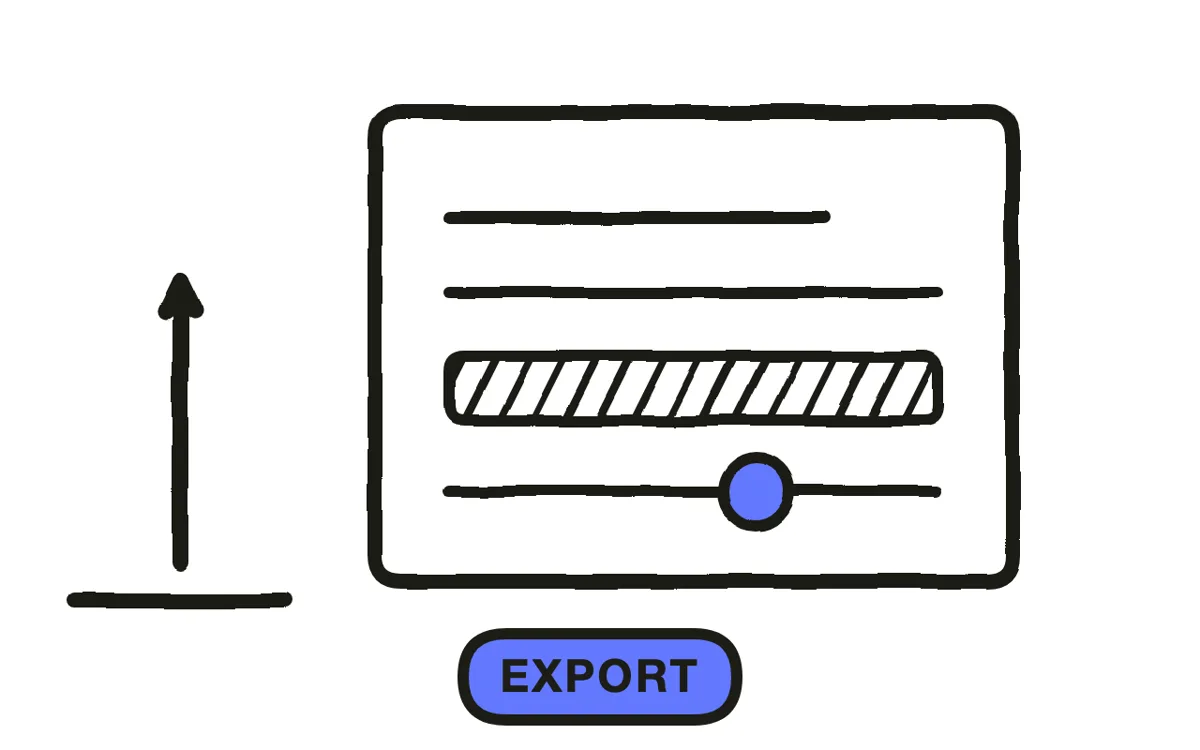
Export 16:9 at 1080p for a site, intranet, and YouTube. For 9:16, frame the avatar chest-up rather than cropping the wide version, since a cropped frame usually cuts the gestures that made the delivery read as natural. Pexo exports all three.
This is where the format pays off: the same presenter can carry a library across every language a workforce needs. Pexo generates narration in multiple languages against the same avatar, which filming cannot do without hiring per language.
How to Make an AI Avatar Explainer Video with Pexo
The six steps above work with any tool. Pexo handles steps 4 through 6 in a single conversation, and holding one presenter across a whole library is what makes the format worth using.
Open the talking head video page and describe the piece: "A 75-second explainer on how expense approvals work, generated presenter in a neutral office, warm plain-spoken delivery, cutting to the approval screen at 20 seconds, ending on where to ask questions." Pexo generates the presenter, syncs the delivery, and cuts in the supporting visuals.
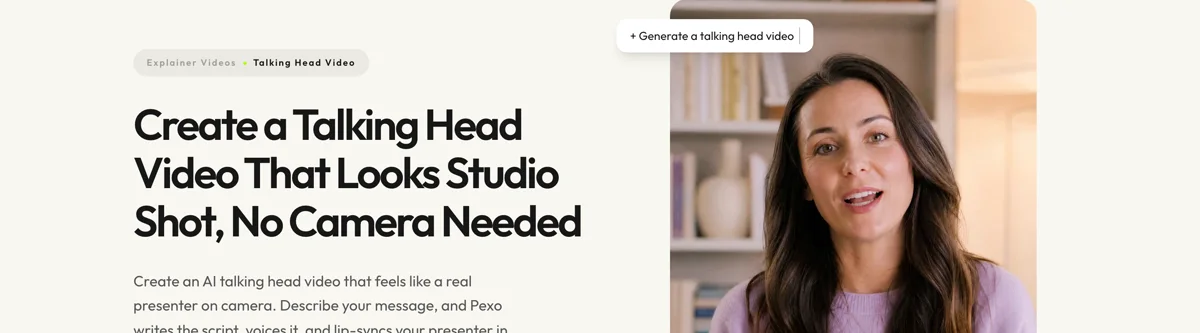
Adjust any scene by describing the change in the chat, and Pexo regenerates that scene alone. The platform runs across Seedance 2.0, Kling AI, and more.
For related formats, the explainer video page covers the general format and training video covers workplace content.
5 Mistakes That Make an Avatar Explainer Uncomfortable
1. Reaching for maximum realism. A near-real face invites scrutiny of exactly what generation still gets wrong. Stylised is often easier to watch.
2. Leaving the avatar alone on screen. A full minute of talking head is what makes this format read as cheap, and b-roll fixes it.
3. Reading written prose. Written-then-read sentences are visible in a generated mouth in a way they are not over animation.
4. Approving from the first ten seconds. Lip-sync drift usually appears partway through, so watch the full take.
5. Not disclosing. Viewers who work it out trust the content less than viewers who were told.
Related Tutorials
- How to make a live action explainer video for filmed presenters
- How to make an employee training video for workplace content
- How to make a 2D explainer video for the animated alternative
- How to create an explainer video for the general production process