

Game Trailer
Make a game trailer from gameplay captures and concept art. Use Pexo to show how the game plays, build to a reveal, and end with a next step.
Create an AI animated crowdfunding video from a project brief, sketches, and campaign details. Show the idea in action, explain what funding makes possible, and close with a clear way to support it.
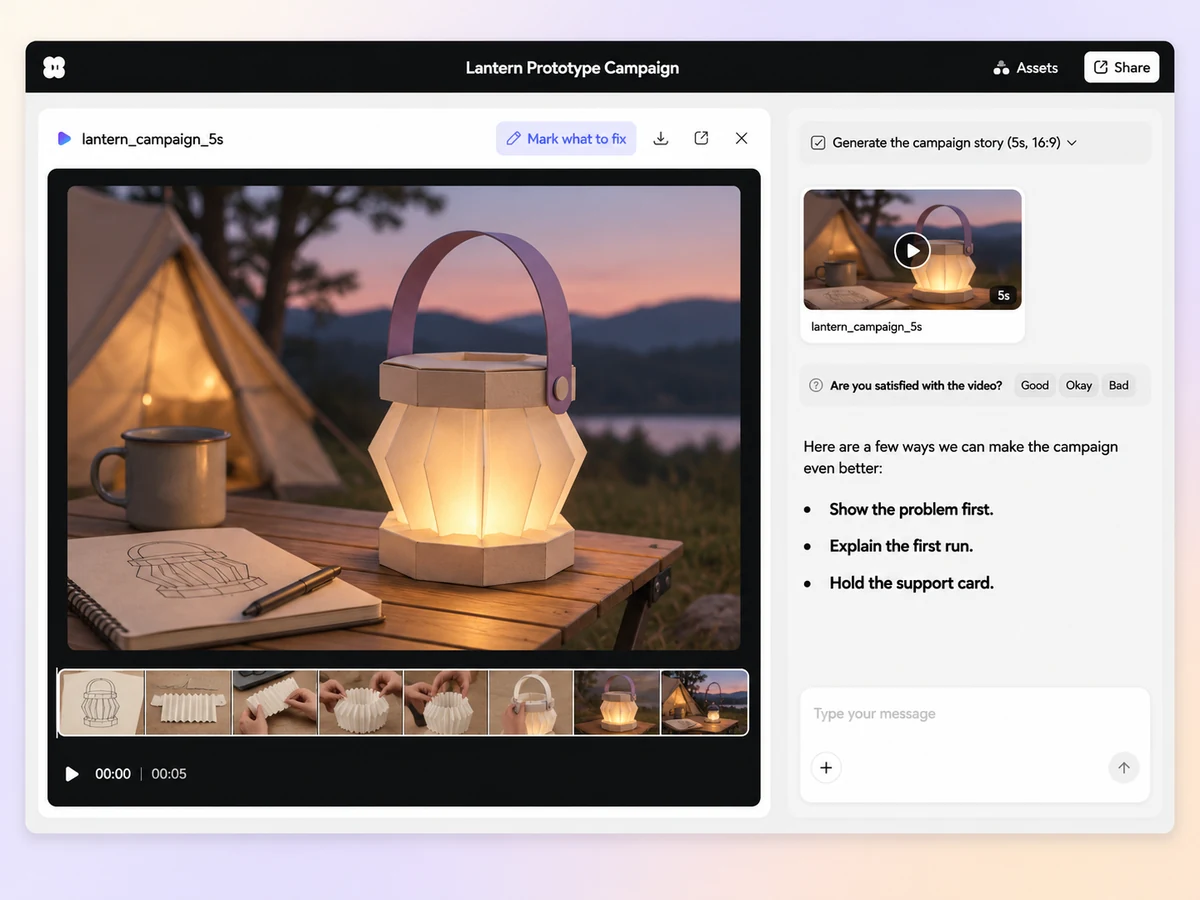
Tell Pexo’s animated crowdfunding video maker what you are making, who it helps, and what funding will cover. Ask for a short sequence that opens on the problem, shows the idea in use, and explains the next milestone. Review the order in chat with your campaign brief at hand.
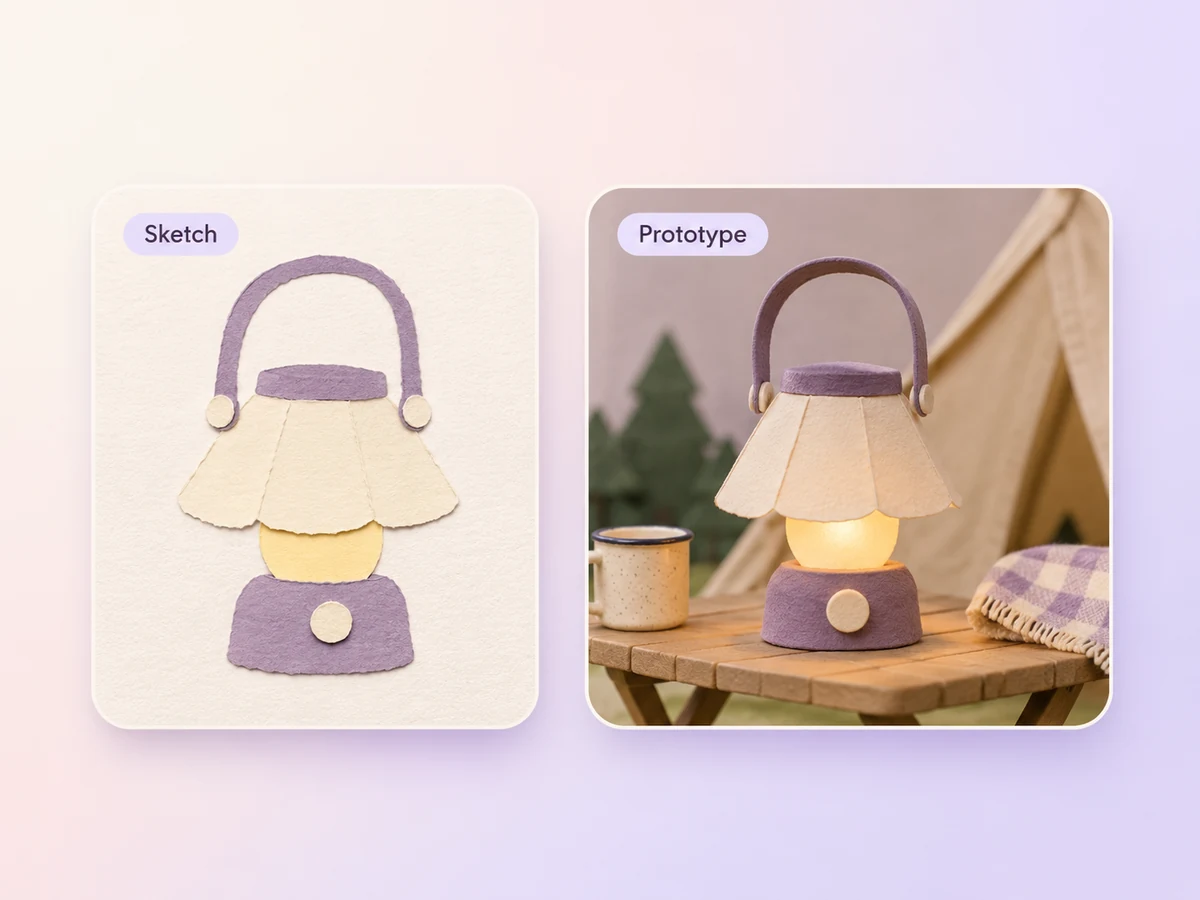
Bring sketches, product stills, or an approved diagram. Use image to video to animate one clear action, such as folding a compact prototype for storage. If the design is still in development, label the sequence as a concept so viewers understand the stage of the project.
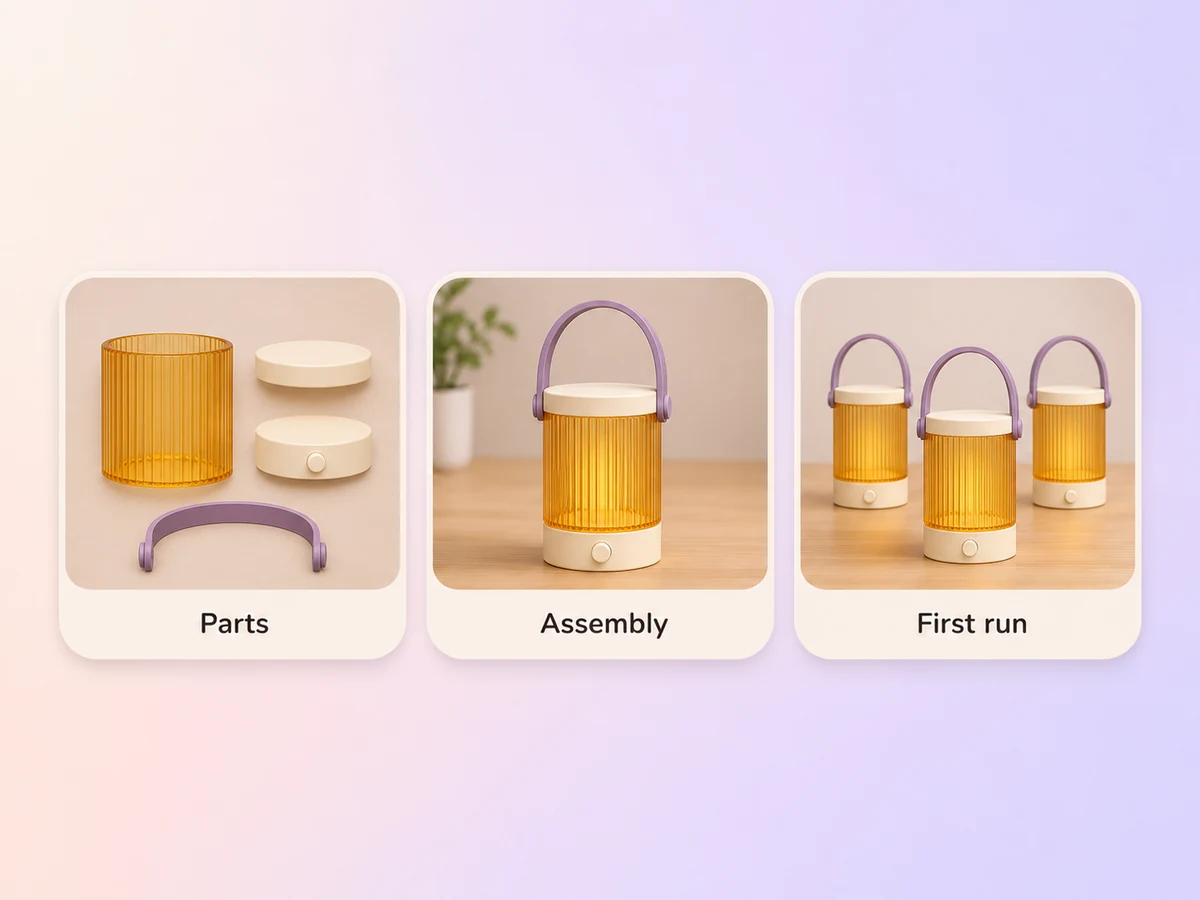
Give Pexo the campaign’s approved target and the milestones it supports, such as testing, materials, or a first production run. Use simple visual steps to explain the plan. Read the captions against the campaign page and check that each number and date matches.
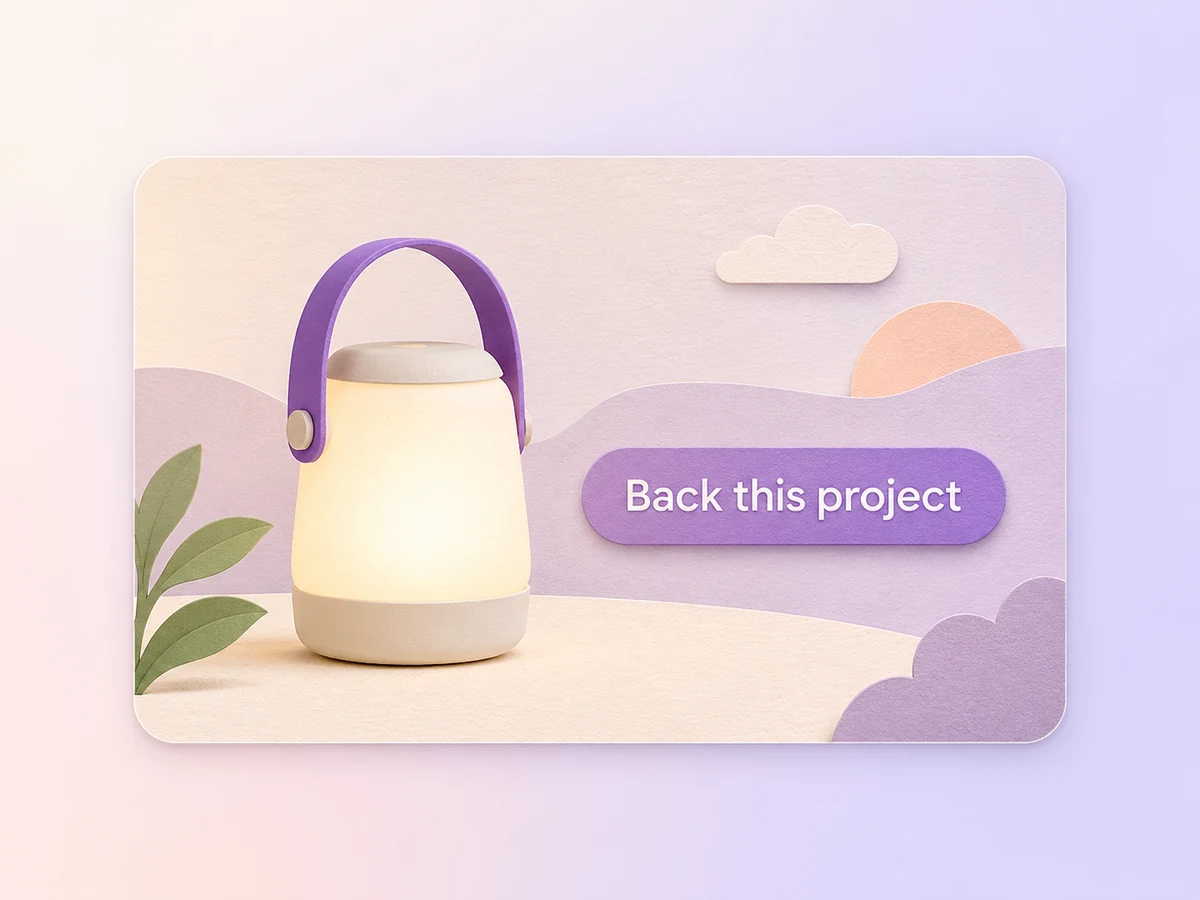
Close the video on the project name and the next step. Use the wording from your campaign page and include a deadline or reward only when it applies. Keep the closing card on screen long enough to read before the video ends.
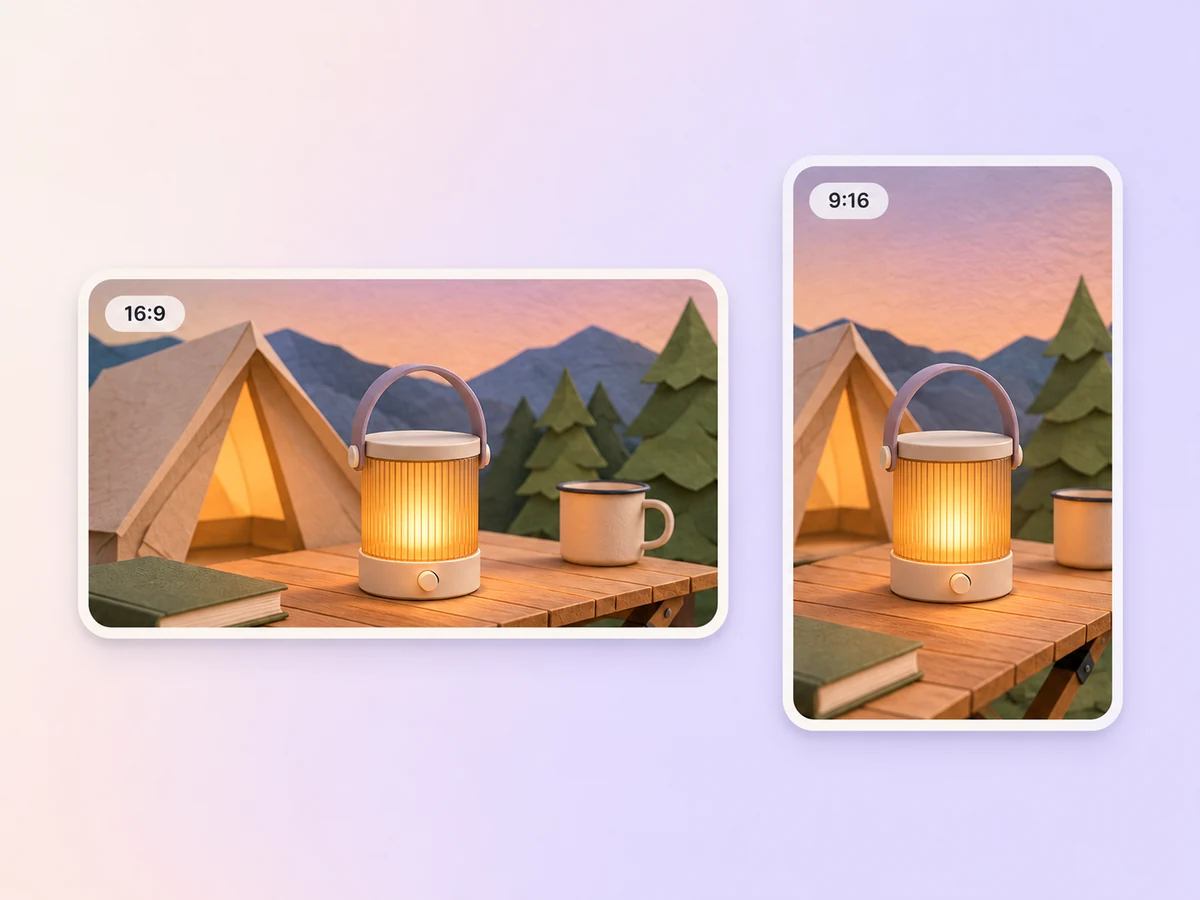
Ask for a 16:9 video for the campaign page and a 9:16 teaser for a social feed. Use the longer cut to explain the goal and keep the teaser focused on one project benefit. Check the call to action and project name in both previews.
Open on the problem that led to the design. Show how the prototype would work, then explain what the first run requires. End on the campaign name and support step.

Use illustrated scenes to show who uses the space now and how the planned change would help. Give each funding milestone a simple visual. Close with the next step for supporters.

Show the concept art for the project and a short example of what people will see. Explain what the funding makes possible. Use the approved campaign date on the closing card.

An animated crowdfunding video uses animation to explain a project and ask viewers to support its campaign. It can show the problem, a proposed design, what the funding covers, and how to back the project. Illustrations are especially useful when a prototype or completed product is still in development.
Yes. Use sketches, diagrams, or concept art you are ready to share. Tell Pexo which parts of the project are planned and label the demonstration accordingly. Use a product explainer video to show how the design is intended to work and explain which milestones the campaign would support.
Yes. Supply the approved goal, currency, date, and reward wording from the campaign page. Tell Pexo where each detail belongs, such as the funding section or end card. Check the preview against the live campaign details before you use the video.
Pexo lets you plan the campaign story and refine it in one chat. It can use a model such as MiniMax H3 to generate a short animated scene from references and direction. Ask for a 16:9 cut for the campaign page and check the on-screen numbers before sharing.
An animated crowdfunding video explains what support will help a project achieve. A product launch video introduces a product to its audience and shows why it matters. A crowdfunding cut usually adds the funding purpose, current project stage, and a clear way to back it.
Start with subject + action + camera movement + setting + style. Add the project stage, funding goal, and exact support message. Try “Show a flat illustration of our foldable lamp opening on a small desk. Use a gentle push-in and warm colors, explain what the first production run needs, and end with our campaign name.”
Bring your sketches and campaign brief. Show the project in action and give supporters a clear next step.
Make a game trailer from gameplay captures and concept art. Use Pexo to show how the game plays, build to a reveal, and end with a next step.
Make a sneak peek video that teases without spoiling. Pexo builds it with Seedance 2.5, Kling AI 3.0 and MiniMax H3 in 16:9, 9:16 or 1:1 up to 4K.
Make a website launch video with Seedance 2.5, Kling AI 3.0 and MiniMax H3. Describe your site, pick a model, and get a launch film in minutes.
Make a startup launch video from your pitch with Pexo. Script, presenter, music and edit in one pass with Seedance 2.5 and Kling AI 3.0, ready in minutes.
Make an event launch video with Seedance 2.5 and Kling AI 3.0. Pexo scripts, scores and edits a teaser that reveals the date and drives sign-ups.
Make a product reveal video that teases, then lands the hero shot. Pexo scripts and scores it with Seedance 2.5, Kling AI 3.0 and MiniMax H3 in minutes.
Make a software launch video that shows what shipped and why it matters. Pexo scripts, narrates and edits it with Seedance 2.5 and Kling AI 3.0.
Make an app launch video from your screens with Seedance 2.5, Kling AI 3.0 and MiniMax H3. Pexo scripts, voices and edits it in 16:9, 9:16 and 1:1.