
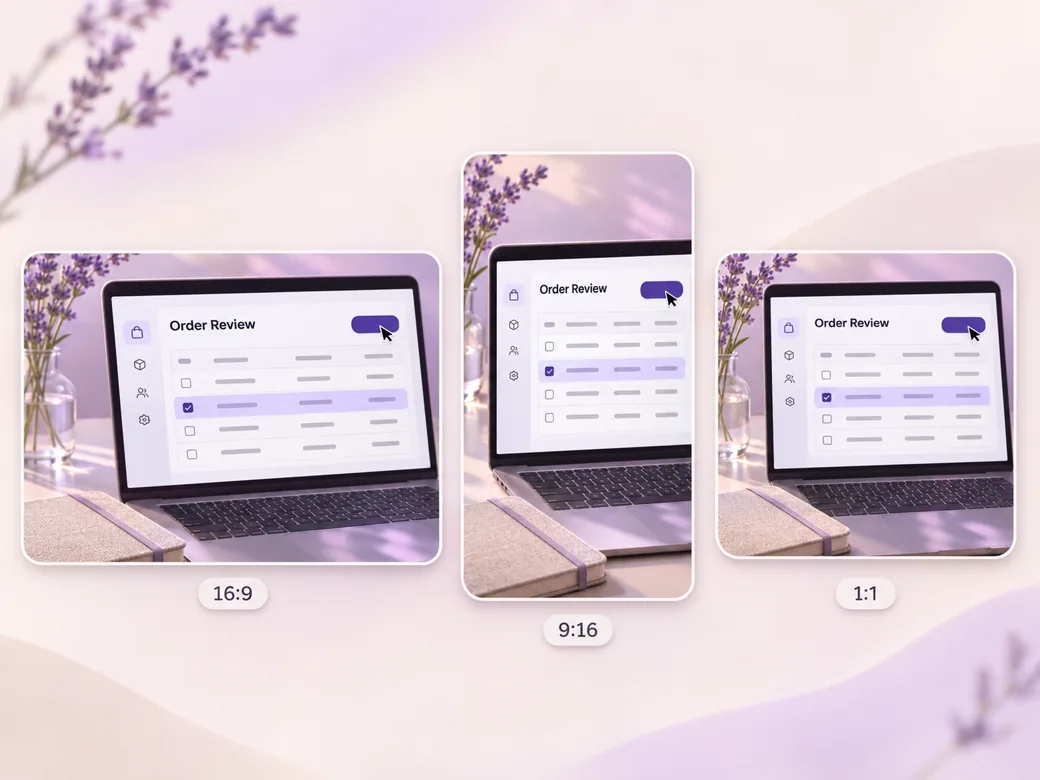
Pinterest Video
Make a Pinterest video in Pexo that opens on the result and shows readable steps for a video Pin.
Create an AI screencast video from a screen recording and a short script. Use Pexo to add narration, focus attention on an action, and prepare a walkthrough viewers can follow at their desk.
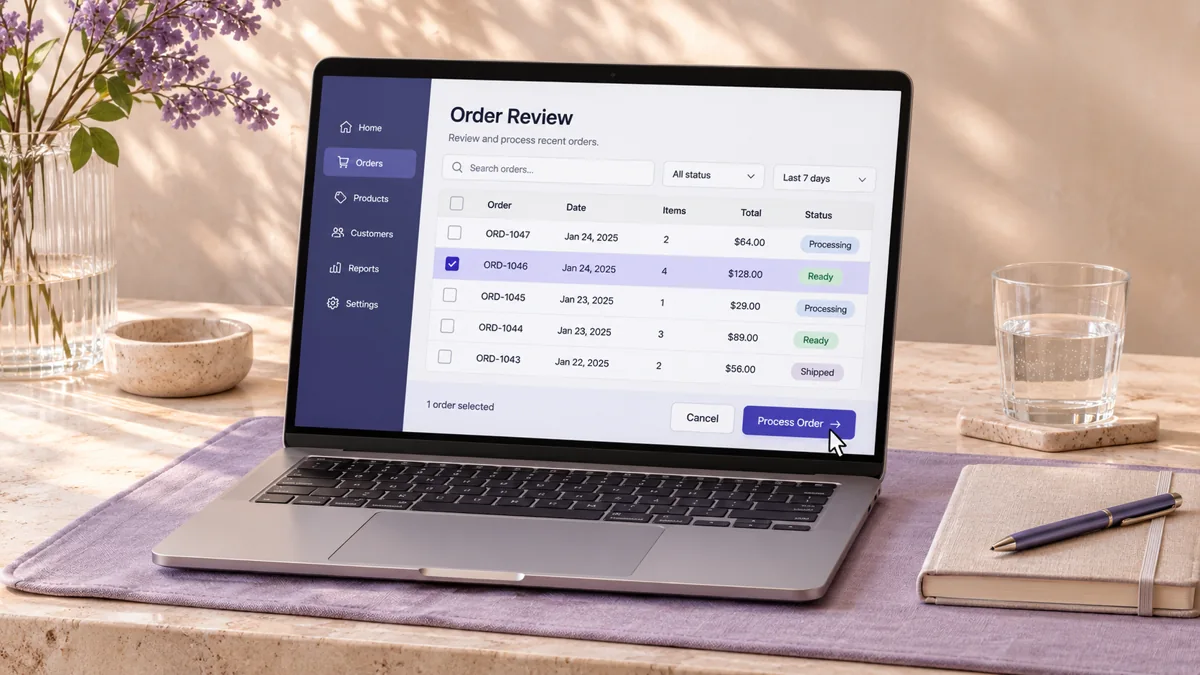
Record the task in a test account. Start where the viewer will start, keep the cursor visible, and wait for the confirmation state before stopping. Tell the screencast video maker which menu, button and final state carry the explanation. Review those moments in the preview before refining the narration.
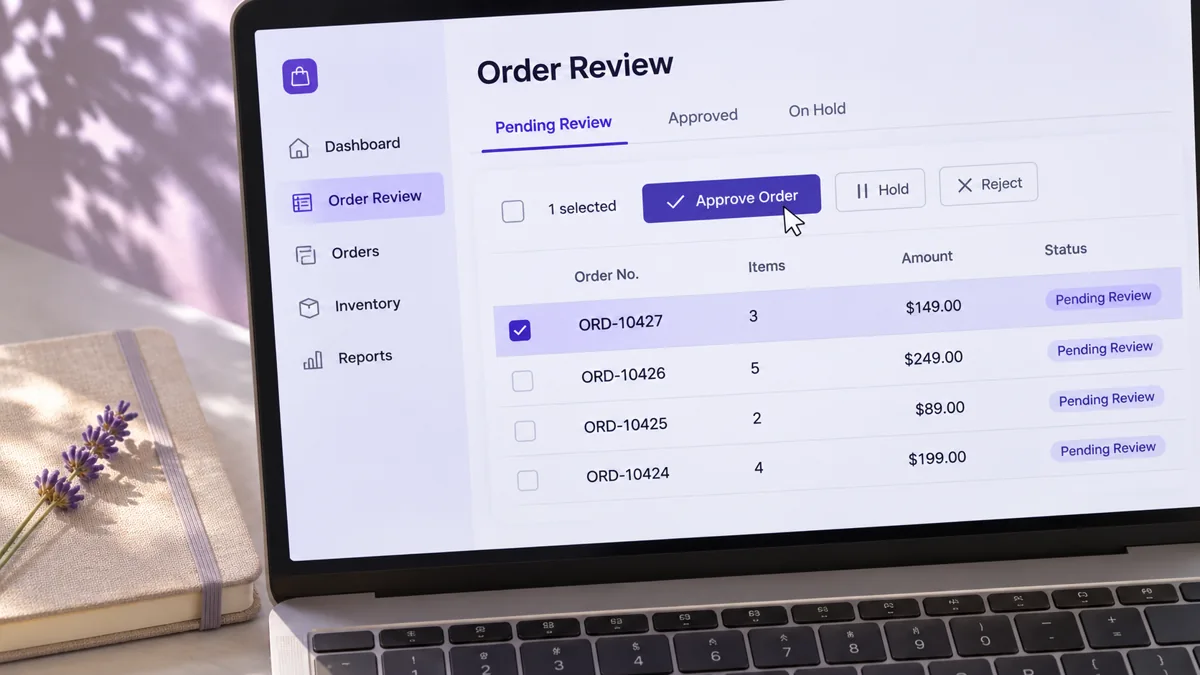
This illustrated preview shows how the brief can be reviewed in Pexo.
What to review
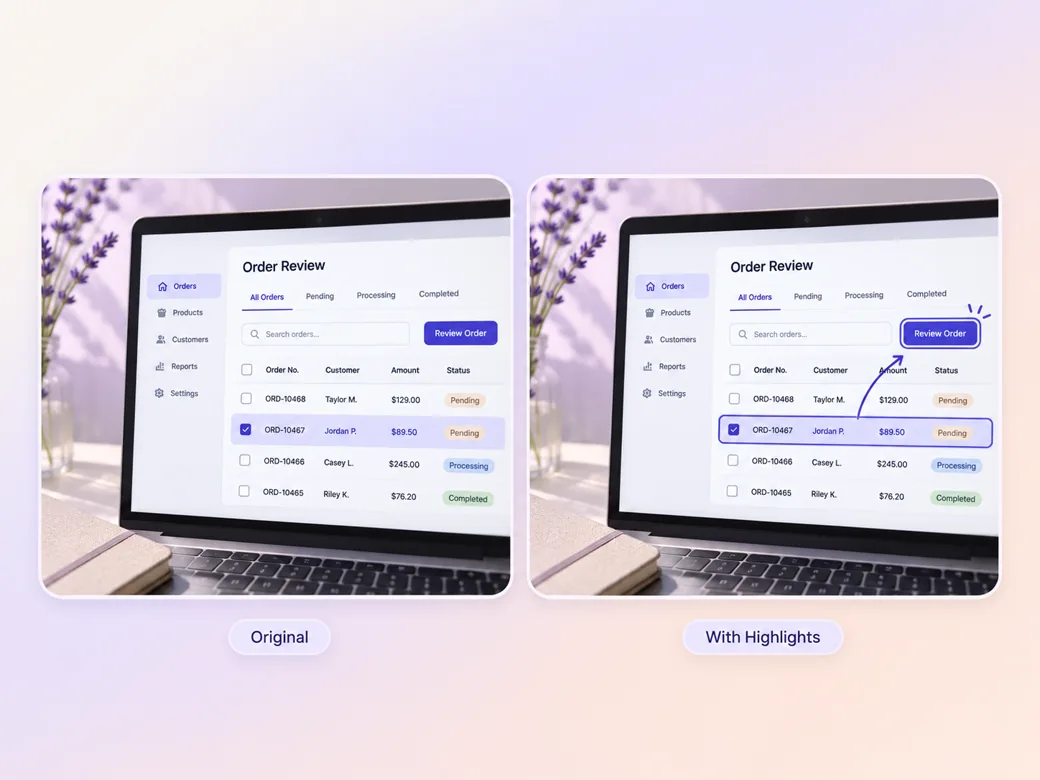
Ask Pexo to introduce a short callout just before the click. For an order review, show the selected row, the action button and the confirmation in sequence. Give each label a little space so it does not cover the cursor, the button or the instruction the viewer needs next. See the Pexo Motion examples for short on-screen cues.
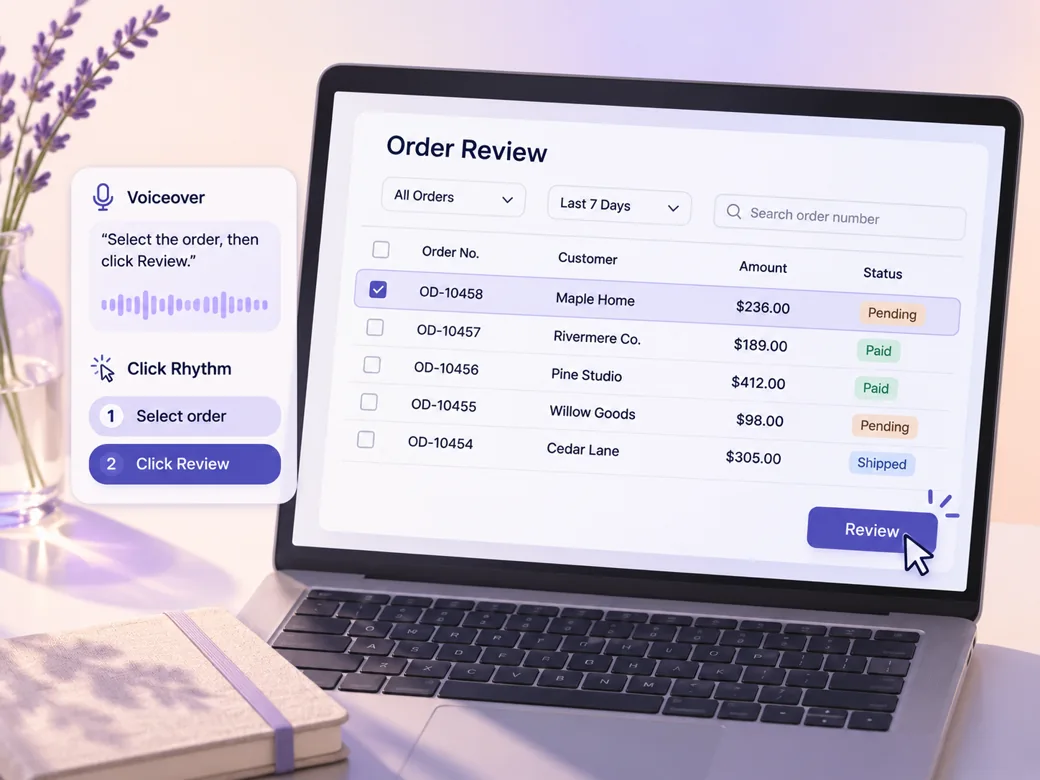
Paste the approved narration or provide an existing voice track. Pair the instruction with the visible result, then pause while the screen changes. Listen with captions on and check that label names, acronyms and the spoken next step match your current product screens. Bring a finished voice track into the audio to video workflow.
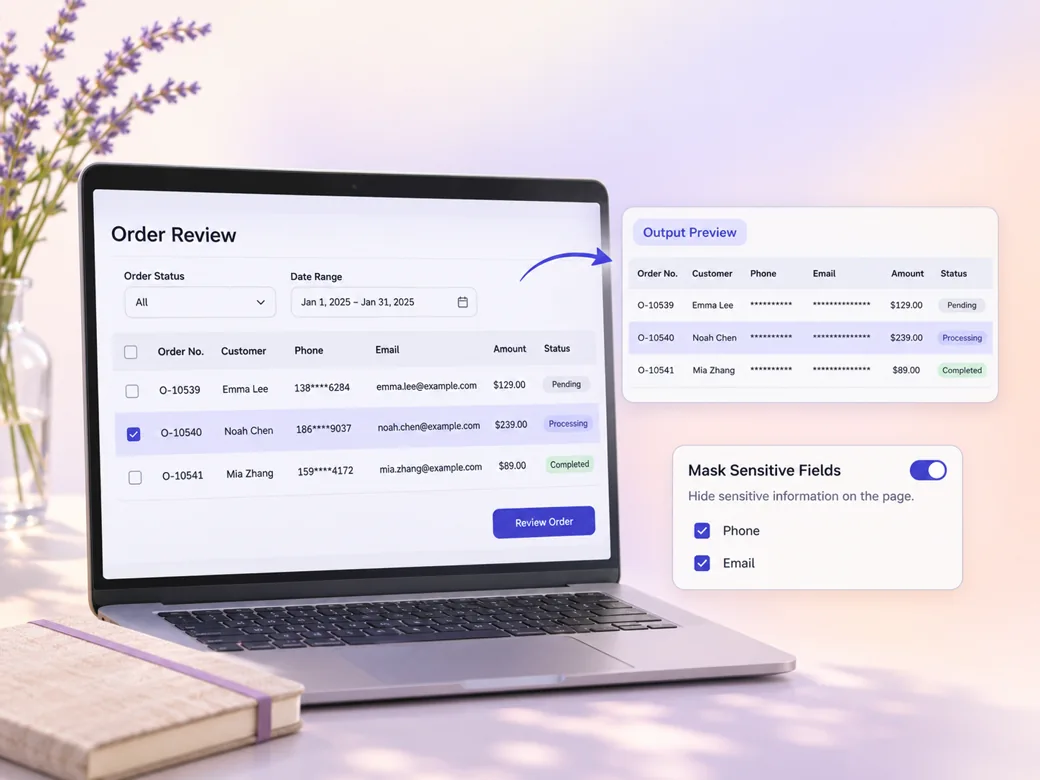
Ask Pexo for a tighter framing if the button is too small in a mobile preview. Confirm that the preceding menu and the final result are still visible. Use sample data when recording and review the screencast video generator output before sharing it outside your team.
Keep the whole interface in the 16:9 version. For the 9:16 cut, guide the viewer from the selected row to the action and confirmation using separate crops. Check that the labels survive at the playback size your audience will use.
The selected row is visible before the action. The final confirmation tells a new operator when the task is complete. Hold the confirmation long enough to read it.
Pexo can present the click and the spoken instruction in one preview. The control names should match the version our support team uses. Check the label against the actual screen.
The short caption is readable at phone width and leaves the cursor unobstructed. Replay the clip with sound off.
A screencast video is a recording of a computer or phone screen that shows a task or explains what happens in an interface. A typical software walkthrough includes a starting screen, the actions to take and a visible end state. Narration and captions help viewers follow the recording at their own pace.
Yes. Capture the real workflow in a test account and provide the recording with your narration or a short description. Tell Pexo which portions viewers must see clearly. Before sharing, check the button names, the cursor, the demonstration data and the final confirmation against the product.
Yes. Ask for a 16:9 version when the whole interface matters and a dedicated 9:16 version when viewers will mostly watch on phones. The narrower version may need separate close-ups and shorter captions. In each preview, make sure the action and the resulting status are visible.
Pexo is a screencast video maker for teams combining a real recording with narration, captions and explanatory graphics. Use the recording for exact product details and review the resulting walkthrough against it. Models such as Seedance 2.5 can produce an optional introductory scene while the screen capture shows the actual procedure.
A screencast video uses the screen recording itself to show what happens. A tutorial can also use live demonstrations, diagrams or a presenter. For an application walkthrough, begin with the recording. For teaching a task that combines an interface with a physical action, use a wider tutorial format. See tutorial video for that format.
Use subject + action + camera movement + setting + style. Try this brief. Show a laptop order review in a sample workspace, select a row, make a gentle push toward the action button, and pause on the confirmation. Use a bright documentary look and simple English captions that leave the pointer visible. Review the result against the assets and instructions you supplied.
Build a walkthrough around the actual screen recording and the one action viewers need to learn.
Make a Pinterest video in Pexo that opens on the result and shows readable steps for a video Pin.
Create a LinkedIn video in Pexo from one practical idea, supporting footage and captions that read in the feed.
Create a product review video in Pexo with real testing footage, clear conditions and honest observations.
Make an Amazon product video with Pexo from your product photos and demo footage. Show the item, its scale and how it works.
Create a spokesperson video with Pexo from an approved script, presenter direction and supporting product shots.
Make a case study video in Pexo that pairs an approved customer story with real footage and measurable results.
Animate your exact words in a kinetic typography video. Use Pexo to plan text movement, timing and a readable final frame.
Use Pexo to make a process video that sequences work stages, shows the key materials and marks the checks that matter.