
AI YouTube Montage Video
Make a YouTube montage video with Pexo. Turn approved clips into a wide edit with a recognizable opening, deliberate progression, and a clear ending.
Make an AI memorial slideshow video from family photos, short captions, and recorded memories. Arrange the pictures with care, choose a gentle soundtrack, and review the finished tribute together.
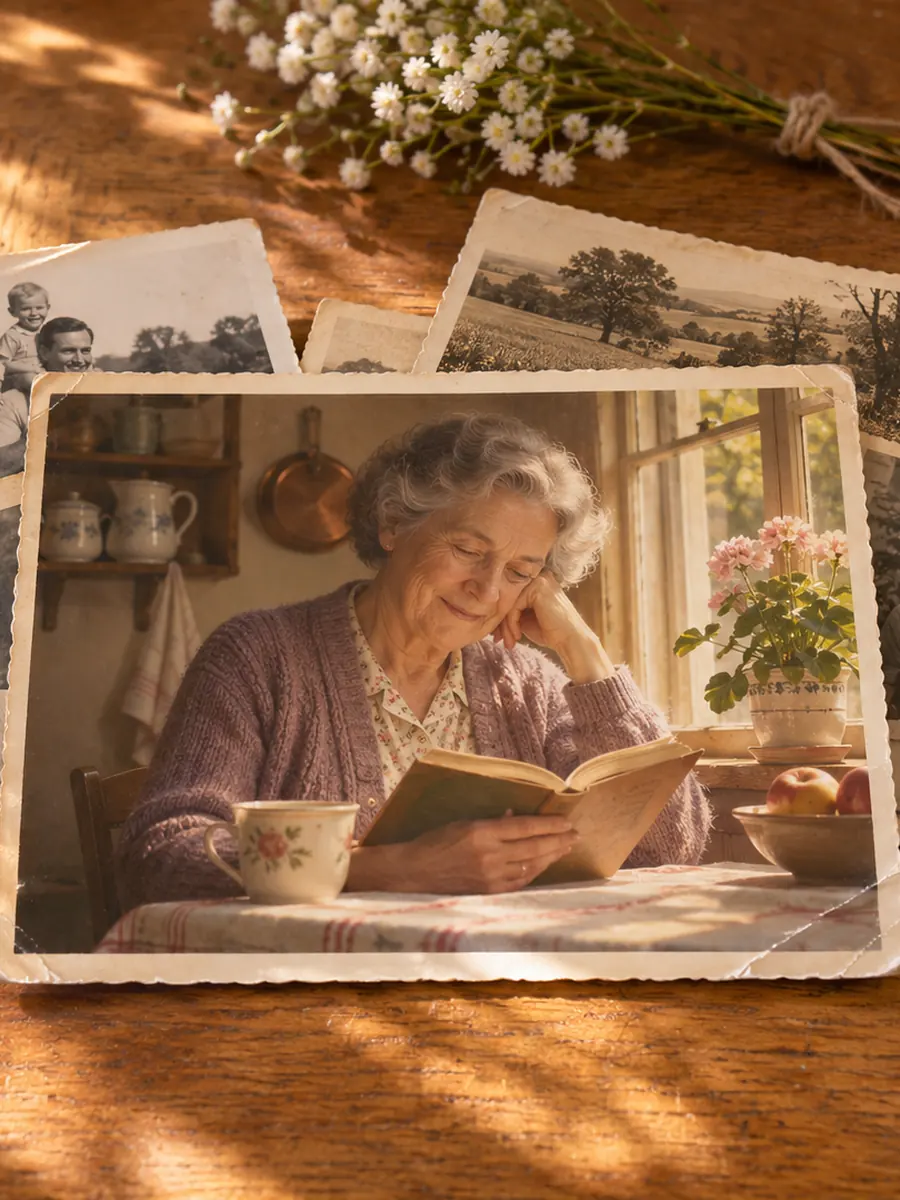
Bring the photographs the family wants to use. In Pexo’s memorial slideshow video maker, describe the order or group them by chapter, such as early years, family, friends, and the things they loved. Name the opening and closing photos. Review the sequence together to make sure it reflects the memories you meant to share.
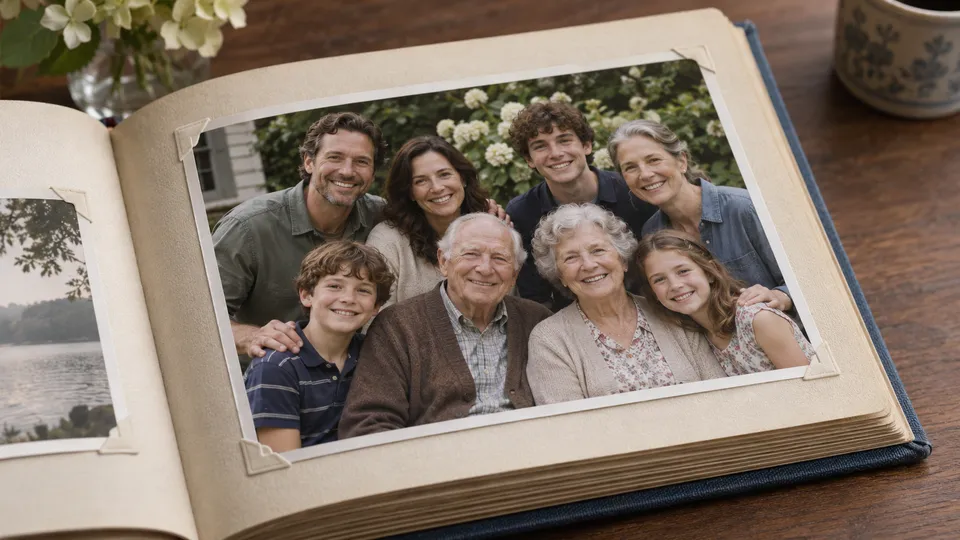
Review the opening portrait and the first photo sequence with the family.
Review the preview
Give Pexo the exact spelling and dates. Use Add Text to Video to place a short caption beside the image or in a quiet border. Keep the line large enough to read at the service and leave it on screen long enough to finish. Check any uncertain spelling with the family before export.
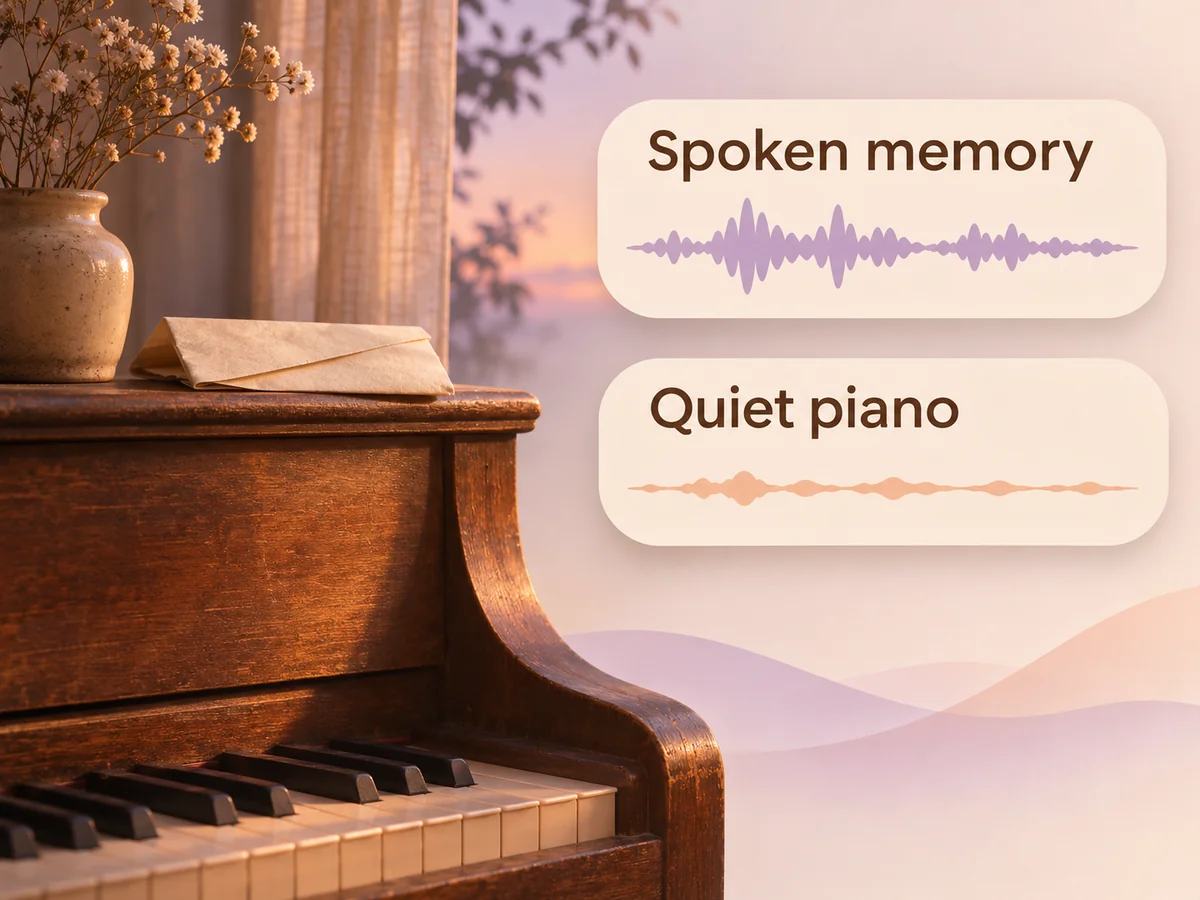
Use a short recording chosen by the family, or let a still photo play with a quiet instrumental. If you want to add a piano bed, try music generation and keep it low during speech. Listen to the handoffs between recordings and let the last line finish before the closing fade.
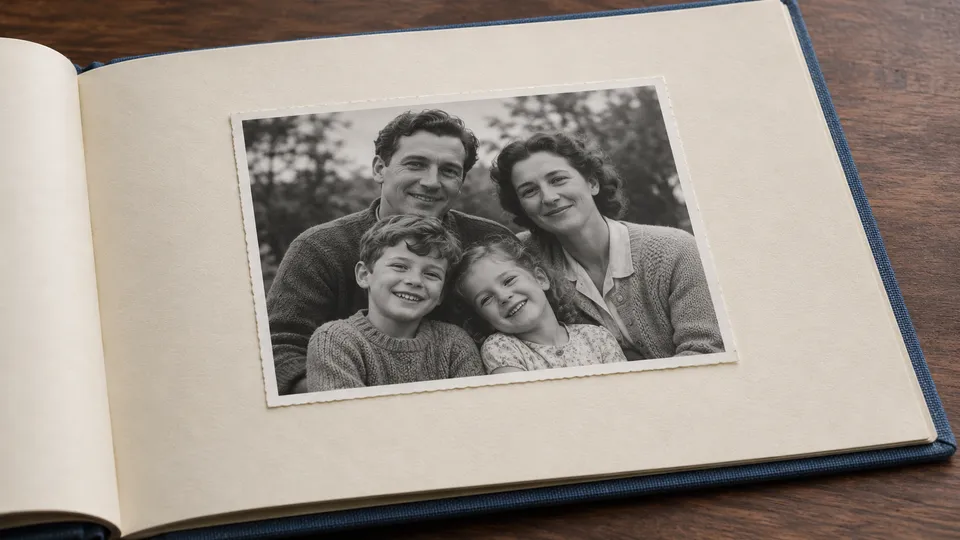
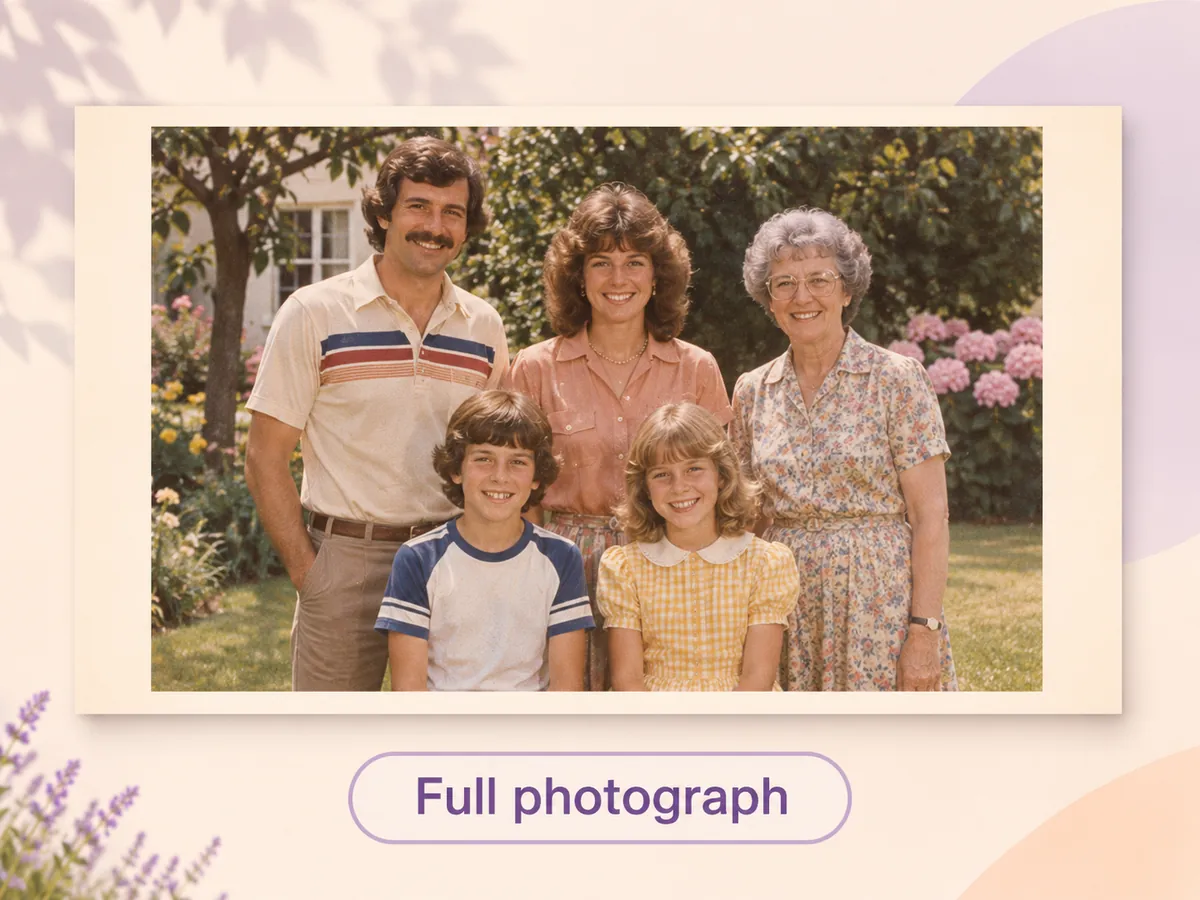
Tell Pexo which photos should stay still. Use a soft matte around a narrow or square print when it needs room inside a wide frame. Review older group photographs at the intended size to make sure the people near the edges are visible. Use a simple hold for a picture that needs more time.
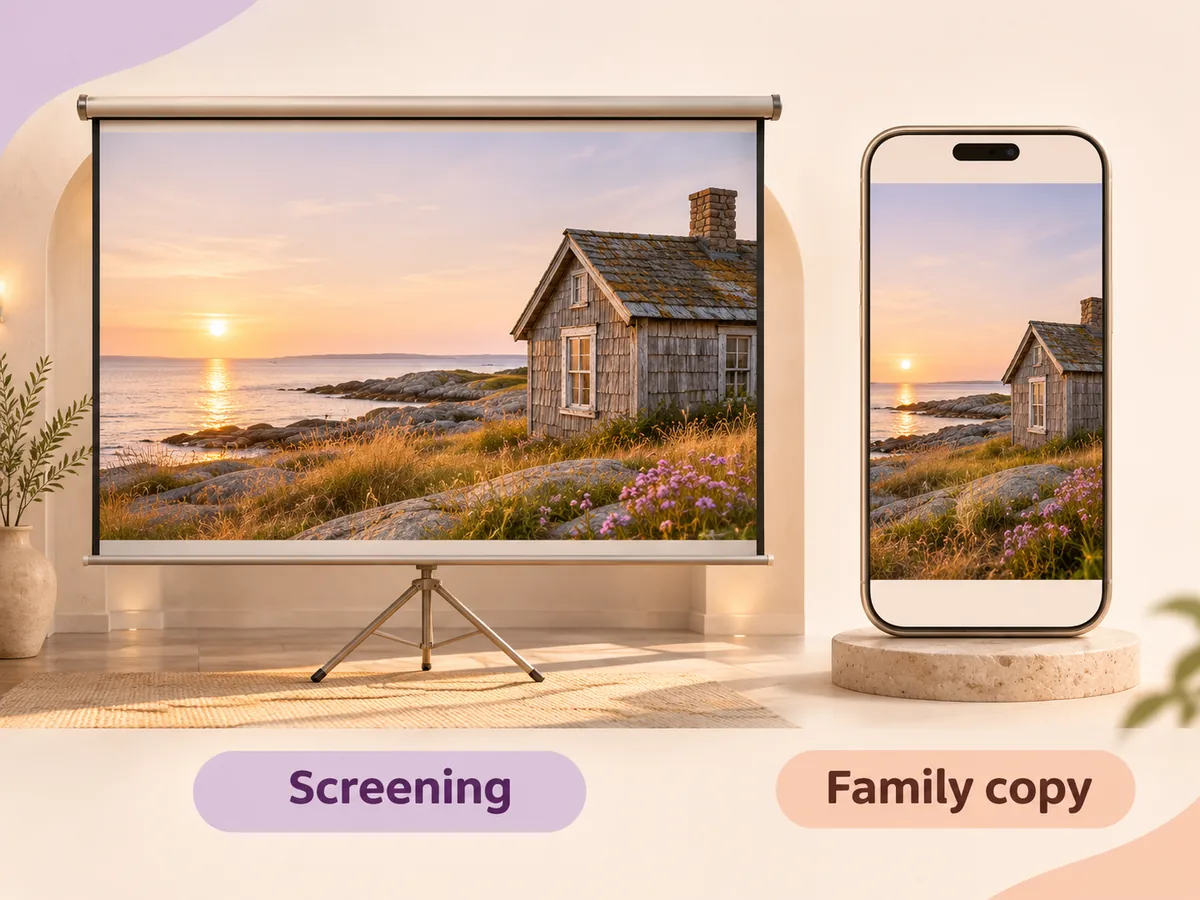
Confirm the service venue’s playback requirements before choosing the format. A 16:9 layout fits many televisions and projectors. Use a separate mobile version if the family wants to share it, and review it for readable captions and complete faces. Play the final export from start to finish before the service.
“I want the photographs we chose to carry the story. I check the names with someone else in the family before we share it.”
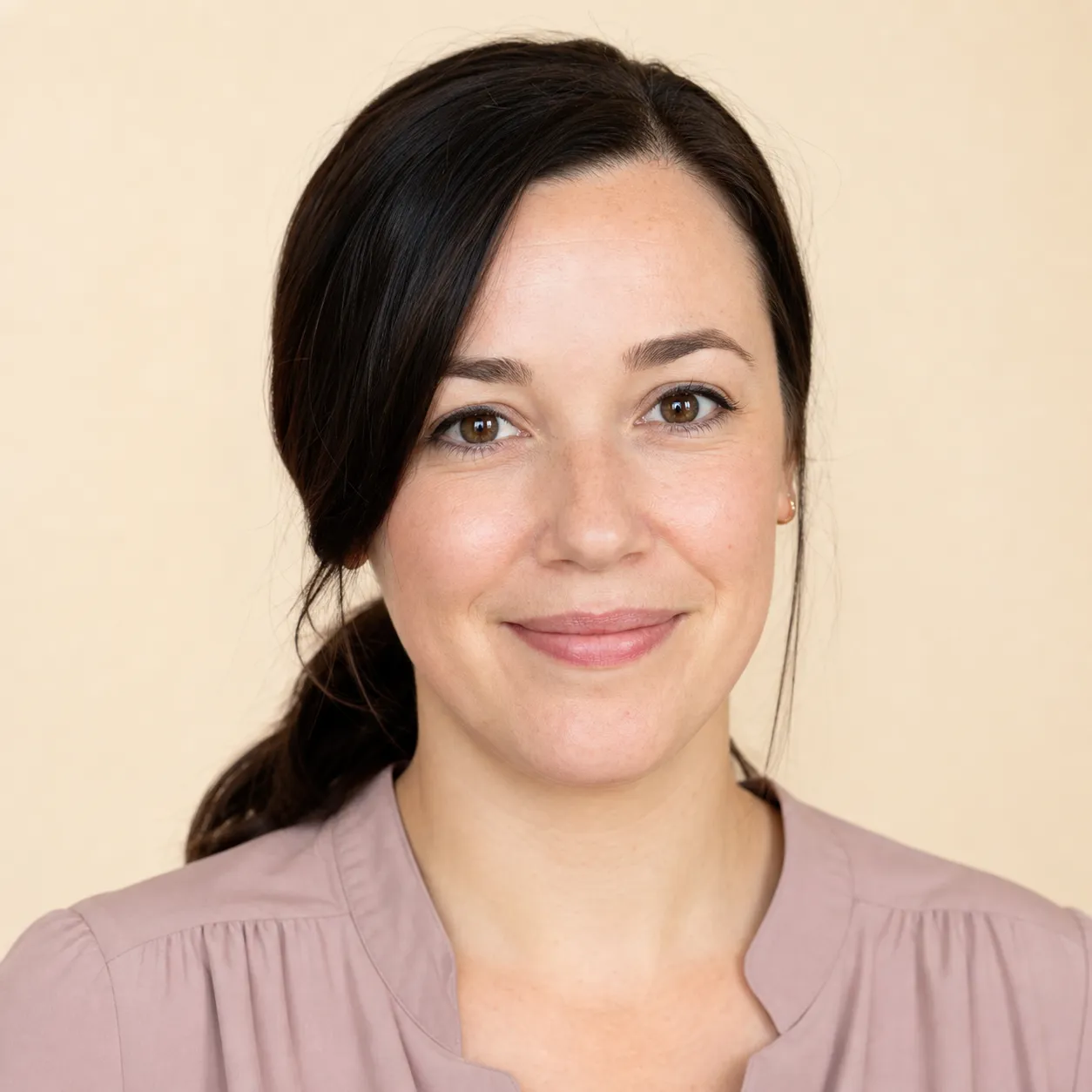
“I play the file on the screen we’ll use in the room. People at the back should be able to read any dates and hear the recorded words.”

“I look at the original prints beside the preview. If a crop leaves someone out, I give the whole picture a quiet border.”

A memorial slideshow video brings photographs, short captions, and optional audio together to remember a person. It may play at a service, a gathering, or in private with family. You can arrange it by time, by relationships, or by the moments people remember best, with a simple opening and closing.
Yes. Ask for a classic slideshow that holds the supplied photographs and uses simple cuts or fades between them. Flag the prints you want shown in full, especially group photos. Review each important image in the finished draft so you can check who is visible and how long the photo stays on screen.
Start with the venue’s player, file, and aspect ratio requirements. A 16:9 layout fits many standard televisions and projectors. Check the actual file on the venue’s device when you can. If you make a second mobile version, review the captions and faces again after the framing changes.
Pexo helps arrange the family’s photographs, add titles, and shape a simple soundtrack you can revise in conversation. Use a still-photo sequence for the main tribute. If the family chooses to give a separate scenic image some movement, use Kling AI 3.0 to preview that shot before adding it.
A memorial slideshow centers on one person and the memories people choose to share. A video slideshow can cover any occasion or subject. For a memorial, check the spelling, give each photograph time, and pick music that fits the gathering and leaves room for family recordings.
Use subject + action + camera movement + setting + style. Try ‘Arrange the family’s original photographs by life chapter. Hold each supplied photo still with a wide cream matte and show the names exactly as provided. Set the tribute to quiet piano, keep the recorded message clear, and end on the family’s chosen portrait.’
Start with the pictures and memories the family has chosen. Make a tribute you can sit down and review together.
Make a YouTube montage video with Pexo. Turn approved clips into a wide edit with a recognizable opening, deliberate progression, and a clear ending.
Make a birthday slideshow video with Pexo. Arrange approved family photos and recorded greetings, then check that faces and voices come through on the event screen.
Make an employee motivation video with Pexo. Turn project photos and a specific milestone into a team kickoff or all-hands video with a clear next step.
Make a relaxation music video with Pexo. Pair a gentle instrumental with slow-moving visuals and blend in soft rain, water, or room tone.
Make a proof of concept film with Pexo. Turn a script excerpt into a short sample, test one creative choice, and share it in a pitch or review.
Make a live-action wedding film with Pexo. Edit the footage and original sound around complete moments and prepare a cut for the couple to review.
Edit recorded underwater footage into a showcase reel with Pexo. Guide viewers from the setting to the subject and prepare a clear cut for review.
Make a kids’ product and toy showcase video with Pexo. Show the included pieces, a clear play action, and the finished result in a buyer demo.