


AI YouTube Montage Video
Make a YouTube montage video with Pexo. Turn approved clips into a wide edit with a recognizable opening, deliberate progression, and a clear ending.
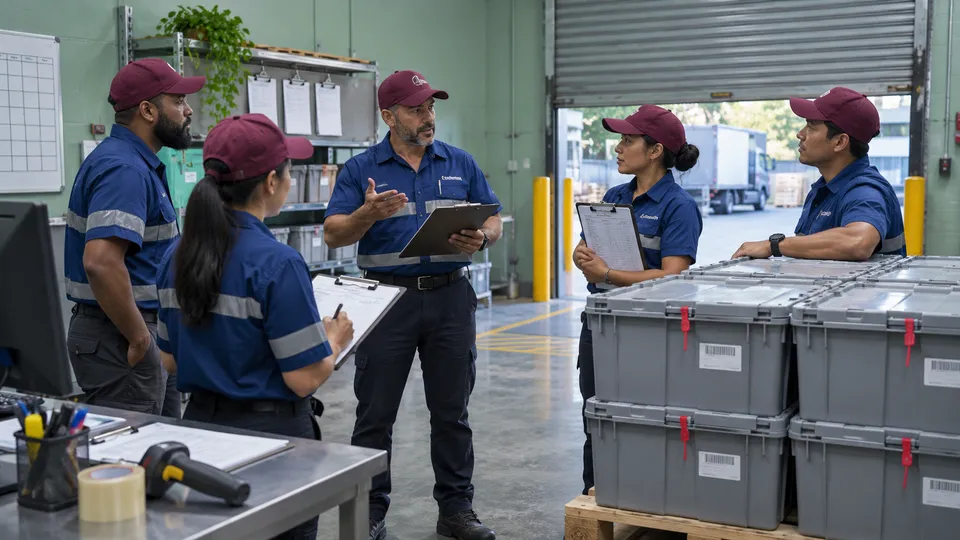
Make an AI employee motivation video for an all-hands or kickoff. Show a real moment of progress, thank the people behind it, and close with one clear next step for the team.
Bring a project photo, a short clip from the team, or a note describing what changed. In Pexo’s employee motivation video maker, ask for a cut that opens with the result, shows a moment of the work, and thanks the people who moved it forward. Check that the sequence makes sense at meeting pace.
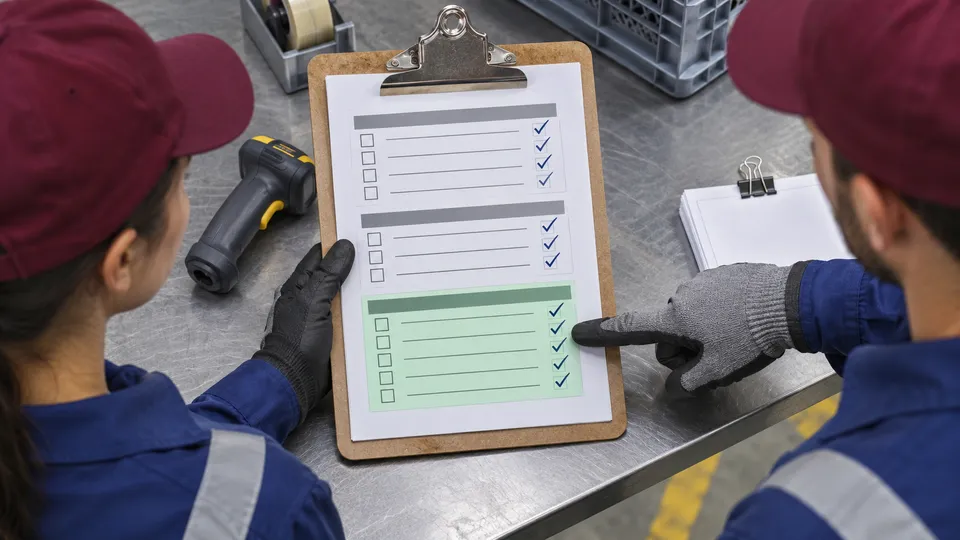
Give Pexo the audience, one approved milestone, and a specific next action. Review the cut at meeting pace with the spoken message and on-screen text.
What to review
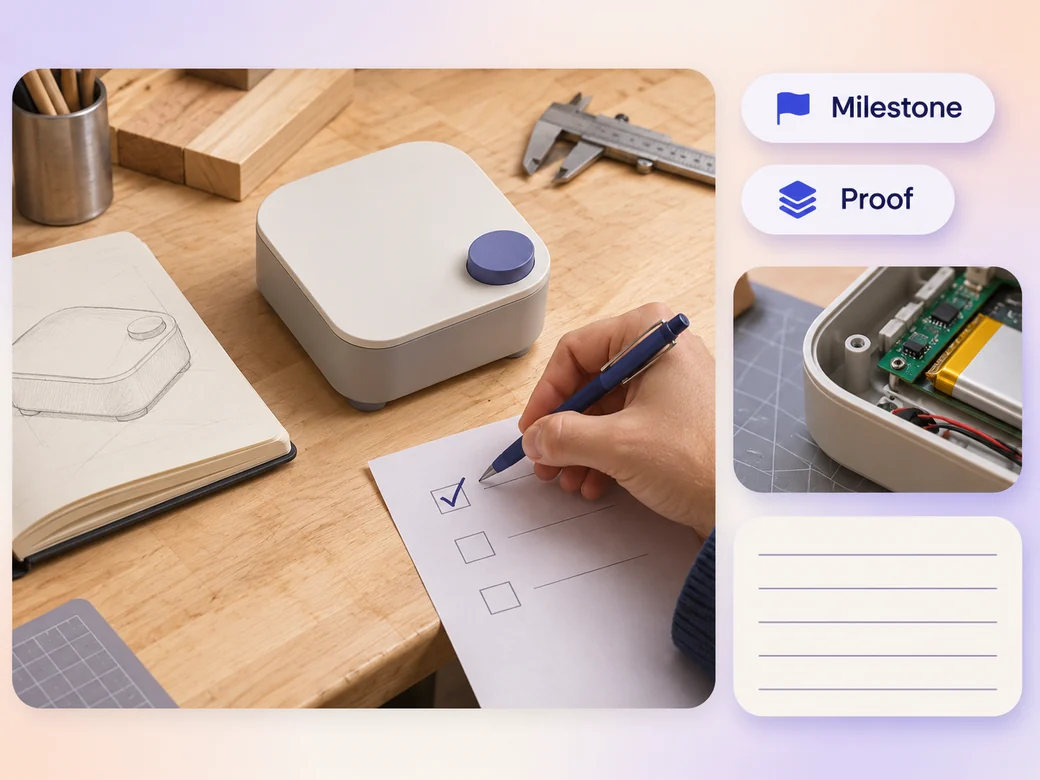
Use an approved detail people recognize, such as the first prototype that passed review. Show a project artifact or a real photo next to a short line explaining why it mattered. Use Add Subtitles to Video to keep spoken details readable during an all-hands, especially in the shared recording.
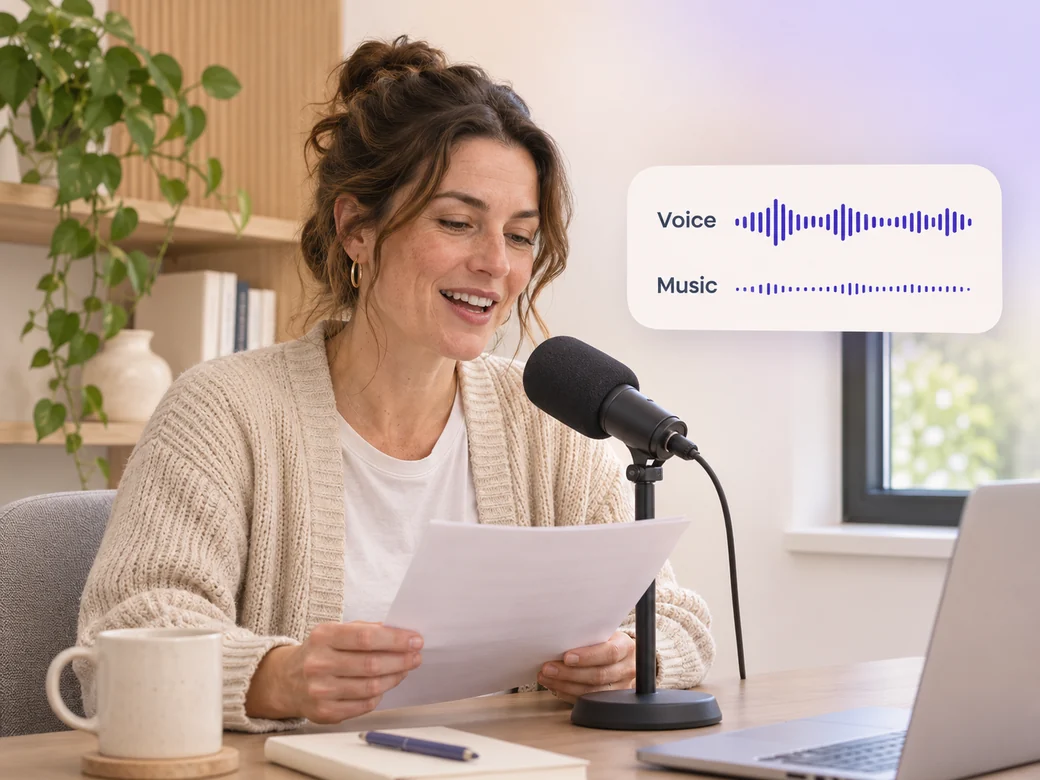
Record the team lead’s message or describe the delivery you want, such as steady, warm, and direct. Listen to a short sample with job titles and names to check pronunciation. Use Music Generation to try a restrained score, then listen again with the speech to make sure every word carries.
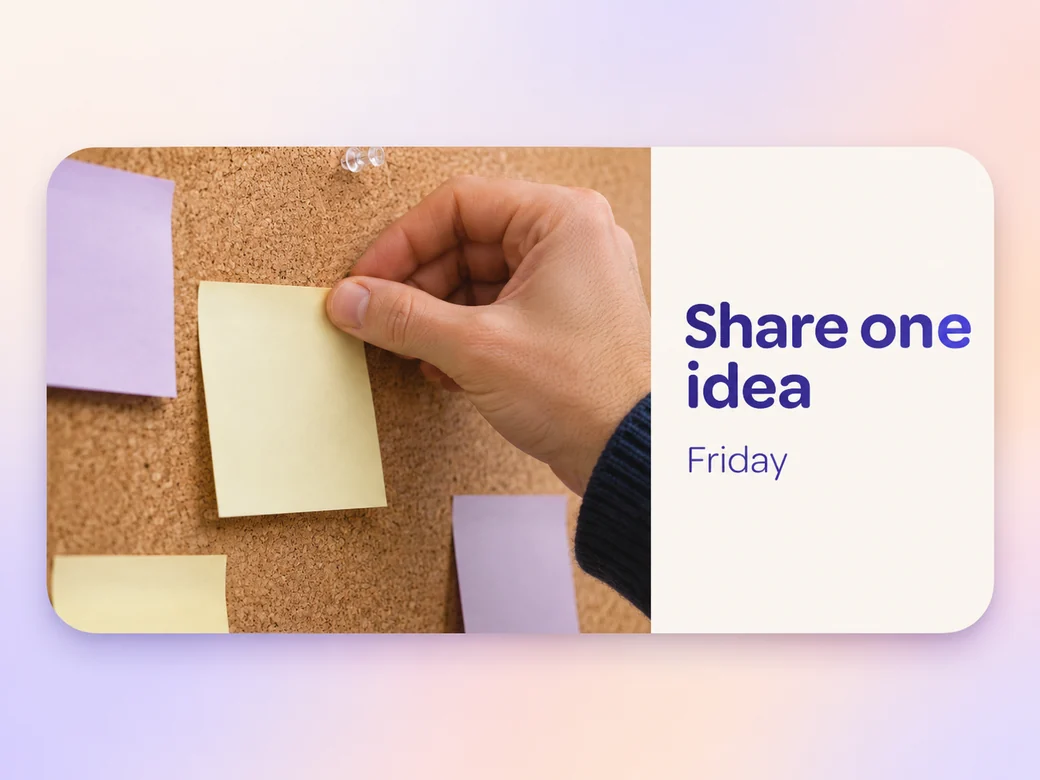
Write a single action and give it a deadline if the team needs one. For example, ask everyone to share one improvement by Friday. Give the action its own final shot, keep it short enough to read from the back of the room, and put the same wording in the follow-up version.
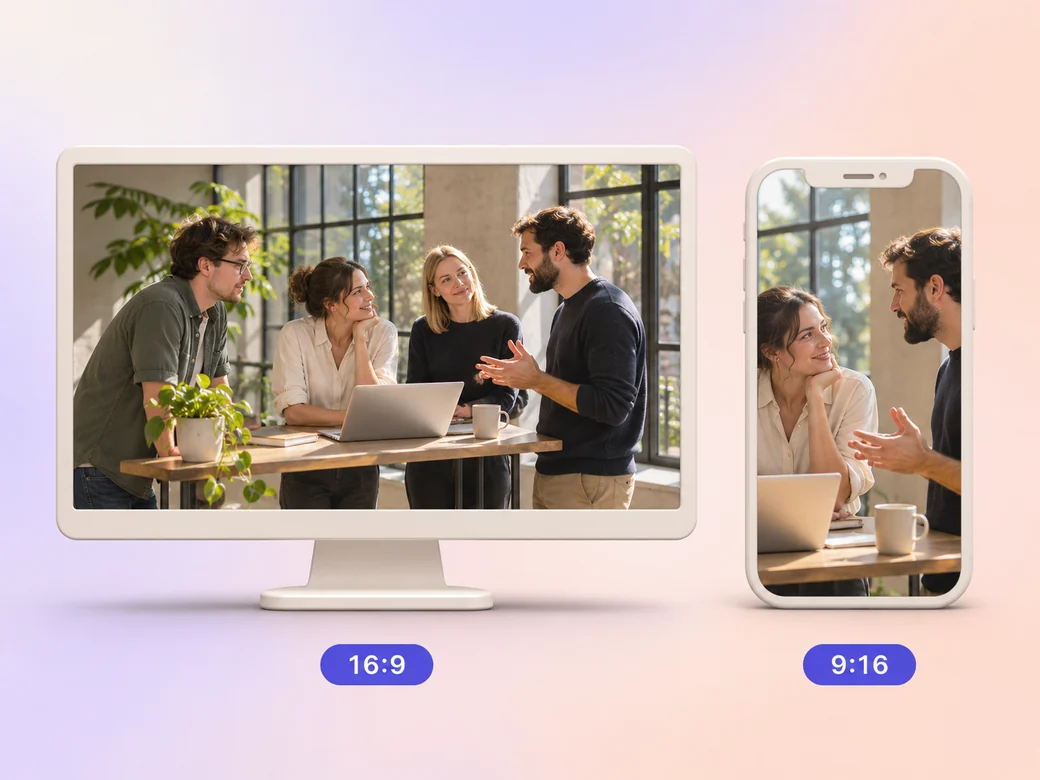
Use a wide 16:9 cut for the room screen or remote all-hands. Make a shorter 9:16 version for the team chat. In both, keep names and captions in view and hold the final action long enough to read it once at a comfortable pace.
“I want the team to see a moment they remember from the project. An actual result makes our message of thanks specific.”

“I check how the line reads out loud, especially the names and the part about what changed. I keep the music low enough to let the words carry.”

“I send a short version to anyone who missed the meeting. The last frame should tell them exactly what we’re asking for and by when.”

An employee motivation video is a short internal piece that connects a team accomplishment or goal to the people doing the work. It often opens a kickoff, all-hands, or team meeting. A clear version shows a specific result, acknowledges the contribution behind it, and states what the team can do next.
Bring the audience, the meeting context, and a short description of the moment you want to recognize. Include staff photos or footage you have permission to use and any project detail that has been cleared for the audience. Agree on the wording of the final action and check names before you export.
Yes. Use approved photos, existing project footage, and written lines that the team lead has reviewed. Add narration if it suits the meeting, or use short captions and a light score. Use the visuals to show the work, recognize a contribution, and tell the viewer what happens next.
Pexo helps shape your materials into an internal message and revise the pacing, voice, and final call to action after previewing it. Keep approved staff footage for the real milestone. If you want a separate illustrative clip of a workspace or object, Kling AI 3.0 can help animate that reference.
An employee motivation video speaks to the people already doing the work and connects a real milestone to a next step. A recruitment video helps prospective applicants understand the team, the role, and what it might be like to join. The two formats often need different examples and endings.
Use subject + action + camera movement + setting + style. Try ‘Open with our approved prototype photo on the workshop bench. Use a slow push-in before cutting to the team testing it. Keep the style candid and warm. Thank the team and end with “Share one idea by Friday.”’
Bring one outcome the team recognizes, a message of thanks, and one action to take after the meeting.
Make a YouTube montage video with Pexo. Turn approved clips into a wide edit with a recognizable opening, deliberate progression, and a clear ending.
Make a birthday slideshow video with Pexo. Arrange approved family photos and recorded greetings, then check that faces and voices come through on the event screen.
Make a relaxation music video with Pexo. Pair a gentle instrumental with slow-moving visuals and blend in soft rain, water, or room tone.
Make a memorial slideshow video with Pexo. Arrange family photos, names, and recorded memories in a gentle tribute for a service or private viewing.
Make a proof of concept film with Pexo. Turn a script excerpt into a short sample, test one creative choice, and share it in a pitch or review.
Make a live-action wedding film with Pexo. Edit the footage and original sound around complete moments and prepare a cut for the couple to review.
Edit recorded underwater footage into a showcase reel with Pexo. Guide viewers from the setting to the subject and prepare a clear cut for review.
Make a kids’ product and toy showcase video with Pexo. Show the included pieces, a clear play action, and the finished result in a buyer demo.