



AI Birthday Slideshow Video
Make a birthday slideshow video with Pexo. Arrange approved family photos and recorded greetings, then check that faces and voices come through on the event screen.
Make an AI YouTube montage video from clips you can reuse. Use Pexo to group them around one theme and give viewers a clear opening, progression, and end.
Tell Pexo what the clips have in common and what should change from the first to the last. Mark which cuts need original sound. Use Merge Videos to assemble the selected footage, then check that the opening and closing make the sequence feel complete.

Decide what changes from the first clip to the last. Give each group a purpose and make transitions clear when the footage comes from different sources.
What to review
Open with a clear situation. Group the rest of the clips by project stage, view, or place. Give short details a purpose and retain full moments with interesting change. Hold enough context that a viewer new to the channel can understand the sequence.
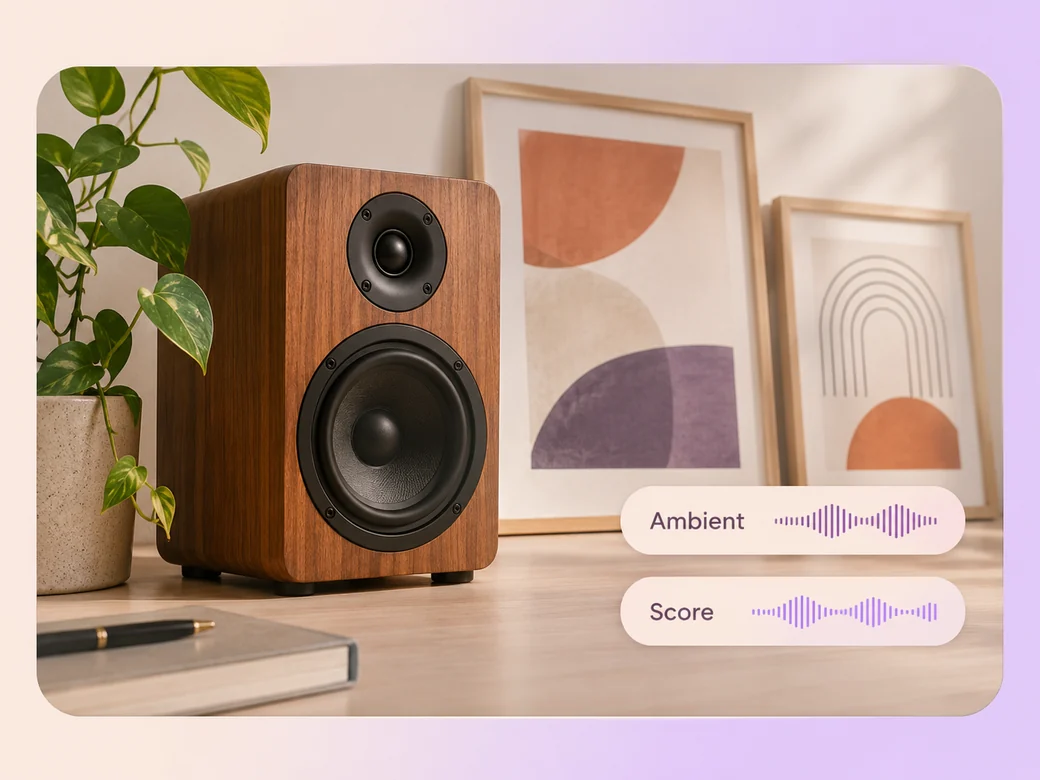
Start with the approved track and listen through the cut. Preserve a small real sound when it matters and avoid repeating the same beat pattern on every join. Give transitions room at the start and the end. Use Music Generation to try the treatment and listen against the actual pictures.
Check that each section begins clearly and the important details remain visible on a smaller screen. Keep the ending focused and place a title or end frame only where it tells the viewer what belongs next.
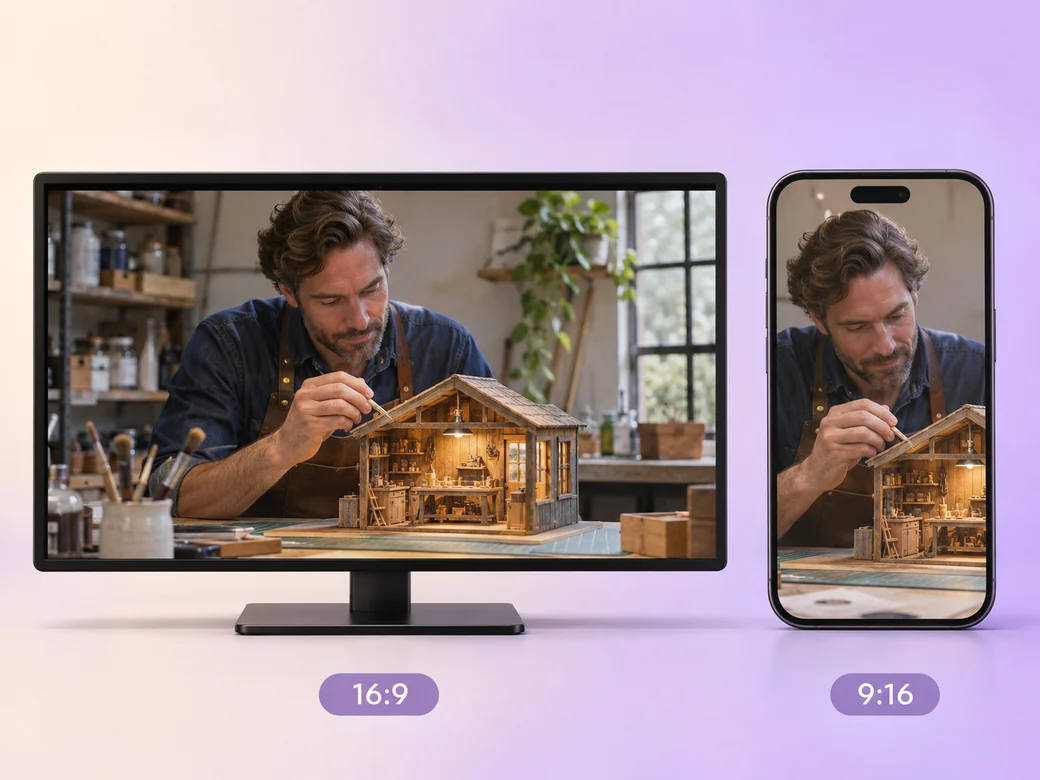
Use a wide master for a standard YouTube upload or episode segment. Keep shared context visible when two subjects or shots need to compare. If you also make a portrait sampler, build it around one complete sequence and check the order and captions separately.
Let the opening establish the theme, then group related shots so each section adds a new detail.

Keep a source cue when it explains the visible action. Listen for distracting volume changes between clips.

Review the wide cut in its intended player. Make sure section changes and the last image still read at a smaller size.

A YouTube montage combines clips into a single sequence for a channel upload, episode segment, or recap. It can connect different sources with one idea, a deliberate order, and sound that helps viewers follow the changes.
Bring the approved clips and note which upload, project, or recording each comes from. Define one theme and choose a strong opener and closing shot. Include a track you can use if the montage needs music and flag any original sound that should remain.
Yes. Use material you have permission to share and connect the clips through a clear theme or sequence. Give each part enough context to identify it and use approved labels where needed. Review sound levels across sources and make sure the final scene actually brings the montage to a close.
Pexo is useful for arranging reused clips into a coherent channel edit and refining how transitions land. Provide the theme, source order, and music direction. Check that cuts respect original context and that footage, audio, and credit are cleared for the upload.
A YouTube montage video organizes existing clips into a themed sequence people can watch in the wide channel player. A broader YouTube video might be planned, filmed, and narrated from scratch. Choose a montage where contrasting images and moving between subjects quickly are the main ways the video communicates the idea.
Name the theme, source clips, and where the sequence appears. For example, ask to group highlights by three projects, keep the original sound during one demonstration, and close on a shot that brings the viewer back to the shared theme.
Bring approved clips and a theme. Make a montage whose first and last shots give the sequence a clear shape.
Make a birthday slideshow video with Pexo. Arrange approved family photos and recorded greetings, then check that faces and voices come through on the event screen.
Make an employee motivation video with Pexo. Turn project photos and a specific milestone into a team kickoff or all-hands video with a clear next step.
Make a relaxation music video with Pexo. Pair a gentle instrumental with slow-moving visuals and blend in soft rain, water, or room tone.
Make a memorial slideshow video with Pexo. Arrange family photos, names, and recorded memories in a gentle tribute for a service or private viewing.
Make a proof of concept film with Pexo. Turn a script excerpt into a short sample, test one creative choice, and share it in a pitch or review.
Make a live-action wedding film with Pexo. Edit the footage and original sound around complete moments and prepare a cut for the couple to review.
Edit recorded underwater footage into a showcase reel with Pexo. Guide viewers from the setting to the subject and prepare a clear cut for review.
Make a kids’ product and toy showcase video with Pexo. Show the included pieces, a clear play action, and the finished result in a buyer demo.