

Proof of Concept Film
Make a proof of concept film with Pexo. Turn a script excerpt into a short sample, test one creative choice, and share it in a pitch or review.
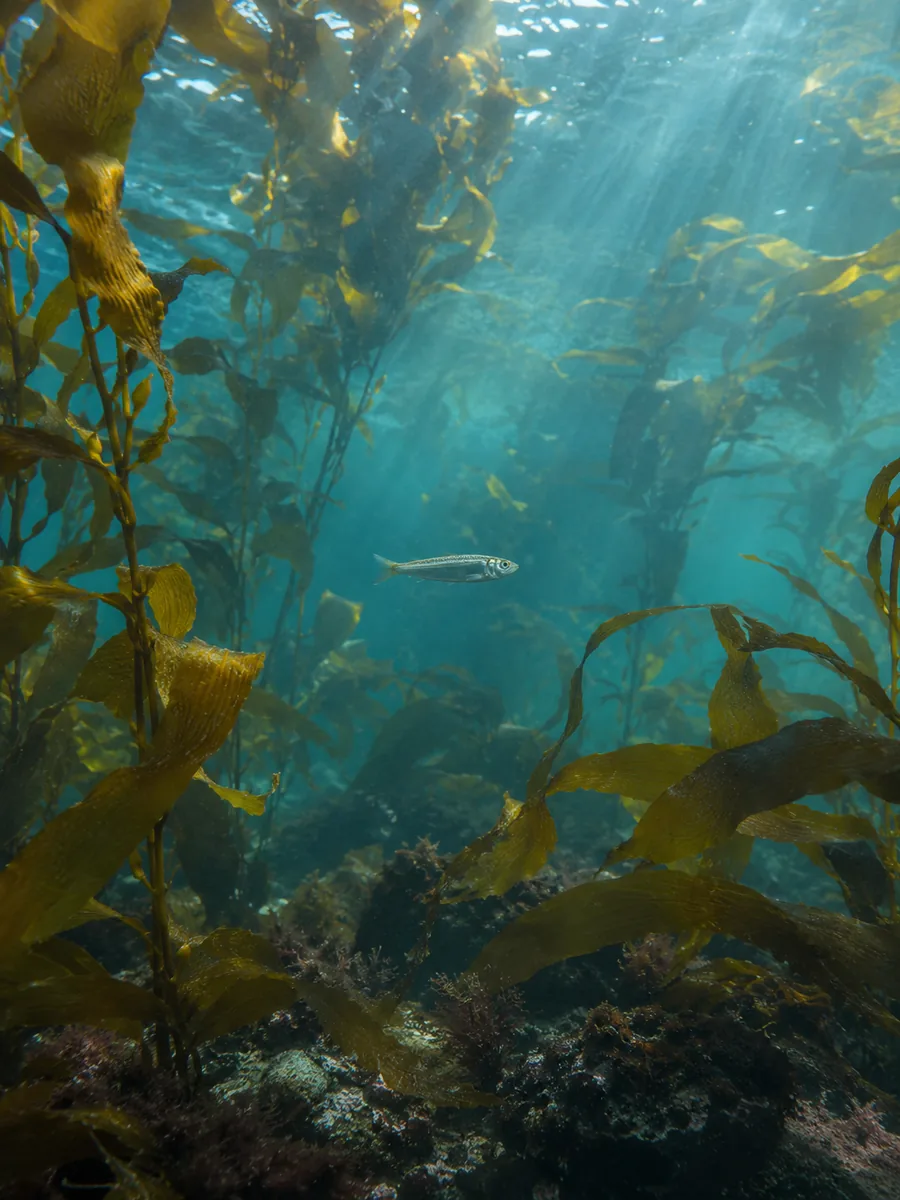
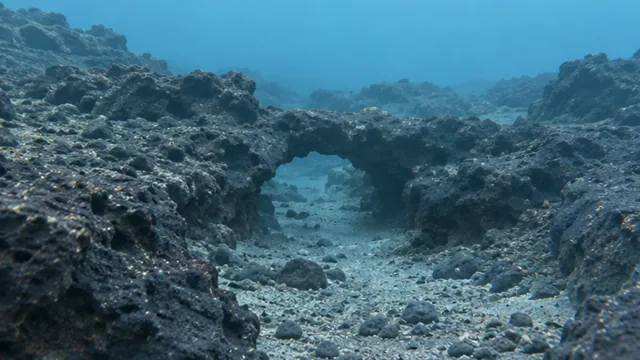
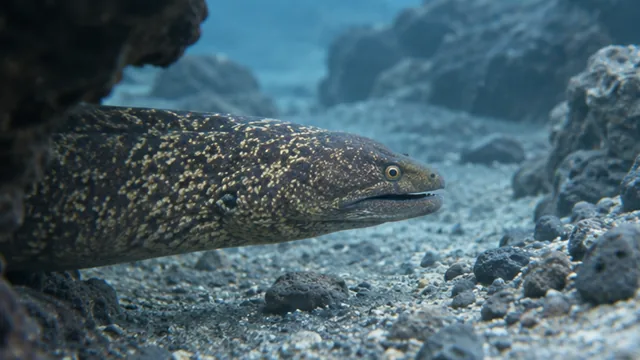
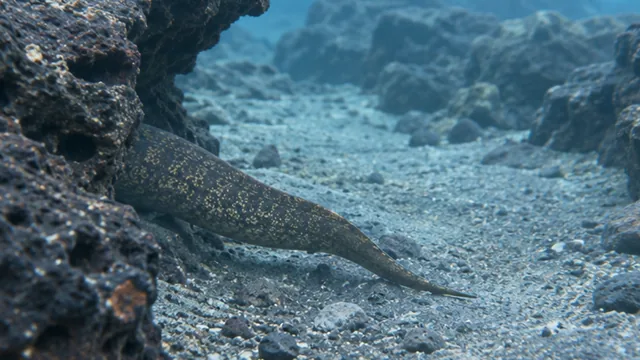
Use Pexo to turn recorded dive footage into an AI underwater footage showcase video. Build a portfolio reel or fieldwork recap that gives viewers the setting, lets them follow the subject, and preserves the character of the original footage.
Give Pexo your recorded clips and a short note about the subject, location, and purpose of the reel. Group footage by location or subject, then choose a wide opening, a moment of action, and a closing view. Use Merge Videos to put the selected clips in order and review whether the action reads.
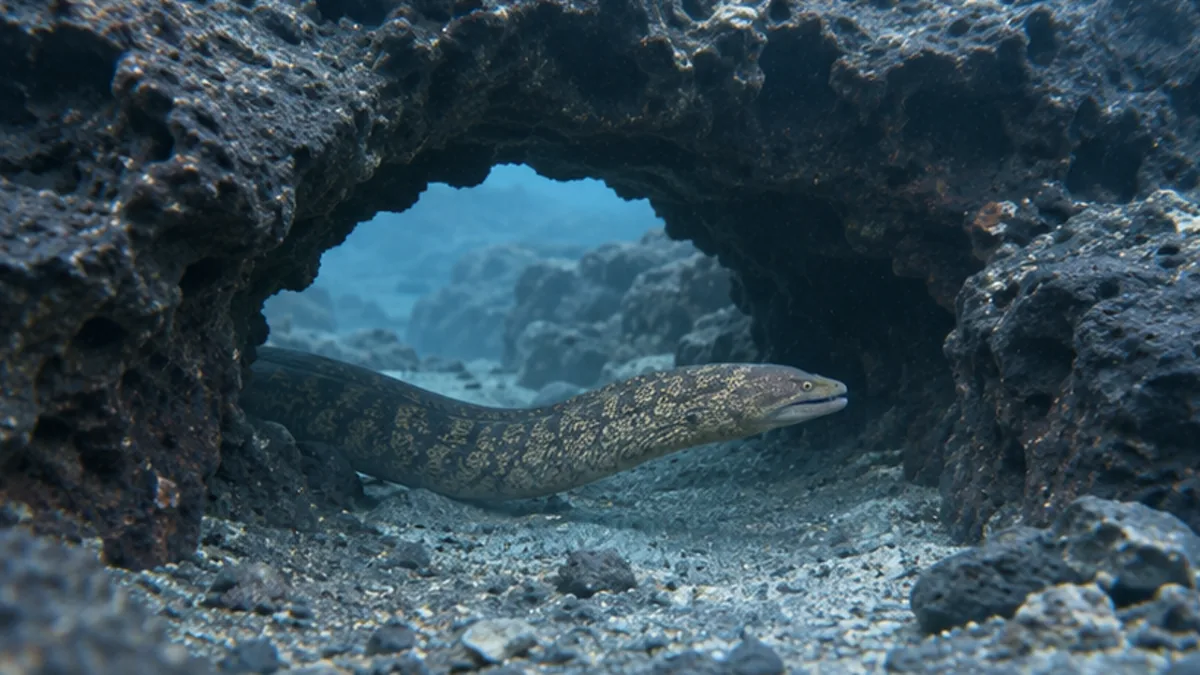
Watch the first cut for continuity. The opening should place the subject and the closer cut should help viewers follow the action.
What to refine in Pexo
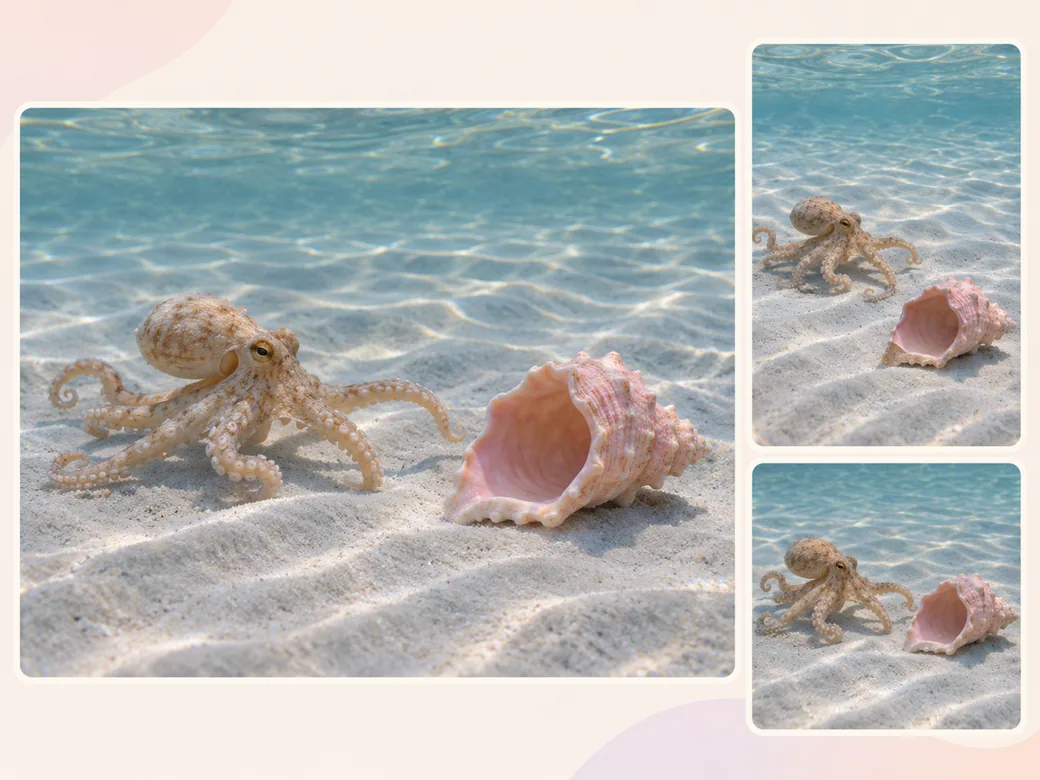
Use the wide clip to show where the subject is or where it is moving. Cut closer when the subject is easy to locate in both shots. Ask Pexo to hold longer if viewers lose track of it. If two clips were recorded at different sites, make the location change clear in the edit.
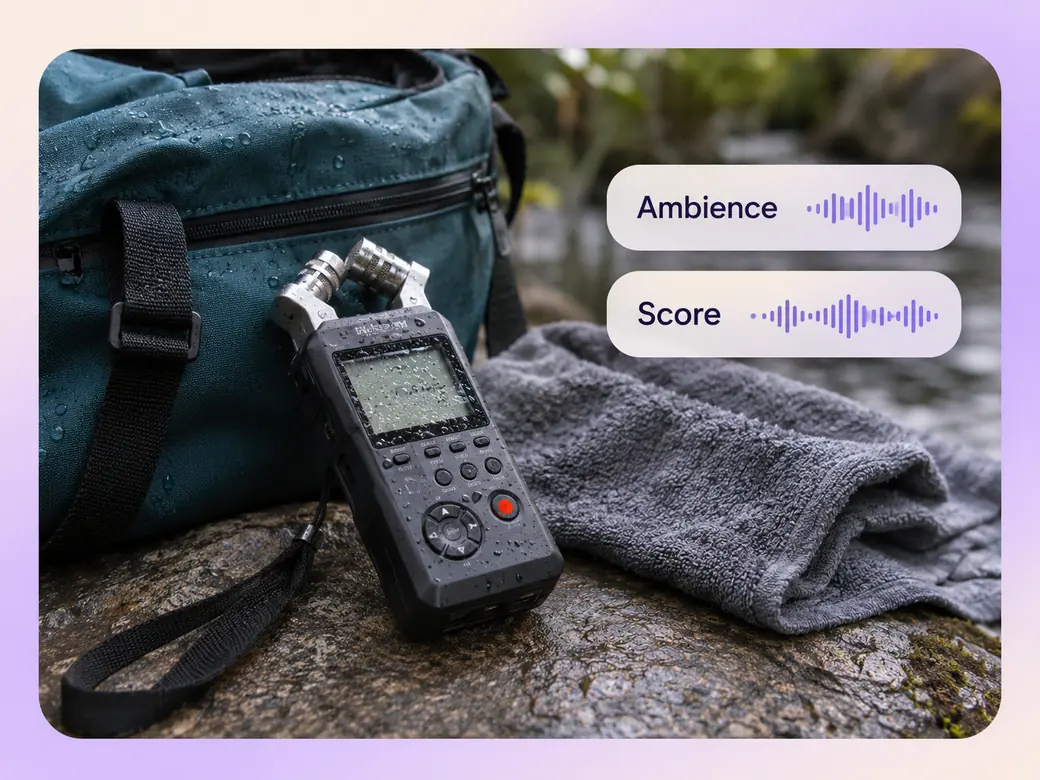
Identify any recorded ambience or narration you want to keep. Tell Pexo where the reel should stay quiet and where a score can support a change in pace. Try Music Generation for a subtle bed, then listen to the cut without watching so you can check transitions and spoken labels.
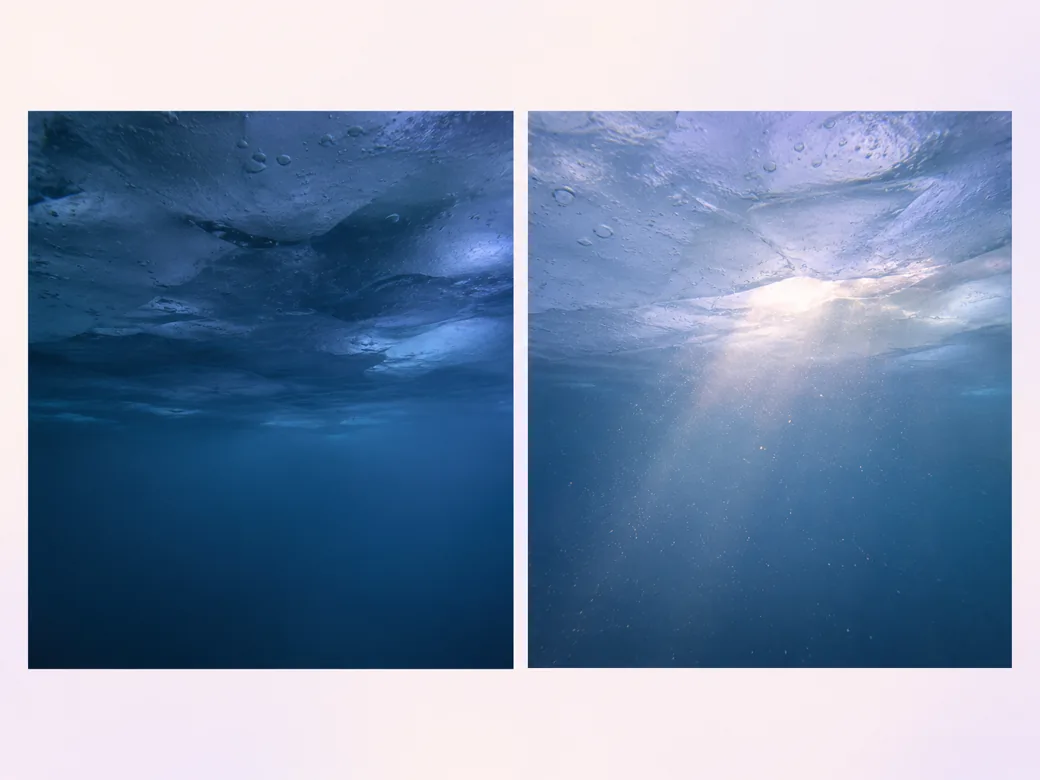
Compare edited shots with the originals and keep natural changes in depth and light where they explain the setting. Ask Pexo to revise grades that hide a detail. Add a site or species name only when you can verify it from field notes or a qualified review. Mark illustrative inserts where their source could be mistaken.
Use a wide master for a portfolio or project screening. For a vertical excerpt, choose a moment in which the subject stays in frame through the action. Check that labels remain readable and that the crop gives viewers enough setting to understand what they’re seeing.
“I watch the wide and close views at normal speed. The viewer should be able to locate the subject immediately after the cut.”

“I listen for what the original recording contributes. Leave it room in the mix if it helps viewers understand the setting.”

“I compare the color and any labels with the source material. If I can’t verify a name or location, I ask for it to be reviewed before it goes on screen.”

An underwater footage showcase is a reel built around recorded underwater scenes. It gives viewers enough context to find the subject, follow its movement, and appreciate details that may be hard to see in a single shot. Use it for a portfolio, diving project, or fieldwork recap and choose a focus for each sequence.
Bring the recorded clips, including a few wide views and details, plus any audio you want to keep. Label the clips by location or dive when you can. Give Pexo a short outline of the sequence you want and confirm any names you plan to add as captions.
For documentary use, keep footage tied to the place and event it records. If you add a graphic, reconstructed shot, or generated illustration, identify it clearly when viewers could mistake it for field footage. If there is a gap in the footage, a location title or a short narration may give viewers enough context.
Pexo is useful when you want to assemble a reel from existing underwater clips and revise pacing, sound, or framing in chat. Give it the intended audience, the footage to keep, and any source information for labels. Review the resulting edit against the originals before sharing it as a record of a dive.
An underwater footage showcase helps viewers inspect the setting, action, or quality of recorded underwater shots. A broader cinematic video may combine many locations or staged visuals around a story. Choose the showcase when your audience needs to understand what the dive footage actually documents.
Name the clips, viewing purpose, and order you want. Try “Make a 45-second portfolio reel using the supplied shore-dive footage. Open wide, hold until the fish enters, then cut closer when it is easy to locate. Keep the original direction and colors. Use the recorded ambience and only add labels from my notes.”
Bring your recorded clips and a brief outline. Use Pexo to shape the view, action, and detail into a reel you can review against the originals.
Make a proof of concept film with Pexo. Turn a script excerpt into a short sample, test one creative choice, and share it in a pitch or review.
Make a live-action wedding film with Pexo. Edit the footage and original sound around complete moments and prepare a cut for the couple to review.
Make a kids’ product and toy showcase video with Pexo. Show the included pieces, a clear play action, and the finished result in a buyer demo.
Make a Pinterest video in Pexo that opens on the result and shows readable steps for a video Pin.
Create a LinkedIn video in Pexo from one practical idea, supporting footage and captions that read in the feed.
Create a product review video in Pexo with real testing footage, clear conditions and honest observations.
Make an Amazon product video with Pexo from your product photos and demo footage. Show the item, its scale and how it works.
Create a spokesperson video with Pexo from an approved script, presenter direction and supporting product shots.