

AI YouTube Montage Video
Make a YouTube montage video with Pexo. Turn approved clips into a wide edit with a recognizable opening, deliberate progression, and a clear ending.
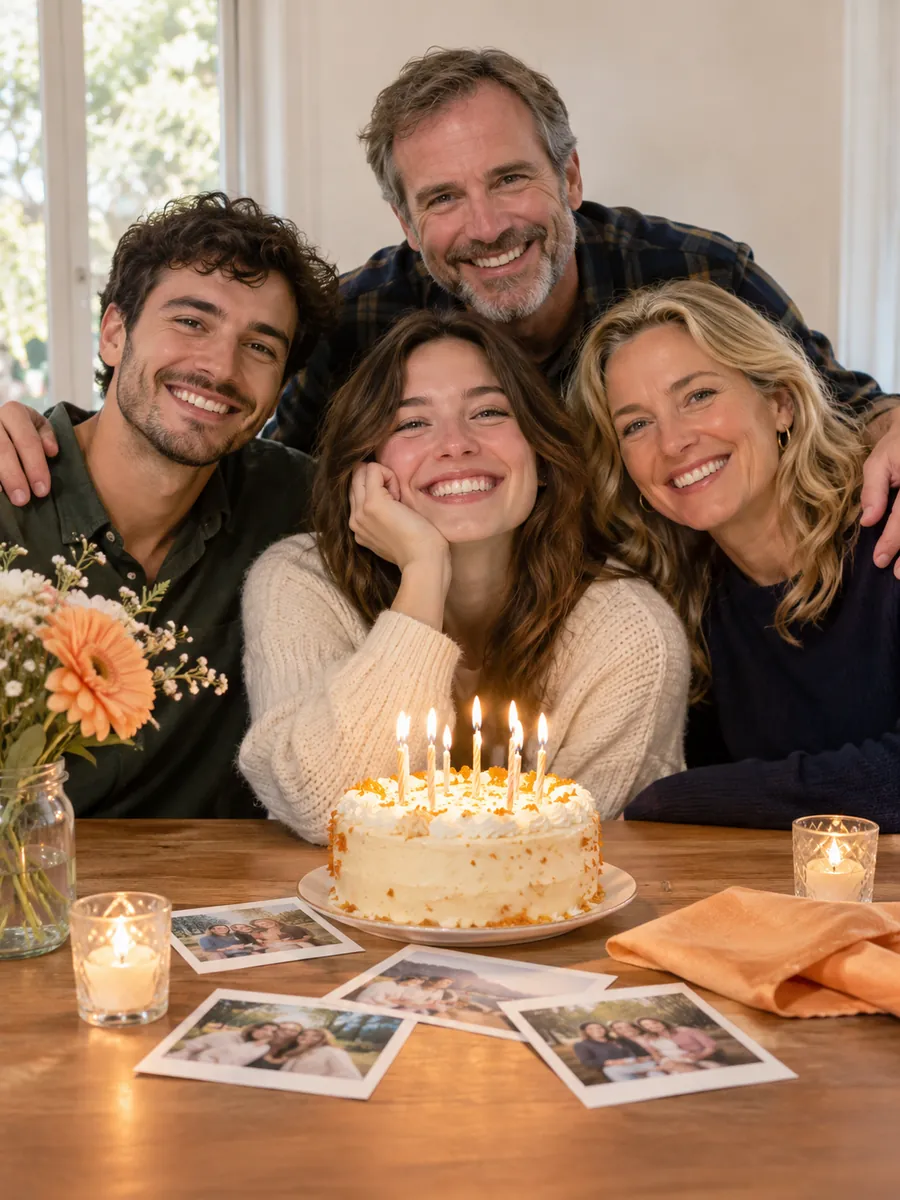
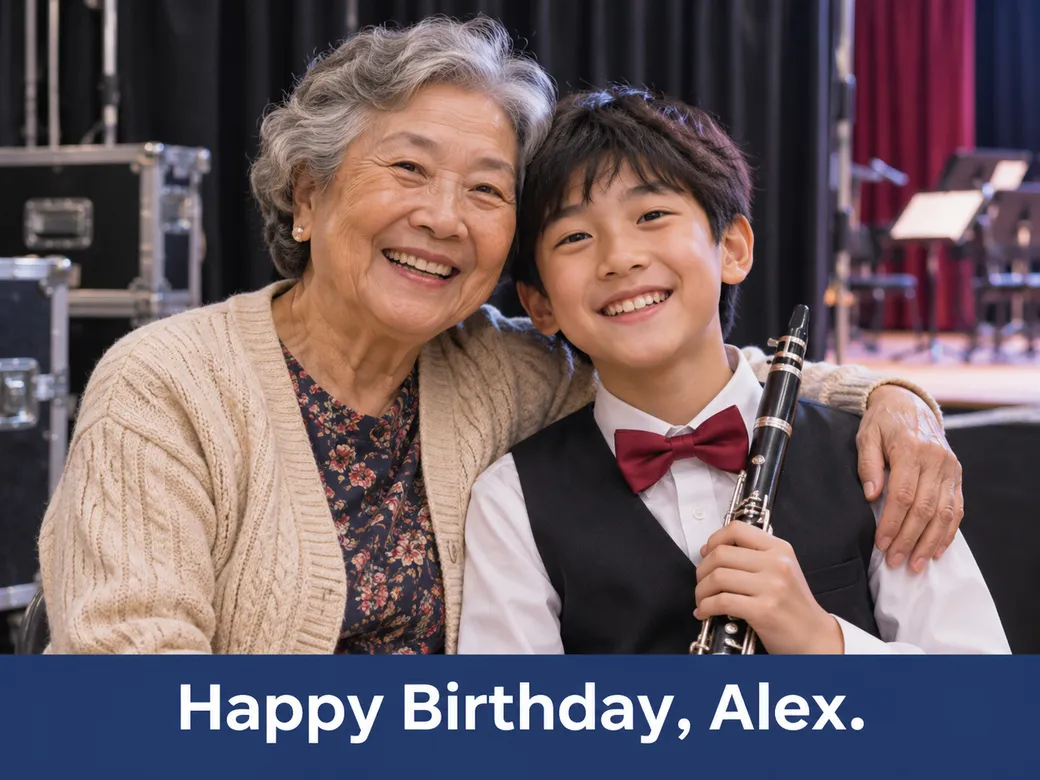
Turn approved photos, recordings, and messages into an AI birthday slideshow video. Use Pexo to give favorite memories and personal greetings a clear order and enough time to land.
Give Pexo the approved pictures, a few recorded greetings, and a timeline or themes. Mark the person and occasion the opening should establish. Use Merge Videos to arrange any video greetings, then watch for cuts that interrupt a personal message or hide a face.
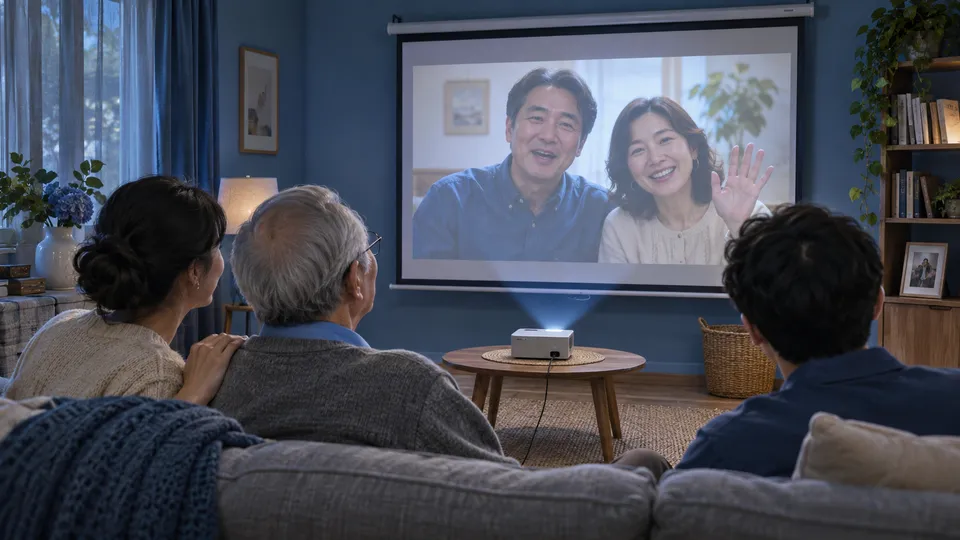
Open with a picture or line that identifies the person being celebrated. Group related memories and give the most personal message time to finish.
What to review
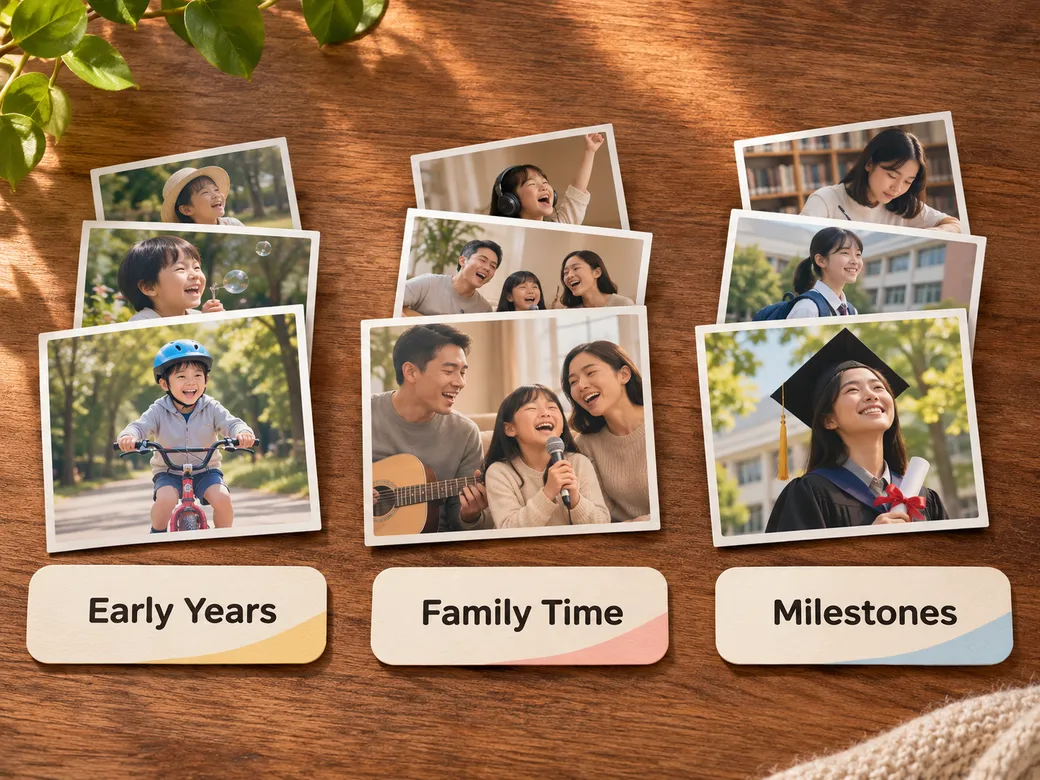
Choose a clear first image and organize photos by a few times or themes. Use a quick group of related photographs before holding on a picture that needs more time. Include a final greeting when it belongs to the event.
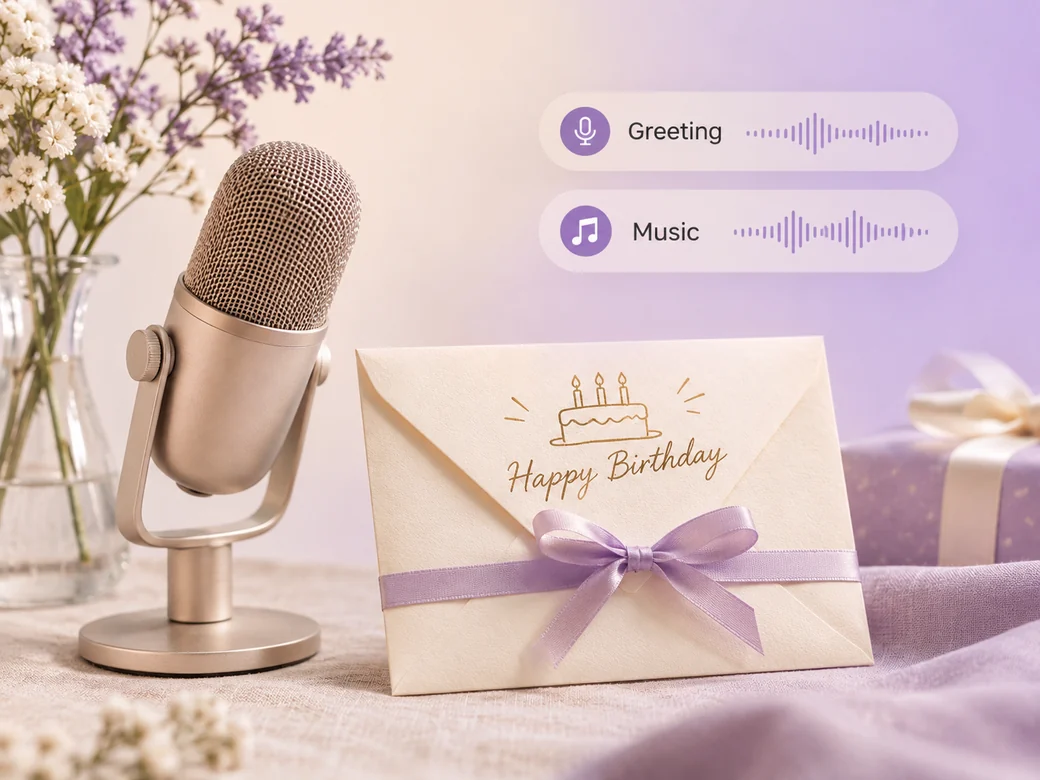
Keep the original recorded voice when it is a message meant for the person. Choose a music bed that leaves space for it and watch the change from photo to greeting. Check how it sounds on the speaker that will play it. Use Music Generation to try the treatment and listen against the actual pictures.
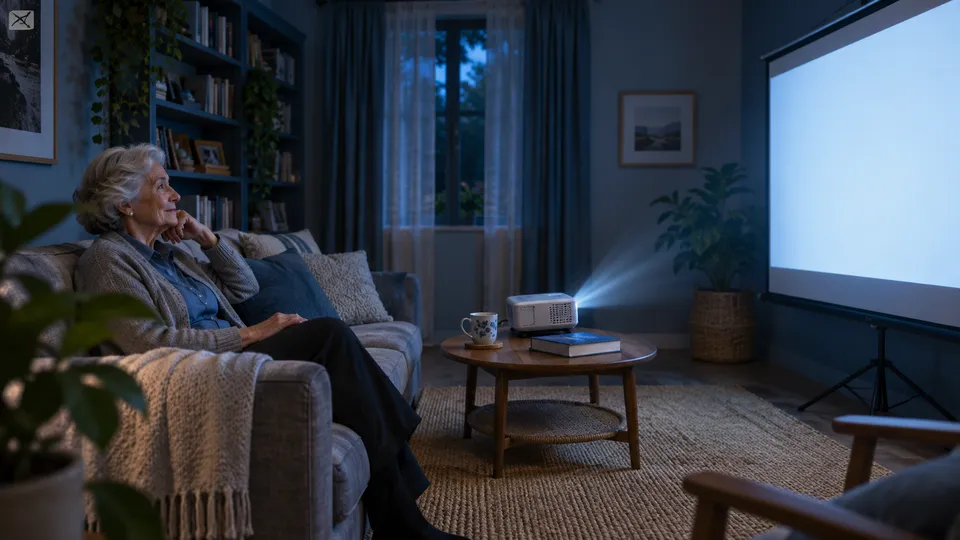
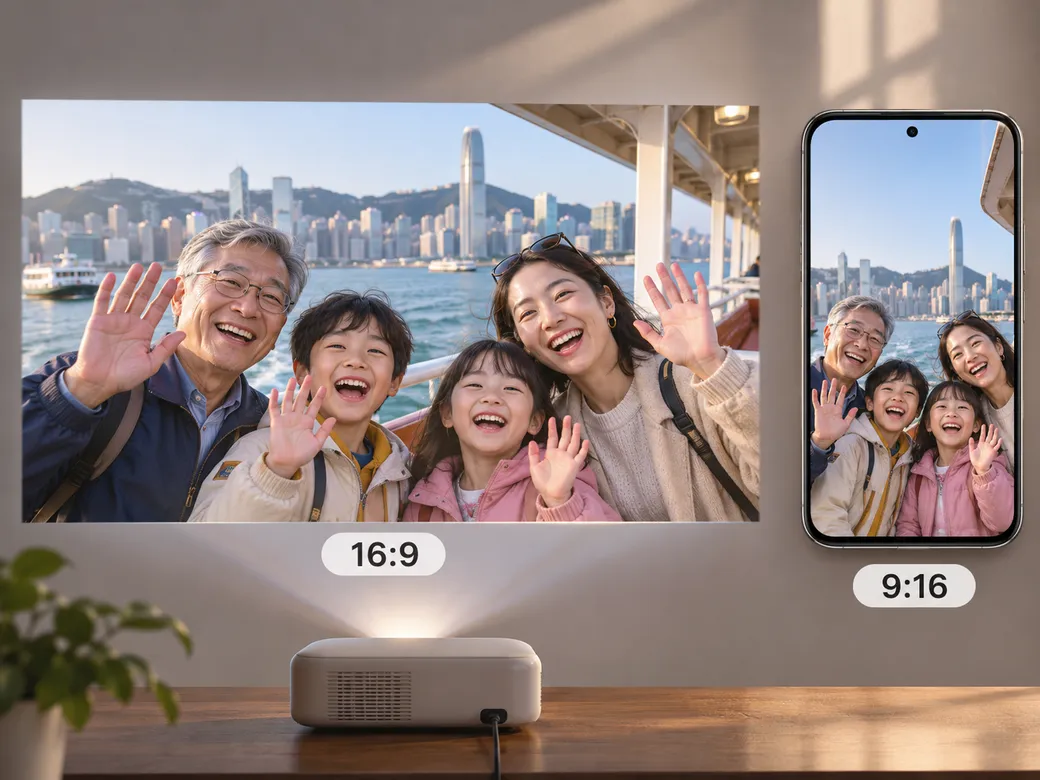
Use a matte for narrow group photos when a full crop would cut people off. Check names and dates with the family and hold the final card long enough to read. Test the finished file at the size of the event display.
Keep a wide version for a gathering or shared screen. For a portrait keepsake, use a separate shot or gentle matte when a group photo would lose people in the crop. Test that the faces and any name caption stay visible without rushing the greetings.
Organize approved pictures around a few memories. Hold each group photo until viewers have time to recognize the faces.

Replay the greetings on the event speakers. Reduce the music under speech and check that the ending stays audible.

Preview the final export on the event display. Verify names and confirm that the crop keeps everyone in view.

A birthday slideshow video combines approved photos, short clips, and personal messages to celebrate someone. It can follow a timeline or group memories by theme and leave room for each greeting before the next picture or clip.
Gather the pictures and greetings people have agreed to share. Add names, approximate dates, and the order or themes you want. Mark any photo that should stay whole and any message that should play without a cut. Decide who will see the finished slideshow.
Yes. Arrange the photographs by the memory they show, and tell Pexo which images need to stay fully visible. Give a group photo more time when viewers are likely to look for people. Check names, spelling, cropping, and sharing preferences before the slideshow is distributed.
Pexo is useful for arranging a slideshow from approved photos and greetings without planning every transition by hand. Mark pictures that need a full view and the messages that must stay complete. Review the audience and permissions before sharing.
A birthday slideshow video arranges approved photos, short greetings, and music around one person or celebration. A broader video slideshow can cover travel, work, or any sequence of images. Choose the birthday version when the order and the closing message need to feel personal to the people in the room.
List the photo order, approved names, and recordings to keep. For example, ask for three groups of memories, a narrated greeting between them, and an ending with one uncropped group photo and the approved birthday message.
Bring approved photos and voice messages. Make a slideshow that people can follow and enjoy together.
Make a YouTube montage video with Pexo. Turn approved clips into a wide edit with a recognizable opening, deliberate progression, and a clear ending.
Make an employee motivation video with Pexo. Turn project photos and a specific milestone into a team kickoff or all-hands video with a clear next step.
Make a relaxation music video with Pexo. Pair a gentle instrumental with slow-moving visuals and blend in soft rain, water, or room tone.
Make a memorial slideshow video with Pexo. Arrange family photos, names, and recorded memories in a gentle tribute for a service or private viewing.
Make a proof of concept film with Pexo. Turn a script excerpt into a short sample, test one creative choice, and share it in a pitch or review.
Make a live-action wedding film with Pexo. Edit the footage and original sound around complete moments and prepare a cut for the couple to review.
Edit recorded underwater footage into a showcase reel with Pexo. Guide viewers from the setting to the subject and prepare a clear cut for review.
Make a kids’ product and toy showcase video with Pexo. Show the included pieces, a clear play action, and the finished result in a buyer demo.