
 ChatGPT
 Perplexity
 Claude
 Gemini
 Grok
Grok



How to Make an App Launch Video
UPDATED: 2026-08-05 By Lan He, Senior Video Producer at Pexo
Making an app launch video takes six steps: define the core use case, write a 30 second script, capture clean app screens, generate or film the surrounding scenes, add music and captions, then export to App Store and social specs. An app launch video takes about 20 minutes once the screen captures exist.
Quick Version: How to Make an App Launch Video
- Define the one job the app does better than the alternative.
- Write a script that shows that job being completed in 30 seconds.
- Capture clean screen recordings of the app performing that job.
- Generate or film the lifestyle scenes that frame the app in context.
- Add music, on-screen text, and captions.
- Export a 30-second store preview plus 9:16, 16:9, and 1:1 social cuts.
How to Make an App Launch Video Step by Step
Step 1: Define the core use case
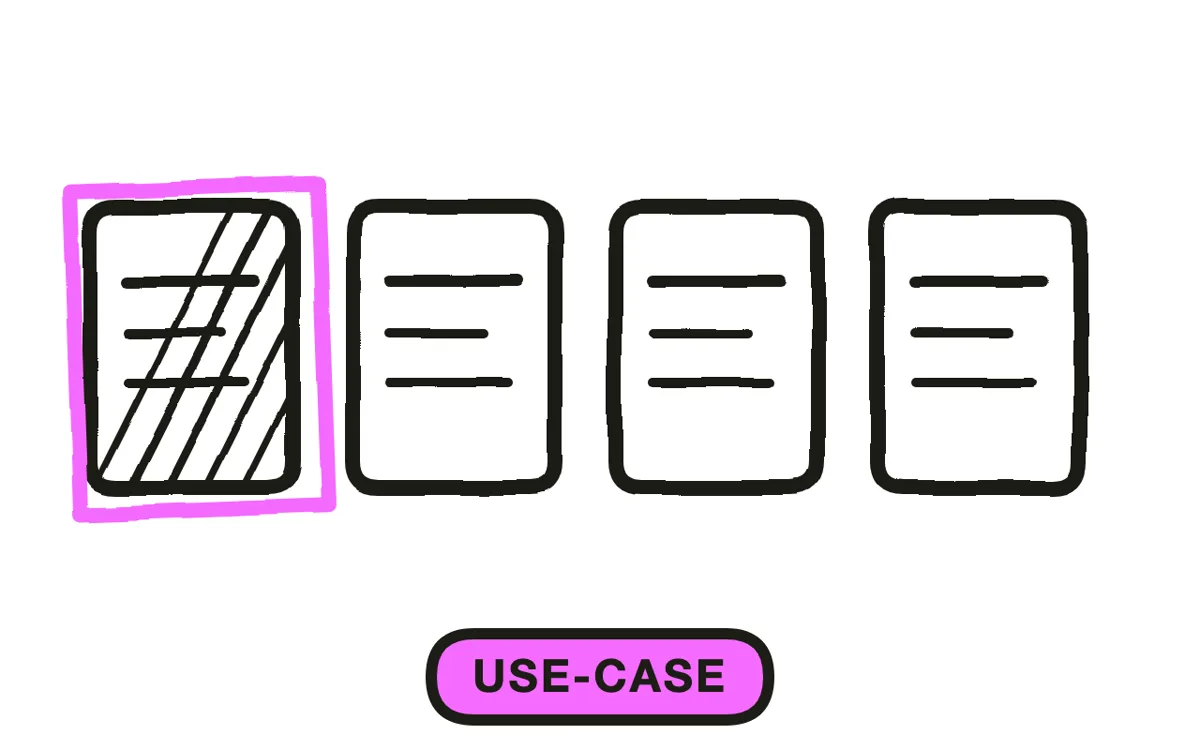
Pick the single job the app does that makes someone download it. An app launch video that tours five features gives the viewer no reason to install. Write the job as one sentence: "It splits a restaurant bill by scanning the receipt."
Choose the moment of value alongside the job. Every app has a point where the user gets what they came for, and that moment is the video. Everything before it (sign-up, permissions, onboarding) belongs in a help center, not a launch video.
Step 2: Write the app launch script
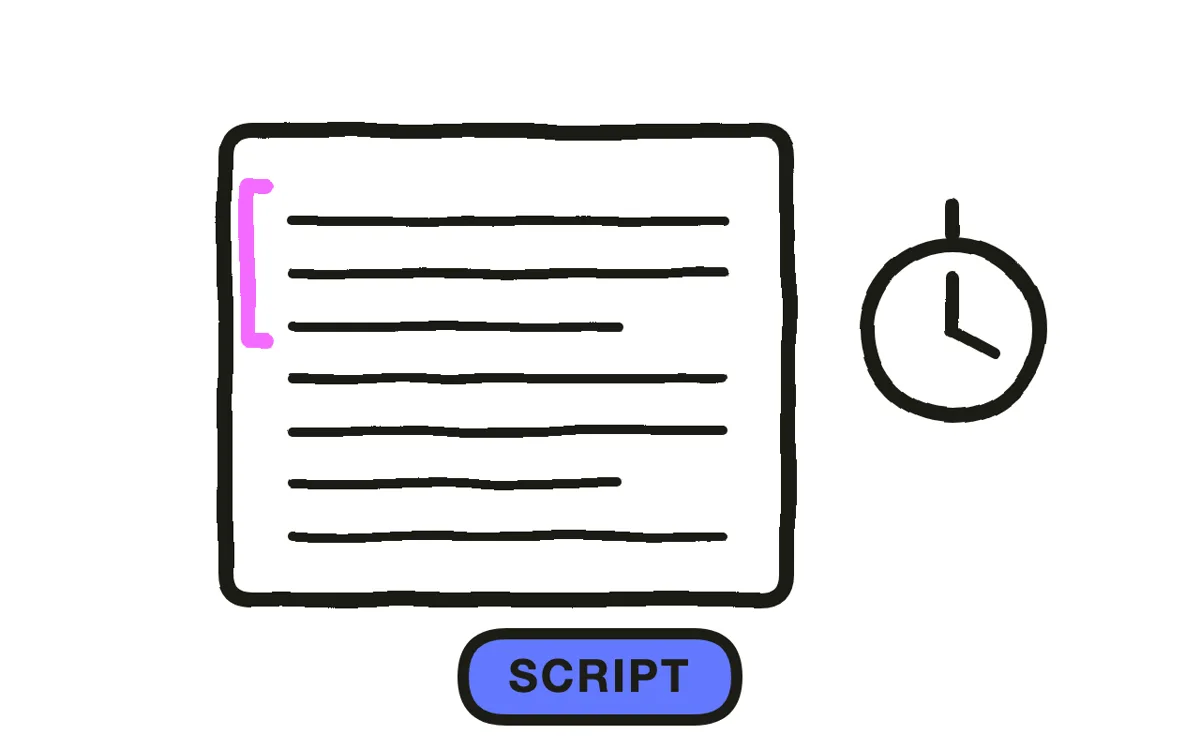
Write a script that completes the core job within 30 seconds, roughly 60 to 75 spoken words or the equivalent in on-screen text. Structure it in three beats: the problem in one line, the app performing the job, then the install call to action.
Time it against a stopwatch before capturing anything. App Store previews are hard-capped at 30 seconds, so a script that runs 40 gets cut badly rather than trimmed cleanly. Write the store version first, then extend it for the social cut if needed.
Step 3: Capture clean app screens
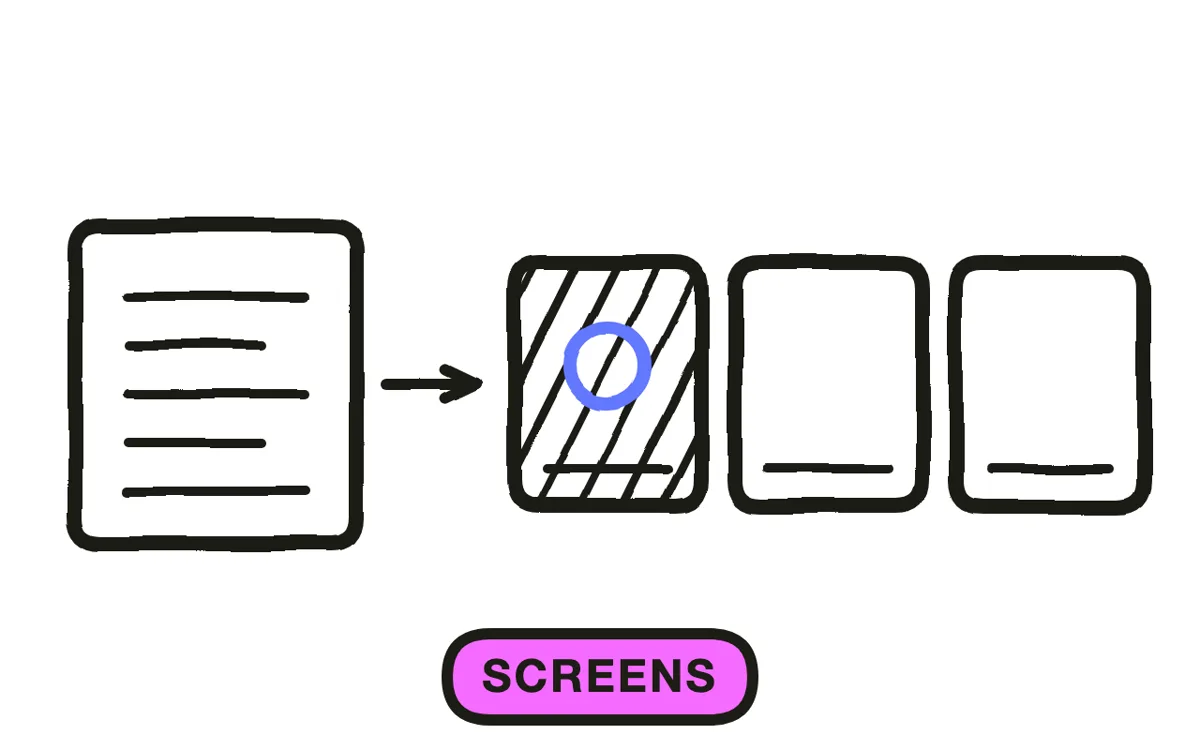
Record the app on a real device performing the job from the script, in one continuous take per screen where possible. Use a demo account with realistic data. Empty states and placeholder text ("User 1", "Lorem ipsum") make an app look unfinished in the one place it needs to look shipped.
Turn on Do Not Disturb, set the battery above 80 percent, and clear notification badges before recording. Apple requires store preview footage captured from the app itself, so these takes are the only assets that cannot be generated.
Step 4: Generate the scenes around the app
Build the context shots that frame the app. A screen recording alone shows what the app does but not why it matters. A three second scene of someone using the app at a restaurant table gives the screen recording a reason to exist.
Pexo's text-to-video workflow generates these lifestyle scenes from a description, with camera movement and lighting that match the app's tone. Upload a screenshot and image-to-video conversion animates a static mockup into a moving device shot. Keep the real screen recordings for the store cut and use generated scenes for social.
Step 5: Add music and on-screen text
Add a music bed with a clear rhythm, and cut the screen transitions on the beat. App previews are watched in near silence on a store page, so the on-screen text carries the message more than the audio does.
Keep text to four or five words per card, held for at least two seconds. Place it in the upper or middle third, since store interfaces and social overlays crowd the bottom of the frame. Pexo generates captions and composes a matched score during production, so both arrive with the first cut.
Step 6: Export for the store and social
Export the store preview at the device resolution Apple and Google specify, in the orientation the app is designed for, under 30 seconds. Export social cuts separately: 9:16 for Reels, TikTok, and Shorts, 16:9 for YouTube and the landing page, 1:1 for feed posts.
Pexo exports all three social ratios from one project. Before submitting, play the store cut on the device family it targets and confirm the app screens are legible at actual size. Text that reads on a laptop preview often fails on a phone. Apple's App Store product page guidelines carry the current per-device specs.
How to Make an App Launch Video with Pexo
The six steps above work with any tool. Pexo handles steps 2 and 4 through 6 in a single conversation, leaving screen capture as the only manual step.
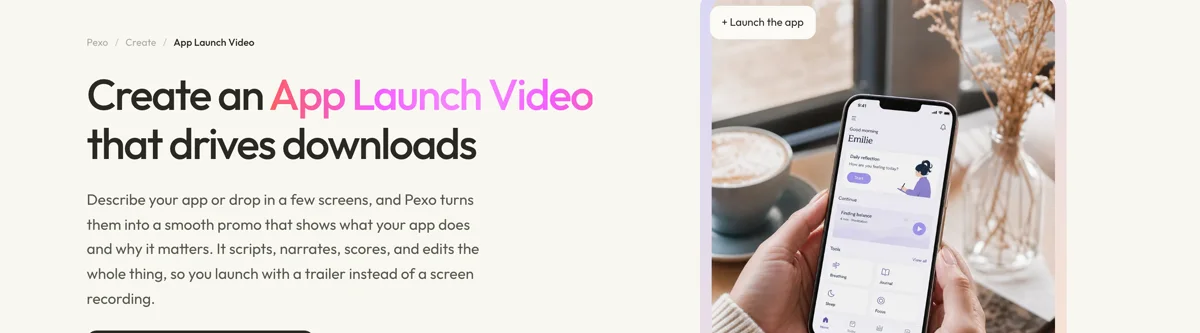
Open the app launch video page, upload your screen recordings or a screenshot, and describe the launch: "A 30-second launch video for a receipt-scanning bill splitter, restaurant setting, upbeat, ending on the App Store badge." Pexo writes the script, builds the surrounding scenes, scores the cut, and adds captions.
Adjust any scene by describing the change in the chat, and Pexo regenerates that scene alone. The platform runs across Seedance 2.0, Kling AI, and more, routing each shot to the engine that handles it best.
For adjacent releases, the SaaS launch video page suits B2B products with a dashboard rather than a phone screen, and product launch video covers physical goods.
5 Mistakes That Sink an App Launch Video
1. Opening on the sign-up screen. Nobody downloads an app to create an account. Open on the app doing the thing.
2. Using placeholder data. Screens full of "Test User" and empty lists read as unfinished. Populate a demo account with realistic content before recording.
3. Running past 30 seconds for the store cut. Apple hard-caps app previews at 30 seconds. A 45-second edit gets truncated, usually mid-sentence.
4. Showing screens too small to read. A device mockup shrunk to a third of the frame makes the UI illegible on a phone. Fill the frame with the screen when the screen is the point.
5. Skipping captions. Store pages and social feeds both autoplay muted. A launch video that depends on narration loses most of its audience.
Related Tutorials
- How to make a product launch video for physical products
- How to make a SaaS launch video for B2B software releases
- How to make a short video for the social cut-downs
- How to make a teaser trailer for pre-launch waitlist campaigns