

AI Repurposed Social Media Video
Make a repurposed social media video with Pexo. Give one idea from a longer recording its own clip. Keep the context, reframe it, and add readable captions.
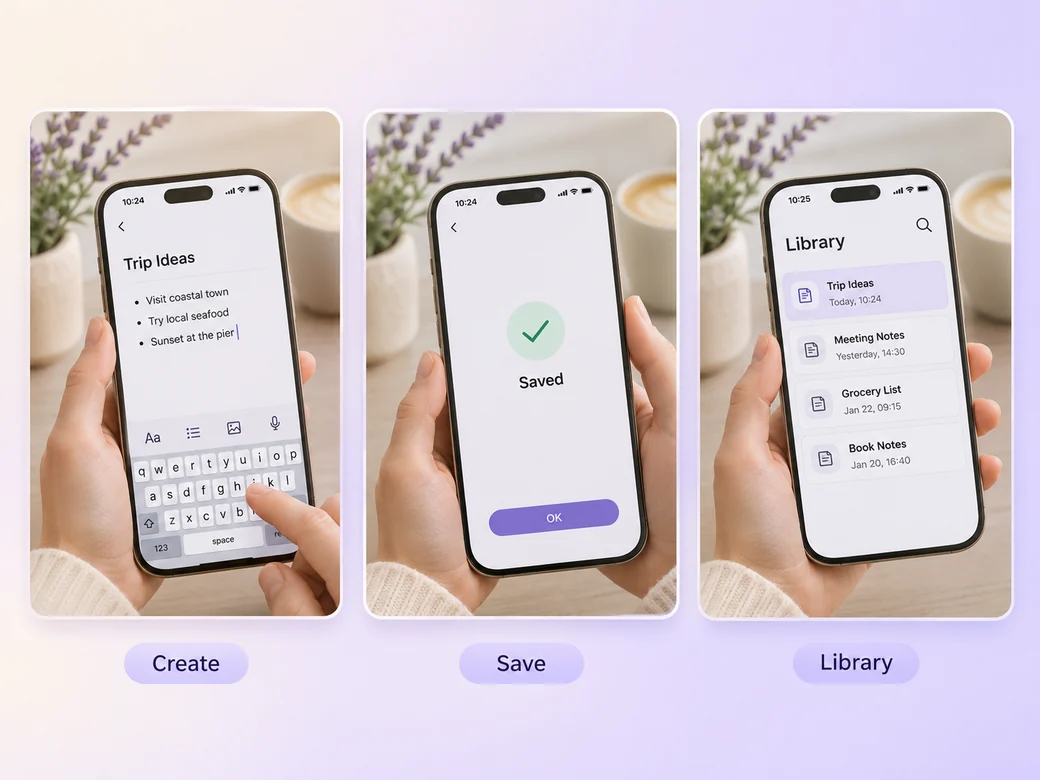
Make an AI mobile app preview video. Show how someone completes a real task inside your app. Use your own source material and review the path to a saved note in the finished cut.
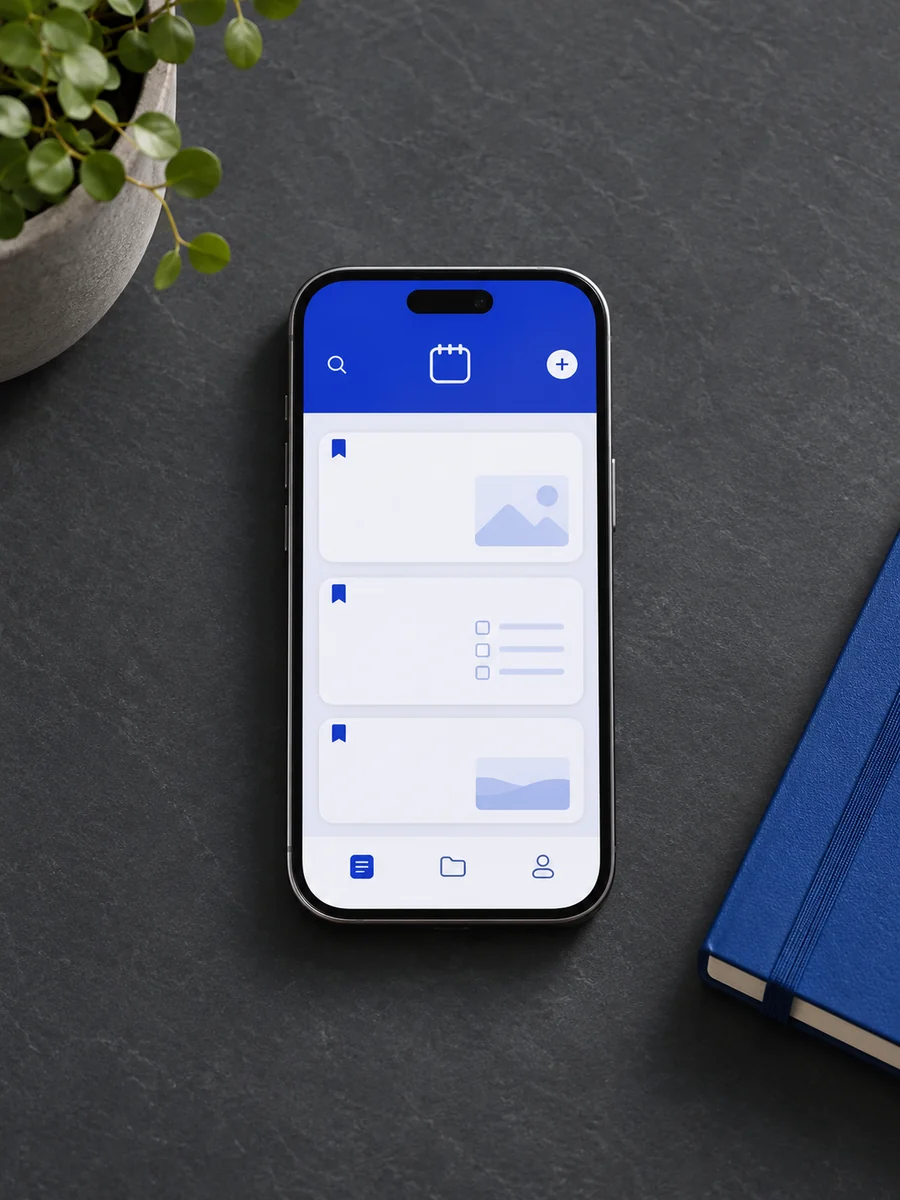
Bring approved in-app screen recordings, demo data, and the first task a new user completes. In Pexo’s mobile app preview video maker, give the opening just enough space to identify the path to a saved note, then make a visible save action the center of the first cut. Use Merge Videos with your brief, then review the path to a saved note.
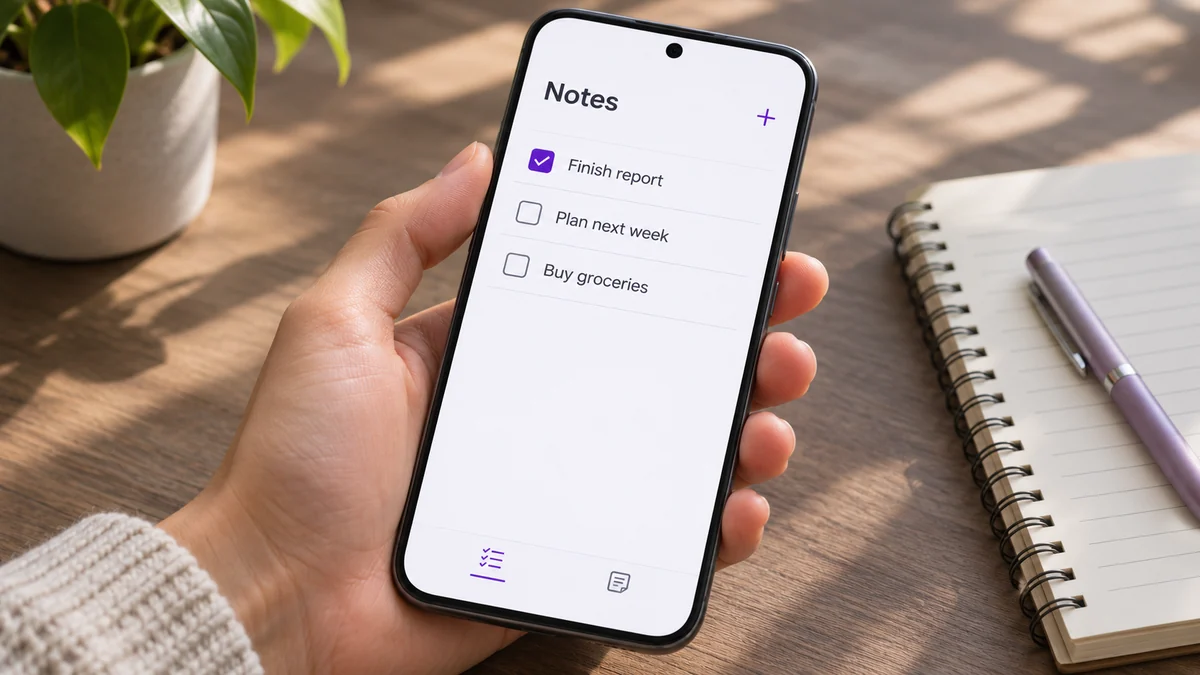
The result preview focuses on the path to a saved note. Review each of the checks before shaping the complete cut.
What to review
Begin with the screen people recognize. Keep the tap and the change it causes visible. Skip the waiting or repeated steps when the approved recording shows enough to understand how the user gets from the first screen to the result.
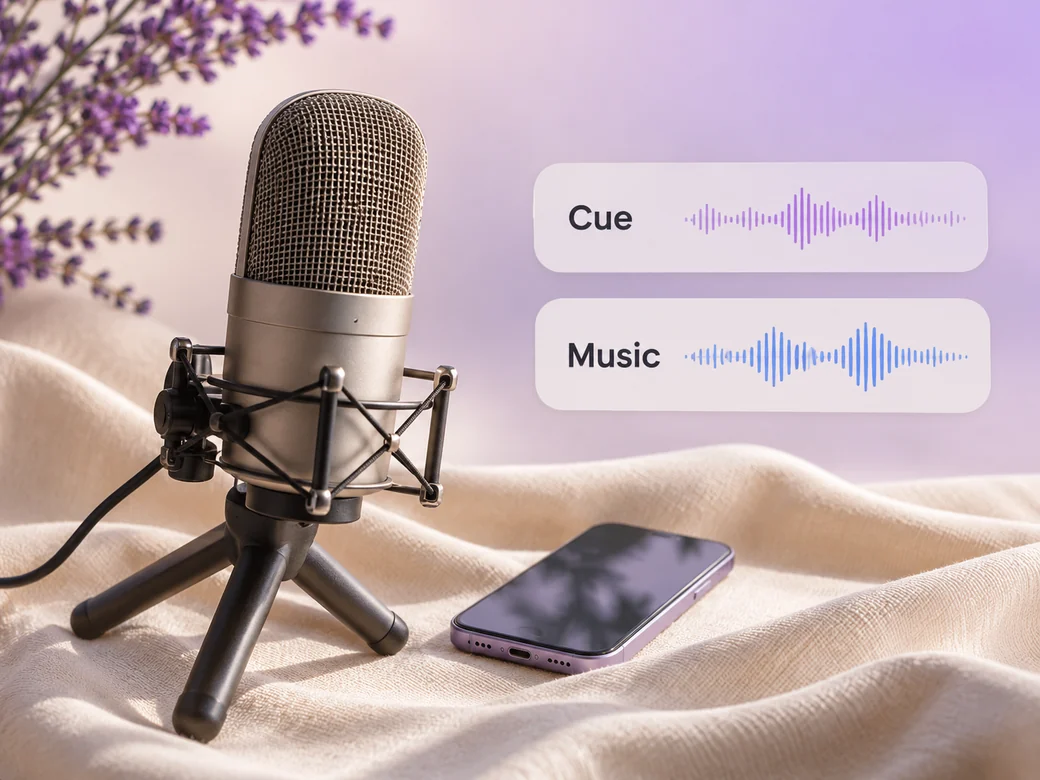
Write instructions that match the terms people see in the actual app. Keep music and voice lower than any sound cue that helps identify the result. Check that the recording works with the sound off when it will appear in a feed or listing. Use Music Generation to try the treatment and listen against the actual pictures.
Check that the crop does not hide the action underneath the pointer or finger. Use a current app build and demo data. Confirm the platform’s preview requirements separately if submitting the finished cut to an app store.
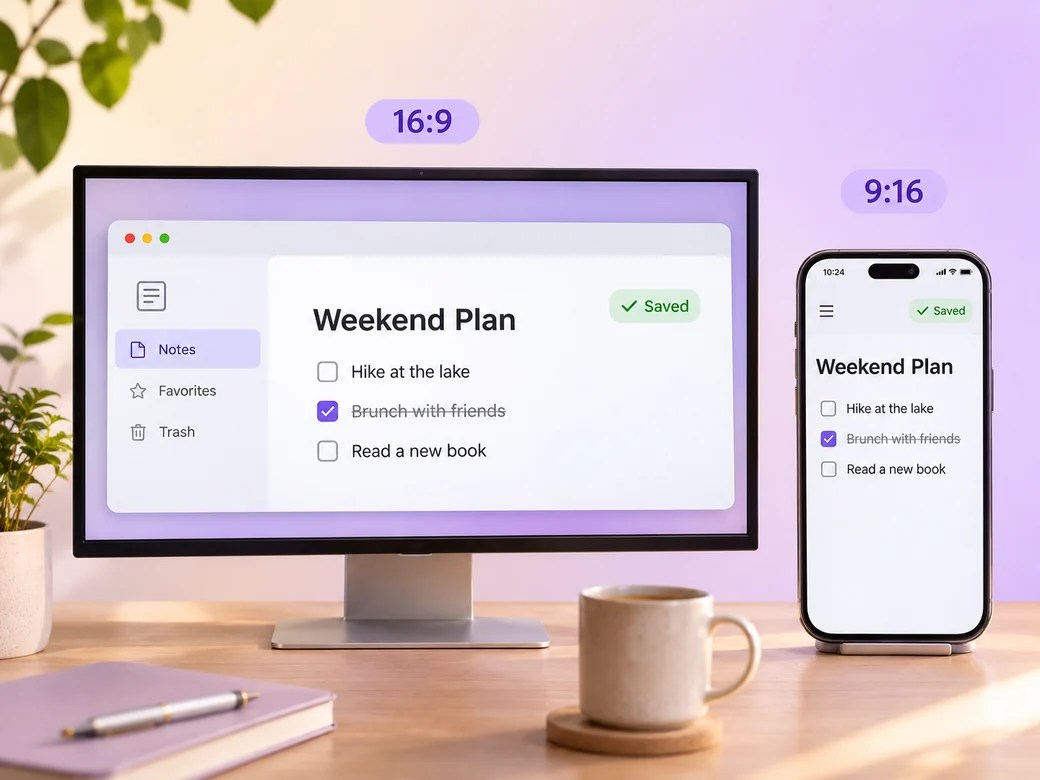
Keep a wide cut for an app listing, a product review, or a support page. For a 9:16 excerpt, retain the path to a saved note and review how it fits on a phone. Check the start and the last frame at the intended size and give any text enough time to read.
“In Pexo, I look for the moment the tap changes the screen. The viewer needs to see where the action succeeds.”

“I check every label against the actual build. An instruction only helps when it matches what’s on screen.”

“I check the result on a small display. Both the main control and the saved state should still read.”

A mobile app preview video is a finished edit that helps you show how someone completes a real task inside your app. It can be prepared for an app listing, a product review, or a support page, with enough context for the viewer to follow the path to a saved note. Choose a few moments that improve the final result and give each one time to read before the next cut.
Bring approved in-app screen recordings, demo data, and the first task a new user completes. Give each source a short name that describes where it belongs, and include any exact wording that should appear. Tell Pexo which part matters most and how you plan to show it. That gives you a clear first version to review.
Use approved app footage for a workflow you want to represent faithfully. A design mockup is useful for an internal concept and can be clearly labeled as such. For app-store submission use the current store’s rules and review the actual screen recording, format, and any overlay before you upload.
Pexo helps organize your material and revise the framing, pacing, and sound after you review the result. Use the source that documents your actual subject for the path to a saved note. For a separate illustrative insert or visual opening, Kling AI 3.0 can animate an approved reference image.
A mobile app preview video shows a visitor what the app looks like while they complete a task. An app promo video can show lifestyle, highlights, and an offer across several scenes. Use the preview when the result is best explained by the in-app recording itself and one clear example.
Use subject + action + camera movement + setting + style. Try ‘Use approved references for the path to a saved note. Open a new note and show it in the saved view. Start wide and move closer when the main action begins. Keep the original texture and colors in the scene. Hold the saved state for the viewer to see.’
Bring approved in-app screen recordings, demo data, and the first task a new user completes. Start with the path to a saved note and review the first cut at the intended size.
Make a repurposed social media video with Pexo. Give one idea from a longer recording its own clip. Keep the context, reframe it, and add readable captions.
Make a livestream highlight video with Pexo. Turn a broadcast moment into a standalone clip with a clear setup, the live reaction, and readable captions.
Make a sports and fitness highlight video with Pexo. Turn match or training footage into a sports reel that shows the effort, the result, and the live reaction.
Make a gameplay highlight video with Pexo. Turn recorded plays and reactions into a clear, paced reel or a short social clip your viewers can follow.
Create a social media cover video with a readable first frame, brand colors, and a short intro. Make a pinned Reel or YouTube channel trailer with Pexo.
Make a recruitment video with team clips, workplace photos, and a clear job brief. Show candidates what the role involves and where to apply.
Make a Facebook video from one line of description with Pexo. The AI Facebook video generator writes the hook, burns in captions, and renders with Sora 2, Kling and Veo in minutes.
YouTube ad creation runs on Sora 2, Kling and Veo inside Pexo. Describe your product and get a hooked, voiced, captioned ad in 16:9, 9:16 and 1:1 in minutes.