
AI B-Roll Showcase Video
Make a b-roll showcase video with Pexo. Group recorded B-roll by setting, action, and detail. Show how your footage can support a story.
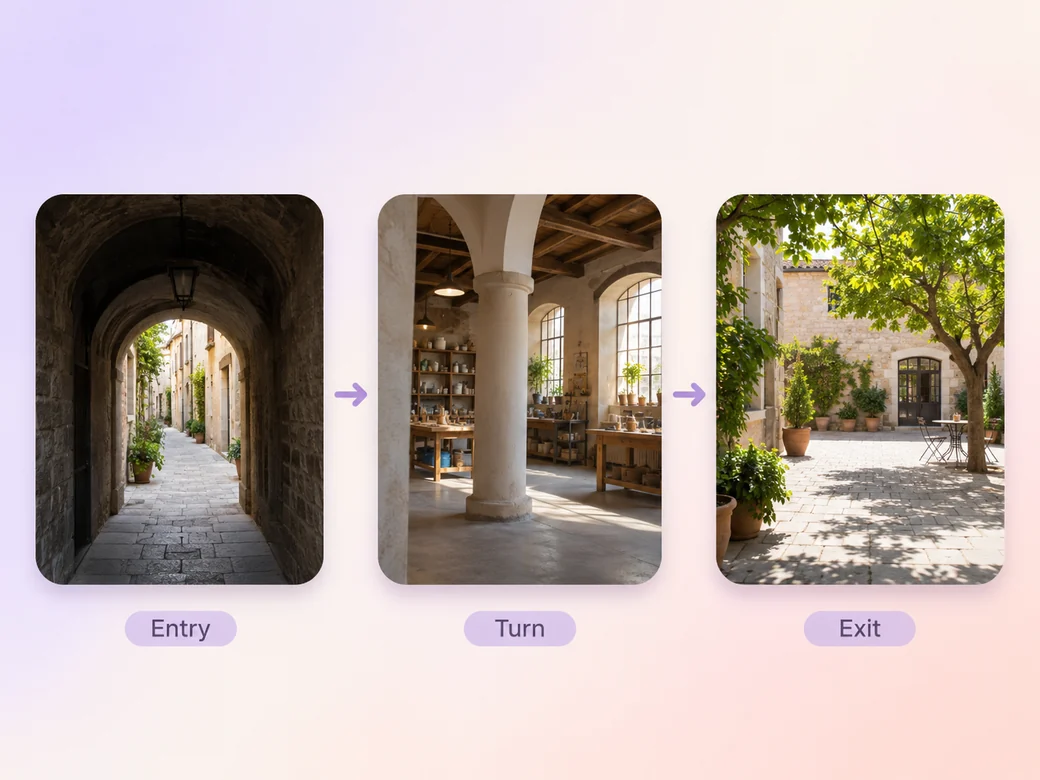
Make an AI FPV drone flythrough video from your recorded passes. Guide viewers from the entrance through the turns to a clear reveal, then prepare the cut for a portfolio, client review, or social clip.
Give Pexo your strongest flight passes and point out the entrance, main turn, and exit. In the FPV drone flythrough video maker, name the passes in the order the viewer should see them. Merge Videos can assemble your selected clips into one cut so you can review whether the route reads at natural speed.
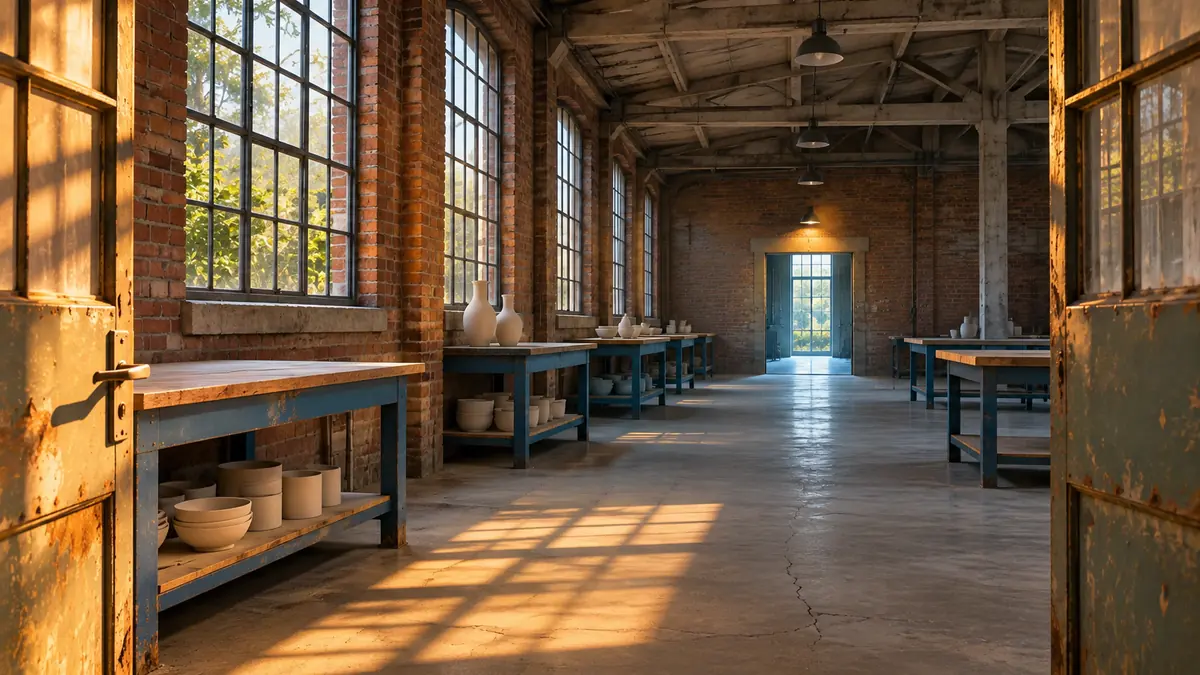
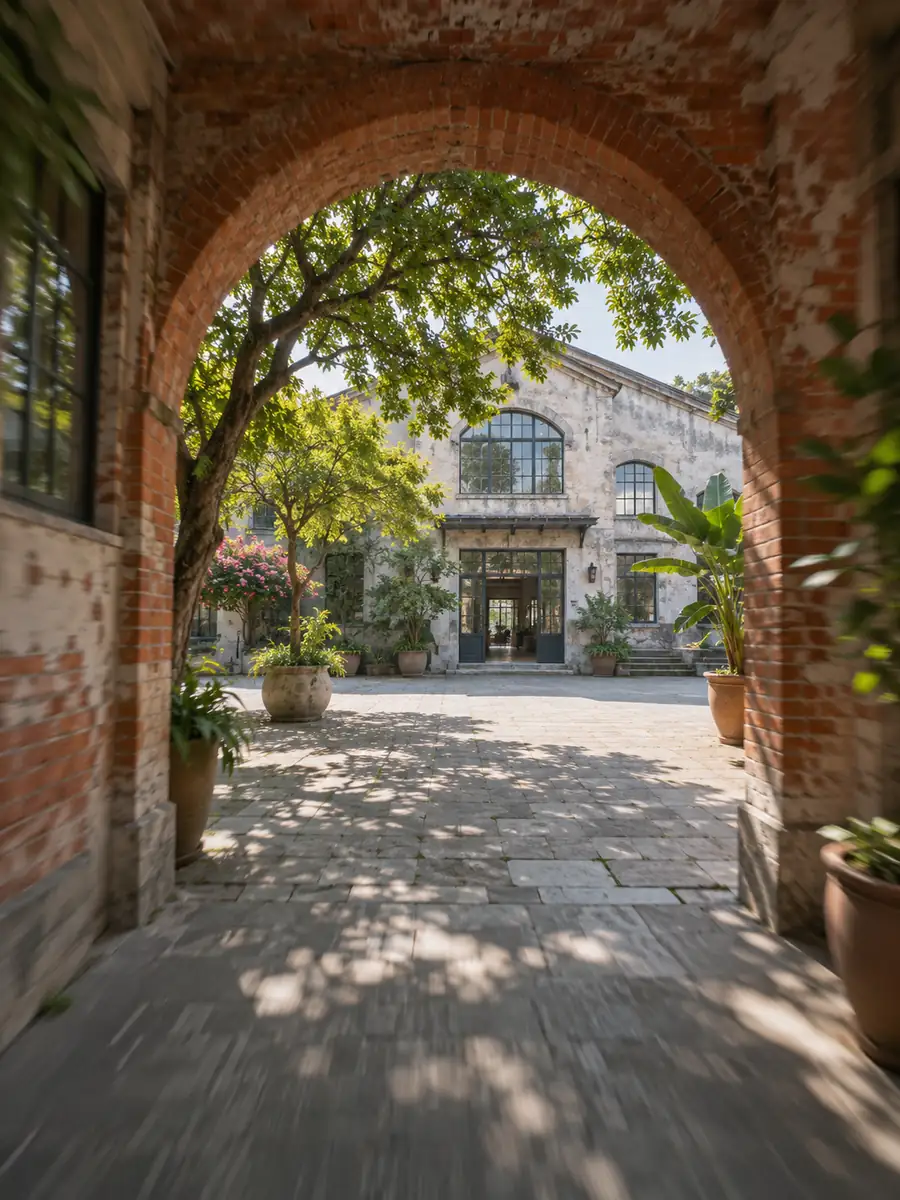
The preview enters the studio low and holds on the lit opening. Check that the change of space is easy to follow.
What to review
Give the first doorway or arch enough time to register. Use the column, staircase, or roofline viewers already recognize to connect each new view. At the end, hold on the courtyard or other destination for a beat so viewers have time to see where the flight took them.
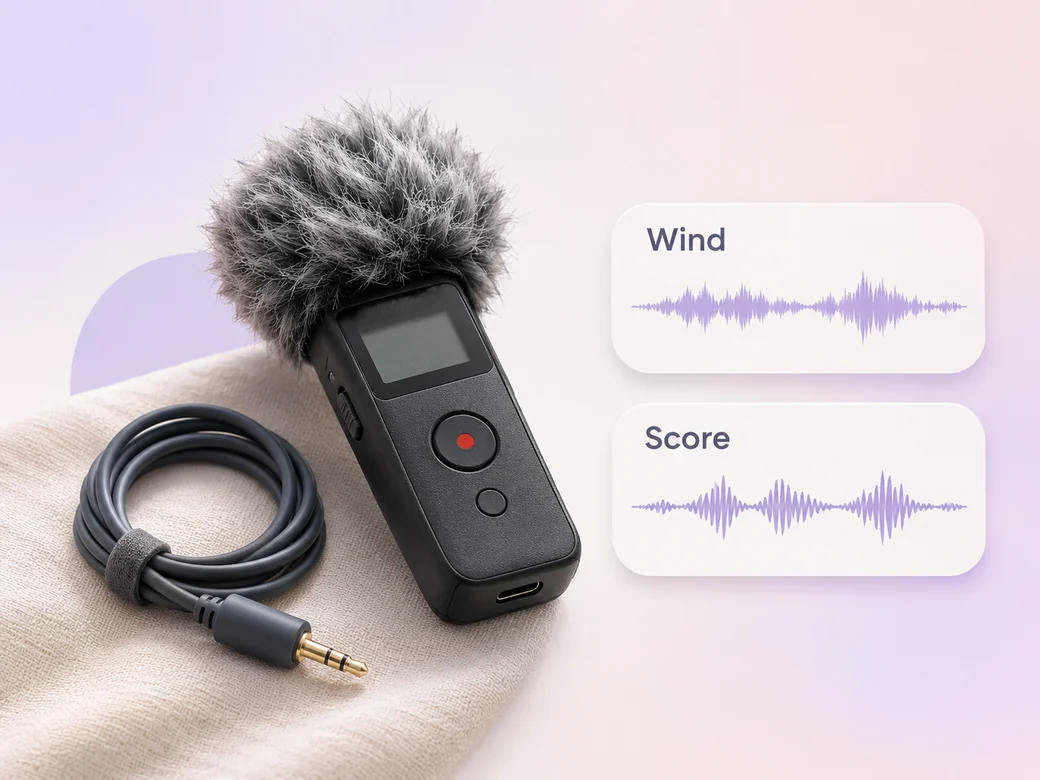
Try using a quiet layer of wind or room tone from your source, then choose a score with room for those sounds. Describe where the track should lift, such as passing through the last doorway. Use Music Generation to compare a low instrumental pulse with a gentler arrangement for the same footage.
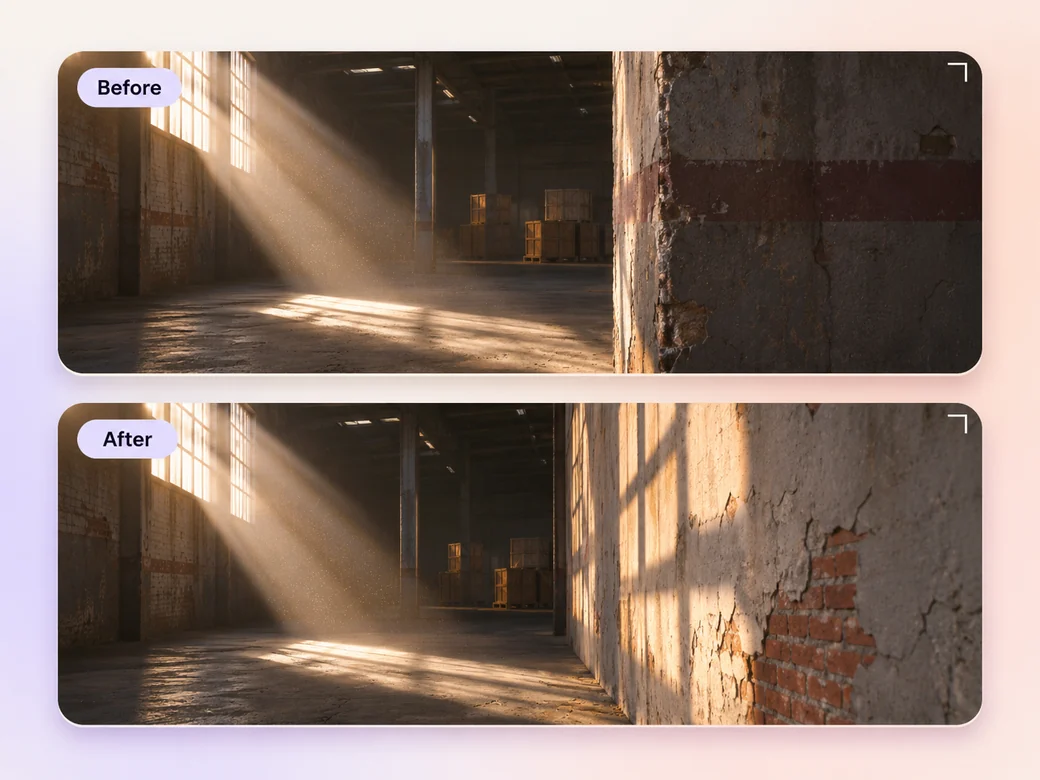
When you need to skip part of a flight, find two frames with a shape or edge moving in the same direction. Trim around the join and play it back at the intended speed. Give the viewer a stationary detail after a quick turn so the next movement is easy to place.
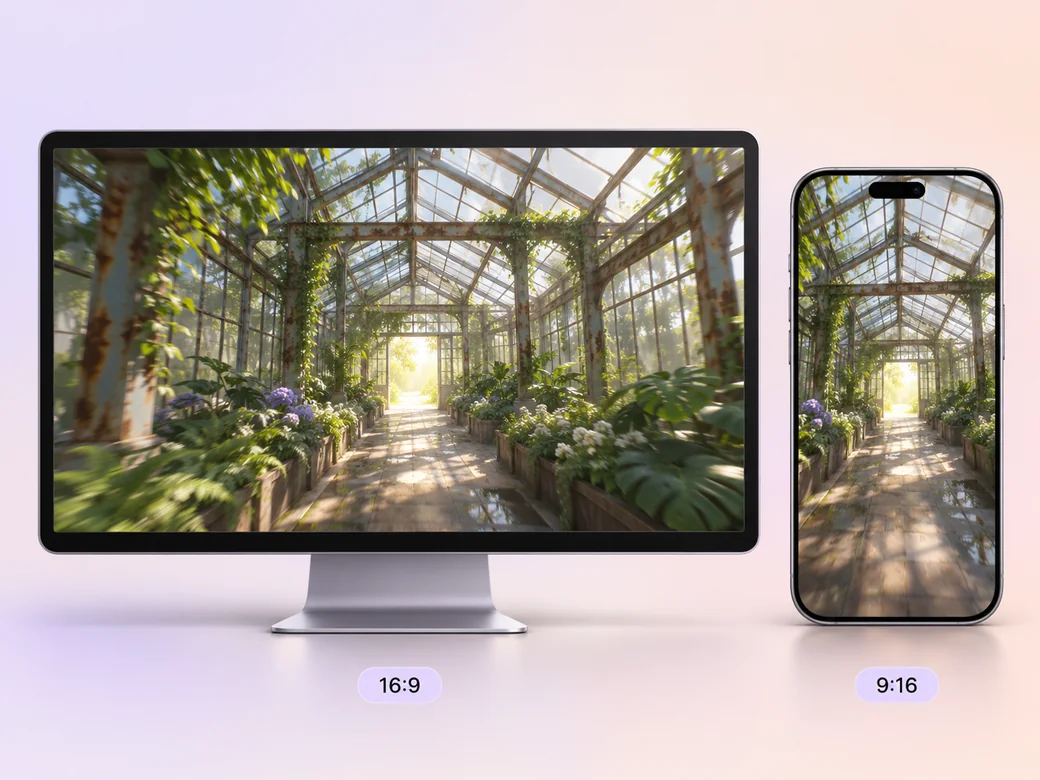
Use 16:9 to show the whole space in your portfolio or client cut. In a 9:16 excerpt, frame the arch, subject, or exit so it stays legible through the turn. Watch the short version on a phone and keep the cut that gives the route enough context.
“I look for the first doorway before I follow the turn. The exit needs a moment of its own.”

“I check that the turns make sense against the actual space. A familiar wall or column can tie the rooms together.”
“On a phone I watch whether the arch stays visible at the fastest point. That gives the vertical clip a clear path.”

An FPV drone flythrough video shows a place from the point of view of a first-person view drone. The camera can pass through a series of spaces and give the viewer the feeling of a continuous route. The final edit should make the entry, direction changes, and destination clear.
Start with the take that covers the central route, then add alternate takes of the entrance, turn, or exit. Label each file with its location so it is easy to compare. Mark a natural start and end on each useful pass and include any location sound that you want to keep.
Look for points where the camera moves in the same direction and a large feature occupies a similar place in the frame. A wall edge or a column can help carry the movement across the cut. Play the join at normal speed and make the incoming shot easier to read if the route feels unclear.
Pexo helps arrange recorded flights, compare pacing, and revise the sound or crop after you review the cut. Use your captured footage for the actual route. If you want a separate scenic introduction, Kling AI 3.0 can animate a reference image for that insert before you start the documented flight.
An FPV flythrough makes a route the focus, carrying the viewer through connected spaces. A real estate video typically divides the listing into highlights such as rooms, amenities, and an exterior. Use an FPV pass as one section when the connected floor plan is part of the story.
Use subject + action + camera movement + setting + style. Try ‘Use the recorded studio flight. Start before the brick arch, follow the forward camera through the left turn, and hold when the courtyard opens. Keep the grading natural and place a low musical cue under the final reveal.’
Bring the recorded entrance, turn, and reveal. Review them as one scene before you share the reel.
Make a b-roll showcase video with Pexo. Group recorded B-roll by setting, action, and detail. Show how your footage can support a story.
Make a video montage with Pexo. Arrange clips and photos around one theme, pace the cuts to music, and turn separate moments into a finished montage.
Make a Steadicam tracking shot showcase video with Pexo. Arrange recorded follow and lateral takes into a reel that shows how each move starts and lands.
Make a cinema drone aerial showcase video with Pexo. Arrange your recorded wide, top-down, and reveal shots into a reel with consistent color and sound.
Make a wedding video from ceremony clips, photos, and recorded messages. Use Pexo to tell the story of the day and keep the voices that matter.
Make an affirmation video with your own words, an optional voiceover, and time to pause. Review the pacing and readability with Pexo.
Make a graduation video from school photos, ceremony clips, and personal messages. Use Pexo to tell the story from the first day to the final walk.
Make a meditation video with a steady view, gentle movement, and quiet ambience or silence. Use Pexo to shape the scene and its pace.