
AI B-Roll Showcase Video
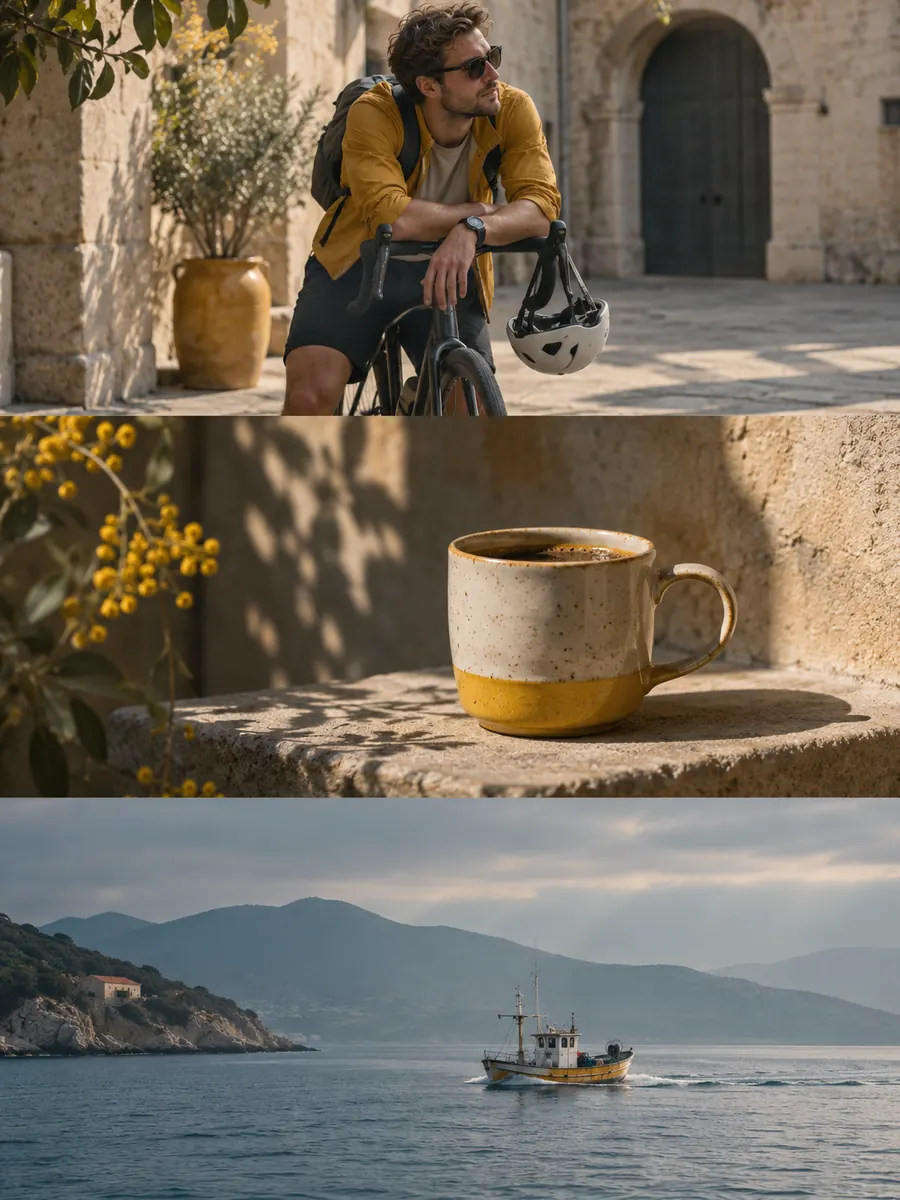
Make a b-roll showcase video with Pexo. Group recorded B-roll by setting, action, and detail. Show how your footage can support a story.
Make an AI video montage. Bring your clips and photos together under one theme. Pick an opening image, build contrast between the middle shots, and finish with a frame people will remember.
Bring your candidate clips and name the feeling, location, or change that connects them. In Pexo’s video montage maker, pick a few images that each add something to that idea. Use Merge Videos to preview the order and see which shots can be removed.

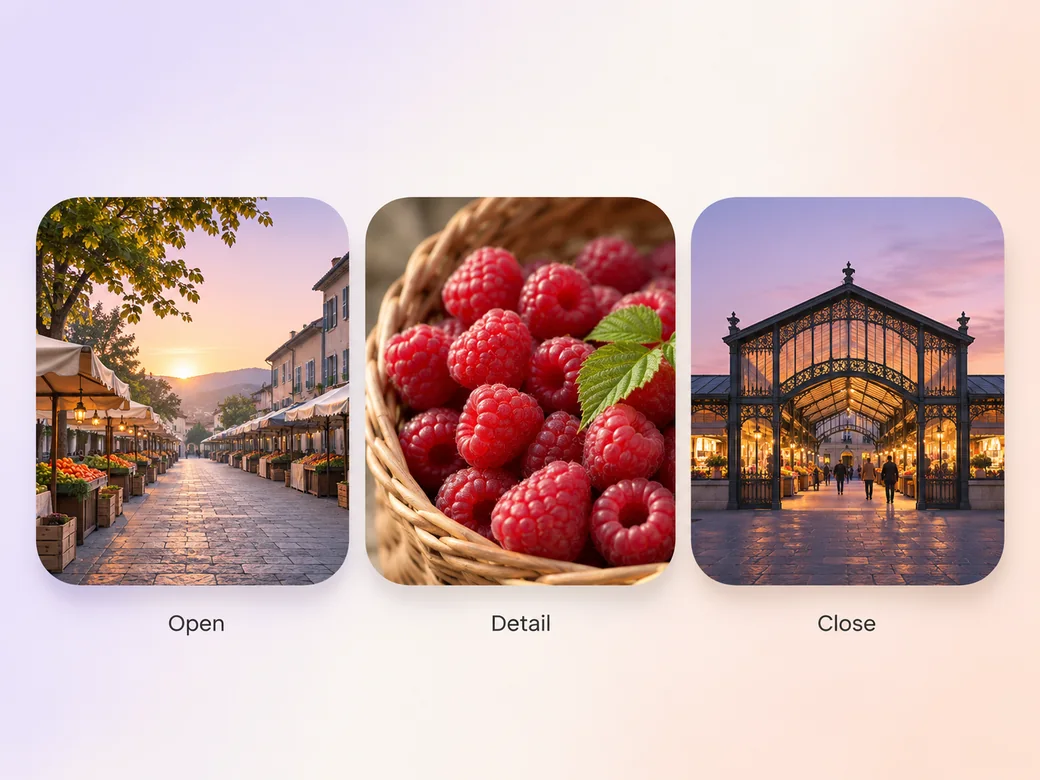
The cut moves from the station to the market to the harbor. Check how each new view changes the mood.
What to review
Give a new viewer an image that establishes the place, then change distance or scale. A fruit basket or worn handle can connect separate wider scenes. Keep the strongest late image for the closing beat so the sequence has a clear finish.
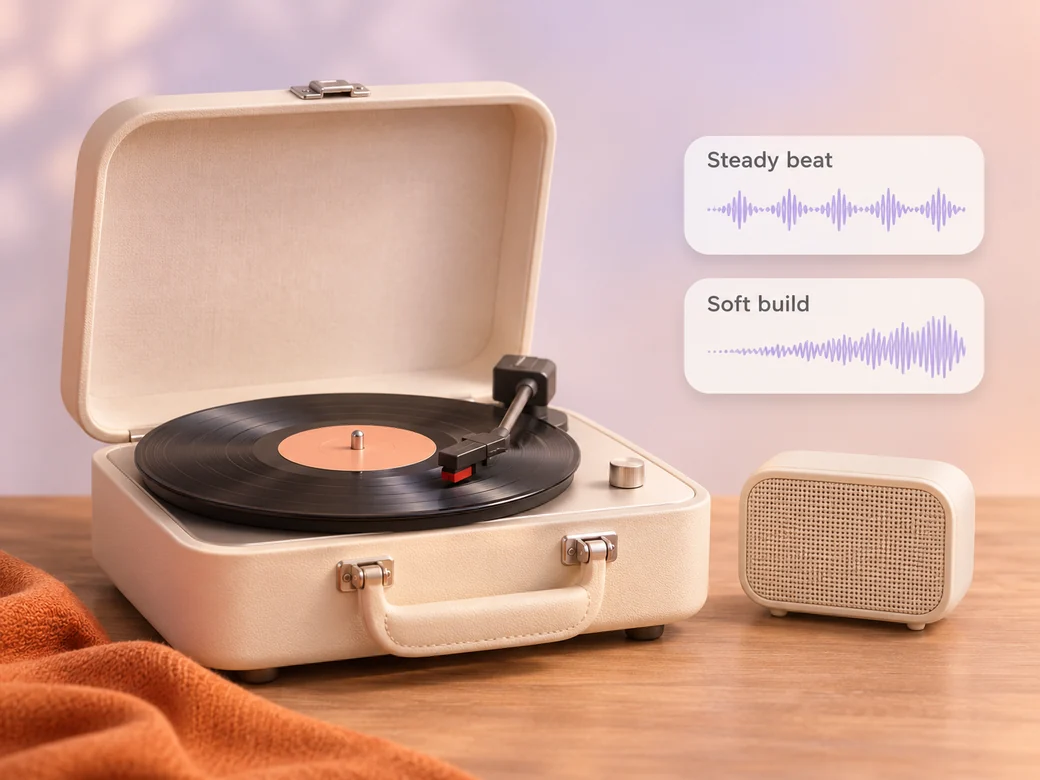
Try a steady track when the shots need room and a gentle build when the image changes over time. In Music Generation, describe how the early and late parts should feel. Check that the shot lengths fit the images as well as the music.
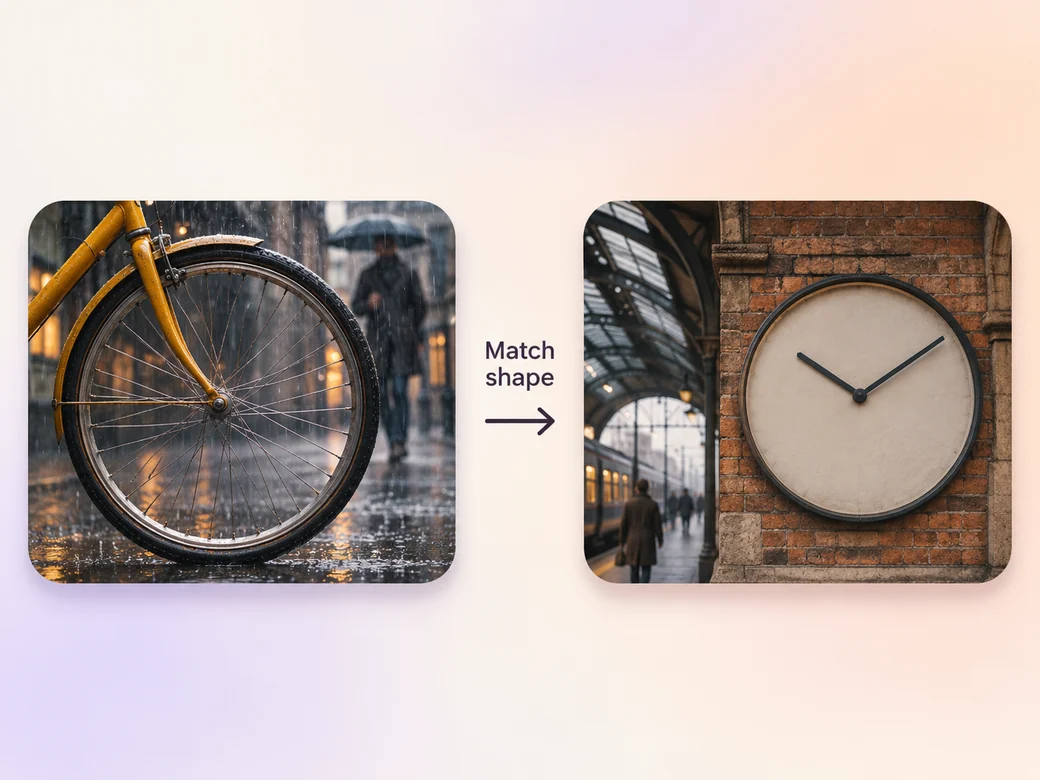
Look for a shape, texture, or direction both sides of the cut can share. A bicycle wheel can lead into a round station clock, for example. Review the cut at playback speed, then shorten or hold a shot if the connection goes by too quickly.
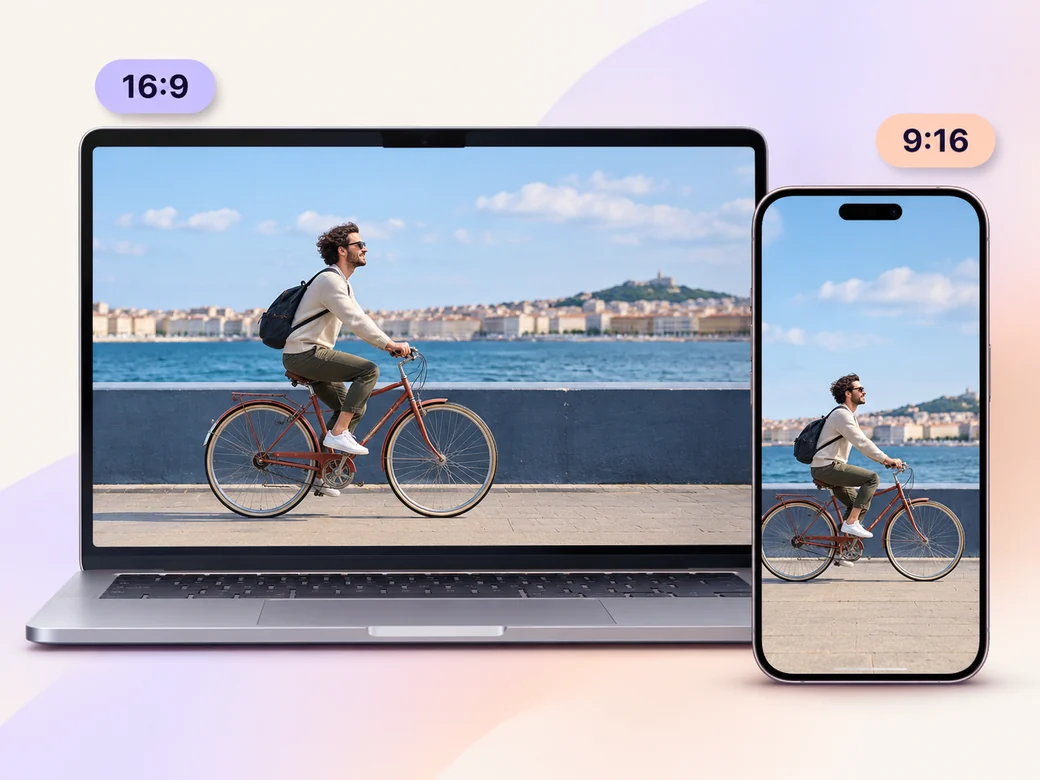
Keep wide compositions where two subjects share a shot. For a portrait version, pick source clips with a single clear subject and review the new order. The shortened version still needs a strong opening and a deliberate final frame.
Watch the montage in Pexo and check the opening, middle and closing shots as a sequence. Keep the repeated action, motif or mood clear as the clips change. Each cut should help the viewer follow the sequence.
Compare action changes with music accents and inspect transitions that feel too fast. Leave a little breathing room on your strongest shot so viewers can take it in. Use tempo to highlight the strongest footage.
Review the export for clips with inconsistent crops or visibly different exposure. Check that the final image and music ending feel like an intentional close. The montage should read as one finished piece.
A video montage places several short images or clips in sequence around a theme. Music, visual contrast, and recurring details help connect the individual moments. A montage can summarize a day, show a project developing, or build a mood. Most begin with a clear image and finish on an intentional one.
Yes. Use the stills for pictures that need more time or for details you did not film. Combine them with shots that show motion or a change. Tell Pexo which images should stay framed in full and which can be cropped, and check the result at the size you plan to use.
Start by giving the viewer time to identify the subject and see the movement. Hold longer on an opening or closing image, and let short details carry transitions. Play the sequence against the intended music, then remove a shot if it repeats an idea the viewer already understands or if it breaks the rhythm.
Pexo can assemble your materials around a theme, try a new sequence, and revise the pacing against the score. Bring original clips for the moments you want to document. Kling AI 3.0 can make a separate animated insert from your reference image when a short visual bridge would add something to the sequence.
A montage often changes between clips, stills, and viewing distances to build a theme or sense of motion. A video slideshow typically emphasizes photographs and gives each one time to read. Start with the form that best serves the material, and keep the parts of the story viewers need to see.
Use subject + action + camera movement + setting + style. Try ‘Use the city footage and evening harbor photographs. Open on the station, follow the cyclist past the market, then hold on the harbor. Match the round wheel to the station clock. Keep the light warm with a restrained instrumental score and let the last image stay on screen through the final beat.’
Choose one theme and a few clips that belong together. See how they feel in sequence.
Make a b-roll showcase video with Pexo. Group recorded B-roll by setting, action, and detail. Show how your footage can support a story.
Make a Steadicam tracking shot showcase video with Pexo. Arrange recorded follow and lateral takes into a reel that shows how each move starts and lands.
Make a cinema drone aerial showcase video with Pexo. Arrange your recorded wide, top-down, and reveal shots into a reel with consistent color and sound.
Make an FPV drone flythrough video with Pexo. Organize recorded passes into one clear route, choose the sound, and prepare a wide reel or vertical cut.
Make a wedding video from ceremony clips, photos, and recorded messages. Use Pexo to tell the story of the day and keep the voices that matter.
Make an affirmation video with your own words, an optional voiceover, and time to pause. Review the pacing and readability with Pexo.
Make a graduation video from school photos, ceremony clips, and personal messages. Use Pexo to tell the story from the first day to the final walk.
Make a meditation video with a steady view, gentle movement, and quiet ambience or silence. Use Pexo to shape the scene and its pace.