
AI B-Roll Showcase Video
Make a b-roll showcase video with Pexo. Group recorded B-roll by setting, action, and detail. Show how your footage can support a story.
Make an AI Steadicam tracking shot showcase video from recorded takes. Show where each camera move starts, how it follows the subject, and where it lands in a reel for clients or producers.
Start with a recorded take that shows the approach, the follow, and the intended settling frame. Use Pexo’s Steadicam tracking shot showcase video maker to review which portion communicates the movement best. Merge Videos can put the selected takes together in the sequence you specify.
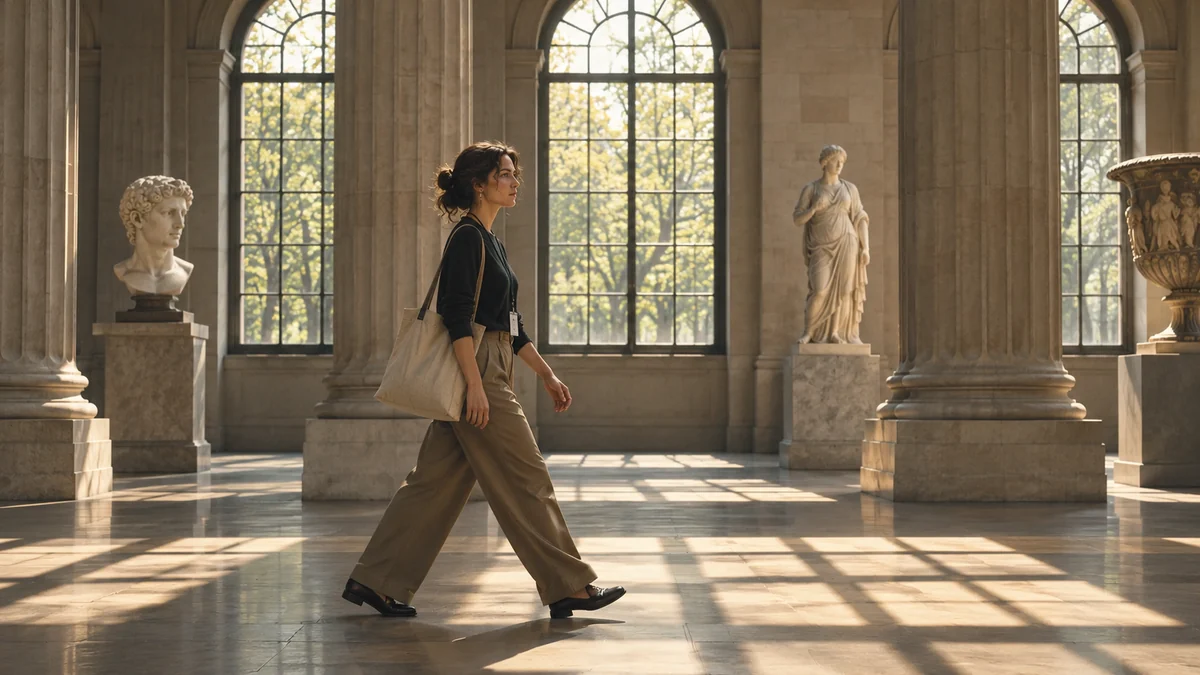
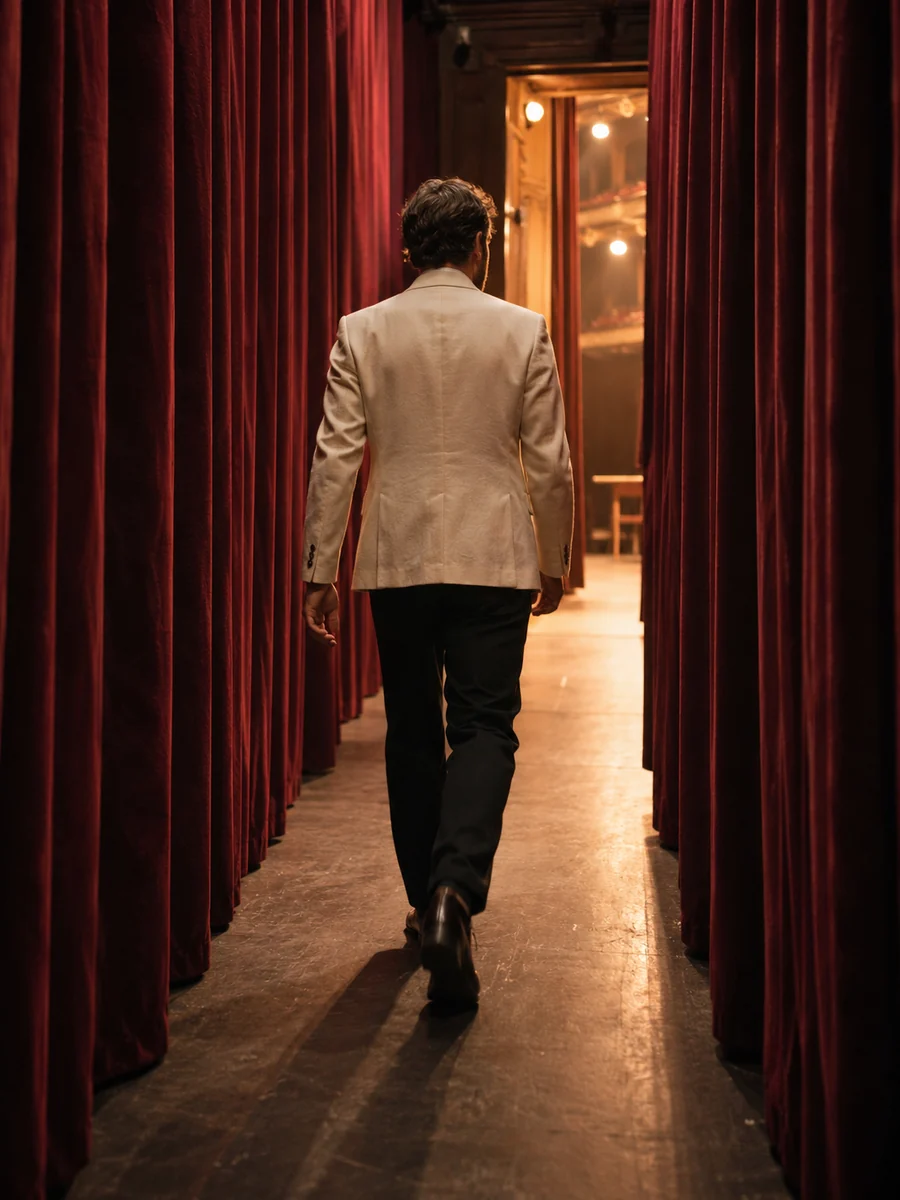
The preview follows the subject along the gallery columns. Check whether the selected section shows a clear beginning and landing.
What to review
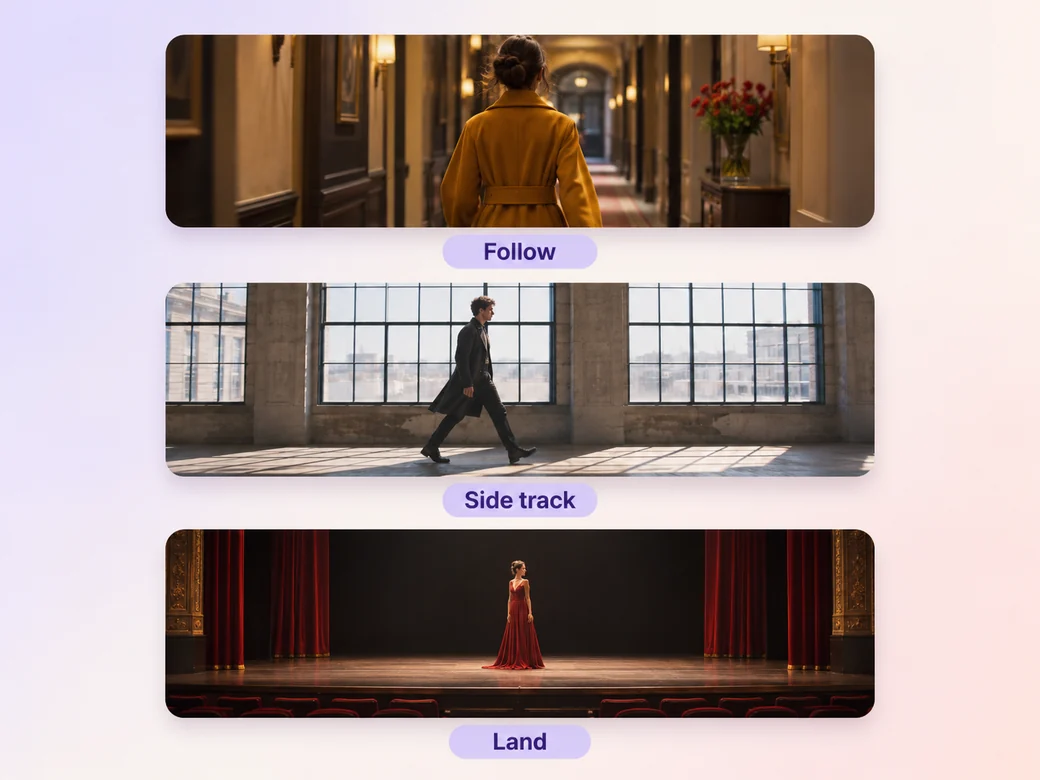
Give each shot a different purpose. Let one move follow a subject into the room, then show a side track to illustrate how the camera stays with a subject moving across frame. Finish with a reveal where the camera reaches a composition worth holding.
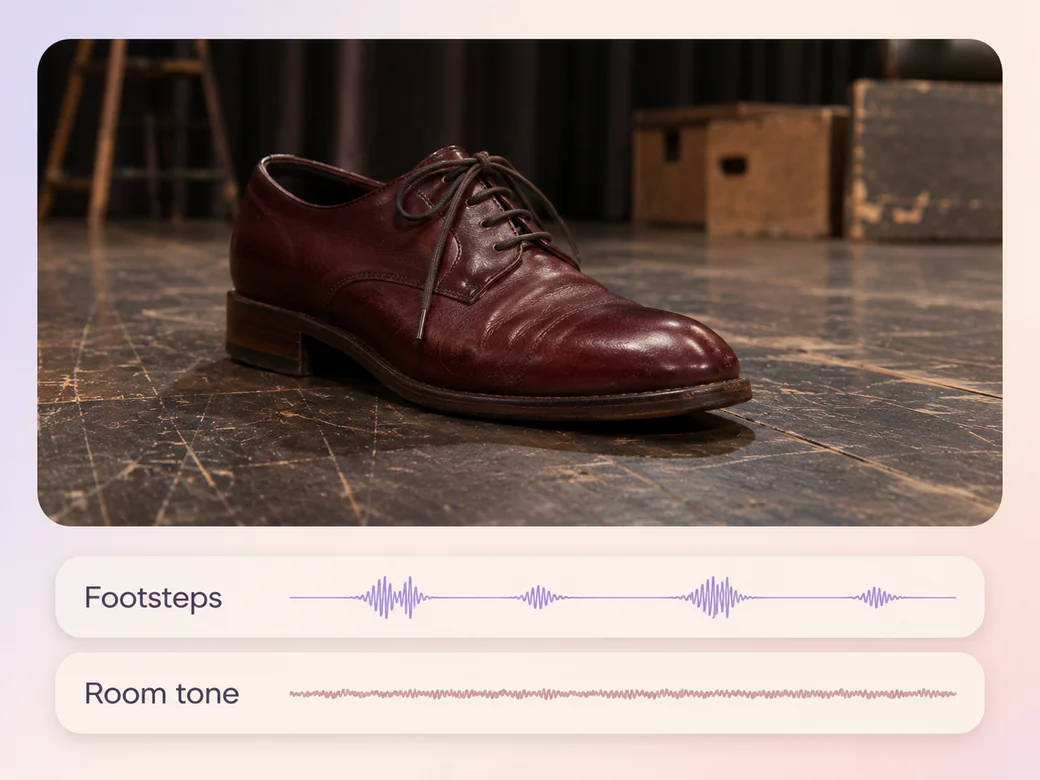
When the recorded sound helps establish the space, hold on to a few footsteps or the change in room tone. Use Music Generation to try a modest score beneath it. Listen for abrupt changes in the room sound and locate joins where the next shot feels like an intentional new move.
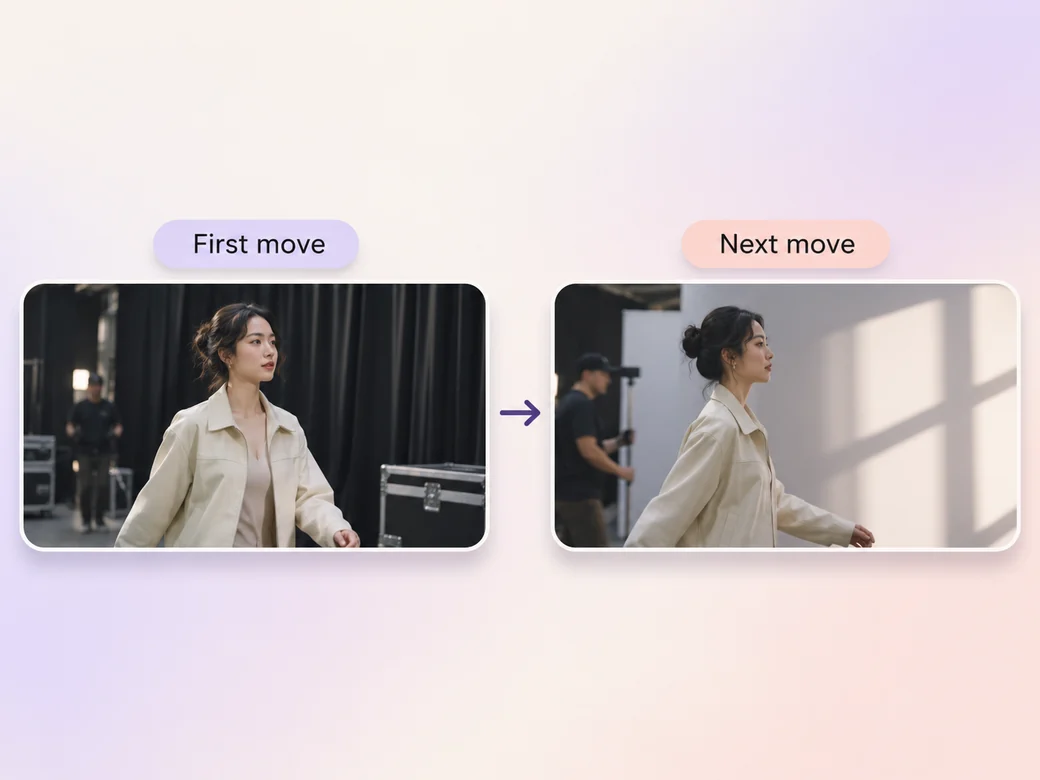
Put two comparable moves next to each other and watch where the subject enters and leaves frame. When the next angle turns the other way, give it its own clear opening rather than hiding the direction change. Review the cut once at normal speed to see how the movement lands.
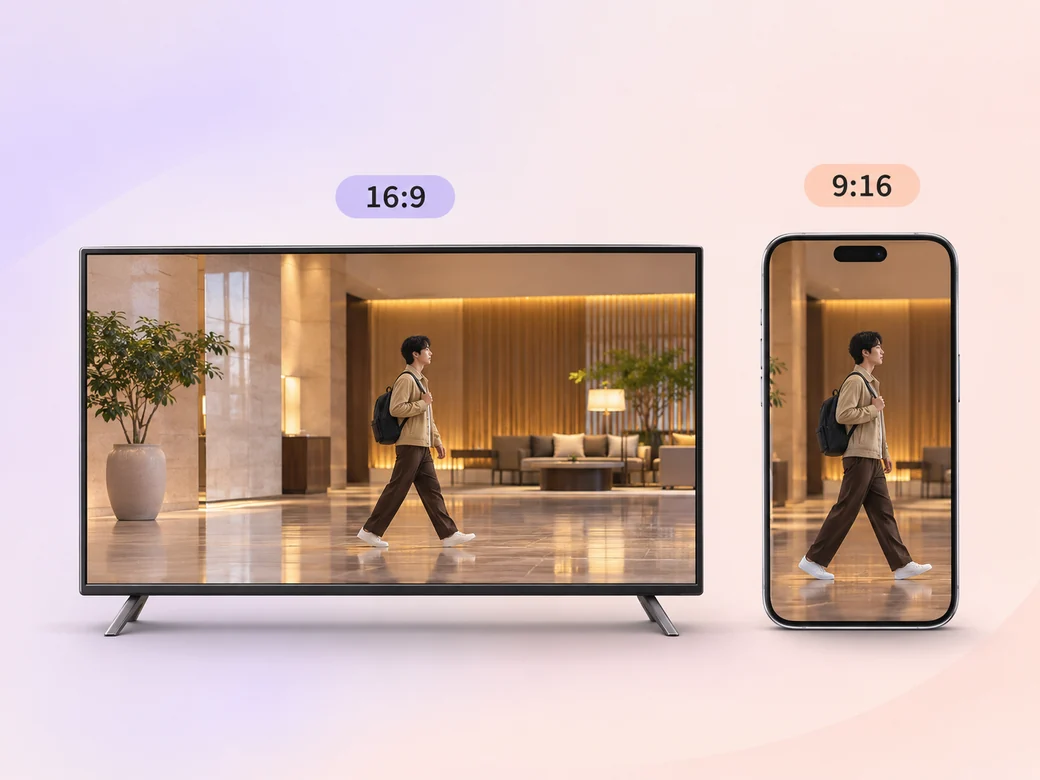
Use 16:9 for the complete reel, where producers can see how the subject moves through the frame. Make a shorter vertical sample using a move that keeps its main subject visible. Watch both versions and check the first and last frames at the actual display size.
“I show the lead-in and the moment the camera settles. Both tell you what the move is doing for the scene.”

“I compare where the subject is traveling at the cut. A consistent direction helps me understand the camera work.”

“I want to tell which examples are follows and which are side tracks. That helps me see what to ask for on the next project.”

A Steadicam tracking shot showcase video is a short portfolio reel made from stabilized camera moves that follow, lead, or travel beside a subject. Each example shows enough of the recorded take for the viewer to see where the move begins and how it connects the subject with the setting.
Choose takes that show different jobs for the moving camera. Include one where the viewer follows a person into a location, one side track, and one that reveals a new part of the space. Give the start and end of each move enough time, and keep the shot list connected to the source files.
Hold until the viewer can see what the camera move accomplishes. A following shot may need the subject to reach a doorway, and a reveal needs time on the new view. In your preview, check the movement at regular playback speed and cut once the composition has come to a clear rest.
Pexo can put your filmed takes in order and help revise the selection, pacing, and sound after review. Keep your captured camera work as the basis of the reel. For an optional opening graphic or separate scene preview, use Kling AI 3.0 with a reference still and label illustrative footage appropriately.
A tracking shot reel gives each example enough room to demonstrate the camera move itself. A short film uses shots to tell a complete story, with the duration of each image shaped by that story. For an operator portfolio, a short scene is enough if the movement is readable.
Use subject + action + camera movement + setting + style. Try ‘Use the recorded take of the performer approaching the stage. Begin behind the subject at a walking pace. Hold through the doorway and let the final stage frame settle. Keep the rehearsal lighting and leave the last footstep audible.’
Select the recorded takes that show the start, follow, and landing. Arrange them and review the movement together.
Make a b-roll showcase video with Pexo. Group recorded B-roll by setting, action, and detail. Show how your footage can support a story.
Make a video montage with Pexo. Arrange clips and photos around one theme, pace the cuts to music, and turn separate moments into a finished montage.
Make a cinema drone aerial showcase video with Pexo. Arrange your recorded wide, top-down, and reveal shots into a reel with consistent color and sound.
Make an FPV drone flythrough video with Pexo. Organize recorded passes into one clear route, choose the sound, and prepare a wide reel or vertical cut.
Make a wedding video from ceremony clips, photos, and recorded messages. Use Pexo to tell the story of the day and keep the voices that matter.
Make an affirmation video with your own words, an optional voiceover, and time to pause. Review the pacing and readability with Pexo.
Make a graduation video from school photos, ceremony clips, and personal messages. Use Pexo to tell the story from the first day to the final walk.
Make a meditation video with a steady view, gentle movement, and quiet ambience or silence. Use Pexo to shape the scene and its pace.