





AI Reframed Vertical Social Media Video
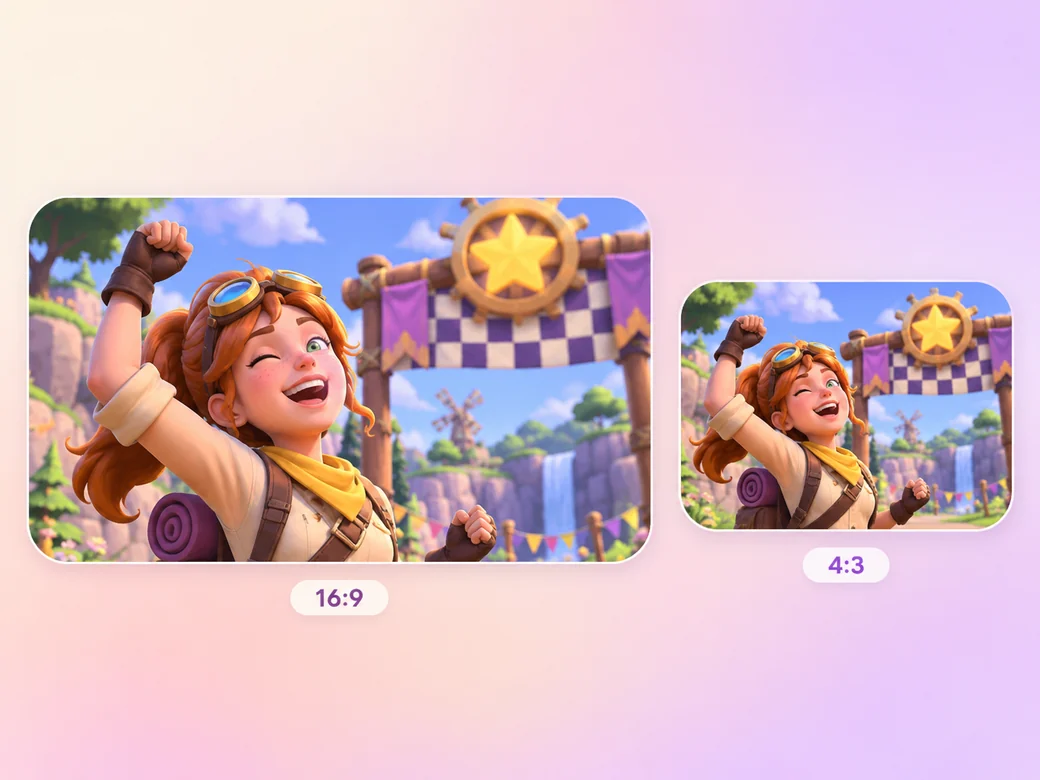
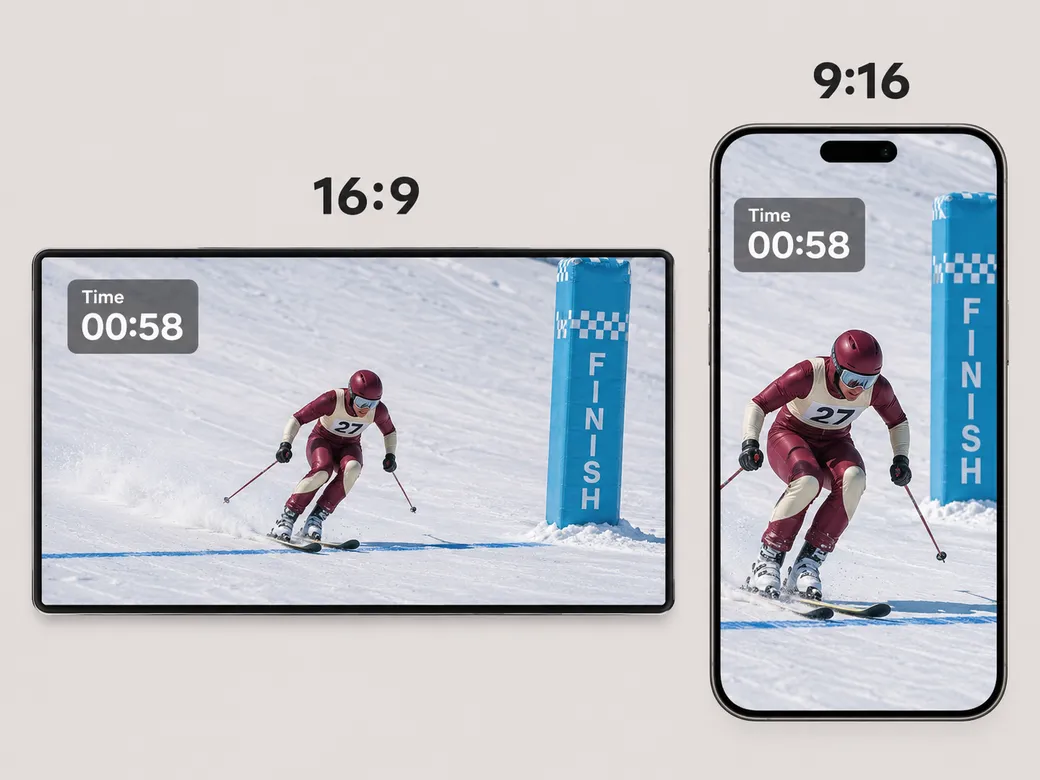
Reframe a wide master for vertical social video with Pexo. Follow the subject as the focus shifts and check that faces, action, and captions remain visible.
Make an AI gameplay Shorts video around one recorded play. Use Pexo to keep the setup, action, and result visible on a phone.
Provide the source capture and mark setup, action, and result. Tell Pexo which player, object, score, or cue must stay visible. Use Reframe Video to try the portrait framing. Watch at phone size and confirm that the visible action still explains the result.

Pick one play with a visible outcome. Hold enough context to follow the move, then keep the key game information visible through the result.
What to review
Choose one play small enough to follow in a short. Include a first frame that shows the goal and stay on the moment until viewers see the outcome. Use a reframe that keeps the player and the most important cue in frame.
Keep an original game cue or a short real reaction. Leave room around that sound if you add a track. Listen on phone speakers and make sure the result is recognizable without pausing. Use Music Generation to try the treatment and listen against the actual pictures.
Keep any important score, character, or active object visible. Use a different recorded angle if a narrow framing hides what happened. Let the last moment settle before the clip ends.
Make the Shorts version in 9:16. Track the active player or object and check that the score, warning, or result remains readable when it matters. If two important areas cannot fit at once, show the cause and result in intentional stages.
Keep enough of the setup to make the player’s objective clear. Verify that the vertical crop shows the state change that proves the result.

Preserve the game cue or recorded reaction that explains the payoff. Check the sound level on a phone speaker.

Track the player through the busiest moment. Use another recorded view when a single crop cuts off the important cue.

A gameplay Shorts video adapts one recognizable play from a game recording into a short vertical cut. It gives viewers enough context to follow who is acting, what happens, and how the game state or score changes.
Bring the gameplay recording with the full event and immediate outcome, plus the audio you can keep. Mark the player, object, or score viewers need to track. Identify which interface elements should be shown, enlarged, or excluded.
Pick a moment with a clearer central focus or choose a different angle from the same recording. Keep any key game information necessary to understand the result. Use a short approved label where it adds context and review the final portrait clip at normal playback speed.
Pexo is useful for timing and reframing an approved gameplay capture around one play. Point out any scoreboard or warning that the new frame must keep. Watch the cut at phone size and verify that cause and outcome are still connected.
A gameplay Shorts video builds a vertical clip around one real play or result from a recorded session. A YouTube Shorts page covers original short-form videos across topics. Choose gameplay when the viewer needs to see the move, its goal, and the outcome in a short standalone clip.
Identify the recording and timestamps for setup, action, and result. For example, ask for a portrait clip that follows a single goal attempt, keeps the player in frame through the shot, and then shows the updated score.
Bring the recording of one complete play. Use Pexo to show the key action and the result in a portrait frame.
Reframe a wide master for vertical social video with Pexo. Follow the subject as the focus shifts and check that faces, action, and captions remain visible.
Make a highlight video for Shorts and Reels with Pexo. Shape one recorded moment into a 9:16 cut that keeps its setup, action, and payoff clear.
Make a captioned social media clip with Pexo. Keep the context of a recorded answer and check wording, timing, and safe areas for sound-off viewing.
Make a TikTok montage video with Pexo. Open with a clear subject, cut related clips to a track you can use, and check the ending in a portrait feed.
Make a captioned interview video with Pexo. Review the spoken words, correct names and timing, and place readable captions for a full cut or social clip.
Create a 2D avatar AI UGC video in Pexo. Pair a scripted illustrated presenter with real product shots and review the demo before sharing.
Make a mobile app preview video with Pexo. Use the path to a saved note to tell a clear story. Organize your material and review the finished video.
Make a repurposed social media video with Pexo. Give one idea from a longer recording its own clip. Keep the context, reframe it, and add readable captions.