

AI Livestream Highlight Video
Make a livestream highlight video with Pexo. Turn a broadcast moment into a standalone clip with a clear setup, the live reaction, and readable captions.
Make an AI repurposed social media video. Take a complete idea out of a longer recording, keep the original voice, and reframe it with readable captions for a new post.
Bring a long video you can reuse, its transcript if available, and any lines or examples worth clipping. In Pexo’s repurposed social media video maker, choose an example or answer that makes sense to a new viewer. Keep the first line that gives it context and the outcome before you move on. Use Merge Videos with your brief, then review one complete social clip.

The result preview focuses on one complete social clip. Review each of the checks before shaping the complete cut.
What to review
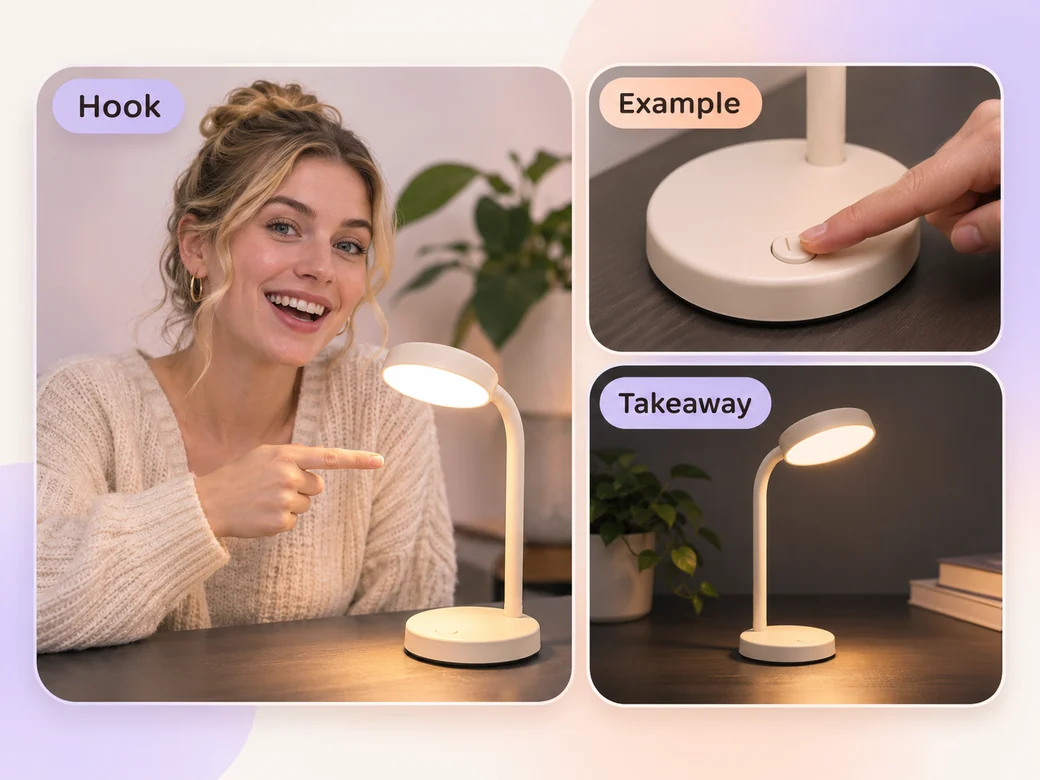
Open on the line that states the topic. Keep one example or action the viewer can follow. Finish when the question is answered or the demonstration reaches its result, and give the next piece of source material its own clip.
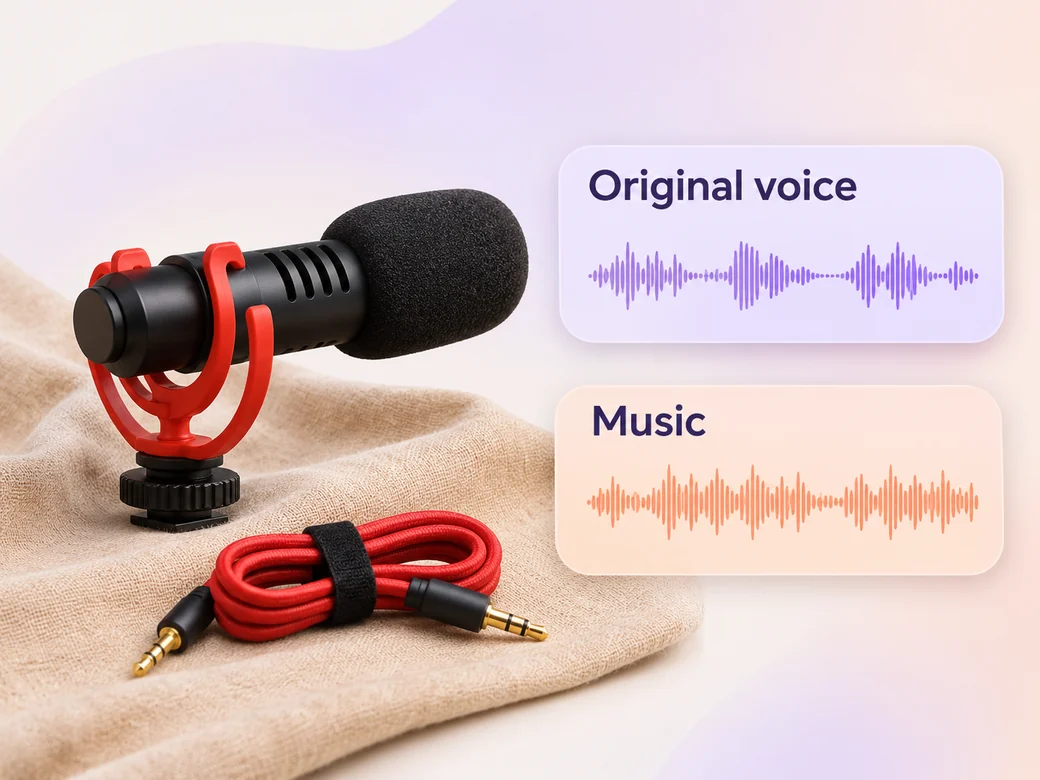
Use the original narration or recorded dialogue. Place music low underneath the voice when it helps connect shots. Listen for the first line on a phone and check that it remains audible as you tighten the edit. Use Music Generation to try the treatment and listen against the actual pictures.
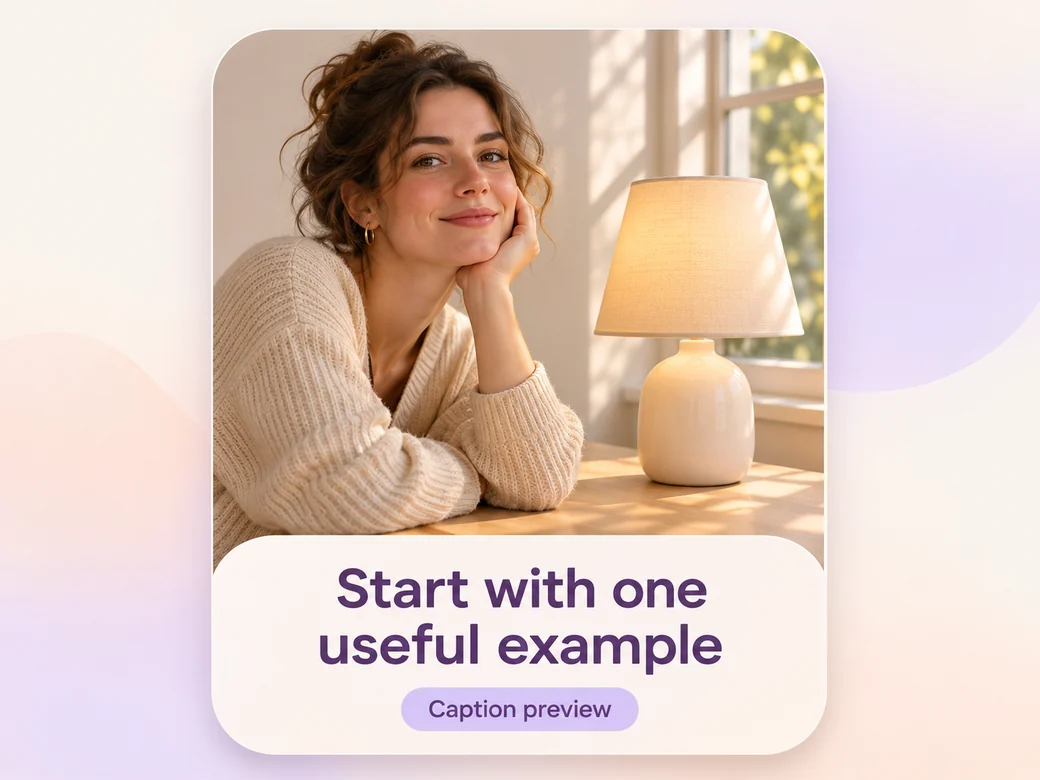
Use Add Subtitles to Video to keep the important words in the narrow cut. Choose a reframe that preserves the face and any object people need to see. Check names and line breaks against the actual recording.
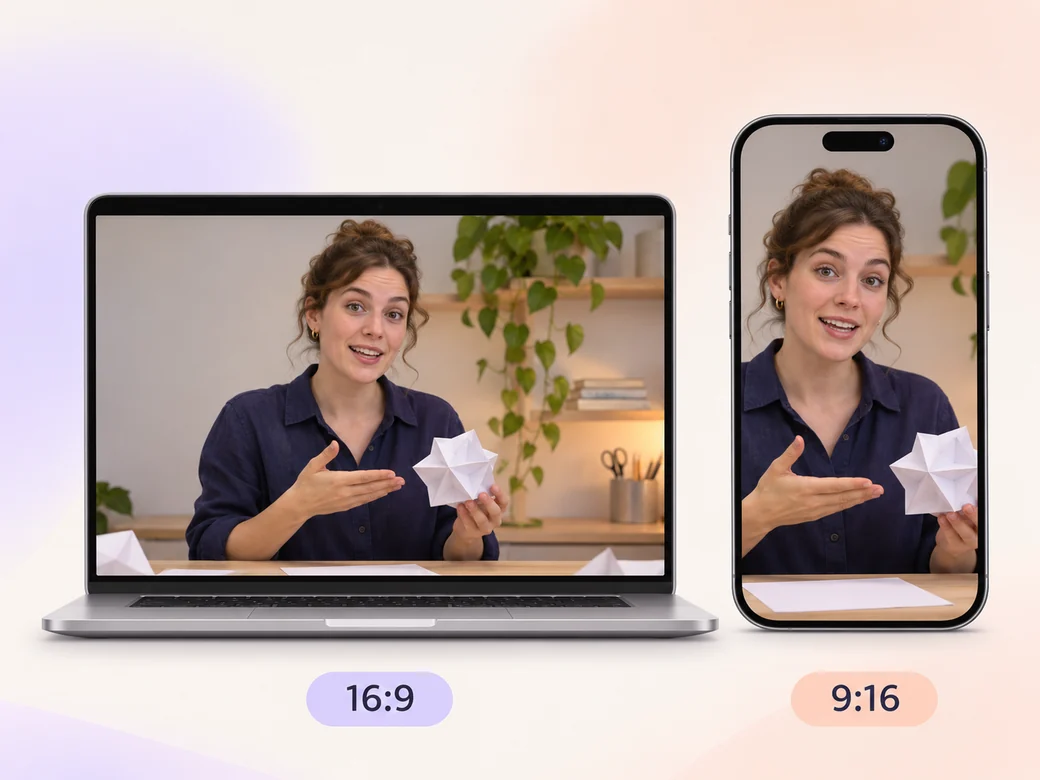
Keep a wide cut for a social post, Reel, or Short. For a 9:16 excerpt, retain one complete social clip and review how it fits on a phone. Check the start and the last frame at the intended size and give any text enough time to read.
“In Pexo, I check whether the clip answers something on its own. If it needs several minutes of setup, I choose a different segment.”

“I want the image to explain what the speaker is showing. I always check the prop and face together after reframing.”

“I compare each line with the recorded voice. Names and quick instructions deserve a second listen.”

A repurposed social media video is a finished edit that helps you give an existing recording one idea per short clip. It can be prepared for a social post, Reel, or Short, with enough context for the viewer to follow one complete social clip. Choose a few moments that improve the final result and give each one time to read before the next cut.
Bring a long video you can reuse, its transcript if available, and any lines or examples worth clipping. Give each source a short name that describes where it belongs, and include any exact wording that should appear. Tell Pexo which part matters most and how you plan to show it. That gives you a clear first version to review.
Look for an answer, example, change, or reaction that already has an arc. Check whether the first line explains enough without the earlier discussion. Choose a clear ending and remove names or references that would require a long introduction. Review the clip with a person who has not seen the full recording.
Pexo helps organize your material and revise the framing, pacing, and sound after you review the result. Use the source that documents your actual subject for one complete social clip. For a separate illustrative insert or visual opening, Kling AI 3.0 can animate an approved reference image.
A repurposed social media video starts with material you already have and makes one of its moments work in a new format. A social media video can also be planned and filmed from scratch. Use a repurposed cut when the idea already exists and the new framing, length, or context helps it work as a post.
Use subject + action + camera movement + setting + style. Try ‘Use the filmed workshop example. Start with the presenter asking why the lamp flickers, keep the close view of the switch, and finish when the one new light turns on. Preserve the recorded voice and use a clean vertical crop with clear captions away from the hand.’
Bring a long video you can reuse, its transcript if available, and any lines or examples worth clipping. Start with one complete social clip and review the first cut at the intended size.
Make a livestream highlight video with Pexo. Turn a broadcast moment into a standalone clip with a clear setup, the live reaction, and readable captions.
Make a sports and fitness highlight video with Pexo. Turn match or training footage into a sports reel that shows the effort, the result, and the live reaction.
Make a gameplay highlight video with Pexo. Turn recorded plays and reactions into a clear, paced reel or a short social clip your viewers can follow.
Create a social media cover video with a readable first frame, brand colors, and a short intro. Make a pinned Reel or YouTube channel trailer with Pexo.
Make a recruitment video with team clips, workplace photos, and a clear job brief. Show candidates what the role involves and where to apply.
Make a Facebook video from one line of description with Pexo. The AI Facebook video generator writes the hook, burns in captions, and renders with Sora 2, Kling and Veo in minutes.
YouTube ad creation runs on Sora 2, Kling and Veo inside Pexo. Describe your product and get a hooked, voiced, captioned ad in 16:9, 9:16 and 1:1 in minutes.
Instagram video generator that turns a prompt or a photo into a captioned vertical Reel in minutes. Pexo runs Sora 2, Kling and Veo and exports 9:16 and 1:1.