




AI Reframed Vertical Social Media Video
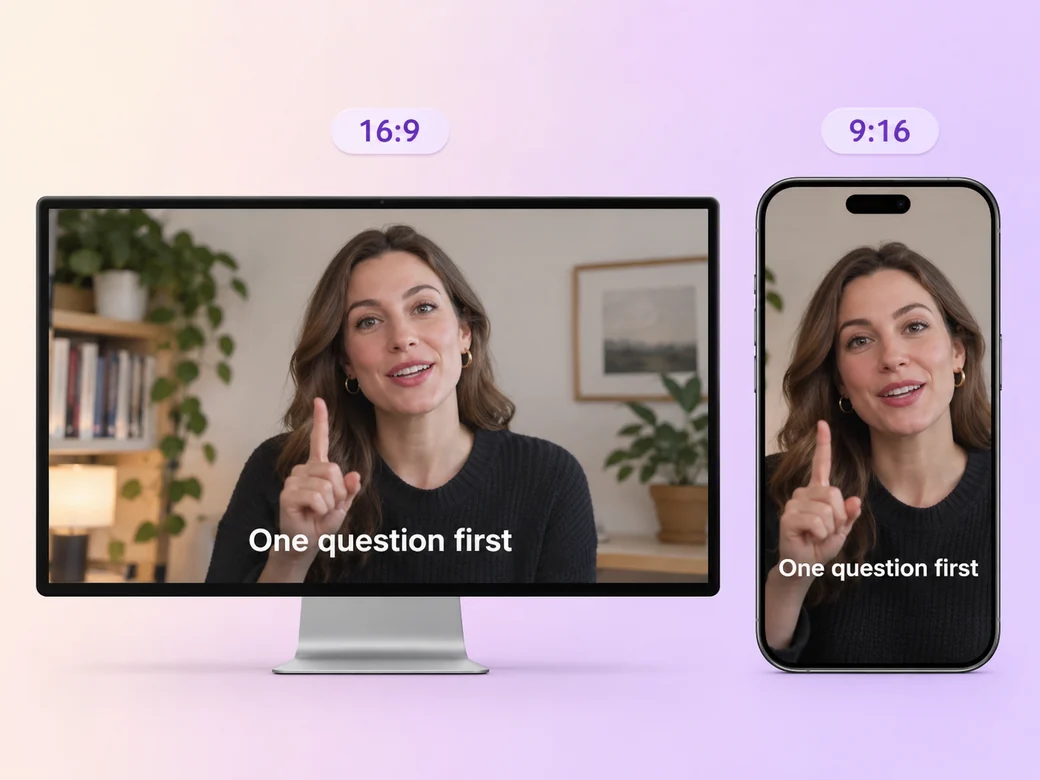
Reframe a wide master for vertical social video with Pexo. Follow the subject as the focus shifts and check that faces, action, and captions remain visible.
Turn a recorded answer or explanation into an AI captioned social media clip with Pexo. Keep the speaker’s meaning and make the key words readable with sound off.
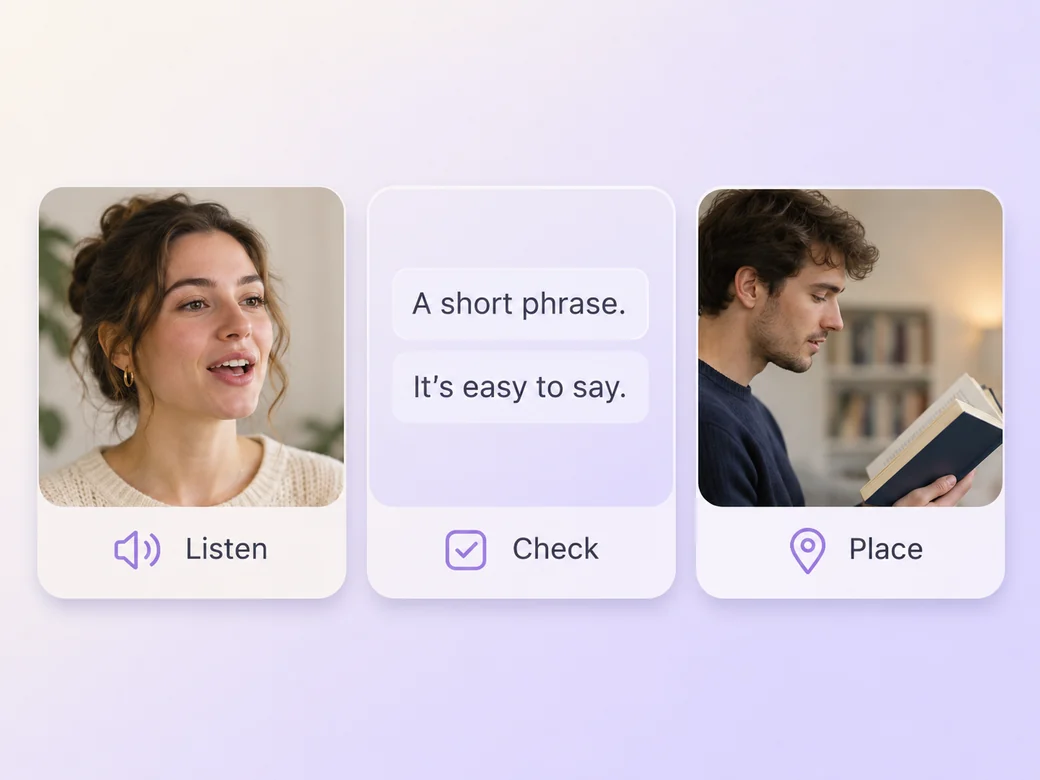
Give Pexo the source segment and a checked transcript or exact wording. Mark the question if the speaker’s answer depends on it. Use Add Subtitles to Video to prepare readable lines, then compare the captions and meaning with the original audio before sharing.

Start by finding the complete thought in the recording. Keep enough of the setup to preserve meaning and check each line against the speaker before timing it.
What to review
Include enough of the question or setup to give the line its meaning. Keep the original voice. Make the first caption appear with the start of the spoken phrase rather than asking viewers to guess what they missed.
Let the interview or recording carry the clip and place the score low. Listen to names, numbers, and rapidly spoken words against the transcript. Give the text enough time for viewers to follow the footage and the sentence together.
Keep captions in short readable lines and move them clear of faces, product information, and interface controls. Watch with the sound off on the intended screen before sharing.
Choose the frame your feed placement will use. For portrait, keep the visible speaker and leave space for captions away from app controls. Use a wider layout if the excerpt needs two speakers or a shared screen. Check the clip once with sound off.
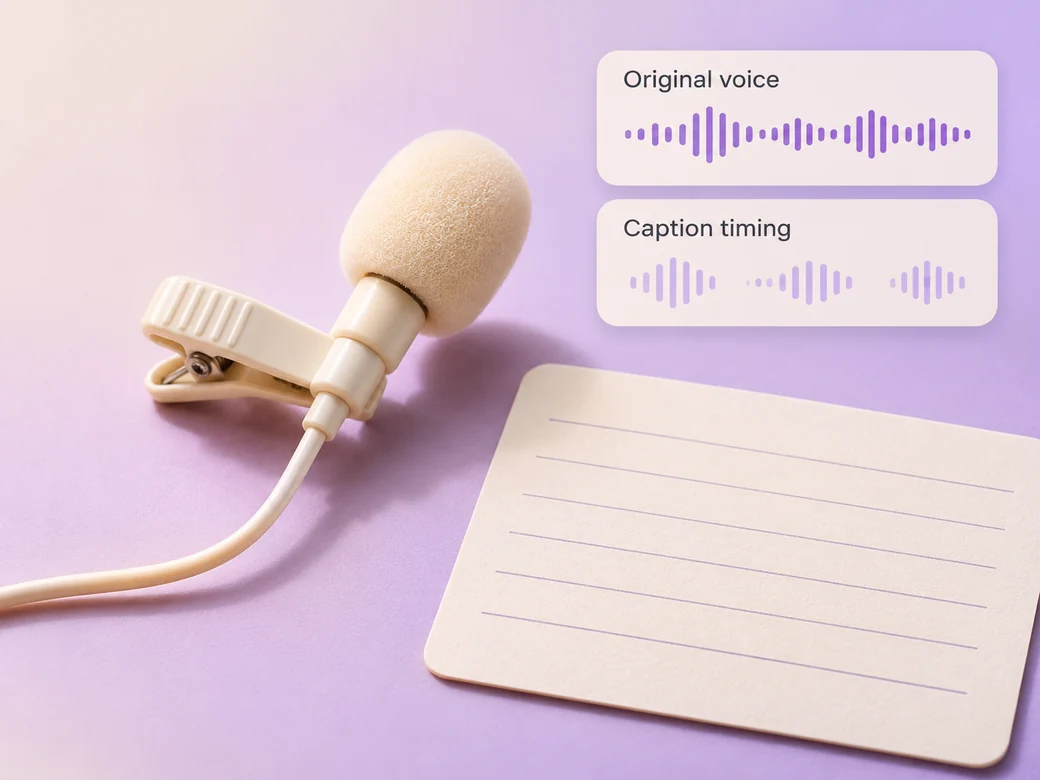
Compare the first subtitle lines with the original recording. Recheck names, numbers, and terms before adjusting timing.

Watch the clip on a phone with sound off. Check that viewers can follow the full answer without missing the setup.

Keep captions clear of faces, labels, and visible actions. Repeat the placement check at the final output size.

A captioned social media clip presents a short excerpt with text that follows the original speech. It preserves the context of the quote or answer and uses readable line breaks so viewers can follow it in a feed, even when muted.
Bring the complete source segment, a checked transcript if you have one, and spellings for names and specialist words. Mark the question or setup the answer depends on. Flag speaker changes and identify any line that needs extra time to read.
Use automatic captions as a first pass, then check the spoken words against the recording. Correct names, terms, and numbers, and split lines at a natural phrase. Review the reading time and location with the actual portrait crop so viewers can follow without pausing.
Pexo is useful for tightening an excerpt and placing captions around the subject. Provide a checked transcript and ask for line breaks that follow the speech. Compare the final text and timing with the voice track before publishing.
A captioned social media clip is built around speech that people can also read while the video plays. A general social media video can be visual, written from a script, or based on music. Choose a captioned clip when the spoken line is the point and its meaning must stay intact in the shortened version.
Supply the time range, verified transcript, and placement. For example, ask Pexo to keep one complete answer and the question it depends on, break captions into short phrases, and keep them below the speaker’s face.
Bring a recorded answer and a checked transcript. Use Pexo to make a short clip viewers can understand with sound off.
Reframe a wide master for vertical social video with Pexo. Follow the subject as the focus shifts and check that faces, action, and captions remain visible.
Make a highlight video for Shorts and Reels with Pexo. Shape one recorded moment into a 9:16 cut that keeps its setup, action, and payoff clear.
Make a gameplay Shorts video with Pexo. Reframe one recorded play for 9:16 and keep the player, key game cues, and final result visible on a phone.
Make a TikTok montage video with Pexo. Open with a clear subject, cut related clips to a track you can use, and check the ending in a portrait feed.
Make a captioned interview video with Pexo. Review the spoken words, correct names and timing, and place readable captions for a full cut or social clip.
Create a 2D avatar AI UGC video in Pexo. Pair a scripted illustrated presenter with real product shots and review the demo before sharing.
Make a mobile app preview video with Pexo. Use the path to a saved note to tell a clear story. Organize your material and review the finished video.
Make a repurposed social media video with Pexo. Give one idea from a longer recording its own clip. Keep the context, reframe it, and add readable captions.