




AI Reframed Vertical Social Media Video
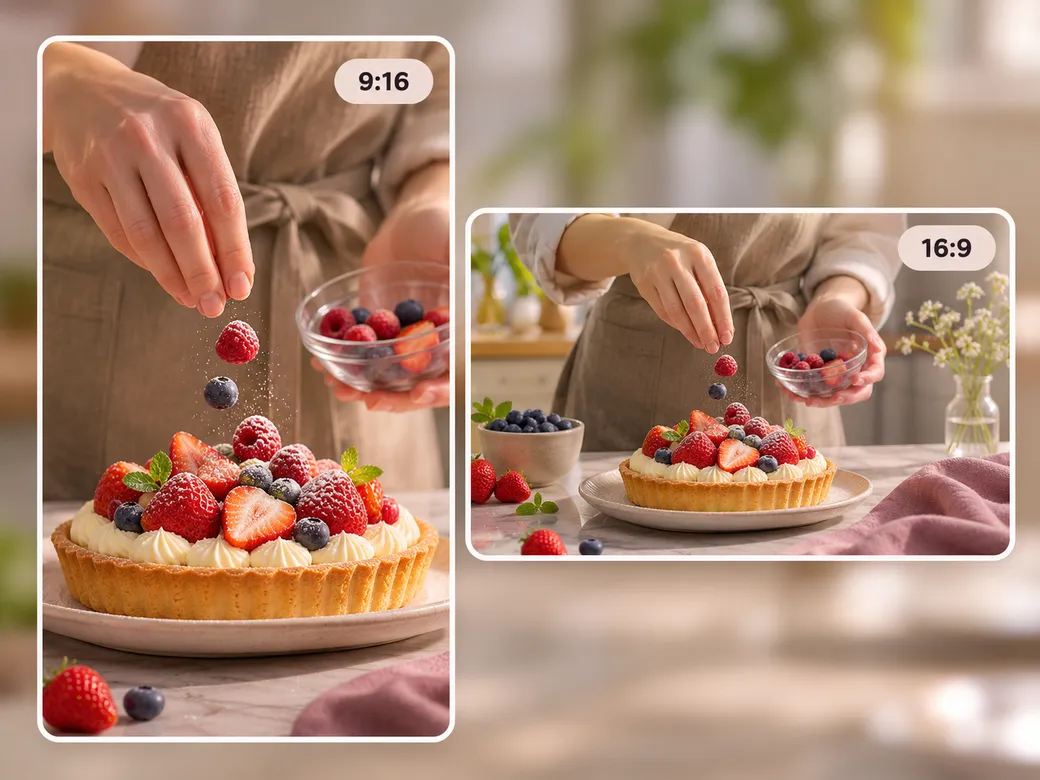
Reframe a wide master for vertical social video with Pexo. Follow the subject as the focus shifts and check that faces, action, and captions remain visible.
Make an AI TikTok montage video from related clips and a track you can use. Use Pexo to find a clear opener, order the changes, and build a portrait edit for the feed.
Tell Pexo what connects the clips and which sound you want to use. Plan how the first shot states the theme and how the last one finishes it. Use Merge Videos to assemble the sequence and replay it at feed size to check the changes.

Build the sequence around the changes viewers should notice. Use the sound to support the rhythm and let a key action finish before cutting away.
What to review
Choose an opening shot people can identify on a phone. Change scale or direction as the montage develops. Keep one repeated feature, such as a color, shape, or movement, so the separate scenes feel related.
Use the track or approved sound to guide a few meaningful joins. Hold a little longer when a shot introduces new information. Watch the same cut without music to see whether the sequence works on its own. Use Music Generation to try the treatment and listen against the actual pictures.
Avoid cropping off the main object or placing words under app controls. Test the first frame and the ending on a phone. Finish on an image that concludes the idea so the clip still makes sense if it repeats.
Build the main TikTok montage in portrait and give each action a clear center of attention. Reframe shots that lose context in the crop and leave room for text in the actual posting preview. Use a wider cut for a separate placement only when needed.
Choose an opener that makes the subject immediately recognizable. Let each cut add a visible change to the same idea.

Use stronger beats to emphasize actions that matter. Hold longer when a shot contains details viewers need to absorb.

Review the first and last shots at feed size. Keep important text clear of controls and check that the ending still makes sense on repeat.

A TikTok montage is a sequence of short clips built around one theme, transformation, or repeated detail. The shots and sound give the edit a recognizable rhythm, while the first and last views tell the viewer what connects the sequence.
Bring the approved clips, an overall theme, and the sound or track you can publish with them. Mark the opener, one detail that may recur, and the shot that should close the edit. Identify any text that needs to remain readable on a phone.
Cut where a change helps the viewer and use the beat selectively. Hold on an image when the audience needs time to understand it, then use a shorter accent where the visual is already familiar. Listen against your approved track and test the ending once with the sound off.
Pexo can help arrange clips around a visual theme and refine pacing with the selected sound. Describe which actions deserve a longer hold. Compare the portrait cut with the source and check the beginning and ending at feed size.
A TikTok montage video combines existing clips or stills around a theme and a pace that works vertically. A general TikTok video can be a recorded demo, talking-head piece, or original story. Choose the montage when the links between images drive the clip and one visual motif helps each part connect.
Give Pexo the clip list, theme, licensed audio, and end beat. For example, ask for a portrait sequence moving through three stages of preparing a desk, keep the same object recognizable, and let the completed arrangement hold over the last beat.
Bring your clips and cleared sound. Use Pexo to shape a portrait montage with a recognizable opener and ending.
Reframe a wide master for vertical social video with Pexo. Follow the subject as the focus shifts and check that faces, action, and captions remain visible.
Make a highlight video for Shorts and Reels with Pexo. Shape one recorded moment into a 9:16 cut that keeps its setup, action, and payoff clear.
Make a captioned social media clip with Pexo. Keep the context of a recorded answer and check wording, timing, and safe areas for sound-off viewing.
Make a gameplay Shorts video with Pexo. Reframe one recorded play for 9:16 and keep the player, key game cues, and final result visible on a phone.
Make a captioned interview video with Pexo. Review the spoken words, correct names and timing, and place readable captions for a full cut or social clip.
Create a 2D avatar AI UGC video in Pexo. Pair a scripted illustrated presenter with real product shots and review the demo before sharing.
Make a mobile app preview video with Pexo. Use the path to a saved note to tell a clear story. Organize your material and review the finished video.
Make a repurposed social media video with Pexo. Give one idea from a longer recording its own clip. Keep the context, reframe it, and add readable captions.