


AI Reframed Vertical Social Media Video
Reframe a wide master for vertical social video with Pexo. Follow the subject as the focus shifts and check that faces, action, and captions remain visible.
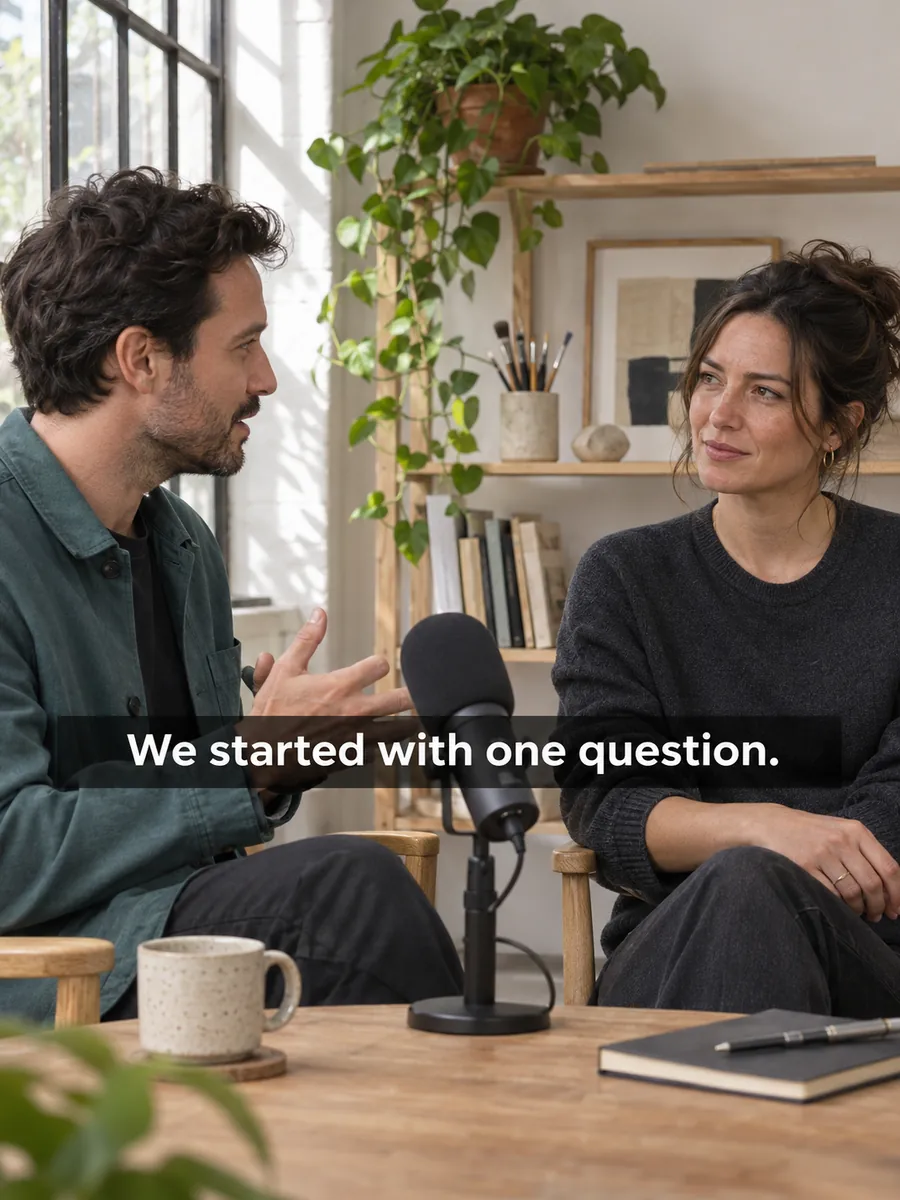
Make an AI captioned interview video from your recorded conversation. Check the wording, timing, and line breaks, then review the full interview or a shorter cut at the size people will watch it.
Upload the recording or bring your approved transcript. In Pexo’s captioned interview video maker, use the AI Subtitle Generator to draft timed lines from the speech. Check the captions against the audio, especially around cuts or quick exchanges. Use your corrected wording when you prepare the final video.

The preview follows the recorded question and answer. Recheck names, caption breaks, and the final shot on a phone.
Review the preview
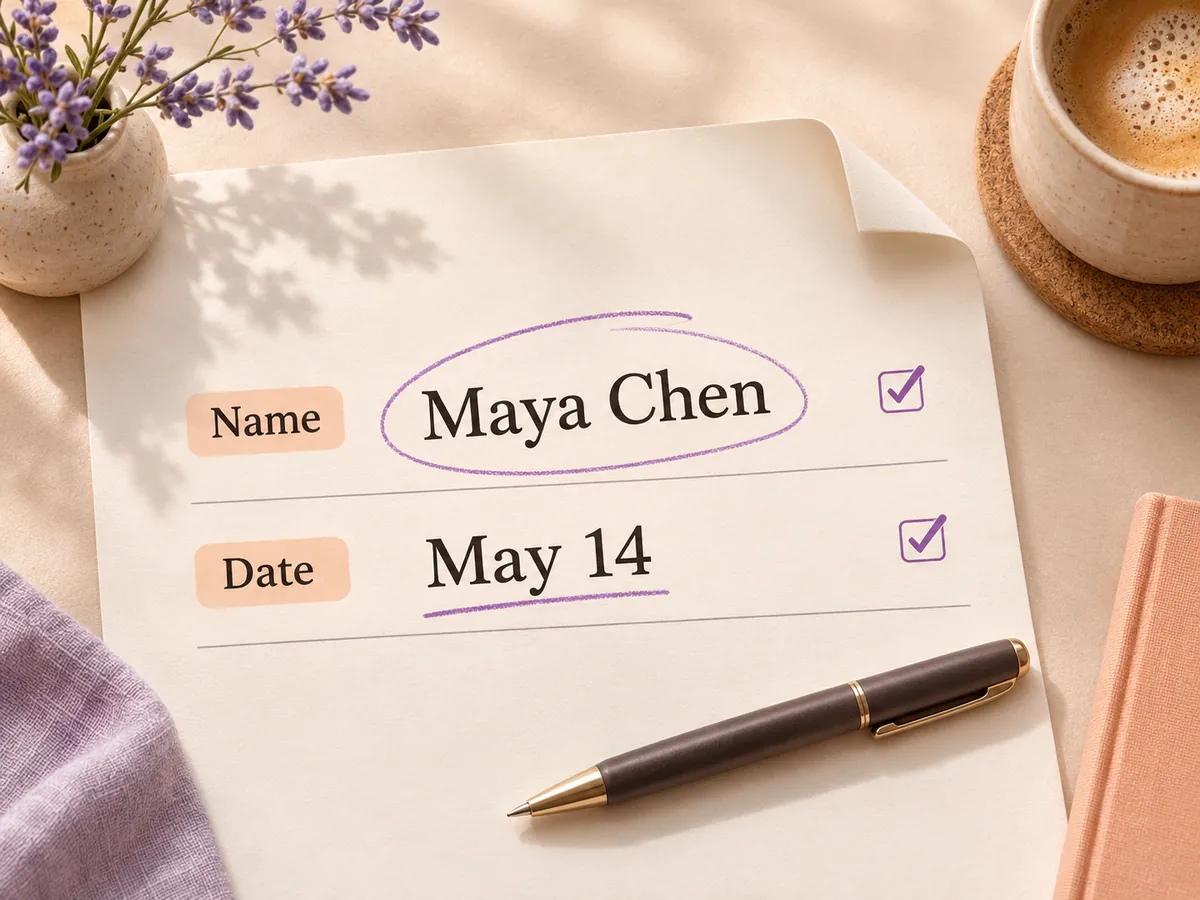
Give Pexo a list of spellings for names, titles, places, and technical terms. Check any number against the recording. When two voices switch quickly, use clear line breaks or identify the speaker where needed. Read the corrected wording alongside the video before sharing the final version.
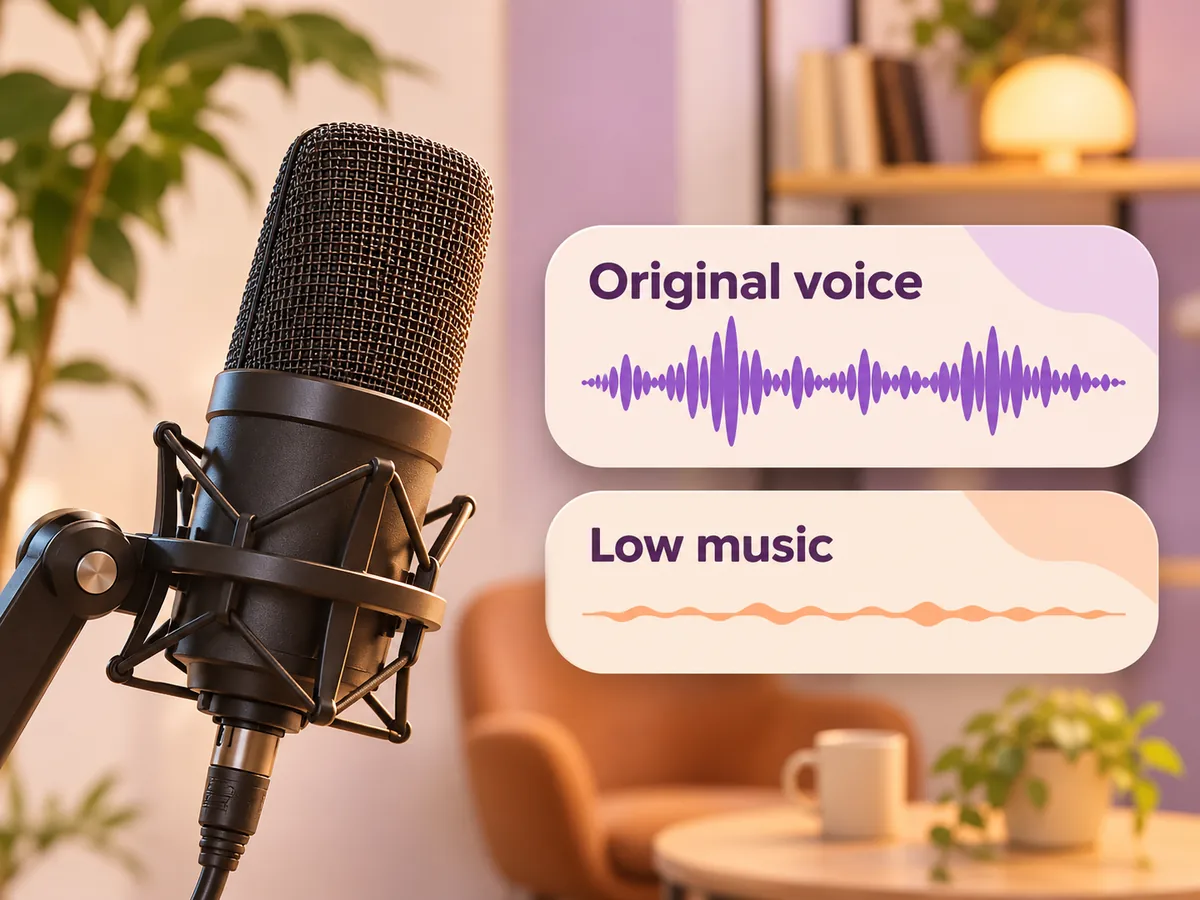
Start with the original recording. Listen to the start and end of each answer and check that the music leaves the words audible. Ask Pexo to keep the score low during speech and use silence where an answer needs room. Review the mix again after trimming the clip.
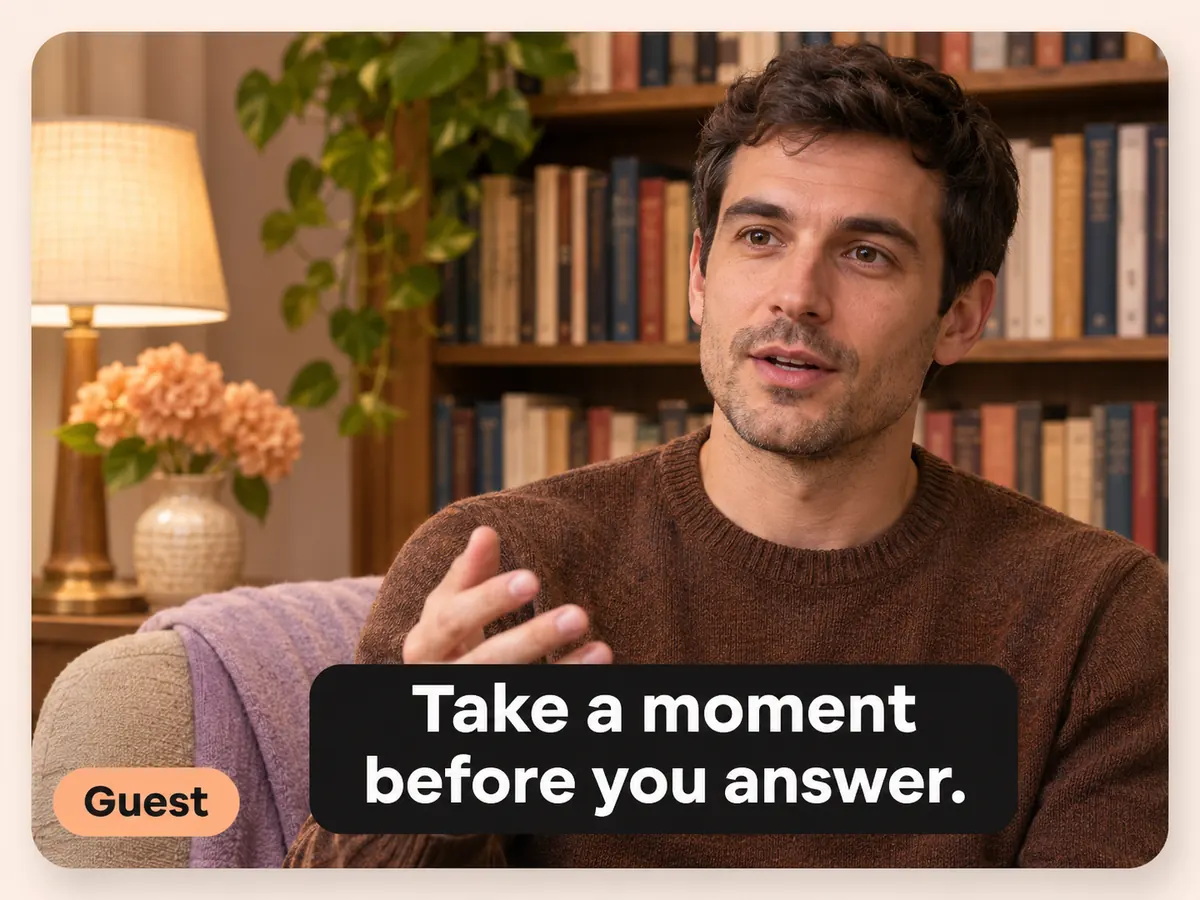
Use Add Subtitles to Video to describe how the captions should look and where they should sit. Break long answers at natural points and check contrast against moving footage. Leave room for a guest’s name and any on-screen controls. Preview the actual video size before you export.
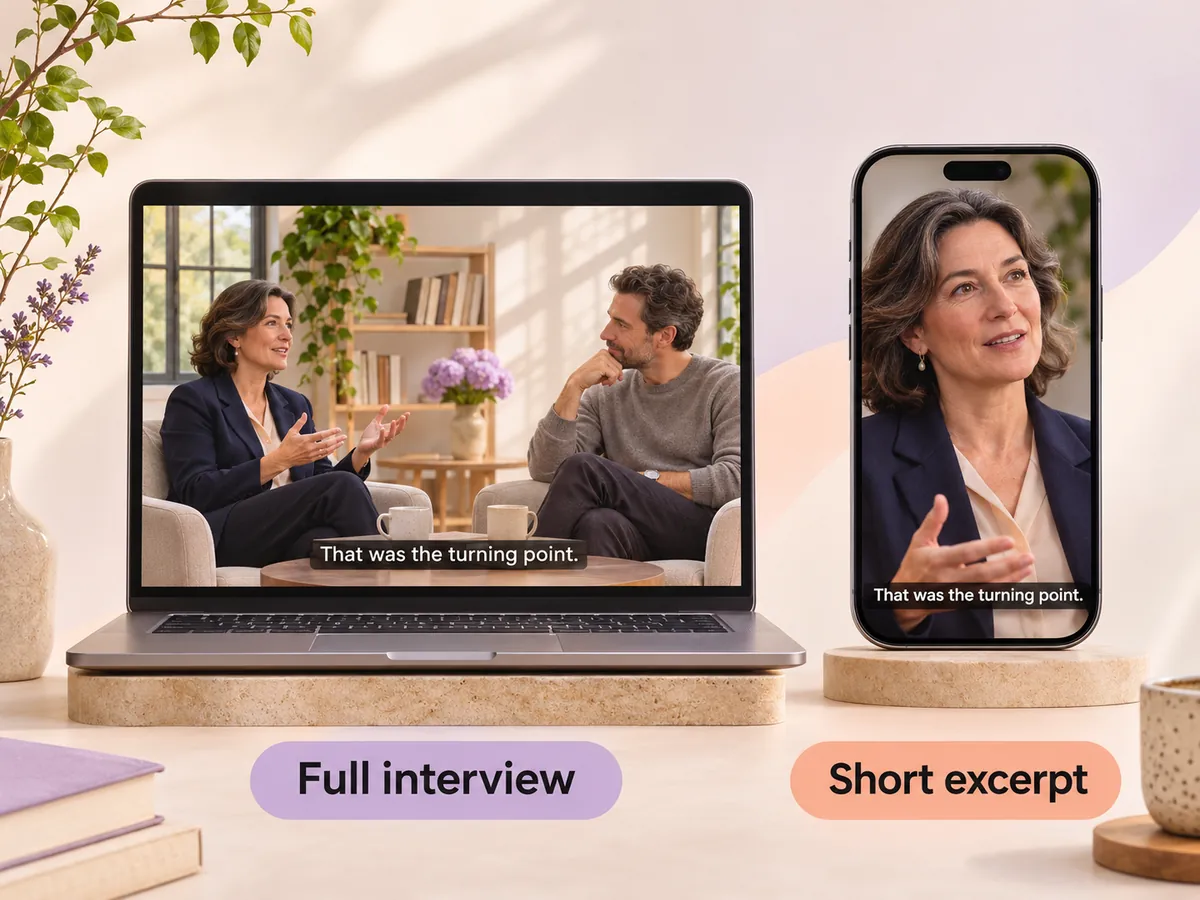
Use a 16:9 version for the full conversation and a 9:16 layout for a short excerpt. Put visible captions in the clip when you need the words to travel with the file. If the publisher accepts a separate SRT, export it as well and match it to the exact final cut.
“I check that the cut still gives the answer the right context. The question and the first line of the reply should be easy to follow.”

“I listen for the hard parts twice, especially names and numbers. Once the wording is correct, I check it again with the audio and timing together.”

“I read the first three captions on my phone. If the subtitles cover a name card or go by too fast, I fix that in the short cut.”

A captioned interview video pairs recorded questions and answers with text timed to what people say. It may use visible captions that are part of the video or a separate subtitle file. A good cut keeps names accurate, line breaks readable, and each caption on screen long enough to follow the exchange.
Yes. Upload the recording and use the audio to create a first subtitle draft. Supply spellings for guest names, titles, and unfamiliar terms. Listen back to any quick or overlapping speech and check whether the lines should identify a speaker. Review the corrected wording and timing before preparing the export.
Choose the format based on how the interview will be published. Visible captions stay with the video file and are handy for excerpts. A separate timed SRT file can work with players that let viewers control subtitles. Make both from the same final cut if you need versions for different outlets.
Pexo helps draft timed captions from your recording and revise names, line breaks, and placement in conversation. Review the cut with the original audio. If you also want a standalone scenic insert, use Kling AI 3.0 to animate that separate image and check that it leaves the spoken context intact.
A captioned interview follows a conversation and its questions, answers, and speaker changes. A talking head video usually centers on one person speaking to the viewer. For an interview, check who said each line and keep the question or setup when an answer would be hard to understand on its own.
Use subject + action + camera movement + setting + style. Try ‘Use our recorded interview in the studio. Keep the fixed camera and the guest’s original voice. Build a short cut around the second answer, spell Maya Chen as supplied, and place plain high-contrast captions in two short lines clear of the name card.’
Start with the recorded conversation. Make captions you can check against the audio and prepare the cut for the screen where it will appear.
Reframe a wide master for vertical social video with Pexo. Follow the subject as the focus shifts and check that faces, action, and captions remain visible.
Make a highlight video for Shorts and Reels with Pexo. Shape one recorded moment into a 9:16 cut that keeps its setup, action, and payoff clear.
Make a captioned social media clip with Pexo. Keep the context of a recorded answer and check wording, timing, and safe areas for sound-off viewing.
Make a gameplay Shorts video with Pexo. Reframe one recorded play for 9:16 and keep the player, key game cues, and final result visible on a phone.
Make a TikTok montage video with Pexo. Open with a clear subject, cut related clips to a track you can use, and check the ending in a portrait feed.
Create a 2D avatar AI UGC video in Pexo. Pair a scripted illustrated presenter with real product shots and review the demo before sharing.
Make a mobile app preview video with Pexo. Use the path to a saved note to tell a clear story. Organize your material and review the finished video.
Make a repurposed social media video with Pexo. Give one idea from a longer recording its own clip. Keep the context, reframe it, and add readable captions.