




AI Mobile App Preview Video
Make a mobile app preview video with Pexo. Use the path to a saved note to tell a clear story. Organize your material and review the finished video.
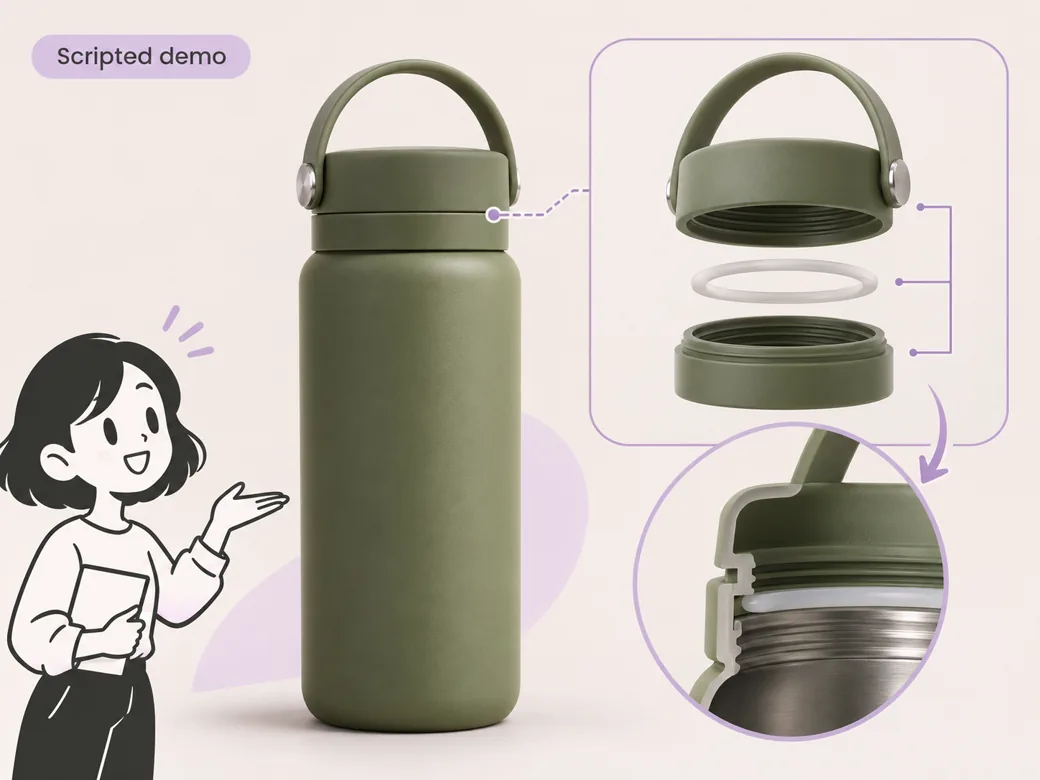
Turn a product script into an AI UGC video with a 2D avatar. Use Pexo to pair an illustrated presenter with real product shots and make a scripted demo for social or a creative review.
Write a one-sentence hook, the action you want to demonstrate, and a closing line. Tell Pexo when the avatar speaks and when to cut to the actual product. If you have approved character artwork, add it as a reference. Use Image to Video for a simple motion and check that the character stays recognizable.
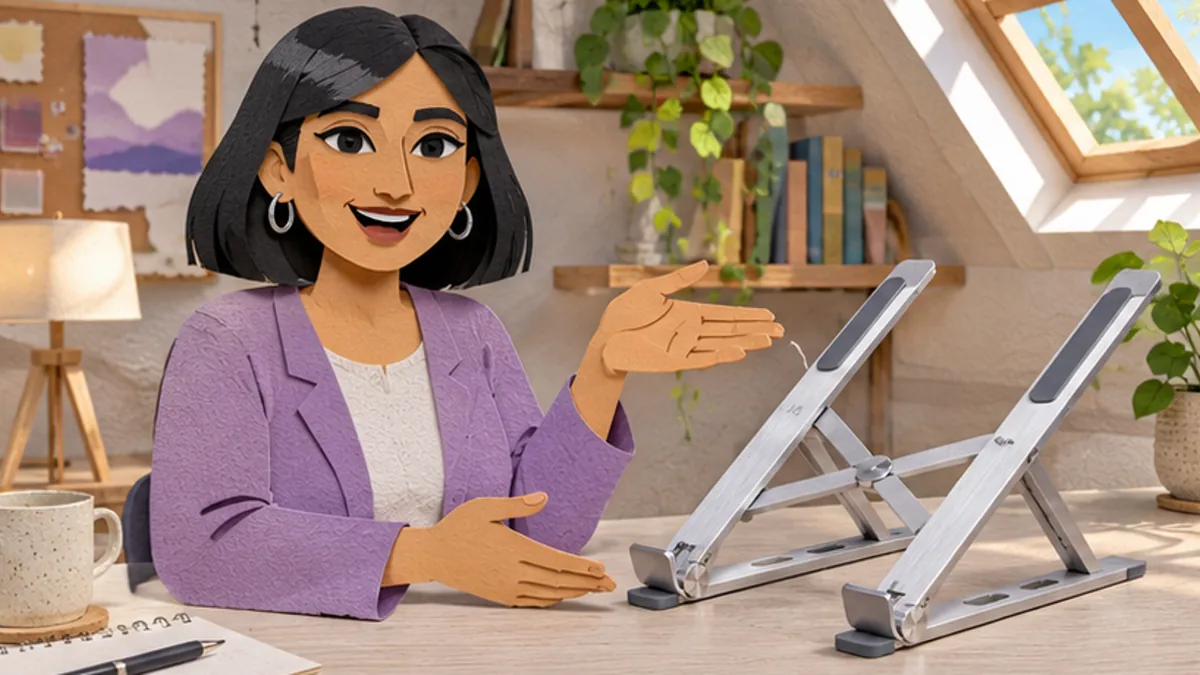
Use the first cut to check that the illustrated host introduces the product and the close-up shows the promised action.
What to refine in Pexo
Start with a shot that shows the whole product. Cut closer when a part moves, attaches, or changes state. Let the avatar explain that step, and hold on the product long enough to see the result. Check the close-up against an approved product image or recording so the cut shows how the item actually works.
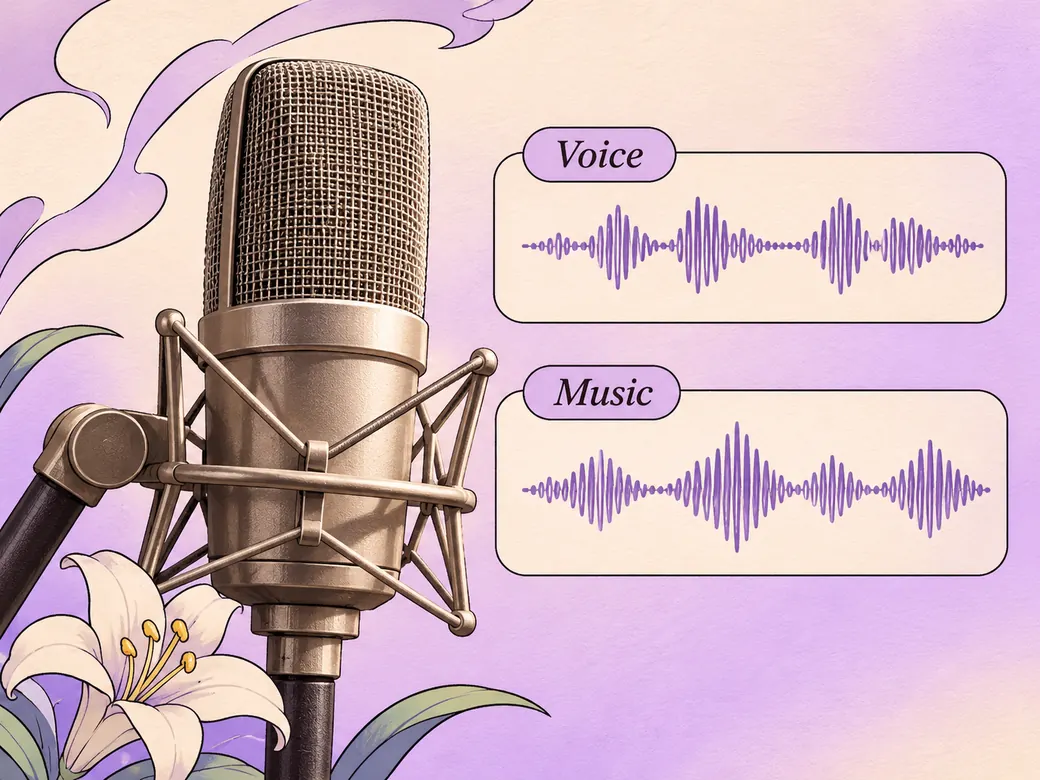
Provide reviewed lines and pronunciation notes. Ask Pexo for a delivery that fits the character and place short captions beside the moments they explain. If you use Music Generation, check the mix on a phone speaker. The product name and the instructions should still be clear with the music playing.
Review each line against approved product copy. Ask Pexo to revise wording that sounds like a personal customer experience. If the format could be mistaken for a testimonial, identify it as a scripted demonstration. Use actual product footage to show features that could be misrepresented by an illustrated shot.
Use a wide cut for a listing or review and a portrait version for a short social post. In the portrait cut, move the host or captions if they obscure the product. Play both versions at their intended size and check the key action and the closing line.
“The host should introduce the action in one line. Cut to the product as soon as the viewer needs to see how it works.”

“I listen to the line against the product movement and music. If the viewer has to replay the instruction, shorten the line or leave more time for it.”

“I check what the video says about the product, then how it presents the avatar. The actual feature should be visible and the presenter’s scripted role should be clear.”

A 2D avatar AI UGC video is a short, informal product demo with an illustrated presenter. The character can introduce a feature or explain the next step while product footage shows how the item works. A brand can use this format for a product page, a short social post, or a concept review.
Bring approved product facts and a script with one action to demonstrate. Supply real product photos or footage for any feature the viewer needs to verify. If the character already exists, include the artwork and guidance on how it may be used. Tell Pexo where you will share the finished video.
A scripted avatar can act as a presenter. A customer endorsement reflects a real person’s experience with the product and needs a verifiable source. Label a scripted demo clearly if viewers could confuse the two. Review the exact wording and how the character introduces the product before the video goes out.
Pexo is useful when you want to assemble a short script, avatar visuals, product shots, and a voice track into a first cut. Review it in order, then ask in chat for changes to the timing or wording. Use your approved product sources to verify what the demo shows and says.
A 2D avatar demo uses an illustrated presenter to guide the viewer through a scripted product action. A broader ugc video can be a filmed creator demo, an unboxing, or a real customer’s account. Choose the illustrated format when the character needs to deliver a repeatable script across several videos.
Give the script, the approved product references, and the moment when the avatar should give way to the close-up. Try “Create a 20-second portrait demo for a folding travel mug. Have the illustrated host introduce the mug, then use the supplied close-up to show the lid locking. Add captions and end with the approved product name.”
Bring a short script and a product shot. Use Pexo to assemble a demo, then review the avatar’s delivery and the product action together.
Make a mobile app preview video with Pexo. Use the path to a saved note to tell a clear story. Organize your material and review the finished video.
Make a repurposed social media video with Pexo. Give one idea from a longer recording its own clip. Keep the context, reframe it, and add readable captions.
Make a livestream highlight video with Pexo. Turn a broadcast moment into a standalone clip with a clear setup, the live reaction, and readable captions.
Make a sports and fitness highlight video with Pexo. Turn match or training footage into a sports reel that shows the effort, the result, and the live reaction.
Make a gameplay highlight video with Pexo. Turn recorded plays and reactions into a clear, paced reel or a short social clip your viewers can follow.
Create a social media cover video with a readable first frame, brand colors, and a short intro. Make a pinned Reel or YouTube channel trailer with Pexo.
Make a recruitment video with team clips, workplace photos, and a clear job brief. Show candidates what the role involves and where to apply.
Make a Facebook video from one line of description with Pexo. The AI Facebook video generator writes the hook, burns in captions, and renders with Sora 2, Kling and Veo in minutes.